
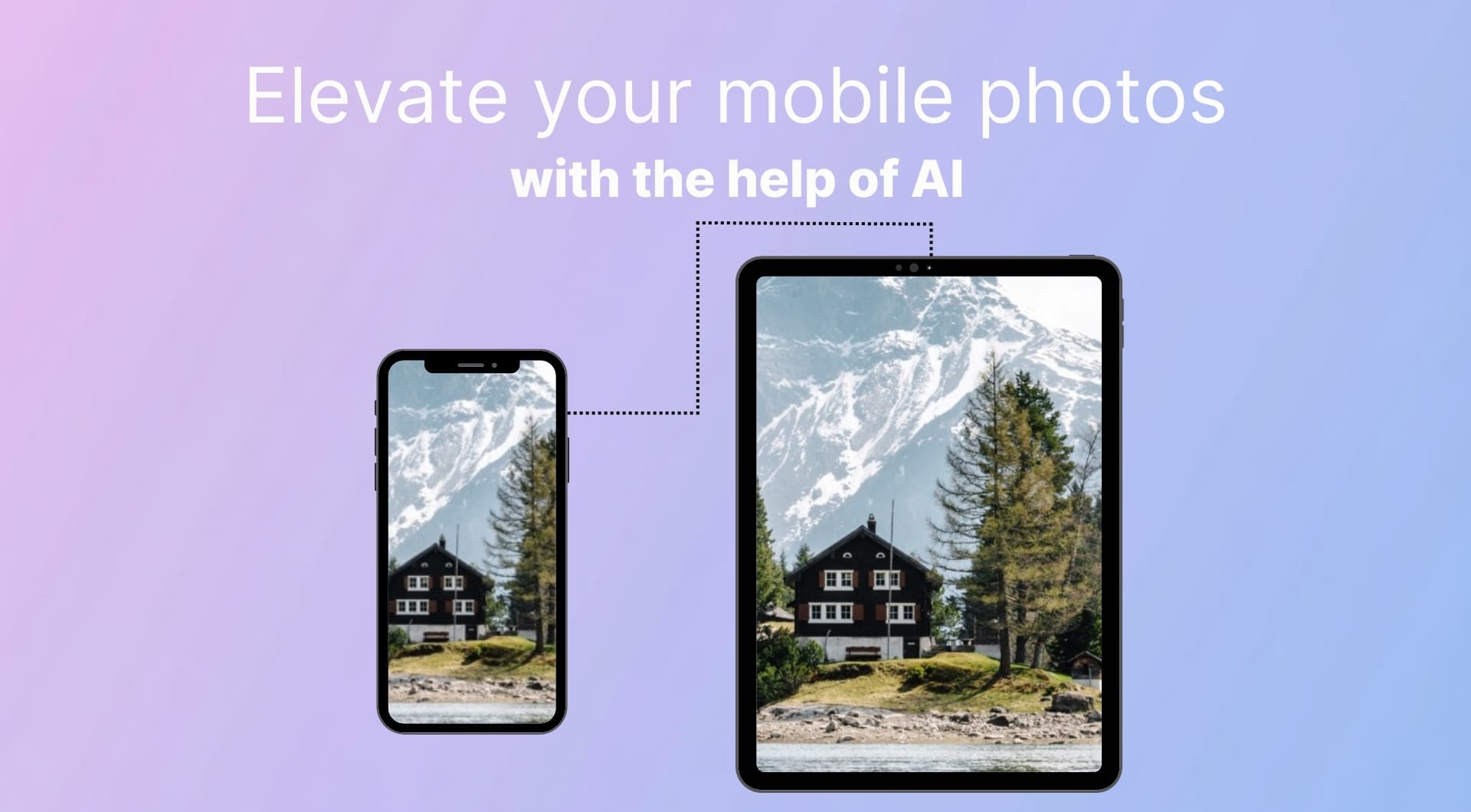
Modern smartphones are capable of capturing stunning 48MP images. Yet, we still end up with blurry shots, grainy night photos, or pixelated memories that look bad when posted on social media or printed.
Usually it happens because of digital zoom, low lighting or app compression that leave all these weird artifacts. With AI tools like LetsEnhance, you can enhance the quality of photos in seconds.
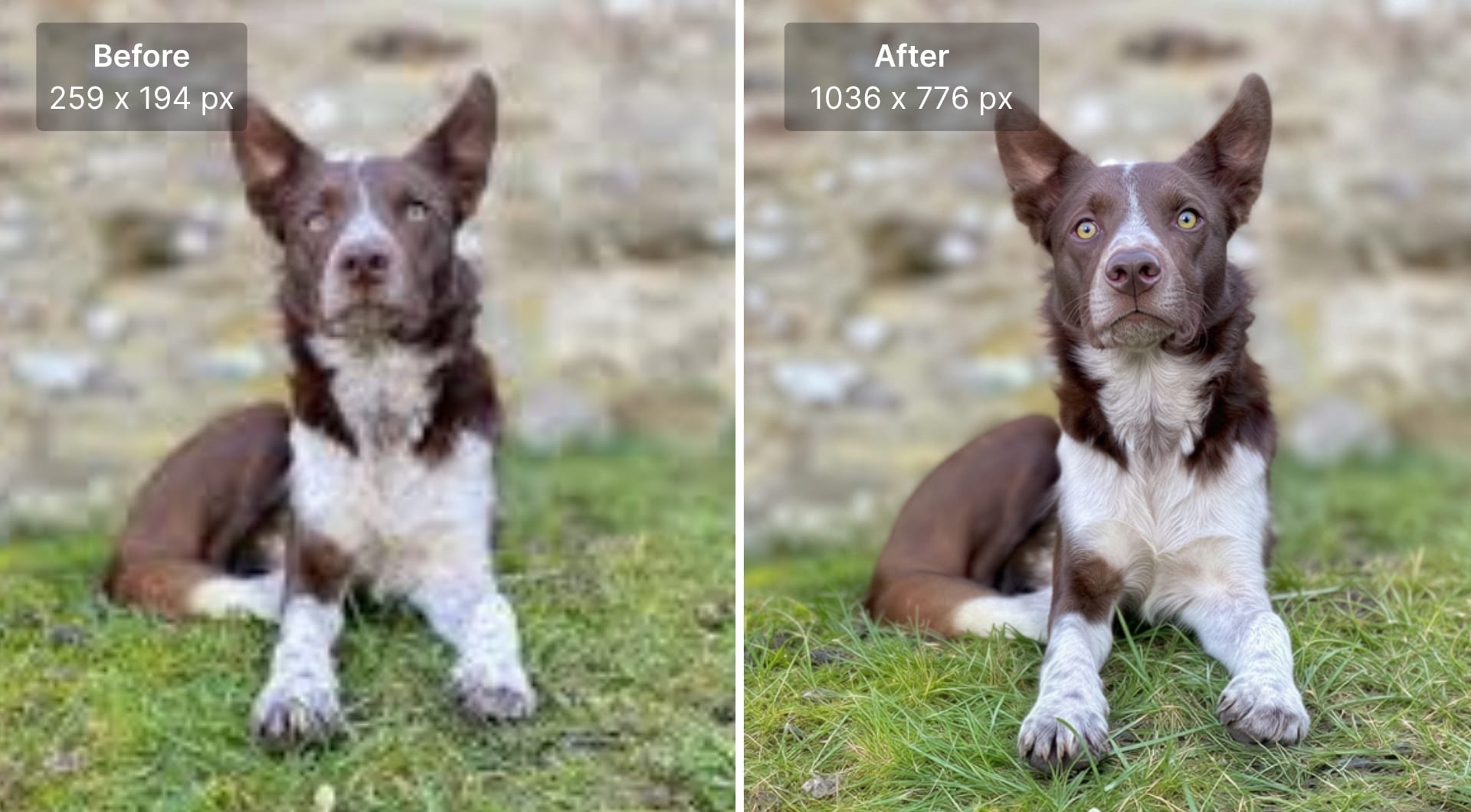
Reasons why phone photos look low quality
Even with a high performing phone, there are common cases that kill image quality. Here is a list of reasons that you surely faced at least once in your life.
- Digital zoom: Unlike professional cameras with optical zoom lenses, most phones use "digital zoom." This is a another way of saying cropping, which degrades image quality. When you zoom in 5x on your phone, you are actually throwing away 80% of the pixels. As a result, you get a blocky, pixelated image that lacks detail.
- "Night mode" grain: To see in the dark, phones push their "ISO" sensitivity up, which in its turn introduces "noise". While phone software tries to smooth this out, it often results in a "waxy" or blurry look.
- Faulty settings: Mish-mashed phone camera settings can also take away from the quality of an image. A few out-of-place sliders and other settings that are activated unbeknownst to the novice cameraperson may keep them from taking good photos.
- Compression cycle: When you send or save a photo via WhatsApp, Messenger, or other social apps, they aggressively compress images to save data. A crisp 5MB photo can instantly become a blurry 100KB thumbnail that looks terrible when you try to print it.
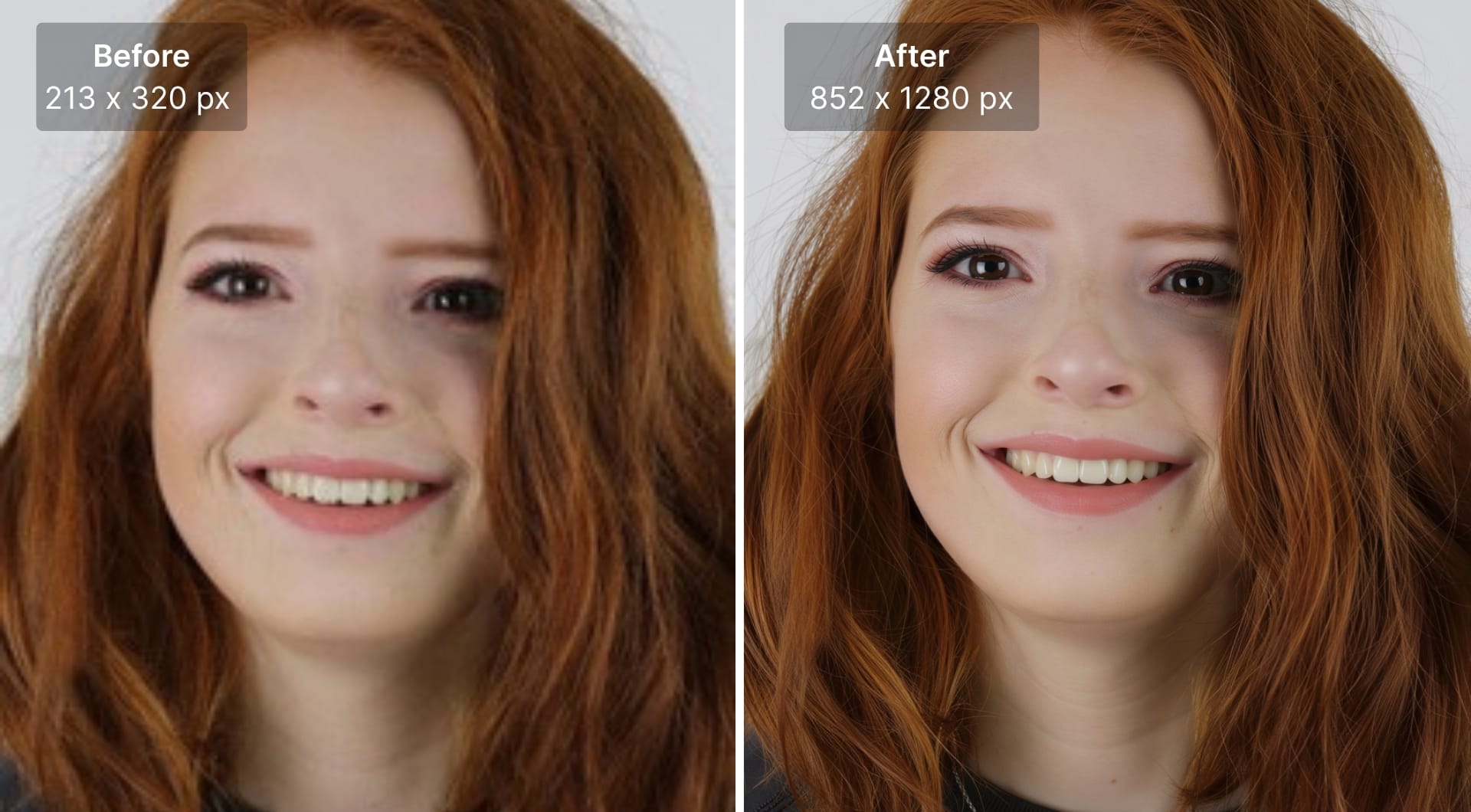
Quick mobile photo enhancement guide
Step 1. Visit https://letsenhance.io/boost to login or create an account and get 10 free credits.
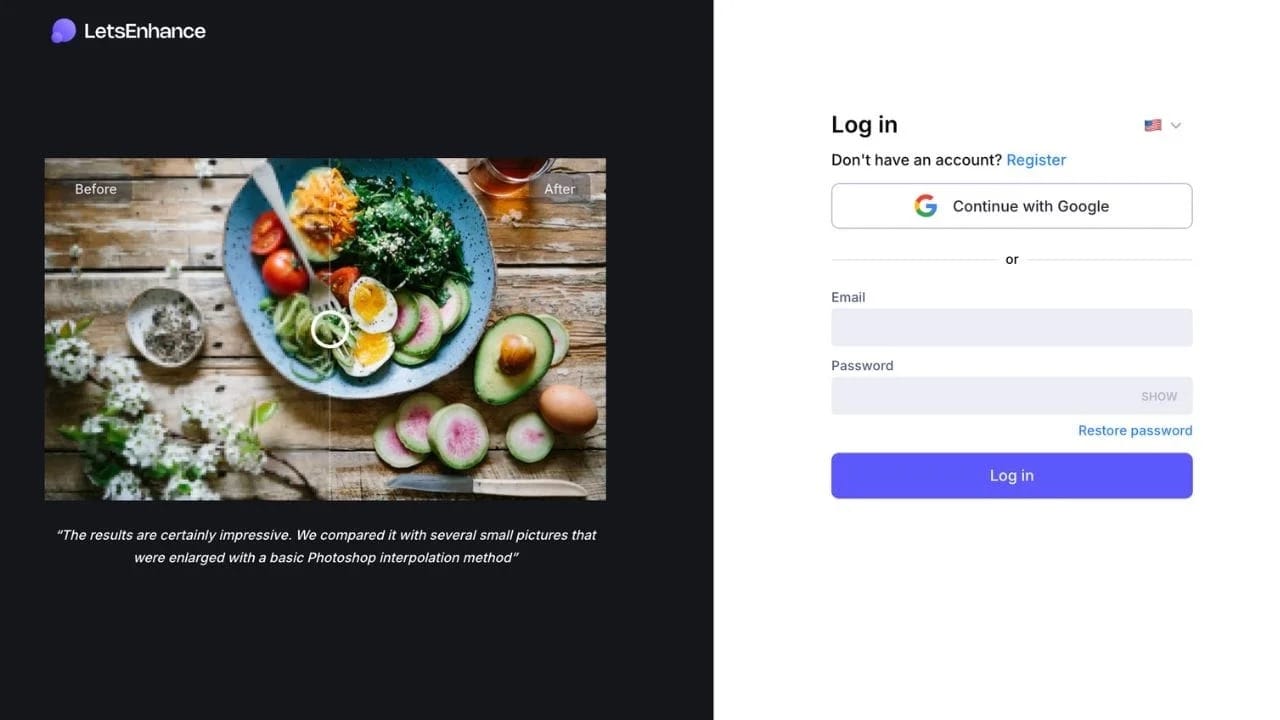
Step 2. Upload your low-quality image by dropping, browsing or importing from Files or Google Drive.
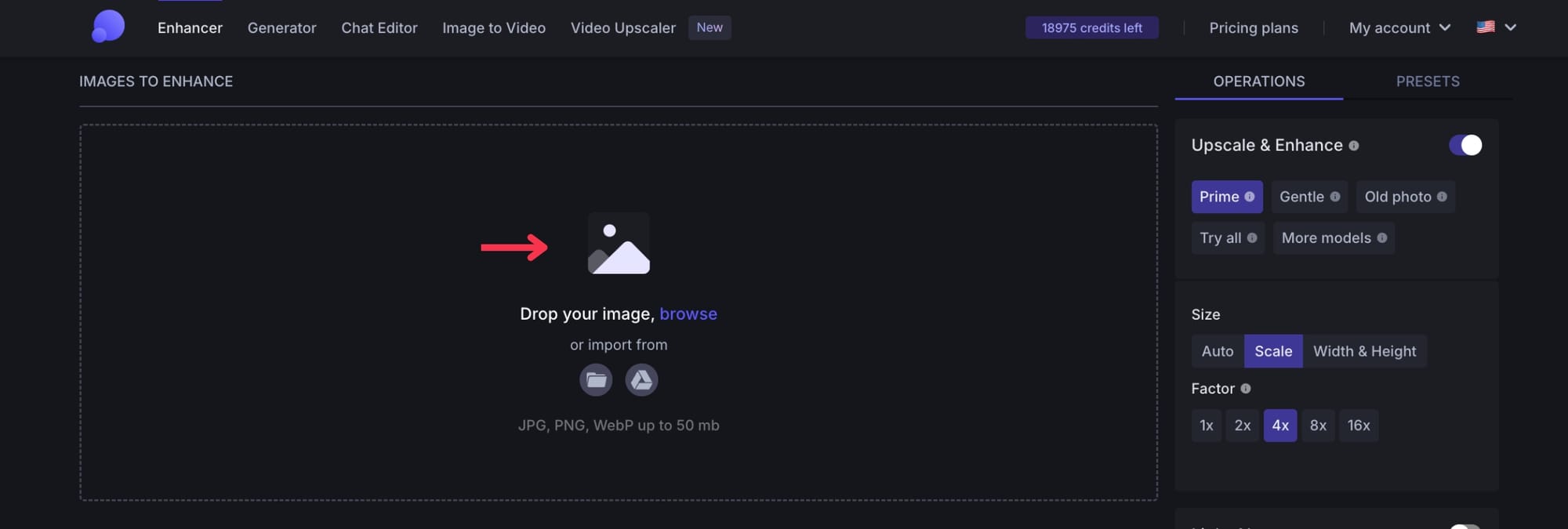
Step 3. From available seven AI modes, select the right one that matches to your image type.
- Prime: natural, high-fidelity upscaling that enhances what's already there without inventing detail
- Gentle for a subtle resolution boost with minimal processing
- Balanced is a middle ground for general content
- Strong for deeper noise removal and detail recovery on degraded or low-light images
- Ultra for maximum detail reconstruction tuned for large-format print
- Old Photo for damaged, faded, or archival images
- Digital Art for AI-generated images and illustrations
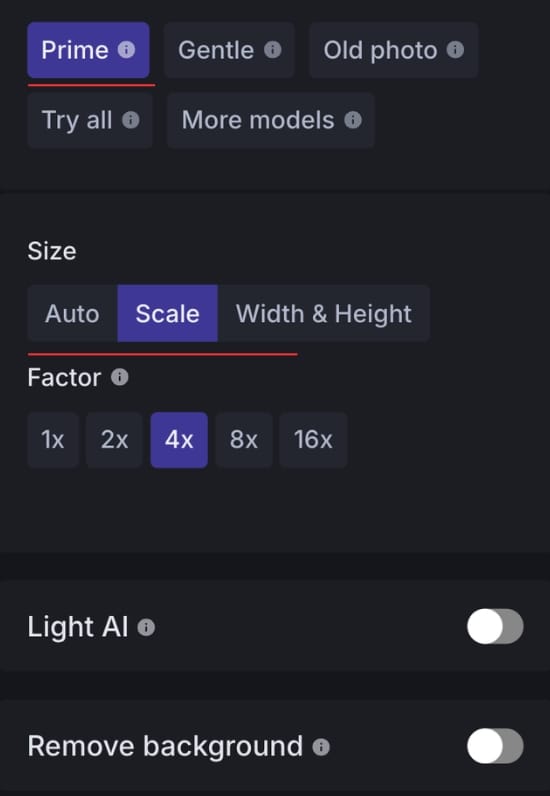
Step 4. Adjust additional settings if needed
Different upscalers offer different settings to control the final result. For example, Strong offers "Enhance faces" toggle, which helps to restore natural facial details. Meanwhile, the Ultra model offers "Size of changes" and "Intensity" sliders that lets you choose between keeping the original look and applying transformative AI restoration.
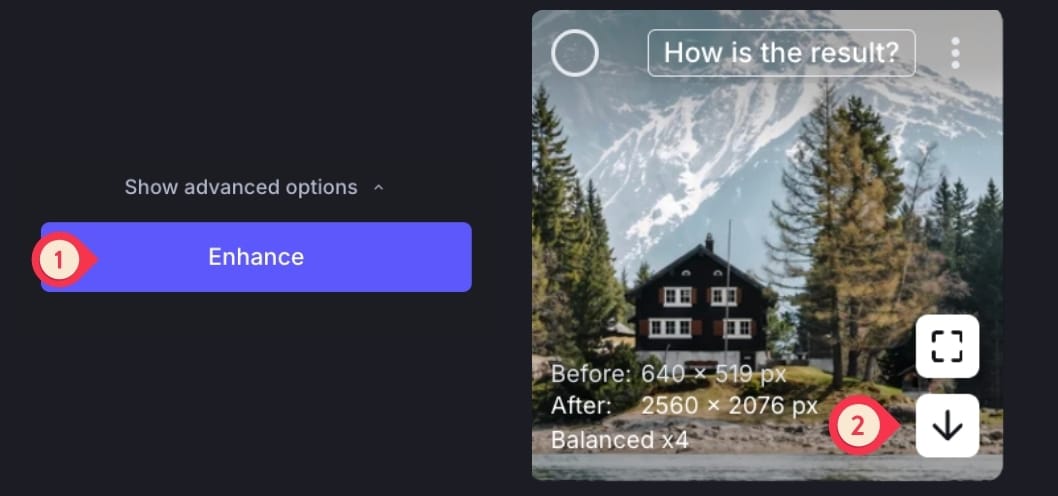
Step 5. Click Enhance and wait a few seconds. Once it's finished, click on the downward arrow button to save the image to your device.
Why choose LetsEnhance for image enhancement
LetsEnhance uses generative AI to reconstruct your images from the pixel level up. Here is why it is the go-to tool for fixing mobile photography.
Specialized AI models for every scenario
One size doesn't always fit all. A blurry selfie needs different model than a pixelated graphic design. Unlike basic tools that apply a generic "sharpening" filter, LetsEnhance offers 7 specialized models for various needs.
Simple workflow with zero learning curve
The overall upscaling process is super easy and beginner friendly. Just follow the steps we showed above and you'll easily get high-quality results.
Strong upscaling power
LetsEnhance allows you to upscale images by up to 16x, reaching resolutions as high as 512 megapixels. This allows you to take a cropped section of a smartphone photo and print it on a billboard-sized canvas with enough sharpness.
Batch processing
Simply upload 20 images at once, apply the same enhancement settings to the entire group, and process them all simultaneously. It saves hours of manual work and ensures a consistent look across your entire camera roll.
Try it yourself
If you have a batch of low-quality camera photos, then this is the right time to enhance them using LetsEnhance.
Go ahead to create an account on letsenhance.io and get 10 free credits to investigate the tool and enhance up to 10 images.
FAQ
How to enhance photo quality with AI?
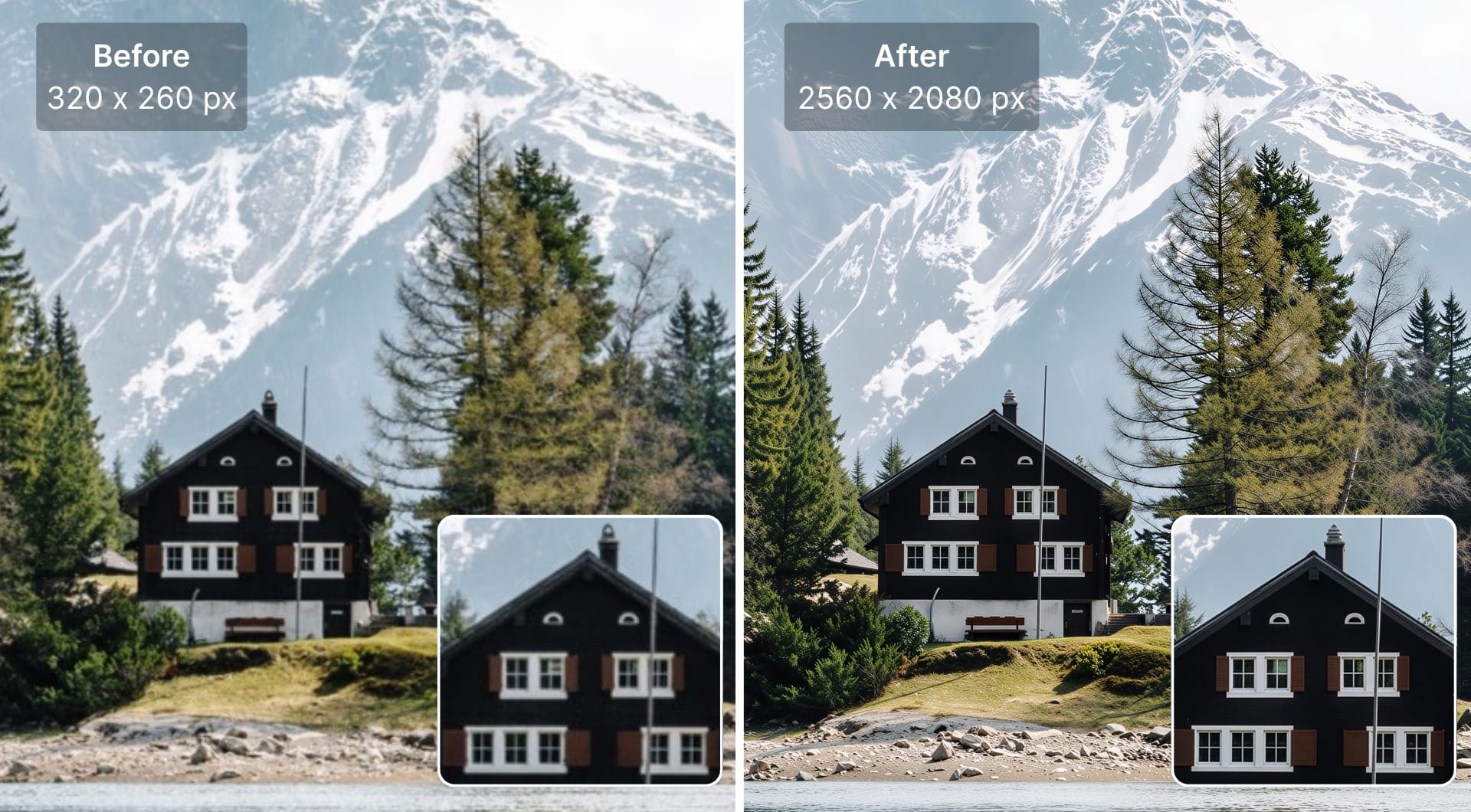
Platforms like LetsEnhance.io make it super easy to enhance images. It adds new pixels to the image, effectively increases the resolution (up to 16x) and recovers lost details. Simply upload your photo, choose the right upscaling model and click Enhance.
Which app is best for AI photo enhancement?
There are plenty of excellent AI image enhancement tools to help you get the most out of your low-quality photos. This is a tricky question, as it depends on exactly what kinds of photos you with to enhance, to what extent you want to improve visual quality, and what device you're using. For recovering photos taken with mobile phones, we highly recommend trying LetsEnhance.
Does LetsEnhance support mobile version?
Yes, the platform is entirely web-based and accessible through any popular mobile browser on smartphones and tablets. Visit letsenhance.io on your mobile devices to upload, enhance, and download images in seconds.
Can LetsEnhance.io help fix blurry mobile photos?
Yes. LetsEnhance is quite capable of fixing blurry mobile photos. It offers seven different upscaling models, which are optimized for different kinds of photos and produce a unique set of results.
Is there an app to improve photo quality better than Photoshop?
While Photoshop is powerful, it requires manual editing skills. AI photo enhancers like LetsEnhance are often better for speed and ease of use because they automate complex tasks like resolution enhancement, color correction, and face recovery in a single click.
