
Blurry photos, screenshot or product shots are not a lost cause. Learn about AI tools actually unblur photos and fix soft, noisy and low-res images on web, iPhone, Android and desktop.
Top unblurring tools at a glance
| Tool | Best for | Pricing model* | Key strength |
|---|---|---|---|
| LetsEnhance.io | Best overall: web unblur + upscale for print & pro use | Free tier, subscriptions from ~$9/mo | High-quality unblur with Ultra model and very high output resolutions |
| Remini | Fast face fixes on phone (selfies, portraits) | Free with ads, weekly subscriptions | Very strong face enhancement on mobile |
| Topaz Photo AI | Pro photographers rescuing client shots | Paid desktop, one-time / subscription | Advanced motion and defocus deblur for RAW workflows |
| YouCam Enhance | Free-ish “make this photo 4K” app | Free tier, in-app plans | Simple 4K unblur on iOS, Android and web |
| Picsart | Social content + unblur in one app | Free with paid plans | All-in-one editor with AI unblur and creative tools |
| Canva | Fixing blur while designing posts | Free with Pro upgrade | Built-in unblur inside templates and layouts |
| PicWish | Quick online fixes for portraits & products | Free tier, low-cost subscriptions | Clean results and good value for casual users |
| Artguru | Browser-based unblur + restore | Free daily credits, paid plans | Handles different blur types, batch friendly |
| ImgUpscaler | Making blurry images huge (HD to 16K) | Free tier, paid options | Online unblur plus upscaling up to very high resolutions |
| Claid.ai | eCommerce sellers, APIs & bulk photos | Free trial, usage-based / API | End-to-end product photo enhancement and automation |
How AI “unblur” tools actually work (and what they cannot do)
Most AI “unblur image” tools do two things at once: sharpening and generative detail filling. They try to reverse blur slight focus errors or camera shake. And when the photo is missing detail, they hallucinate plausible texture to get "good enough” results.
There are hard limits to keep in mind. If the photo is dramatically out of focus, smeared by motion or has bokeh background, no tool can truly recover the lost pixels. AI works best on faces, small text and product details where it has seen many similar patterns in training data.
Now, let's get into learning about top tools to help you recover blurry photos.
1. LetsEnhance.io
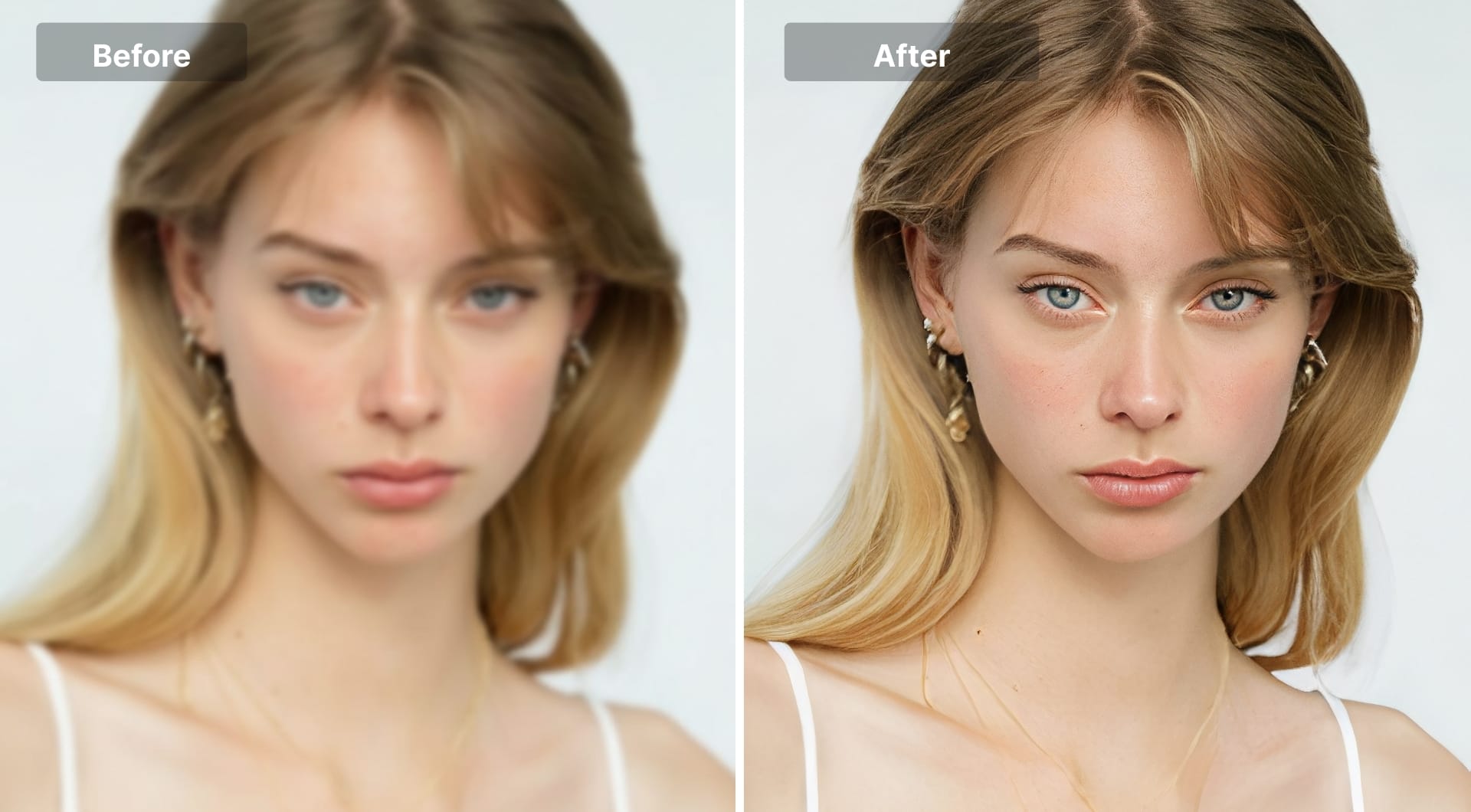
LetsEnhance is an AI enhancer that combines deblurring, sharpening, and upscaling in one workflow. You upload an image, pick a preset such as Gentle, Balanced, Ultra, Strong, Old photo or Digital art, and the system both removes blur and increases resolution in a single pass.
The Ultra model is LetsEnhance’s latest generation. It is designed to output fewer artifacts and more natural texture while supporting very high resolutions, up to 512 MP on higher plans.
Key features
- Dedicated sharpener modes for different needs:
- Balanced: improving clarity and detail in everyday photos.
- Gentle: minimal artifacts, best for product shots, UI screenshots, text.
- Strong: very low-quality images, best to restore faces (on inputs under 2.5MP).
- Ultra: maximum detail and resolution for printing, portraits, creative upscales.
- Old photo: cleanup and color restore for scans and historic family images.
- Digital art: tuned for illustrations, anime, stylized renders.
- Upscaling to print-ready sizes with ready-to-use printing presets.
- Batch processing for folders of images (great for sellers or photographers).
- Additional tools such as text-to-image generator in up to 4K, Chat Editor that make edits with simple prompts and a new image-to-video tool.
Best for
- People who want one tool that does unblur, upscale and general enhancement.
- Photographers and designers who need high-quality output for print, not just social media.
- eCommerce sellers who must fix soft product photos before uploading them.
- Users who care about fidelity, not just “AI glam filter” effects.
Pricing
- 10 free credits upong singup.
- Personal subscriptions from $9/month with 100+ image credits and output up to 256 MP. Higher plans raise limits and resolution up to 512 MP.
Pros
- Balanced results: sharp without the overcooked, plastic look many apps create.
- Handles both blur and low resolution in one step, ideal for print and HD exports.
- Multiple modes so you can choose fidelity vs creative detail.
- Cloud based: no GPU or heavy desktop install required.
- Simple and beginner-friendly workflow.
- Strong roadmap and actively updated models.
Cons
- Requires account and internet connection.
- Not a full general-purpose editor like Photoshop or Canva.
- Some features require paid subscription.
Find the full Claid.ai entry at the end of this list.
2. Remini
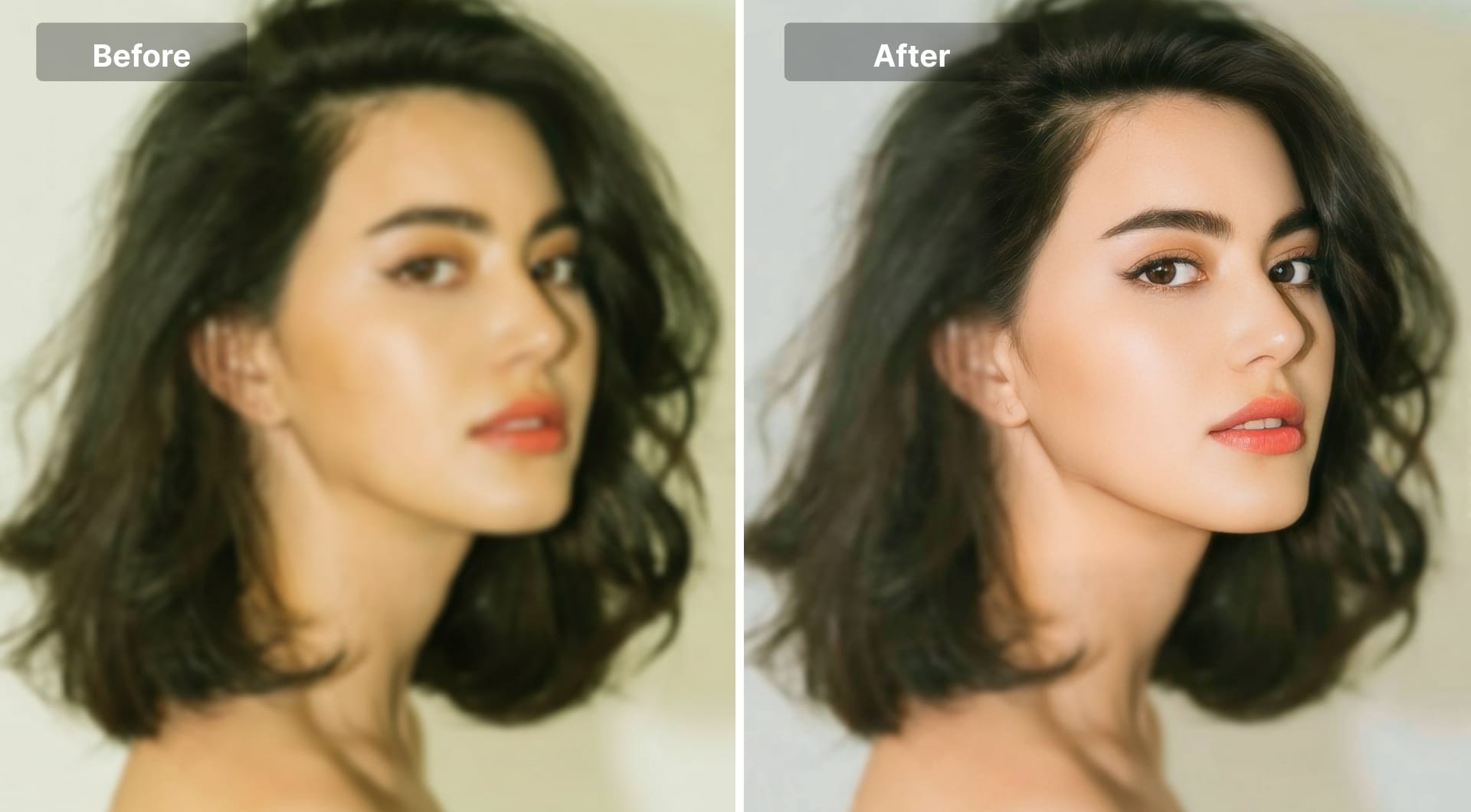
Remini is one of the most famous AI “photo enhancer” apps on iOS, Android and web. It is extremely aggressive about face restoration: soft, noisy or compressed profile photos become sharp, stylized portraits in a few taps. While it's good for faces, it has heavy ads and higher subscription rates.
Key features
- Strong face enhancement on low-quality selfies and portraits.
- Portrait filters for social media, dating profiles and avatars.
- Video enhancement and AI portraits.
- Mobile-first UX: quick, one-tap workflows.
Best for
- Casual users who want fast, pretty face fixes for social media.
- People who mainly edit on iPhone or Android, not desktop.
- Selfies and portraits that are moderately soft or noisy.
Pricing
- 1-week free trial with ads and daily limits.
- Web and in-app subscriptions around $6.99–9.99 per week depending on plan, giving more enhancements, formats and commercial rights.
Pros
- Strong tool for faces when you want a stylized, social-media-friendly look.
- Works even on very small, compressed images from messaging apps.
- Simple to use; zero learning curve.
Cons
- Heavy ads and relatively high weekly pricing for serious use.
- Outputs can look overly airbrushed or artificial, especially on skin and text.
- Limited control for pro workflows; not ideal for print-critical jobs.
3. Topaz Photo AI
Topaz Photo AI is a desktop-class suite aimed at serious photographers. Its sharpening and deblur modules (originally Topaz Sharpen AI) are widely used among photographers. It supports RAW files, batch workflows and lens-specific corrections, which puts it in a different category from most casual web tools.
Key features
- Dedicated models for motion blur, out-of-focus blur, and general sharpening.
- Combined denoise + sharpen + upscale pipeline for high-ISO and telephoto shots.
- Deep integration in pro workflows: works as a standalone app or via Lightroom / Photoshop.
- Handles JPG, PNG and RAW; designed for DSLR and mirrorless cameras.
Best for
- Professional or serious hobbyist photographers who need to save:
- Wedding, sports, wildlife or event shots with mild blur.
- Client images where re-shooting is impossible.
- Users who already work on Mac or Windows desktops and are comfortable with RAW.
Pricing
- Around $199 for a lifetime license with one year of upgrades.
- Ongoing upgrade plans and subscriptions around $17 to $21 per month
Pros
- Arguably best-in-class deblur for RAW files and modest blur.
- Excellent at combining denoise and sharpen for high-ISO work.
- Desktop app means no upload limits and full local control.
Cons
- Expensive compared to casual mobile apps.
- Requires a reasonably powerful computer and GPU.
- Overkill if you only want to fix the occasional phone snapshot.
4. YouCam Enhance
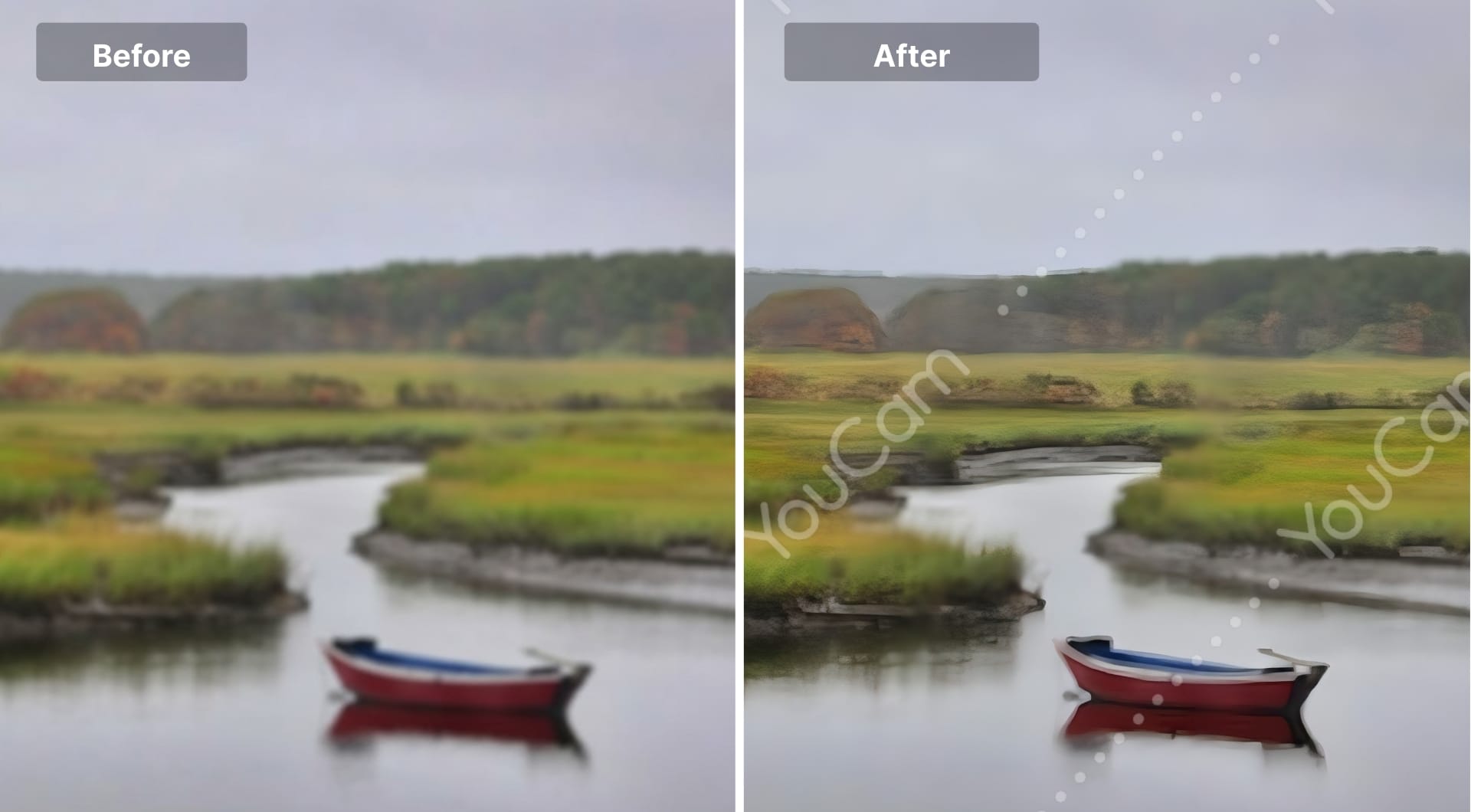
YouCam Enhance is a mobile and web app focused on making blurry photos clear and high resolution, up to 4K. It combines simple UX, cross-platform support and a generous free tier.
Key features
- AI unblur and resolution boost up to 4K for photos.
- Available as iOS, Android and browser tool.
- Extra enhancements like noise reduction and color corrections.
- Designed for non-experts; mostly one-tap workflows.
Best for
- Users who want a free or low-cost app to fix casual photos.
- People who switch between phone and laptop but prefer simple tools.
Pricing
- Free app with daily usage caps.
- Paid plans (monthly/annual) unlock higher limits and HD exports.
Pros
- Cross-platform and easy to start with.
- Decent balance between sharpness and natural look for everyday photos.
- Good entry point if Remini feels too stylized.
Cons
- Less control than pro tools like Topaz or desktop suites.
- Free tier limits mean it is not ideal for heavy users.
- Watermark exports for free trials.
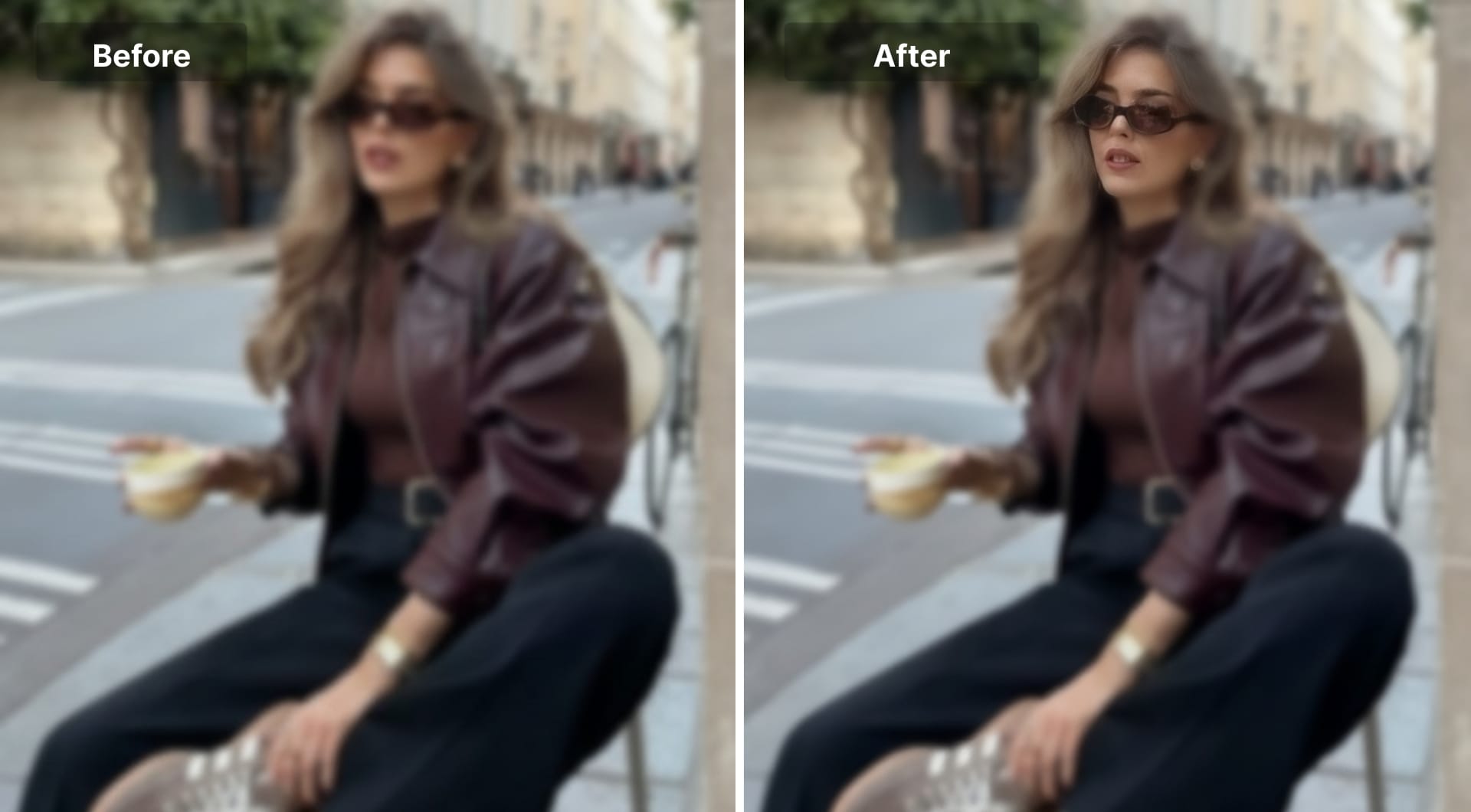
5. Picsart
Picsart is a full creative suite (mobile + web) with an AI unblur tool built into its image enhancer workflows. You can sharpen blurry photos, then immediately add filters, text overlays, stickers and layouts for social media.
Key features
- AI unblur for photos of many formats.
- Full creative toolkit: collage, filters, text, gimmick effects.
- Social-media-oriented templates for TikTok, Instagram, etc.
- Works on web, iOS and Android.
Best for
- Creators who want unblur + full design in a single app.
- Social media managers who need fast content creation.
Pricing
- Free tier: some tools, exports with occasional limitations.
- Premium subscription starting from 13$/month that offers higher resolutions, more assets and ad-free workflow.
Pros
- One environment to fix, stylise and publish an image.
- Great if you are already using Picsart for editing and need occasional unblur.
Cons
- Sharpening controls are less advanced than dedicated tools.
- Less natural and effective with faces.
- Can be noisy or overprocessed if pushed too hard.
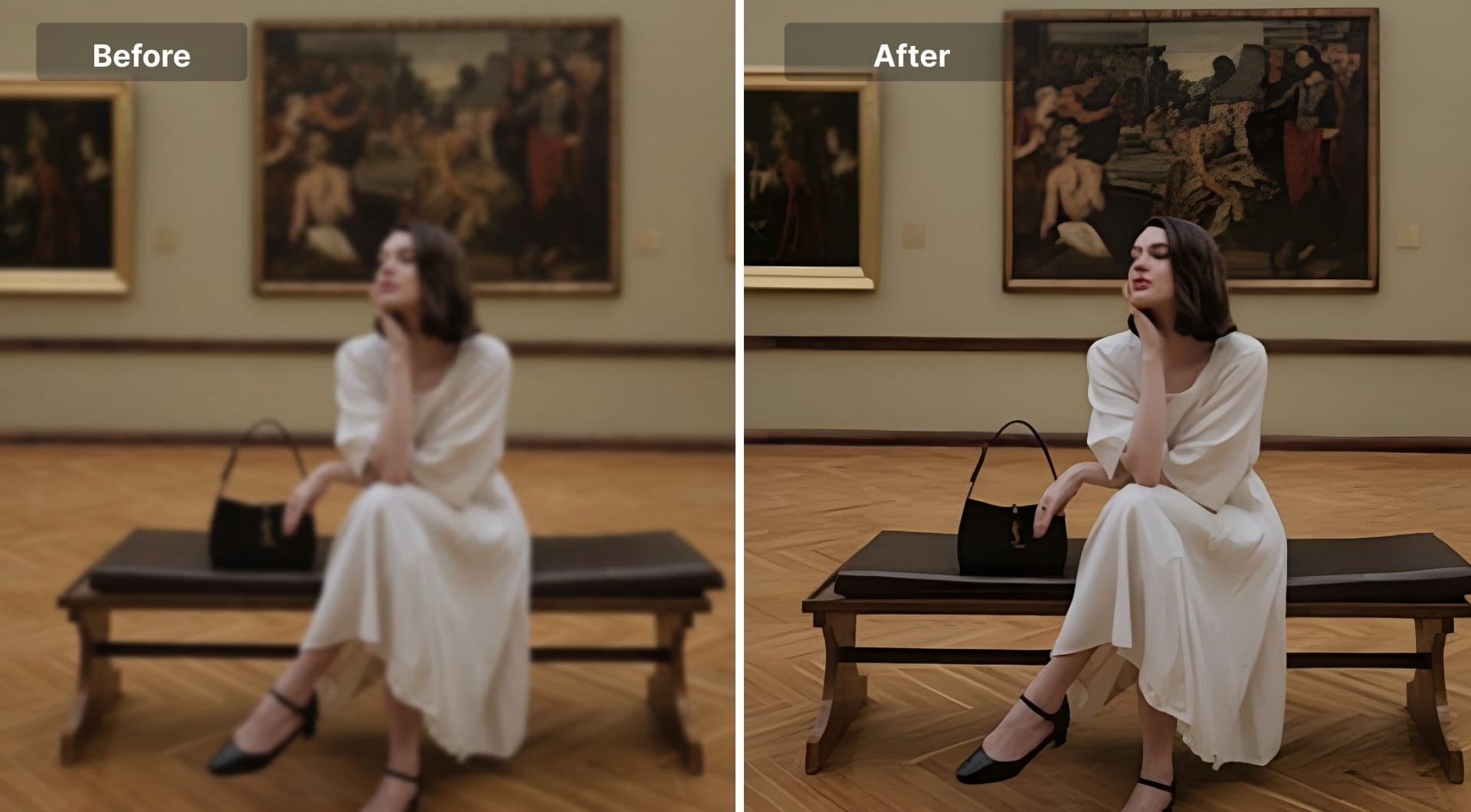
6. Canva
Canva is a general-purpose design platform. Its unblur image tool is integrated into the main editor so you can fix a blurry photo while designing a post, presentation or ad.
Key features
- AI unblur for hazy or slightly soft images inside designs.
- Massive library of templates, fonts, icons, stock photos.
- Collaboration and brand kits for teams.
- Works entirely in the browser, with mobile apps available.
Best for
- People already living in Canva for social media and marketing.
- Non-designers who want a quick “better clarity” pass on their visuals.
Pricing
- Very capable free plan.
- Canva Pro subscription with 15$/month that adds extra assets, brand features and higher export options.
Pros
- Fixes blur without leaving your design environment.
- No need to juggle multiple apps for basic clarity issues.
Cons
- Unblur is relatively modest compared to dedicated AI sharpener tools.
- Can deliver unnatural and AI-ish results.
- Not intended for print-critical restoration or serious photography work.
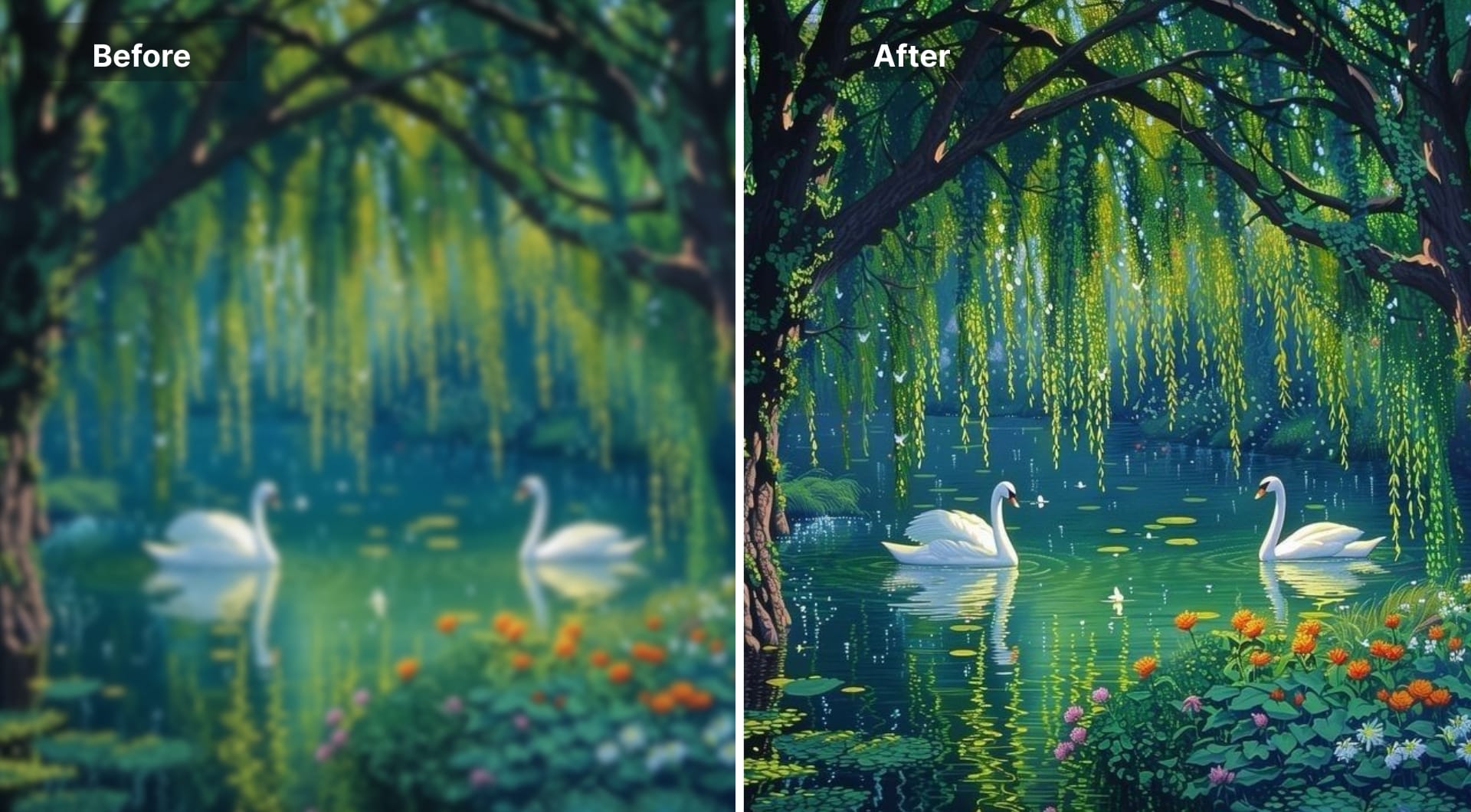
7. PicWish
PicWish is a browser-based AI enhancer and mobile app that focuses on one-click fixes: unblur portraits, upscale images, remove background and retouch. It is popular with social media creators and eCommerce sellers who want slightly better product photos without learning heavy editing software.
Key features
- AI unblur for portraits and general photos.
- Background removal and simple retouching tools.
- Batch processing for web users.
- Mobile apps for quick phone edits.
Best for
- Small sellers and creators who need a simple, low-friction tool.
- People who want to clean up portraits and product photos for listings.
Pricing
- Free basic use.
- Paid plans starting around $4.99/month with 450 credits/month for HD downloads and premium tools.
Pros
- Good value for light business use.
- Clean UI and simple steps: upload, unblur, download.
Cons
- Less sophisticated on extreme blur than high-end tools.
- Credit system may feel limiting if you have large volumes.
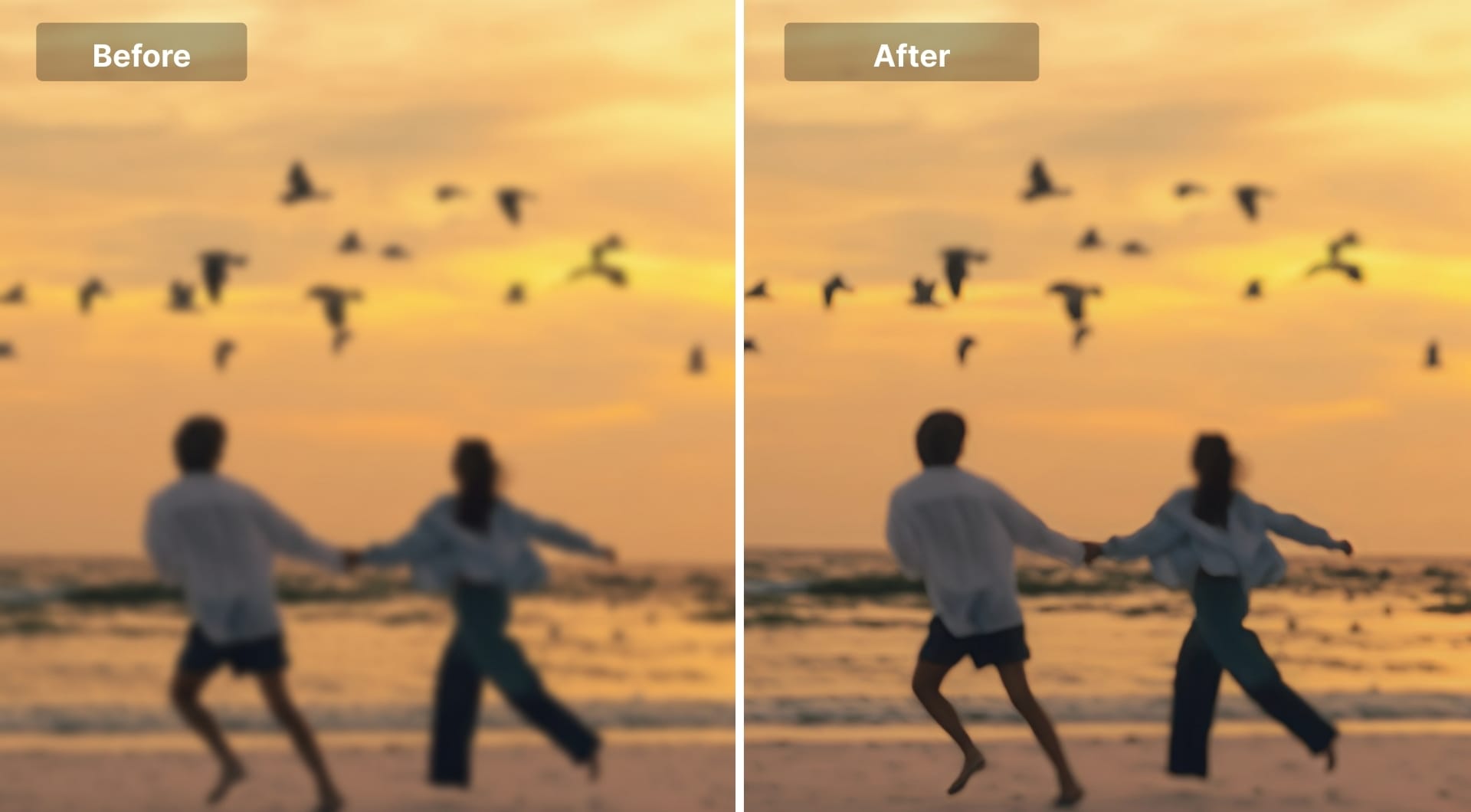
8. Artguru
Artguru offers a dedicated unblur image feature along with general AI editing, upscaling and restoration. It runs completely in the browser and supports multiple blur types such as camera shake, motion blur and out-of-focus areas.
Key features
- One-click blur remover with AI sharpening.
- Handles different blur patterns, not just simple sharpening.
- Batch processing support for faster workflows.
- Additional tools: colorize, upscale, retouch.
Best for
- People looking for a pure web-based unblur site.
- Users with a mix of motion blur and general softness.
Pricing
- Free daily credits, enough for occasional use.
- Paid tiers starting from 9.99$/month that remove limits and unlock higher volumes.
Pros
- Good flexibility for different blur types.
- Easy to test thanks to free credits.
Cons
- Depends on upload bandwidth for large images.
- As with most browser tools, advanced control is limited compared to desktop apps.
- The before afters may not have much difference.
9. ImgUpscaler
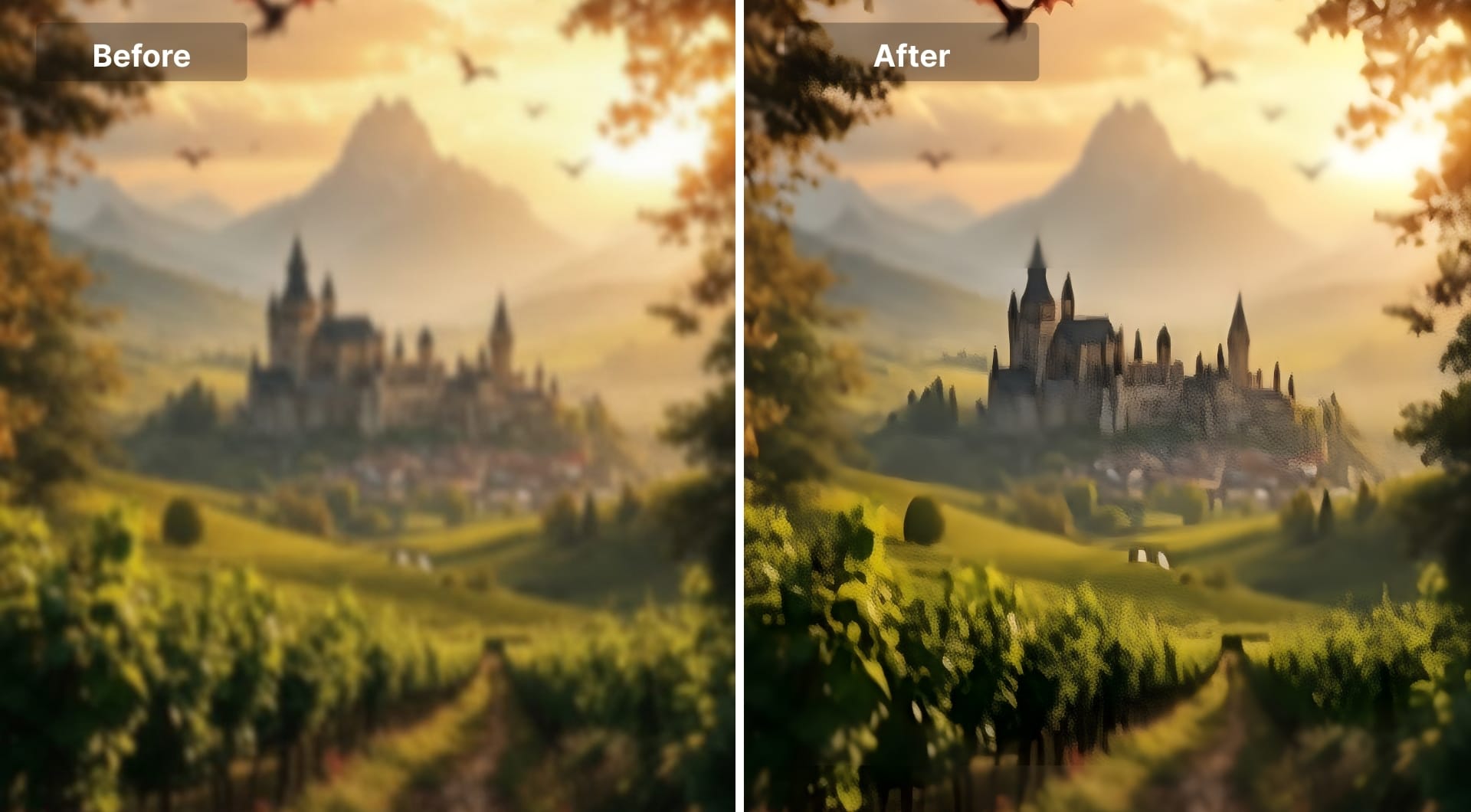
ImgUpscaler is known primarily as an AI upscaler, but it also offers an “unblur image” workflow that combines sharpening with large resolution jumps, up to 16K.
Key features
- Unblur and upscale in a single step, up to 16K resolution.
- Web-based, no install required.
- Targeted at social media, wallpapers, product photos and more.
Best for
- Users who need to both fix blur and make images huge (posters, wallpapers).
- Situations where you only have a small source file and need HD export.
Pricing
- “Free to start” model with limited free conversions.
- Paid tiers starting from 3.9$ for 50 credits, offering higher resolution and volume.
Pros
- Very high output resolutions for online tools.
- Easy for one-off tasks where installing software is overkill.
Cons
- Quality can drop if you push very small images to extreme resolutions.
- Less nuanced control than tools dedicated purely to deblur.
10. Claid.ai (for eCommerce, APIs and bulk work)
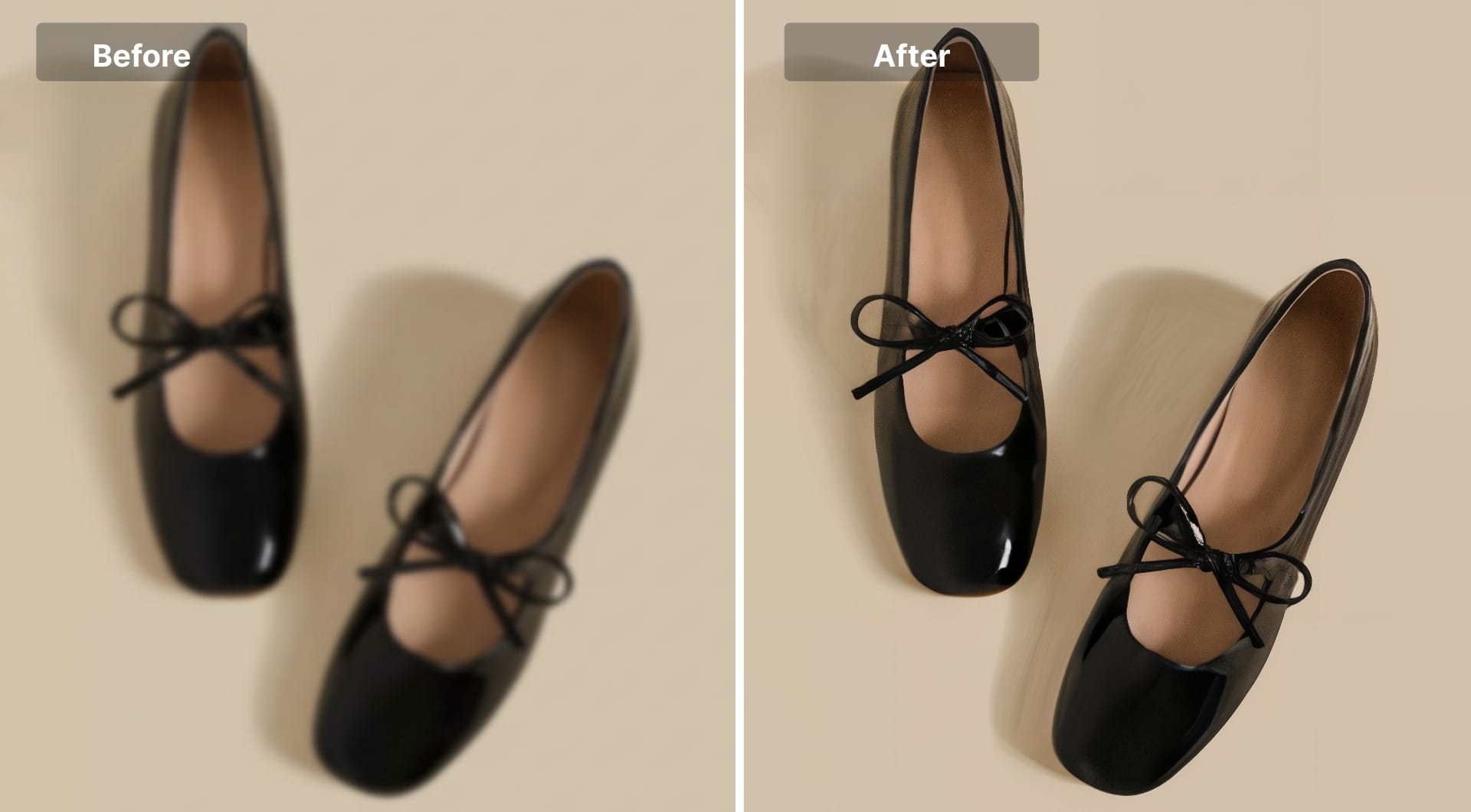
Claid.ai is a product-photo-centric AI editor and API. It powers bulk enhancement, unblur, upscaling and background editing for marketplaces, DTC brands and SaaS tools.
Key features
- AI enhancer and upscaler to fix low-res, blurry or noisy product photos.
- AI Photoshoot features: generate realistic backgrounds and scenes around products.
- Fashion models, outpainting and object removal for lifestyle images.
- Robust API and bulk processing for thousands of SKUs.
- Web editor for manual tweaks without code.
Best for
- eCommerce stores and marketplaces with large product catalogs.
- Platforms that want to embed “make this product photo sharp and on-brand” inside their app.
- Teams that already automate uploads, moderation and listing creation.
Pricing
- Free credits to test the enhancer and editor.
- Subscriptions starting from 9$/month + API plans for production workloads.
Pros
- Built for scale, consistency and automation, not just single images.
- Strong at preserving product detail and brand color.
- Integrates well into existing workflows via API.
Cons
- Overkill for casual users who just want to fix a couple of selfies.
- Requires some setup and integration to get full value.
How to choose the right AI unblur tool
All of the tools above are strong in different ways. Some excel at aggressive face enhancement, others at subtle, print-ready sharpness, and a few are built for bulk eCommerce workflows. The “best” tool depends on where you edit, how often you do it, and how natural you want the result to look. Use the guide below to choose the right tool.
Start from your device and workflow
If you edit only on your phone, pick a mobile-first app like Remini, YouCam Enhance or Picsart. If you mostly work in the browser, tools like LetsEnhance, PicWish, Artguru, ImgUpscaler or Canva make more sense. Desktop photographers who handle RAW files will get the most out of Topaz Photo AI, optionally combined with cloud tools such as LetsEnhance.
Match the tool to your blur type
Mild softness or slight motion blur is where most AI tools shine, especially LetsEnhance, Topaz and Artguru. Heavy motion blur or totally missed focus is much harder: even the best models can only guess, so expect partial improvement rather than miracles.
Decide how much “AI look” you accept
If you want natural, faithful results that still feel like the original file, lean toward LetsEnhance (Gentle or Balanced), Topaz or Claid.ai. If you are fine with beautified, stylized faces for social media or dating apps, mobile tools like Remini and some filters in Picsart are designed to push more aggressive reconstruction.
Consider resolution and print needs
For printing, you need enough resolution and clean detail at the target size, not just sharpness on screen. Tools like LetsEnhance and Topaz Photo AI are built with high-DPI, large-format output in mind. For purely online use, small artifacts are less critical, and simpler free tools are usually sufficient.
Balance pricing, limits and watermarks
Free tiers are great for testing, but they often add watermarks, cap resolution or limit daily usage. Weekly mobile subscriptions can become expensive if you use them often. If you know you will unblur photos regularly, a modest monthly plan or pay as you go bundles on a web tool like LetsEnhance or PicWish is usually more effective.
FAQ
Can AI really unblur a blurry photo?
Yes, within limits. On slightly soft, noisy or low-resolution photos, modern AI can make a huge difference by reversing some blur and inventing plausible detail. AI may not be effective on images that are extremely out of focus or smeared by strong motion.
What is the best AI tool to unblur photos?
There is no single winner for everyone. LetsEnhance is a strong all-round choice because it combines unblur, upscaling and different quality modes in a single web tool. Remini and YouCam Enhance are ideal if you live on your phone and mostly care about faces. Topaz Photo AI fits photographers who work with RAW files on desktop. Canva and Picsart make more sense if you want to fix blur while designing social media content. The best pick is the one that matches your device, your image types and whether you need casual fixes or print-ready output.
How to unblur a photo with AI step by step?
The basic workflow is similar across tools. You upload or open your blurry image, choose the relevant mode, then let the AI process a preview. For more detailed step-by-step guide, check out this article.
Is there a free website to unblur images without watermark?
Many web tools offer a handful of free unblur or enhance operations per day, sometimes without watermarks, sometimes with small trade-offs in resolution or speed. Free tiers are great for testing, but if you plan to fix photos regularly, it is usually more reliable to pay for a plan.
Which app can unblur photos on iphone and android?
If you are on mobile, several cross-platform apps can help. Remini is known for strong face enhancement and dramatic makeovers. YouCam Enhance focuses on making photos clearer and boosting resolution with a simpler, more natural look. Picsart and Canva include unblur or enhance tools as part of their broader editing and design suites. All of these run on both iOS and Android.
Can AI improve low-resolution blurry photos for printing?
It can, but you need the right kind of tool and realistic expectations. AI upscalers such as LetsEnhance or dedicated desktop software like Topaz Photo AI can both increase resolution and restore clarity. This is important if you are preparing posters, photo books or large product banners. The closer the original is to being “almost good enough,” the better your print will look a fter enhancement.
Can AI unblur text in screenshots?
Often yes, especially when the blur is caused by light compression, scaling or a bit of motion. AI can strengthen edges, increase contrast and smooth noise. Tools that focus on fidelity usually work better than heavy portrait filters that are designed for skin. Try LetsEnhance's Gentle mode that's made for images with small text.
Can Photoshop or Lightroom unblur images as well as AI tools?
Photoshop and Lightroom give you precise manual sharpening and some deblur tools, plus full control over noise and contrast. On moderately blurred images, a careful editor can get very close to what AI does. Where dedicated AI tools pull ahead is on tiny, heavily compressed files that need both new detail and more pixels. Read more about differences between AI tools and Photoshop/Lightroom here.
Why does my AI unblur result look plastic or fake?
Aggressive sharpening and denoising can erase natural skin texture and replace it with smooth, waxy surfaces. Some AI tools can also draw in overly crisp eyes, hair and text that never existed in the original. To avoid that plastic look, choose more conservative modes, lower the intensity slider and zoom in to check whether pores, hair and fine lines still look like real camera detail.
