
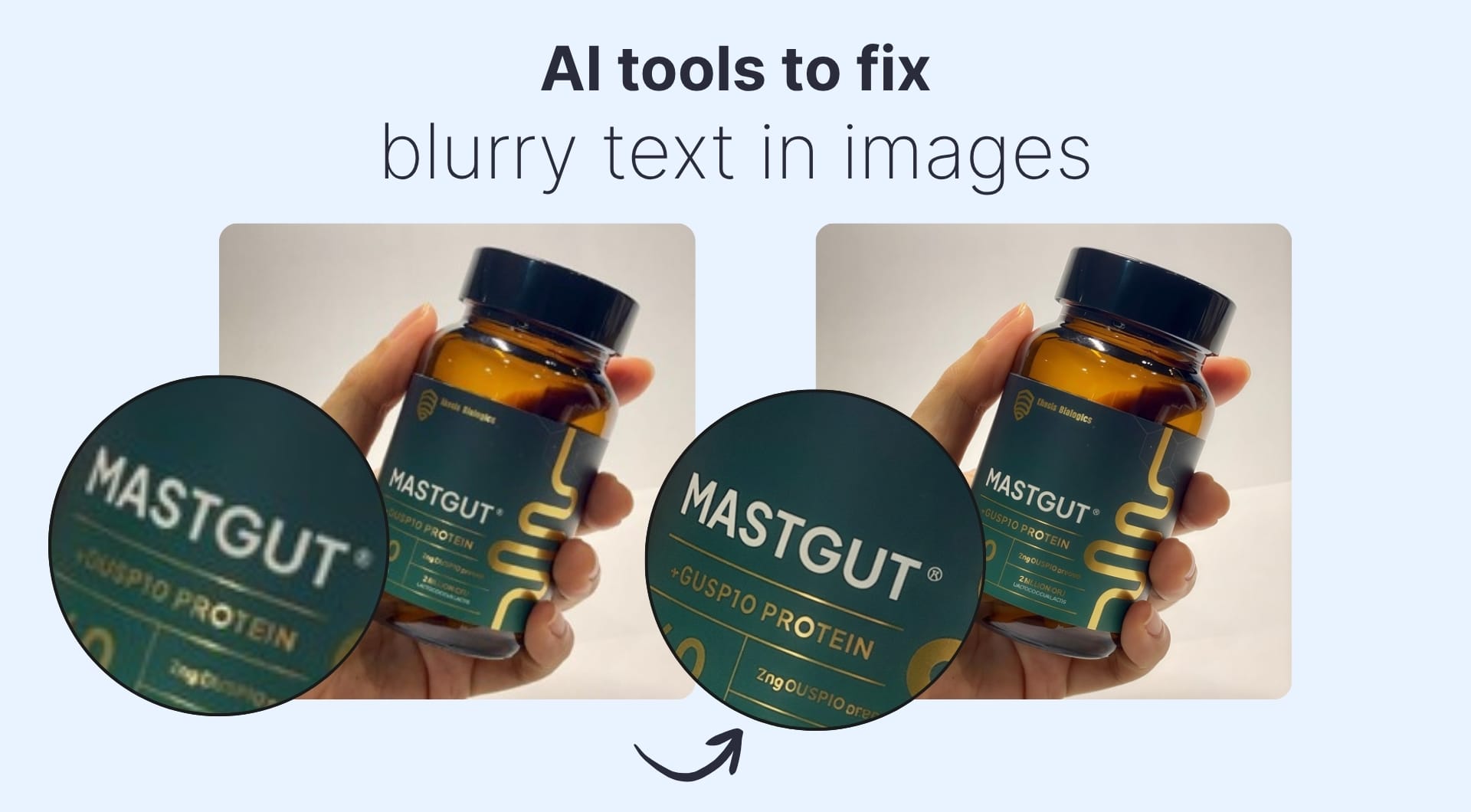
Blurry text in screenshots and scans kills productivity. Here are the best AI image text enhancers that make small, pixelated or noisy text readable again. We tested and ranked by actual results.
Key takeaways
| Tool | Best for | Price | Key strength |
|---|---|---|---|
| LetsEnhance | Best overall: good for screenshots, scans, photos | From $9/month | Dedicated text enhancement model that delivers high-fidelity recovery |
| Pokecut | Free, no watermark, specialized text mode | Free + paid | Best free quality after LetsEnhance |
| Unblurimage | Simple deblurring focused workflow | From $9/month | Strong deblurring, clean results |
| ImgUpscaler | Enhancement + OCR in one workflow | From $3.90/month | Good quality + text extraction |
| YouCam Enhance | Mobile users | From $3.33/month | Good overall, convenient on phone |
| PicWish | Quick free processing | Free + paid | Easy workflow, decent quality |
| Fotor | Casual one-click use | From $3.99/month | Very fast, simple UI |
| Media.io | Mixed media workflows | From $9.99/month | Broader AI studio, but text quality limited |
#1 LetsEnhance.io (best overall)
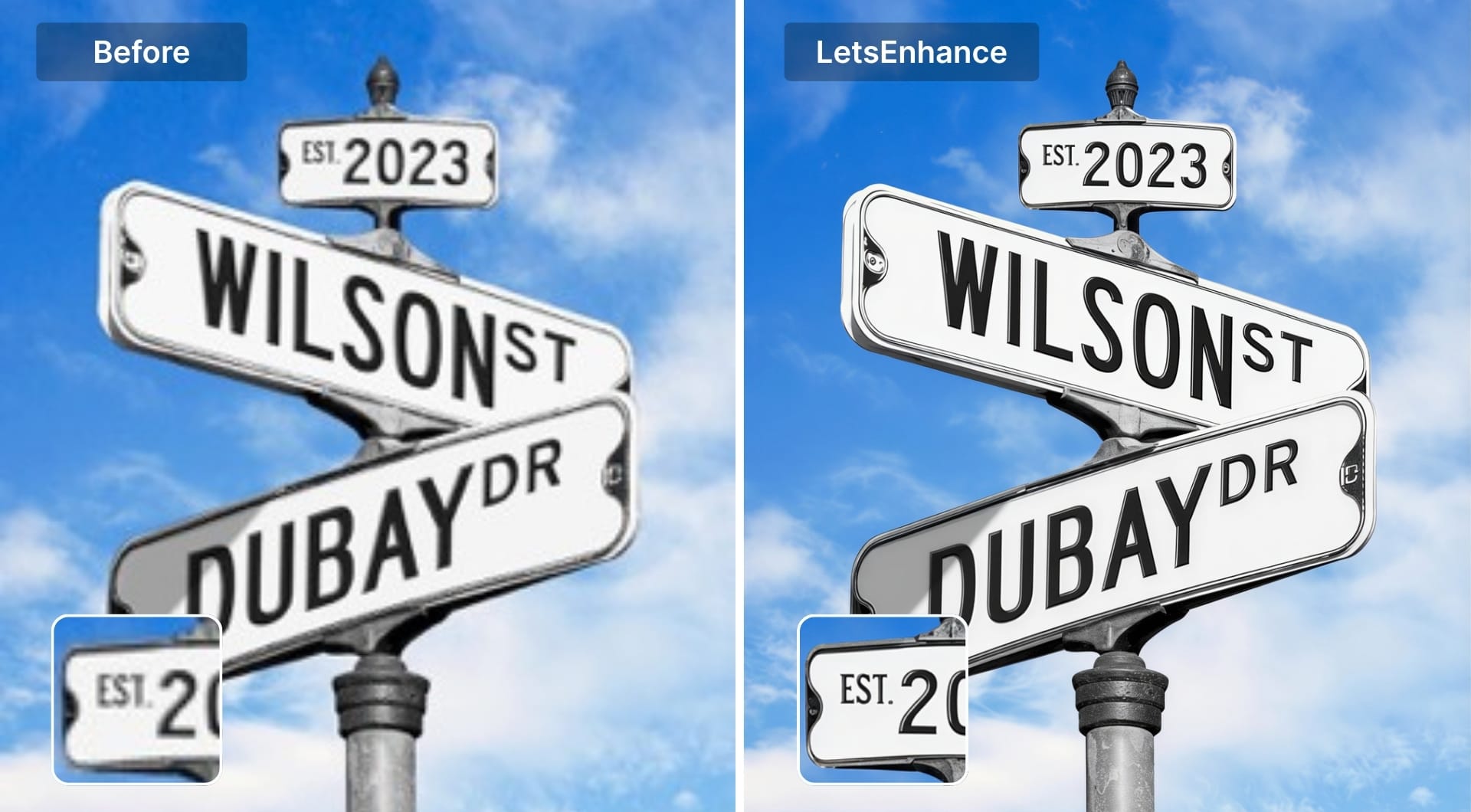
LetsEnhance.io is an AI image enhancer with a dedicated text enhancer mode designed specifically for blurry screenshots, scanned documents, receipts, dashboards and product photos with labels. The text model sharpens characters and improves contrast while not destroying the original font edges or adding fake halos.
For text recovery specifically, Prime is the strongest model. It delivers high fidelity and keeps letterforms natural and readable. This is exactly what you need when small or complex text needs to come back clearly without looking over-processed. Processing can take up to a minute, but the quality justifies it. If your image with texts isn't too low-quality, can also try the Gentle mode, which preserves the original image.
If you need to process thousands of photos with text at scale, check out the API via Claid.ai, which is built by the same team and the same technology.
Pros
- Dedicated text enhancer tuned for readability, not generic sharpening
- Multiple specialized models to match with different content types
- Upscaling up to ~256–512 MP depending on plan that deliver print ready outputs
- Support for product photos, old photos, illustrations and more
- Batch processing for up to 20 images at once
- Browser based without the need for installation
Cons
- Processing can be take up to a minute per image
- No offline mode
- Paid after 10 free credits
Pricing
10 free credits on sign-up. Plans from $9/month, pay-as-you-go bundles also available.
#2 Pokecut (best free option, specialized text mode)
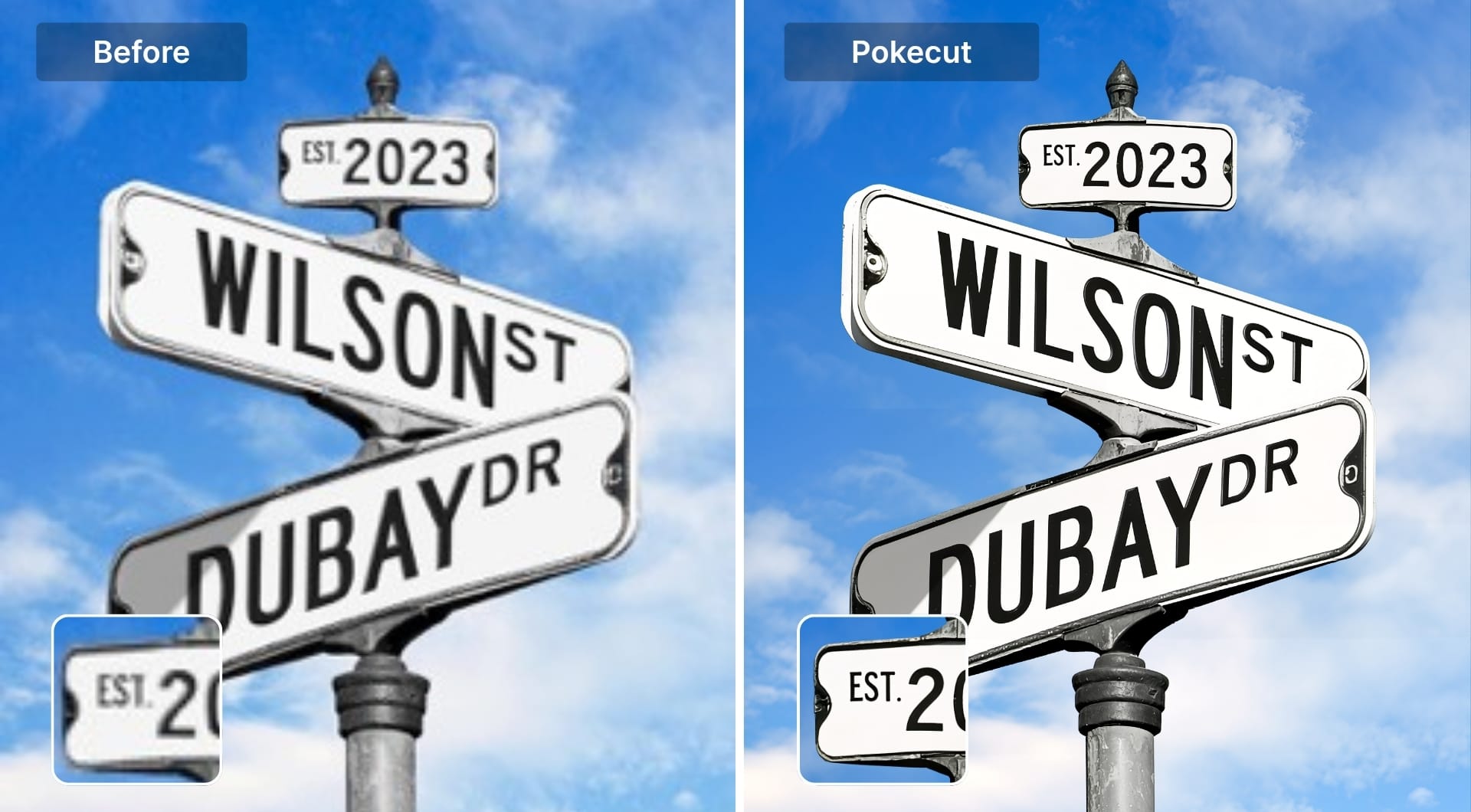
Pokecut has a dedicated text enhancement mode that delivers genuinely high-quality results. It's the best free output in this test after LetsEnhance. The text mode is specifically tuned for clarity rather than applying general sharpening across the whole image, and downloads are watermark-free on the free tier.
If you're already using Pokecut for background removal or ad creative, the text enhancer fits naturally into the same workflow without switching tabs.
Pros
- One of the best free text enhancers available in the market
- Specialized text mode, not just generic sharpening
- Free downloads with no watermark
- Generous free daily usage for light needs
- Full editor for background removal and ecommerce work alongside text tools
Cons
- Free tier has daily usage limits
- Web only
Pricing
Free tier with 5 daily credits. Pro and Credits plans that unlock higher limits and generative features.
#3 Unblurimage ( best quality after LetsEnhance among paid tools)
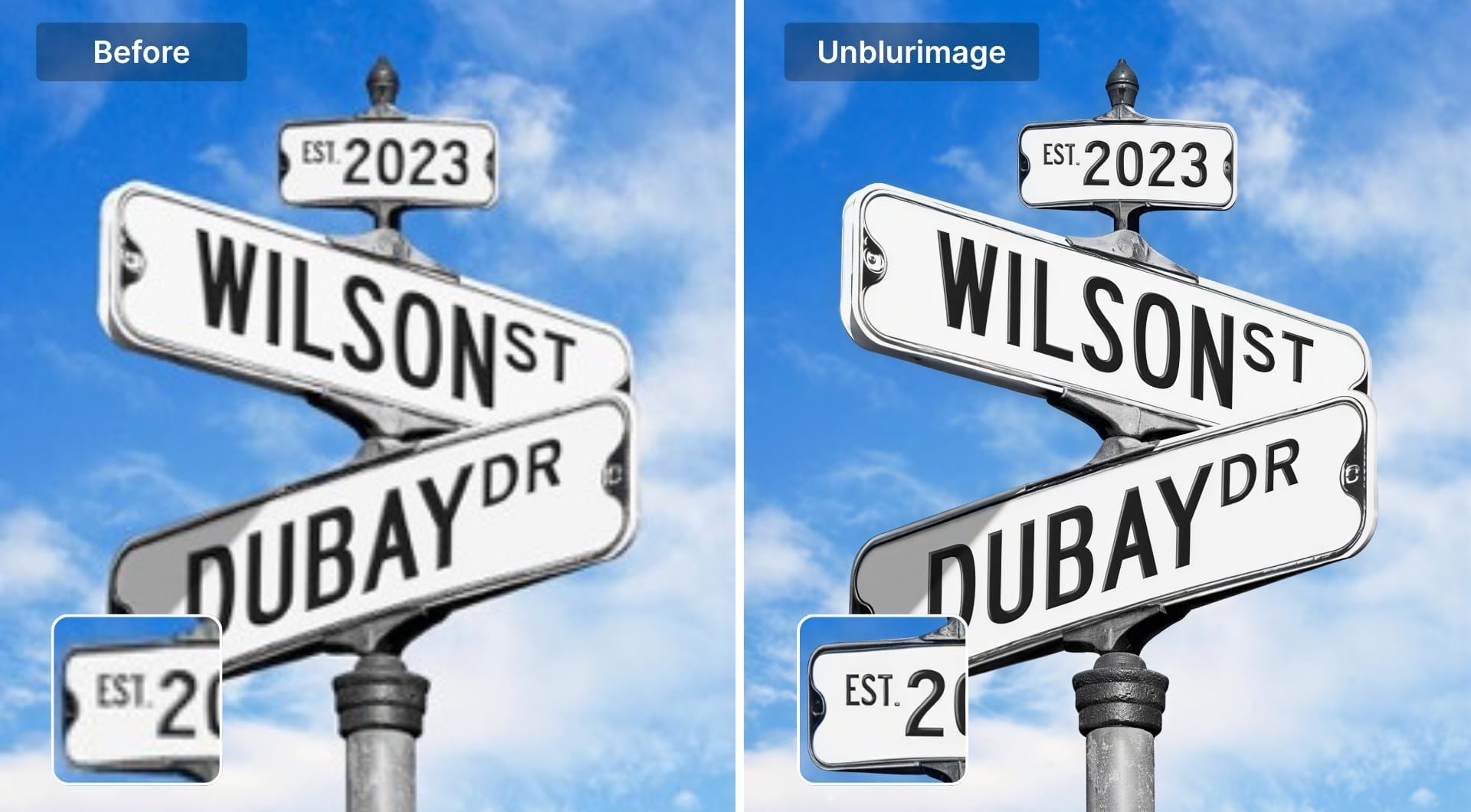
Unblurimage started as a focused deblurring tool and has since added a dedicated text enhancer mode. The workflow is deliberately simple: upload, enhance, download. No complex editor, just a clean in-and-out process. Among the tools we tested, it produced the strongest text results after LetsEnhance and Pokecut.
Pros
- Strong deblurring quality, particularly for mild to moderate blur
- Dedicated text mode preserves layout while improving clarity
- Very simple workflow, there's no editing interface to navigate
Cons
- Free plan is tight, around 2 images per day
- Web only
- No batch processing or design tools
Pricing
Free plan with ~2 images/day. Premium from ~$9/month for 500 credits.
#4 ImgUpscaler ( good quality, best for enhancement + OCR)
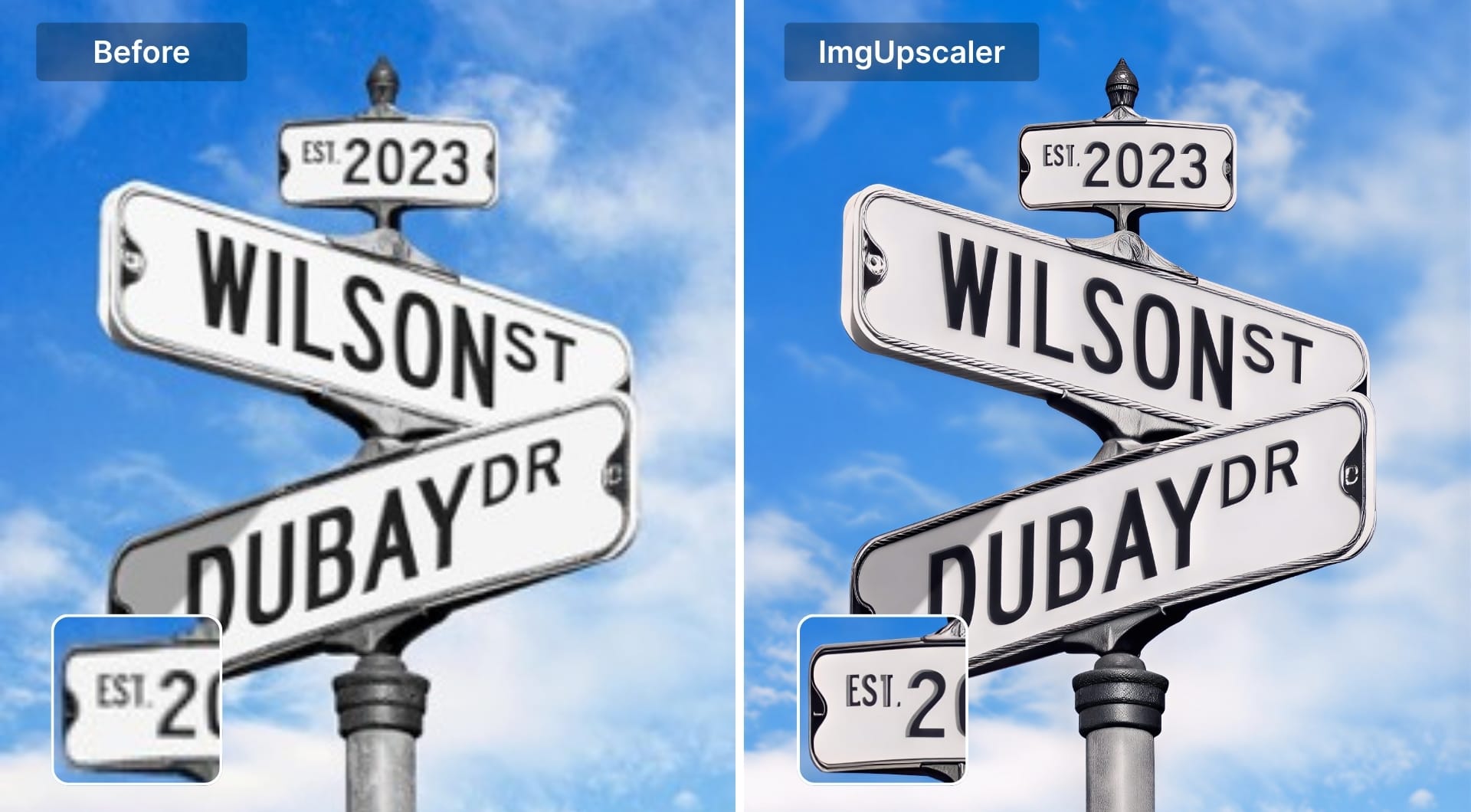
ImgUpscaler combines text enhancement with an OCR engine, so you can not only make the text readable but also extract it as editable copy. Among the tools tested, it delivered good quality results with one notable issue: small letters showed a slight shadow effect, particularly on letters E and T.
If readability is your only need, there are stronger options. If you also need to copy the text into a document, the enhancement + OCR pipeline in one tool saves an extra step.
Pros
- Enhancement and OCR in one workflow
- Simple process: upload and the tool handles the rest
- Good for screenshots, receipts, and scanned notes
- Low entry price
Cons
- Small text can show shadow artifacts on fine characters
- OCR accuracy drops on stylized or damaged fonts
- Web only
Pricing
Free plan with ~20 credits/month. Paid from ~$3.90/month.
#5 YouCam ( good overall, best for mobile workflows)
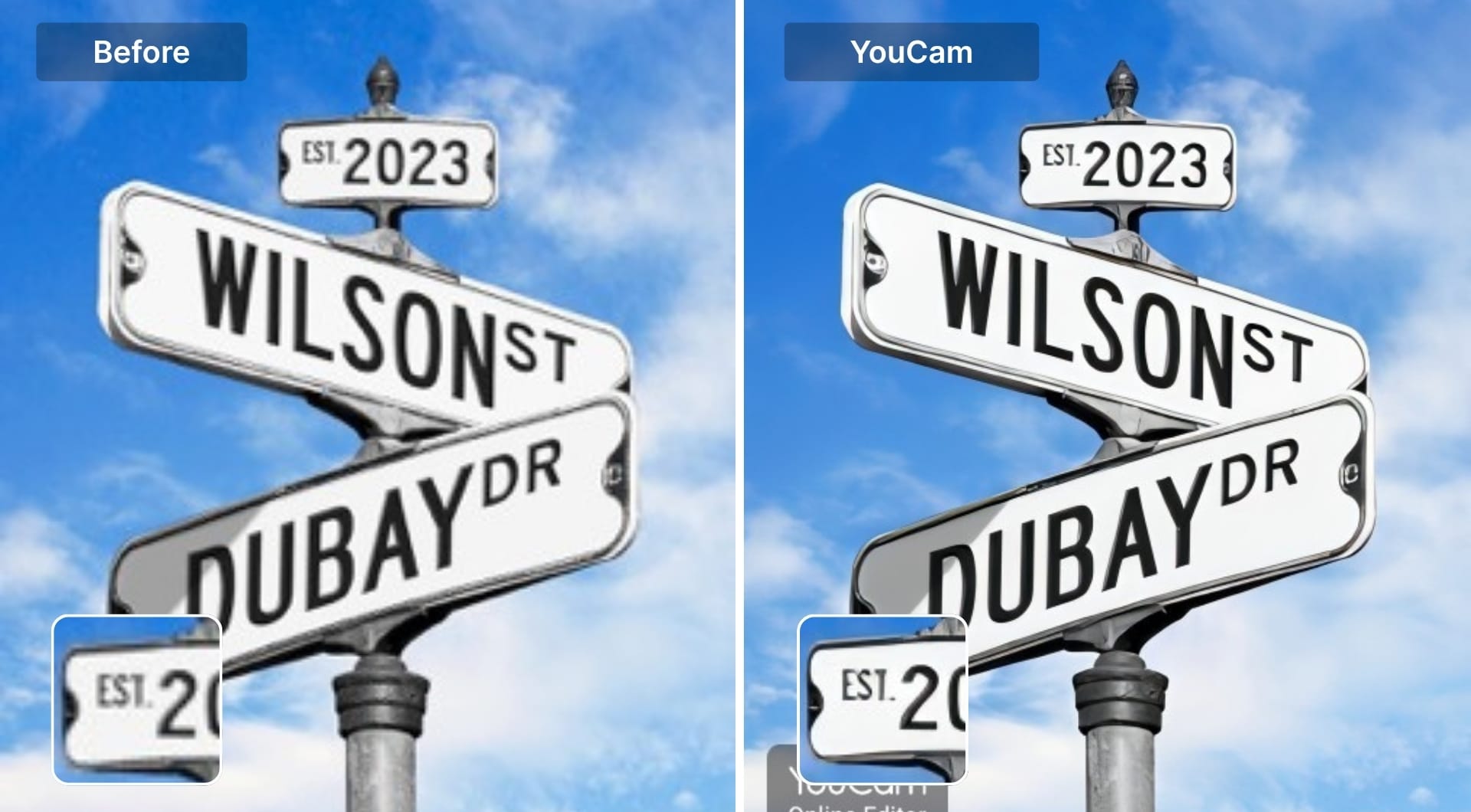
YouCam Enhance is mobile-first photo and video editing application, though it's also available on web. The overall result is good but small letters stay somewhat smoothed rather than fully resolved. Gives that it's more of a general photo enhancer than a pure text tool, it performs well.
Free plan downloads are watermarked, which is a practical limitation for anything you need to use professionally.
Pros
- Available on web and mobile. Flexible for different workflows
- Good general enhancement and blur removal
- One-click processing
Cons
- Small text smoothed rather than fully sharp
- Watermarked downloads on free plan
Pricing
Free with watermark. Subscription from ~$3.33/month for 100 credits.
#6 PicWish (free, easy, decent quality)
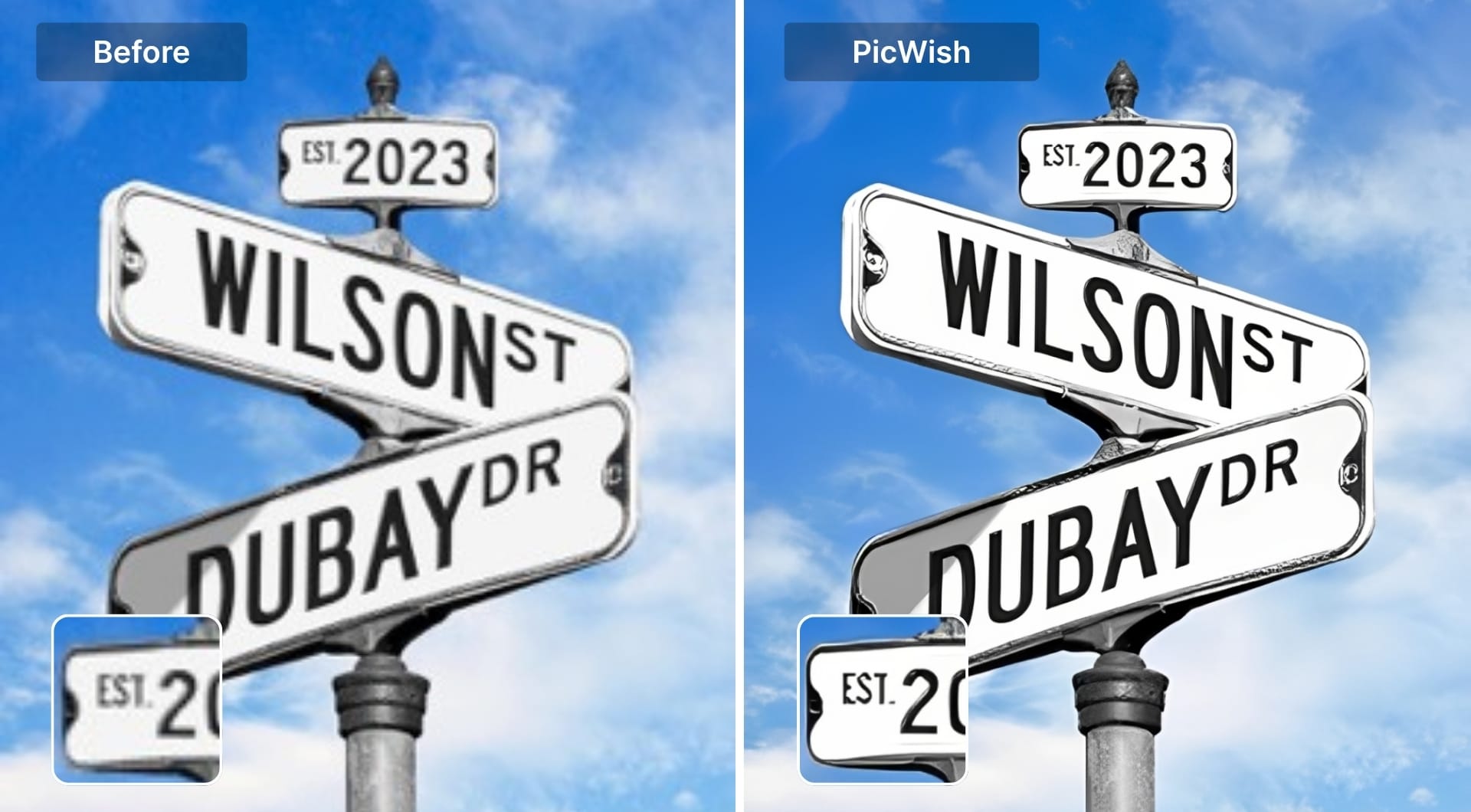
PicWish has a text enhancement model alongside its general and portrait enhancers. The process is as simple as it gets: upload and the tool does the rest. The overall pixelation and blur are visibly reduced, which is a genuine improvement. Where it falls short is again on small text. Fine characters get smoothed rather than sharpened, and very small labels or fine print don't fully recover.
Full image downloading requires a free trial or paid subscription. A 3-day free trial is available.
Pros
- Very easy process with no settings to adjust
- Visible improvement on general blur and pixelation
- Generous free daily quota for light use
- Background removal and other tools in the same place
Cons
- Small text smoothed rather than cleanly resolved
- Full resolution downloads require free trial or subscription
- Hard cap at 4096px limits large print workflows
Pricing
Free plan with ~5 enhancements/day. Pro subscription available. 3-day free trial for full downloads.
#7 Fotor ( fast and simple workflow)
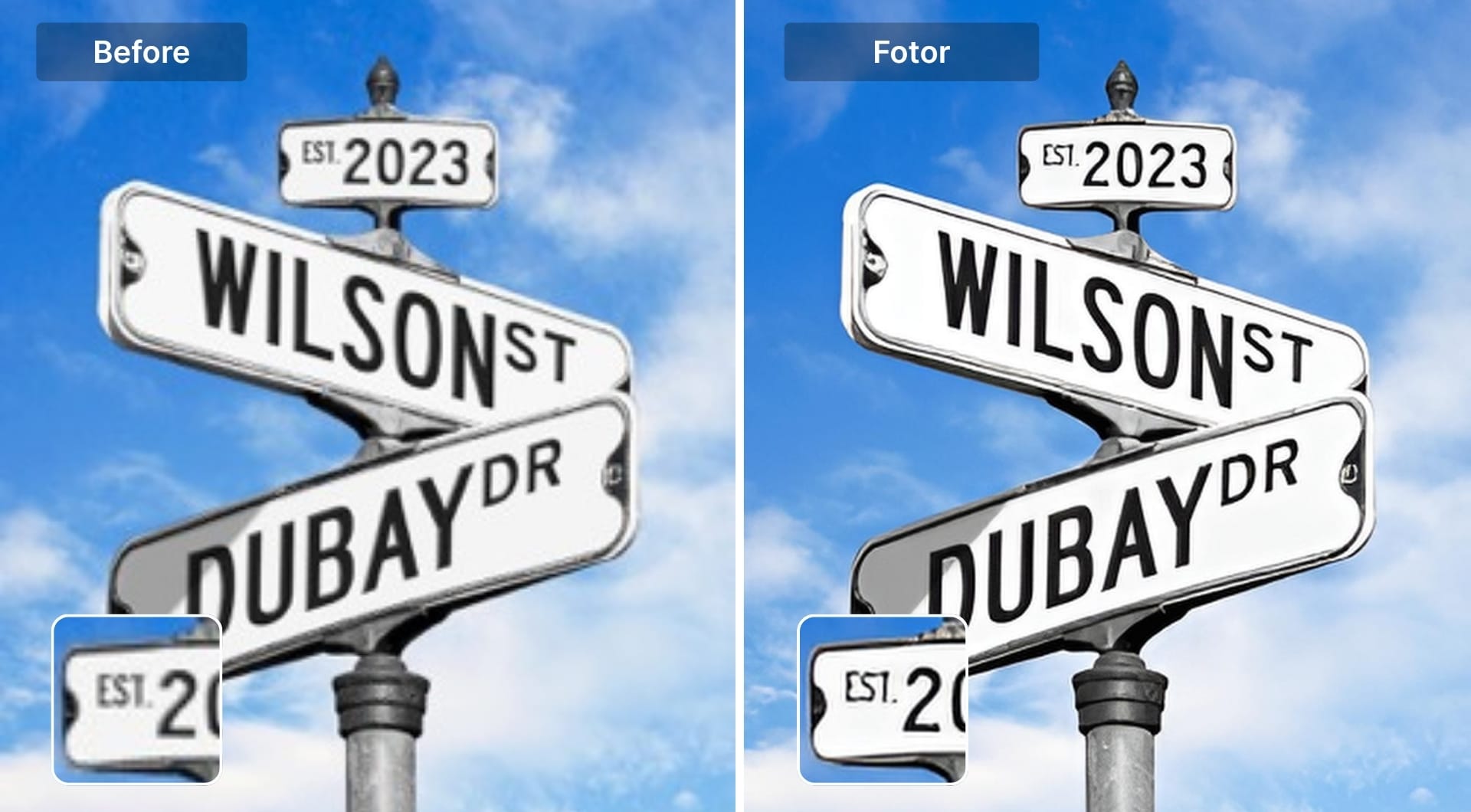
Fotor's text enhancer offers a fast and simple workflow for text enhancement. Overall text clarity improves and the image is noticeably better than the original. Just like with previous tools, the limitation is again accuracy on small text. In our test, small characters like "Est. 2023" above the main image were smoother rather than sharper, with finer letterforms blending together rather than resolving cleanly.
It's a reasonable option for quick fixes on screenshots where the main text is large enough to benefit. For fine or very small text, expect some smoothing.
Pros
- Easy to use with minimal UI suited for non technical users
- Dedicated text unblur feature, not just global sharpening
- Decent free tier for occasional use
Cons
- Output quality for extreme cases (very small, noisy text) can trail more specialized tools
- Advanced features sit behind Pro/Pro+ paywall
- Not focused on print scale outputs like 200+ MP
Pricing
Free basic tier. Pro from ~$3.99/month billed annually.
#8 Media.io ( free enhancement, limited without subscription)
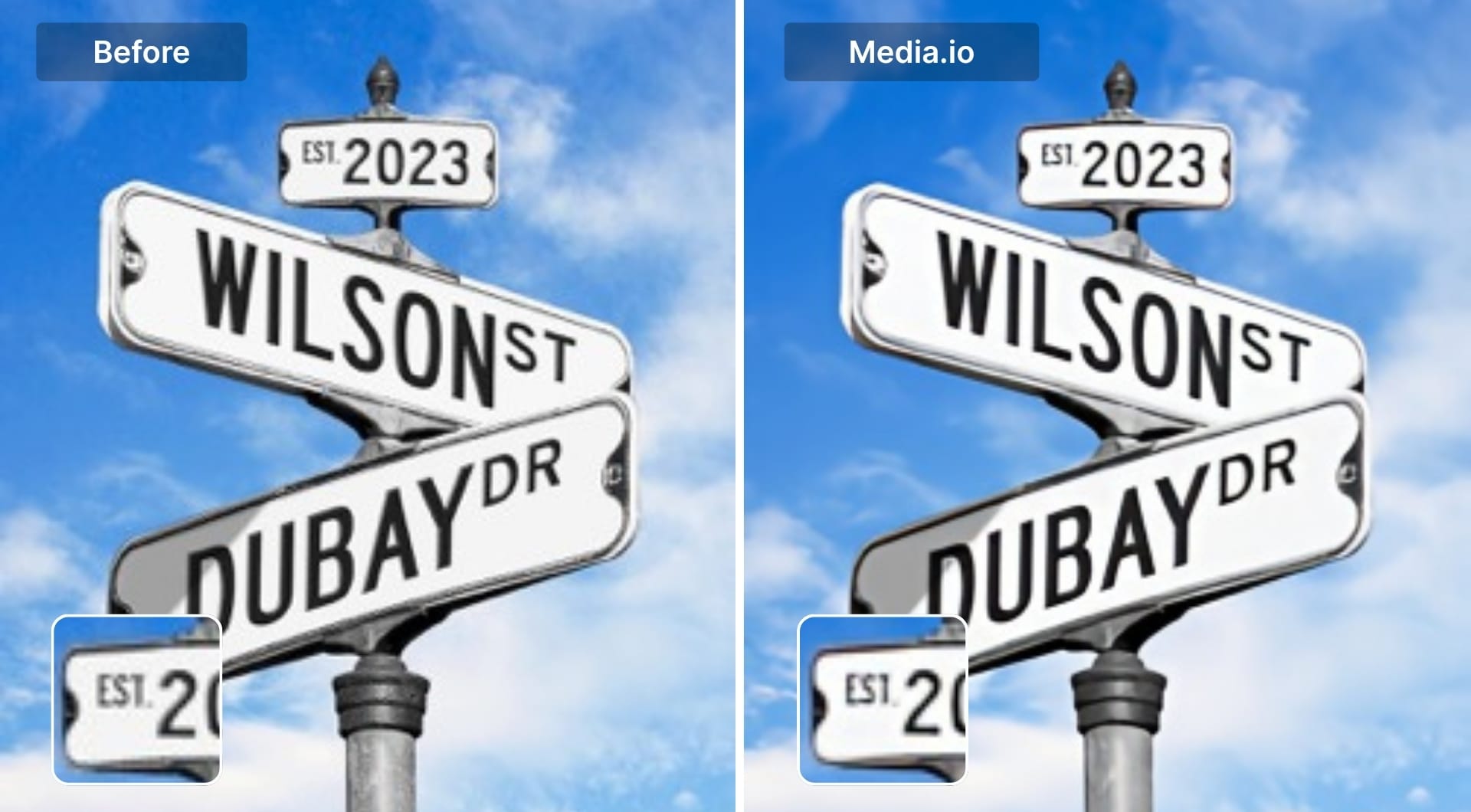
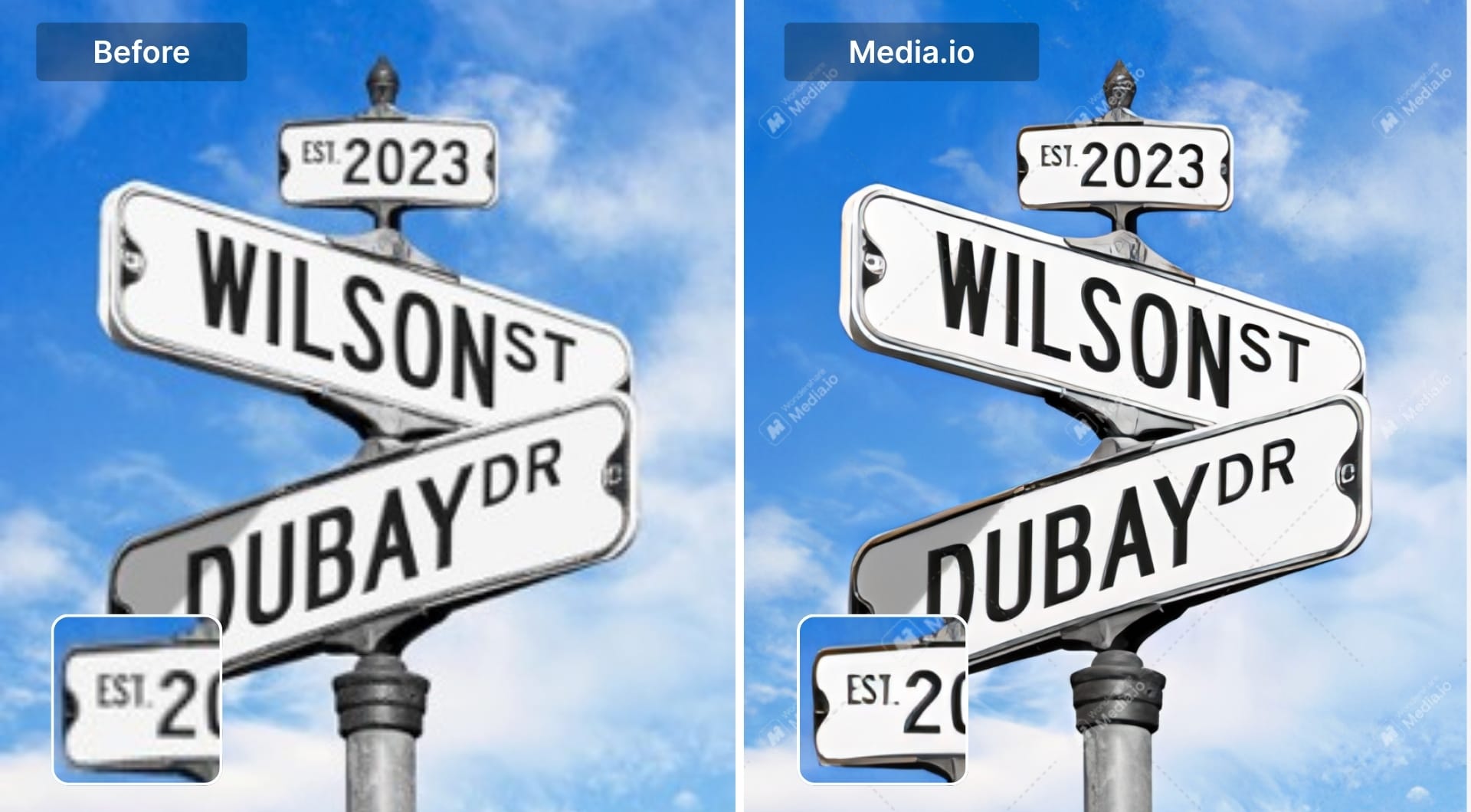
Media.io has a free text enhancer tool, but the result reflects a key limitation: it enhances without upscaling, so the visible improvement is slight. To get a genuinely sharper image you need to upscale separately, but downloading the upscaled result requires a subscription. After upscaling, overall quality is better, though small text still comes out over-processed and smooth rather than natural and realistic.
If you already use Media.io for video or audio work, adding text enhancement to the same workflow makes sense. As a standalone text tool, it's the weakest result in this comparison.
This is the result without upscaling. There is only slightly visible difference, which in many cases won't be usable.
And here's the watermarked upscaled version, that looks sharper and cleaner.
Pros
- Free text enhancer with no sign-up required
- Convenient if you're already using Media.io for video or audio
- Simple upload-and-enhance flow
Cons
- Enhancement without upscaling produces only slight visible improvement
- Downloading upscaled results requires a subscription
- Small text over-processed and smooth after upscaling
- Quality is the lowest of tools tested
Pricing
Free text enhancer. Subscriptions from $9.99/month for upscaling and downloads.
How to choose an AI image text enhancer
For the best quality: LetsEnhance with Prime. Processing can take a minute but it delivers the most natural, high-fidelity text recovery, especially for small or complex letterforms.
For free use with good quality: Pokecut is the strongest free option. Watermark-free downloads and a dedicated text mode make it the clear free pick.
For simple blur removal: Unblurimage keeps things focused. There's no editor to navigate, just clean deblurring with solid results.
For enhancement + extracting text: ImgUpscaler handles both in one step, which saves switching to a separate OCR tool.
For mobile workflows: YouCam Enhance. If you're photographing documents on your phone, the mobile-first design is the most practical.
FAQ
What is the best AI image text enhancer right now?
LetsEnhance with the Prime model delivers the best results.You get natural text recovery with high fidelity, especially on small or fine characters. For free use, Pokecut is the strongest option. For a simple, focused deblurring workflow, Unblurimage performs well.
How do I enhance text in an image online for free?
Pick a tool with a free tier and a mode that mentions text, screenshots or documents. Upload your image, choose the text enhancement option, and compare results before committing to one tool.
LetsEnhance offers 10 free credits upon signup. Pokecut offers the best free quality with no watermark. PicWish and Fotor also have free tiers, though small text tends to get smoothed.
Can AI really unblur text from an image?
AI can often make mildly blurred or compressed text readable by sharpening edges, restoring contrast and adding plausible detail. It is very effective on soft focus, JPEG artifacts and small fonts. Treat AI unblurring as a way to get to “usable and readable,” not as a forensic recovery tool.
How do I fix blurry text in scanned documents?
Scan at a reasonably high resolution first, ideally at least 300 DPI, so the AI has enough signal to work with. Then run the scan through a text oriented enhancer that can increase clarity and contrast without destroying the character shapes. If you need a searchable or editable document, feed the improved image into OCR afterward. For very old or faded scans, it often helps to apply a restoration or “old photo” mode first and then a text enhancer as a second step.
What is the best free tool to unblur text in screenshots without a watermark?
The options change over time, so the safest approach is to test a couple of tools on the same screenshot. Look for services that allow free exports at moderate resolution and state explicitly that they do not add watermarks on free plans, or that only watermark at higher resolutions. Run your screenshot through two or three candidates, compare the readability and file size, and then commit to the one that fits your quality and quota needs.
How do I convert blurry image text to a clean paragraph?
Use a two step workflow. First, enhance the image with a tool that improves text clarity so letters become sharper and more readable. Second, send that enhanced image into an OCR tool to extract the text as plain text or a document. Once you have the raw text, refine it in an editor or writing assistant to fix spelling, punctuation and formatting. This sequence usually produces a much cleaner paragraph than running OCR directly on the blurry original.
