
AI image enhancers can turn a blurry photo, a low-res AI artwork, or a compressed product shot into something print-ready. But the results vary wildly depending on the tool, the model, and what kind of image you're starting with.
We ran the same image through six tools to see what actually happens. Here's what we found.
Top AI enhancers at a glance
| Tool | Best for | Detail recovery | Fidelity to original | Pricing starts at |
|---|---|---|---|---|
| LetsEnhance | Best overall — photos, AI art, print | Excellent | High — texture preserved, no hallucination | Free (10 credits) |
| Topaz Gigapixel | Desktop photographers with RAW workflows | Excellent | High — slight contrast boost | $99/year |
| Magnific AI | Creative AI art with intentional reimagining | Excellent, but generative | Variable — can alter content significantly | $39/month |
| Upscayl | Budget-conscious users with decent hardware | Good | Good — painted texture on complex content | Free (desktop) |
| VanceAI | Casual users needing a quick web fix | Decent | Moderate — smoothed and unnatural on fine texture | Credits from ~$0.05/image |
| Remini | Mobile users with old face photos | Weak on non-portrait content | Low — face-first processing, poor on everything else | $6.99/week |
#1 LetsEnhance.io
The versatile powerhouse for print and professionals.
LetsEnhance is a cloud-based upscaler with several AI models tuned for different content types. It defines the modern standard for generative upscaling. Unlike basic tools that simply sharpen edges, it uses separate neural networks trained on different image types (portraits, real estate, and digital art) to reconstruct textures accurately.
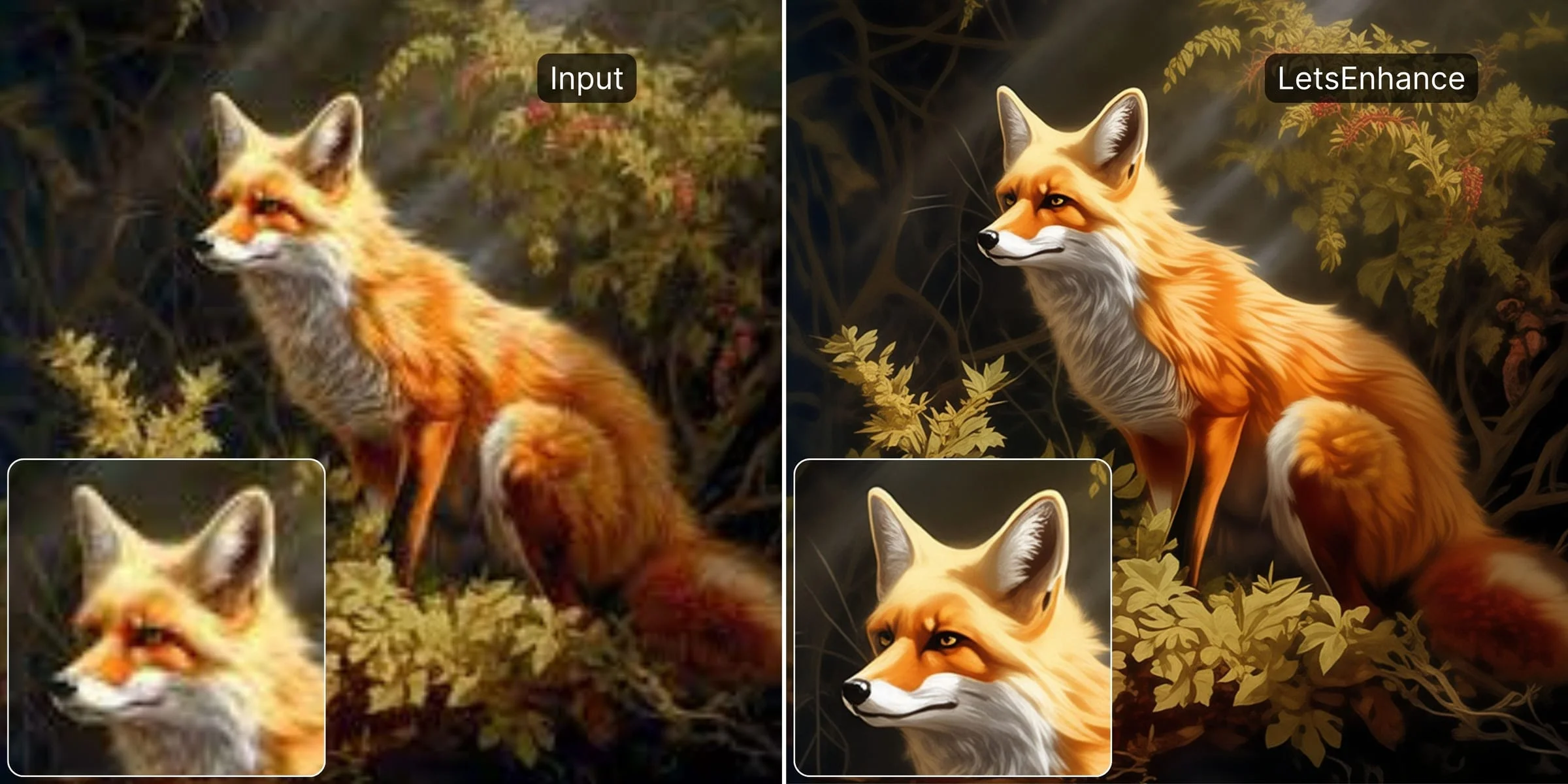
At 4×, the fox illustration came out with fur strands that were individually resolved rather than blended into a single tone. The leaf and branch textures in the background became distinct structural elements. Lighting gradients across the body stayed smooth and natural rather than stepping into visible bands. The face retained its character without looking oversharpened or artificially enhanced.
Its standout features are the Prime and Ultra models. Prime is the most realistic model that adds super natural details and textures. Ultra is the strongest model that hallucinates realistic texture and details without altering the subject's identity.
Pros
- Adds realistic texture and keeps the identity intact that hold under zoom
- Multiple models for different content types: Ultra for maximum detail, Prime for fidelity, Digital Art for illustrations, Old Photo for restoration
- Auto-adjusts light and color balance during the upscale process.
- No installation needed. It;s fully web-based with cloud processing
- Batch processing to edit 20 images at once
- Print presets with 300 DPI output
- 10 free credits upon sing-up to test properly before committing
Cons
- Cloud-only, all images leave your device
- Video upscaling and image-to-video are paid features
- No desktop app for offline or privacy-sensitive workflows
- Paid after 10 free credits.
Pricing
Free trial with 10 credits. Paid plans from $9/month. Pay-as-you-go credit bundles available. Business API via Claid.ai.
#2 Topaz Gigapixel AI
The industry standard for desktop pros.
Topaz Gigapixel AI is a locally installed desktop upscaler for Windows and Mac with a long track record among photographers. Unlike web tools, it processes images on your own hardware, meaning no cloud upload, and processing speed that scales directly with your GPU. On an NVIDIA RTX series card it's fast; on an older integrated graphics setup it will be significantly slower.
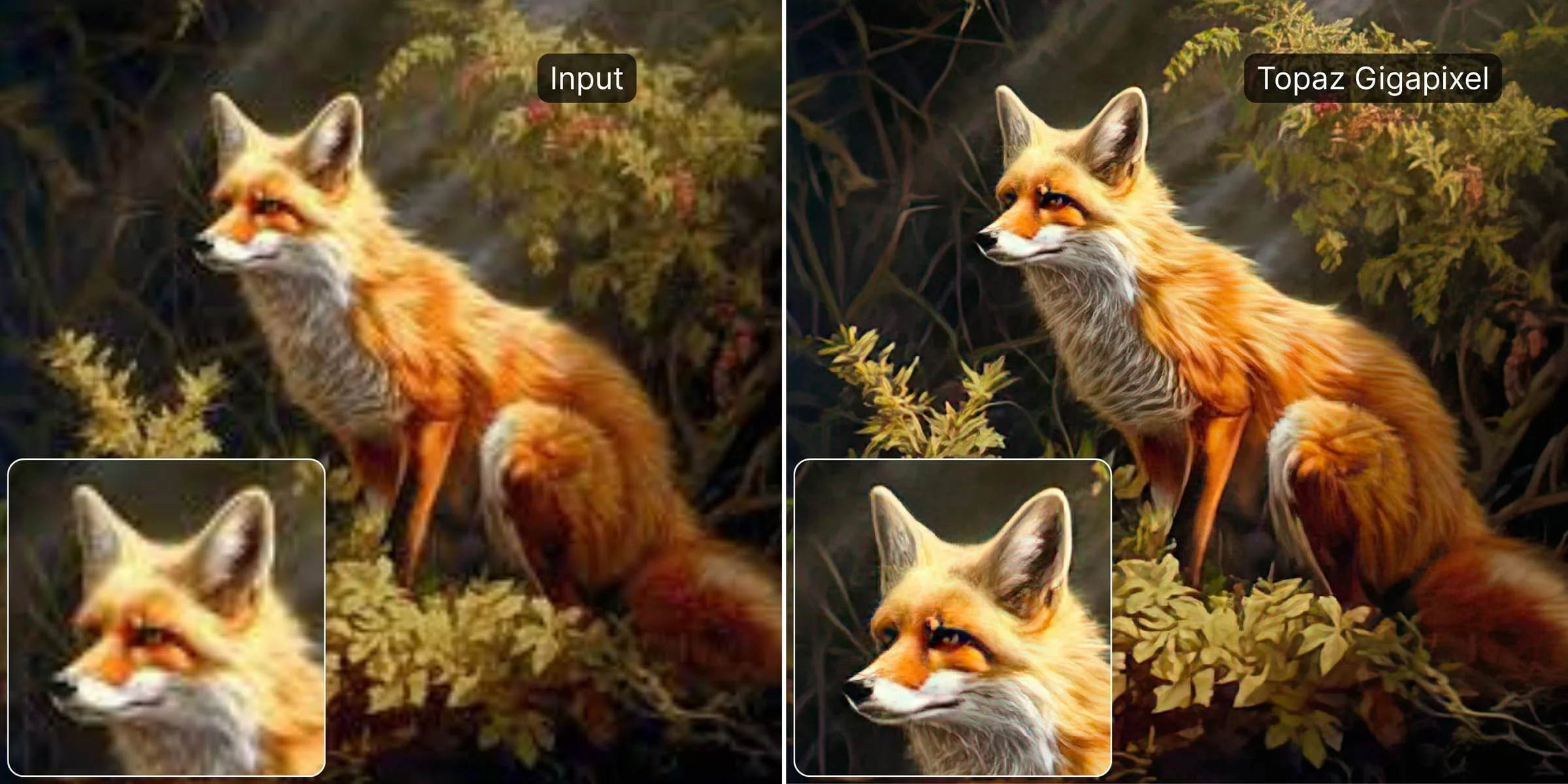
For this test, the Standard model produced a clean, sharp result. Fine outlines sharpened, textures became more defined, and the image gained the kind of detail that holds up in large prints. On images with large flat areas or smooth gradients, there's an occasional subtle repeating texture artifact, but it's rare and mostly invisible at normal viewing distances.
Where Gigapixel earns its reputation is for photographers working with RAW files in Lightroom or Photoshop. As a plugin, it fits directly into existing editing workflows. You send an image from Lightroom, process it in Gigapixel, and it comes back. For someone already in that pipeline with a library of high-resolution camera files, that integration is worth more than any web tool's convenience.
Pros
- Local processing and images never leave your machine
- Photoshop and Lightroom plugin integration
- Multiple models: Standard, High Fidelity, Art & CG, Low Resolution, and more
- No ongoing subscription required with lifetime license
- Strong on photos, illustrations, and AI art alike
Cons
- Requires a capable GPU for reasonable processing speed. Won't perform well on basic laptops
- Slight contrast/saturation boost can require a correction step
- Desktop-only, no web or mobile access for one-off quick jobs
- Lifetime license cost is high upfront compared to monthly web tools
Pricing
Gigapixel standalone from $12/month (~$144/year). Full Topaz Studio bundle (all apps) from $33/month billed annually ($399/year).
#3 Magnific AI
The "hallucination" engine for creatives.
Magnific AI takes a fundamentally different approach from every other tool in this comparison. The result visible in our before/after is a more dramatic, more finished version of the original. The background foliage is denser and the lighting across the fox's body is more intense.
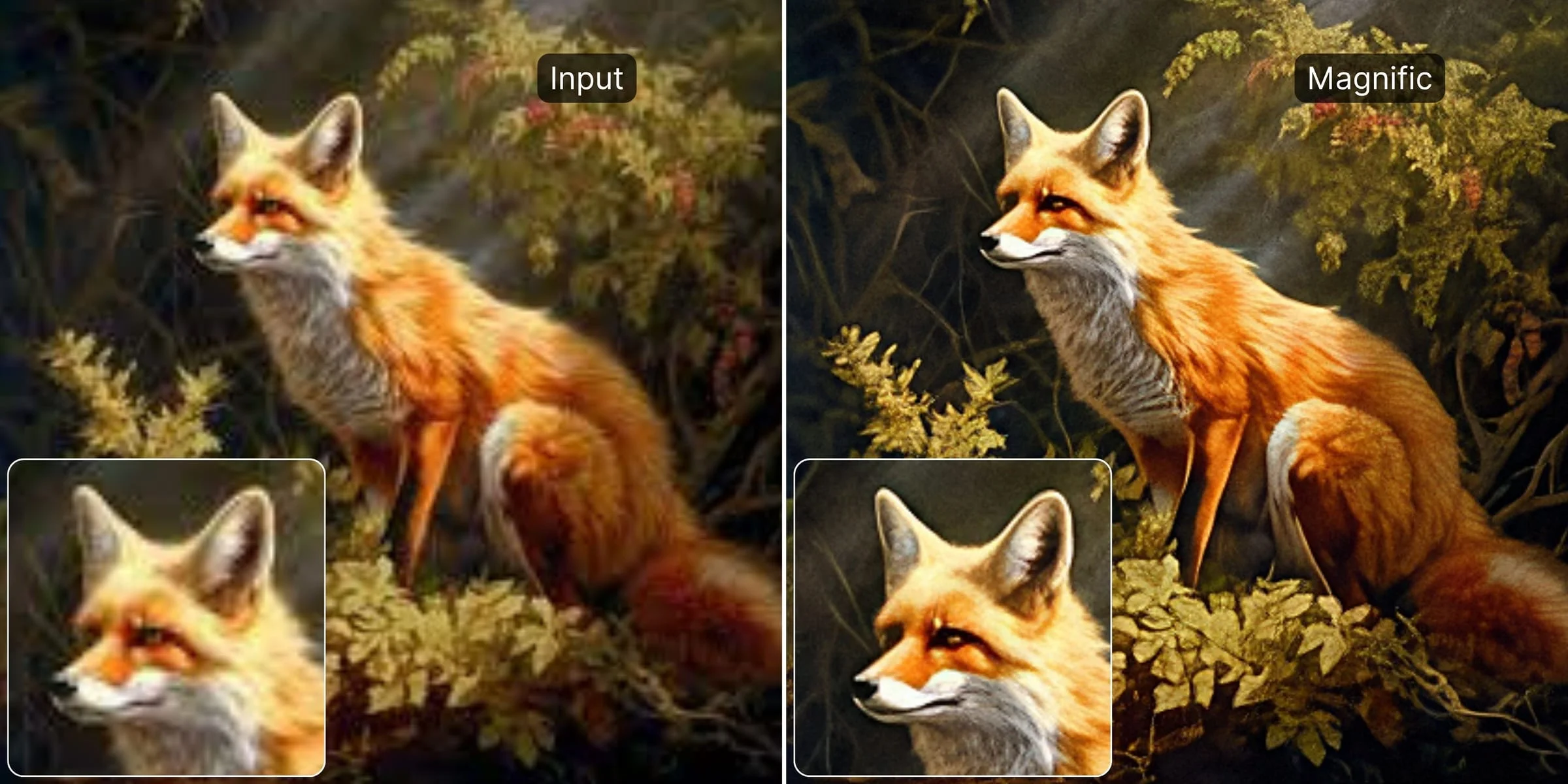
This is what Magnific calls "hallucination": the AI doesn't just sharpen what's there, it actively adds content based on what it thinks should be there. For AI-generated artwork, this can be exactly what you want. But for portraits of real people, product photos, or anything where accuracy to the original is required, Magnific's Creative mode will change things you didn't want changed.
The Precision mode is more conservative, but it caps at 2× enlargement, which limits how far you can take it. The Creative mode is where Magnific earns its reputation, and also where it becomes unsuitable for fidelity-sensitive work.
Pros
- Adds genuine creative detail and atmosphere in addition to sharpening
- Creativity, HDR, and Resemblance sliders give meaningful control over how far the AI goes
- Offers prompt-guided upscaling. You can describe the direction you want the enhancement to take
- Web-based, no installation required
Cons
- No free trial
- Creative mode alters content, lighting, and atmosphere. Not a faithful upscale
- Precision mode is capped at 2× enlargement
- Most expensive tool in this comparison by a wide margin
- Slow processing compared to non-generative upscalers
Pricing
Pro plan $39/month (2,500 tokens). Premium $99/month. Business $299/month. No free trial.
#4 Upscayl
The best free and open-source option.
Upscayl is a free, open-source desktop application (Windows, Mac, Linux) that wraps Real-ESRGAN and related models in a clean interface. The desktop version has no watermarks, no usage limits, doesn't require account and processes everything locally on your machine. A paid cloud version (Upscayl Cloud, ~$12/month) adds faster processing, color accuracy for print, and cross-device access, but the desktop app is the reason most people use it.
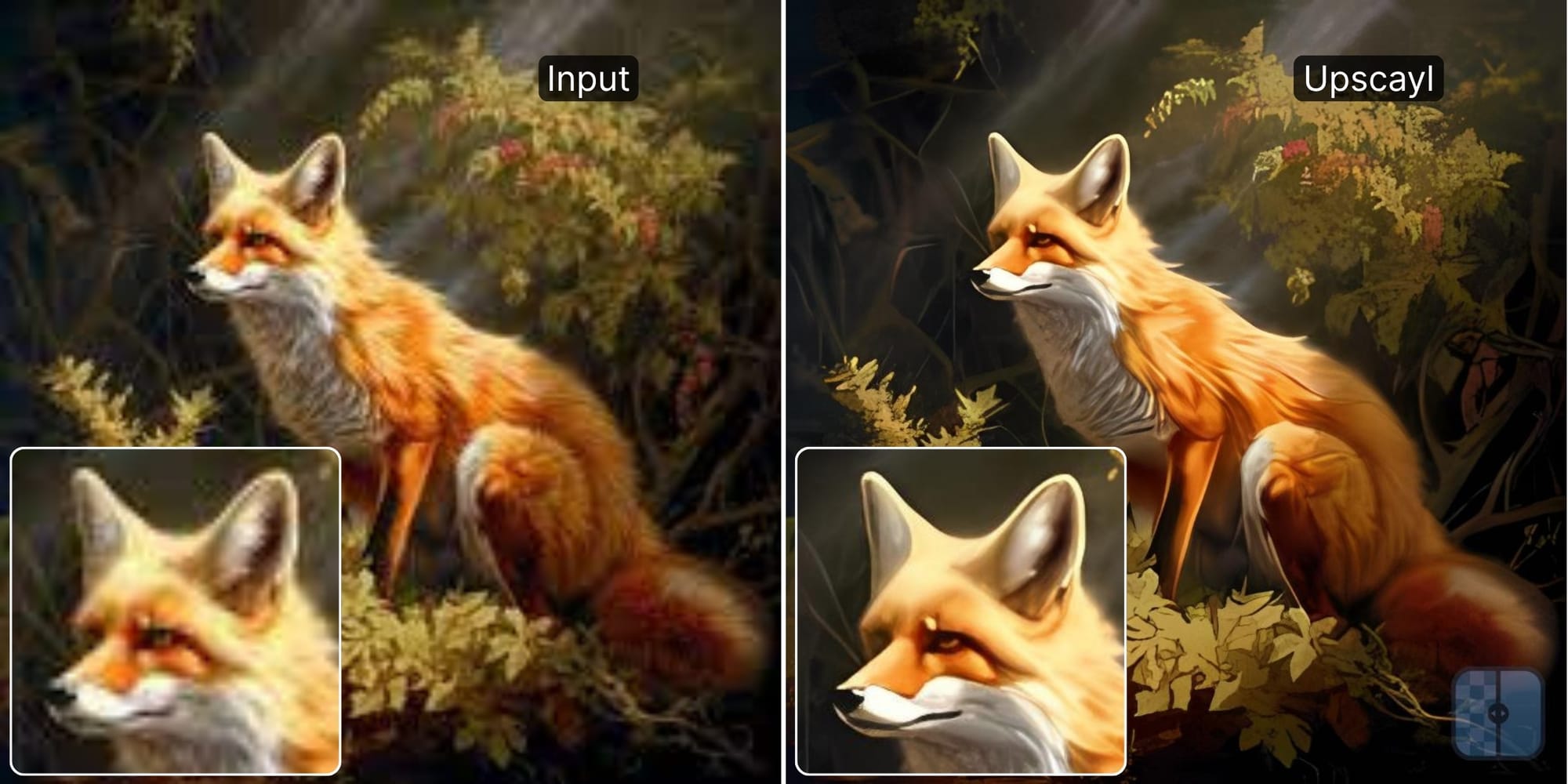
For this test, the result showed a meaningful improvement over the source. The blocky structure was gone, edges were cleaner, and at screen size the image read significantly better. But looking at the fur and leaf textures at close zoom told a different story: the fine individual strands and leaf structures were replaced with a smooth, slightly painted quality. The AI filled in the surface but didn't reconstruct the structural detail. It looks like a well-processed image rather than a high-resolution one.
This is a known characteristic of ESRGAN-based models on complex organic content. They handle clean edges and illustrations well, and produce good results on line art, logos, and images with clear structural definition.c
Pros
- Completely free desktop app with no watermarks, no account, no limits
- Local processing. Images never leave your machine
- Multiple models: UltraSharp, Remacri, High Fidelity, General Photo, and more
- Good results on line art, illustrations, and anime-style content
- Batch processing included
Cons
- Smooth, painted texture on complex organic content (fur, foliage, portraits)
- Web version adds a watermark on downloads
- Requires a Vulkan-compatible GPU for the desktop app. Won't run well on integrated graphics
- Less effective than paid tools on photographic detail and complex textures
- No cloud processing in the free version, hardware requirements limit accessibility
Pricing
Desktop app completely free, open-source (no watermark, no limits). Upscayl Cloud from approximately $12/month for faster cloud processing and higher output resolution.
#5 VanceAI
A solid "Swiss Army Knife" for quick edits.
VanceAI is a web-based suite with multiple AI tools including an image enhancer, separate upscaler, denoiser, sharpener, background remover, and more. Its AI Image Enhancer processes the image without changing its dimensions. That's an important distinction: enhancing without upscaling means the tool is working with the existing pixel count rather than generating new resolution, which limits how much genuine detail recovery is possible. If you need to both enhance and upscale with VanceAI, you should run both the enhancer and the upscaler together, or choose a model that combines both steps.
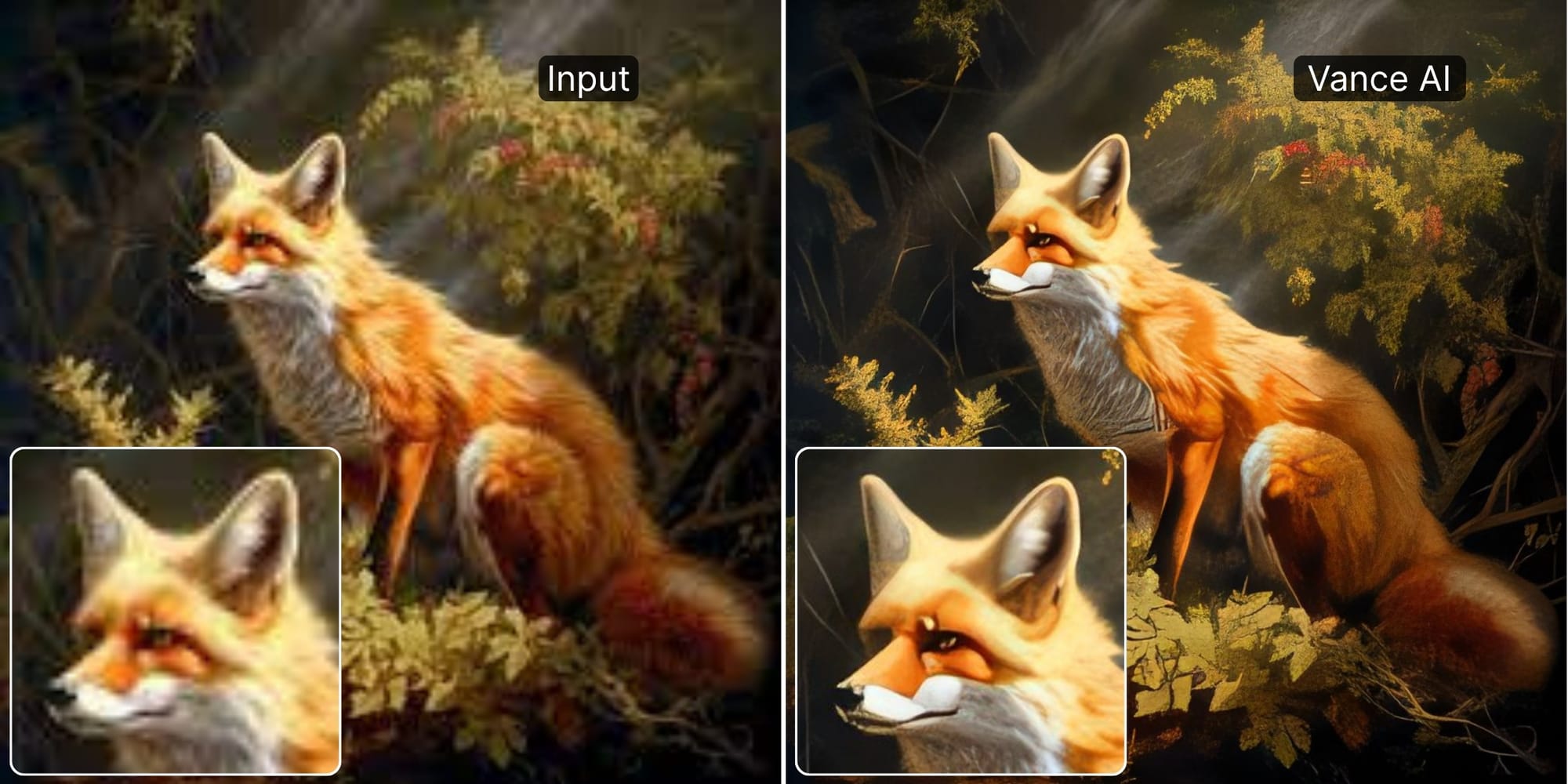
In our test, the tool removed the blur and improved the image at screen size. It looked cleaner and more defined at a glance. But the texture treatment showed the same pattern as Upscayl: the fur became smooth and uniform rather than individually stranded, and the background foliage lost its structural character. The features that should have the most definition came out with soft, slightly unnatural edges, as if the AI had averaged across detail it couldn't confidently reconstruct.
Pros
- Flexible credit system. You pay for what you use
- Multiple specialized tools beyond upscaling: denoiser, sharpener, background remover
- Desktop app available for Windows users who prefer offline processing
- Reasonable performance on anime and line art with specific models
Cons
- AI Image Enhancer alone doesn't upscale. Requires combining with the upscaler for resolution increase
- Smoothed, unnatural texture on complex content at zoom
- Face areas lose clear structure in fine detail
- Interface is cluttered as there're many overlapping tools with similar descriptions
- Credit consumption varies by feature, which can be confusing
Pricing
Credit-based. Packages from approximately $0.05 per image, with subscription options also available. Desktop app for Windows available as an alternative to the web version.
#6 Remini
The mobile king for face restoration.
Remini is a mobile-first app that became famous via social media for its ability to "fix" old, blurry face photos. It works by applying an aggressive face reconstruction model over whatever pixels it detects as a face. When the input is a damaged, faded, or low-resolution portrait of a real person, this can produce impressive results very quickly. That's genuinely the thing it does.
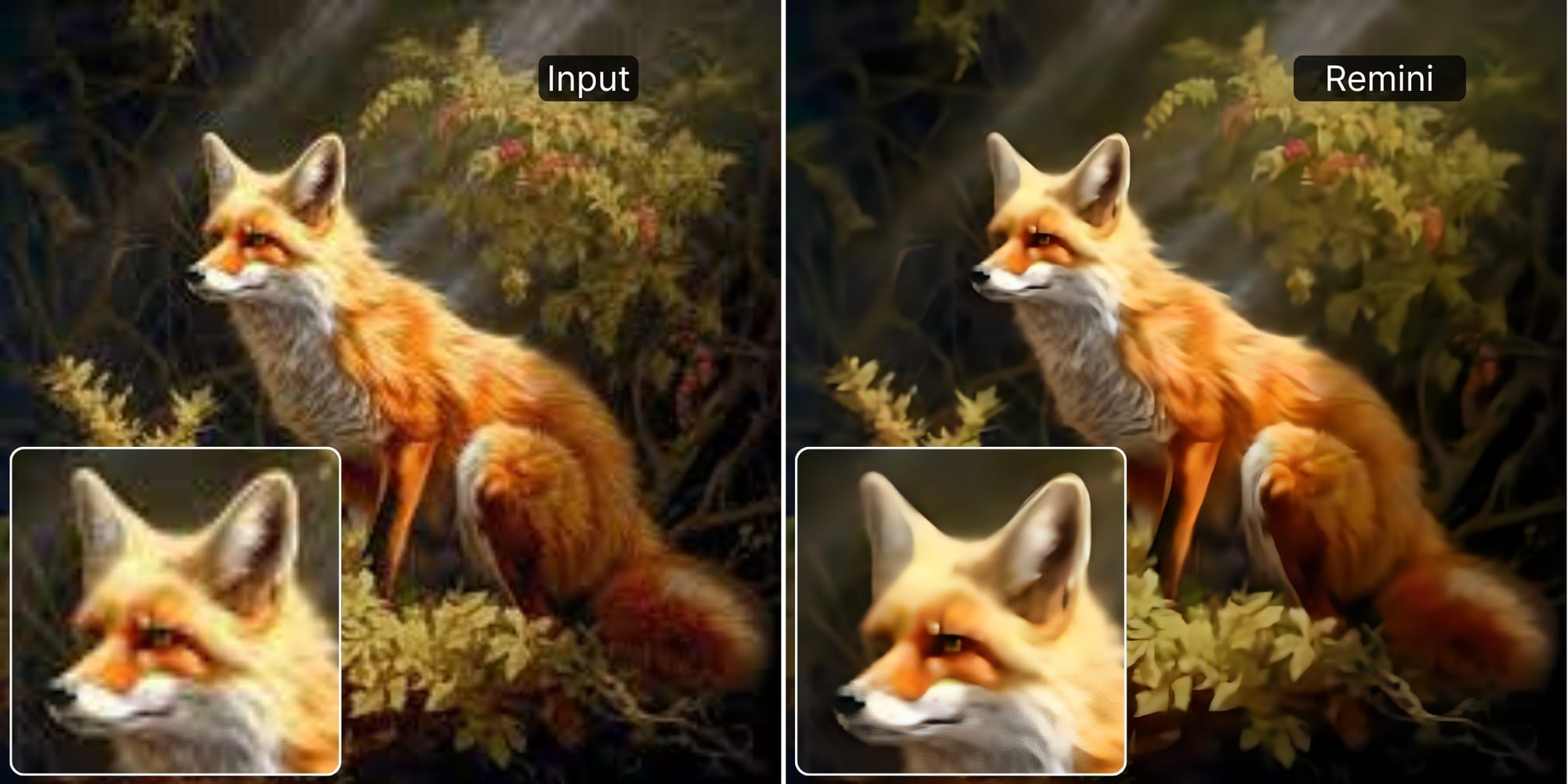
For the fox illustration, Remini's approach was immediately apparent: the face area received preferential treatment while the rest of the image got a more generic smoothing pass. The result was noticeably softer and less detailed than any other tool in this comparison. The overall enhancement was weaker, the texture treatment more artificial, and the structural clarity of the image at zoom was the worst of the group. Its one-size-fits-all processing model is a fundamental limitation for anything other than human face restoration.
For restoring a box of old family photos where faces are the only priority, Remini's speed and one-tap workflow genuinely deliver. For anything that isn't a human portrait, and even for portraits where accuracy to the original person matters more than "looks like a sharp face", there are better options at every price point.
Pros
- Fast, one-tap processing. There are no settings to learn
- Strong results specifically on degraded human faces in old photos
- Available on iOS, Android, and web
- Auto-colorization for black-and-white restoration
Cons
- Softer and less detailed than all other tools
- Face-first processing leaves non-face areas poorly enhanced
- Can generate plausible but inaccurate facial detail
- No parameter control, you get what the model gives
- Weekly subscription pricing is expensive for what's delivered
- Free tier uses ads and limits exports with watermarks
Pricing
Free tier with daily credits. Personal Plan $6.99/week. Business Plan $9.99/week (bulk upload, commercial use).
FAQ: Common questions about AI enhancement
What is the best free AI image enhancer?
For desktop users with good hardware, Upscayl is the best free option because it's open-source and unlimited. For web users, LetsEnhance offers a free trial that provides higher quality (Generative) results than typical unlimited free tools, which often use older, simpler algorithms.
Can AI really fix blurry photos?
Yes, but with limits. AI can fix "soft" focus and motion blur by mathematically predicting where the edges should be (deconvolution). However, if the information is completely lost (e.g., a black smear), the AI has to "guess" (hallucinate) the detail. This works for generic textures (grass, denim) but can fail on specific details like text or logos.
What is the difference between upscaling and enhancing?
- Upscaling simply increases the resolution (e.g., 1000px to 4000px).
- Enhancing improves the quality at the current resolution by removing noise, correcting lighting, and fixing artifacts.Top-tier tools like LetsEnhance do both simultaneously.
Why do some AI upscalers make faces look plastic?
This happens when an AI model is "over-smoothed." It removes noise but fails to generate skin texture (pores, wrinkles), resulting in a wax-figure look. Modern "Generative" models (like LetsEnhance Ultra) solve this by generating realistic skin texture layers on top of the upscaled geometry.
