
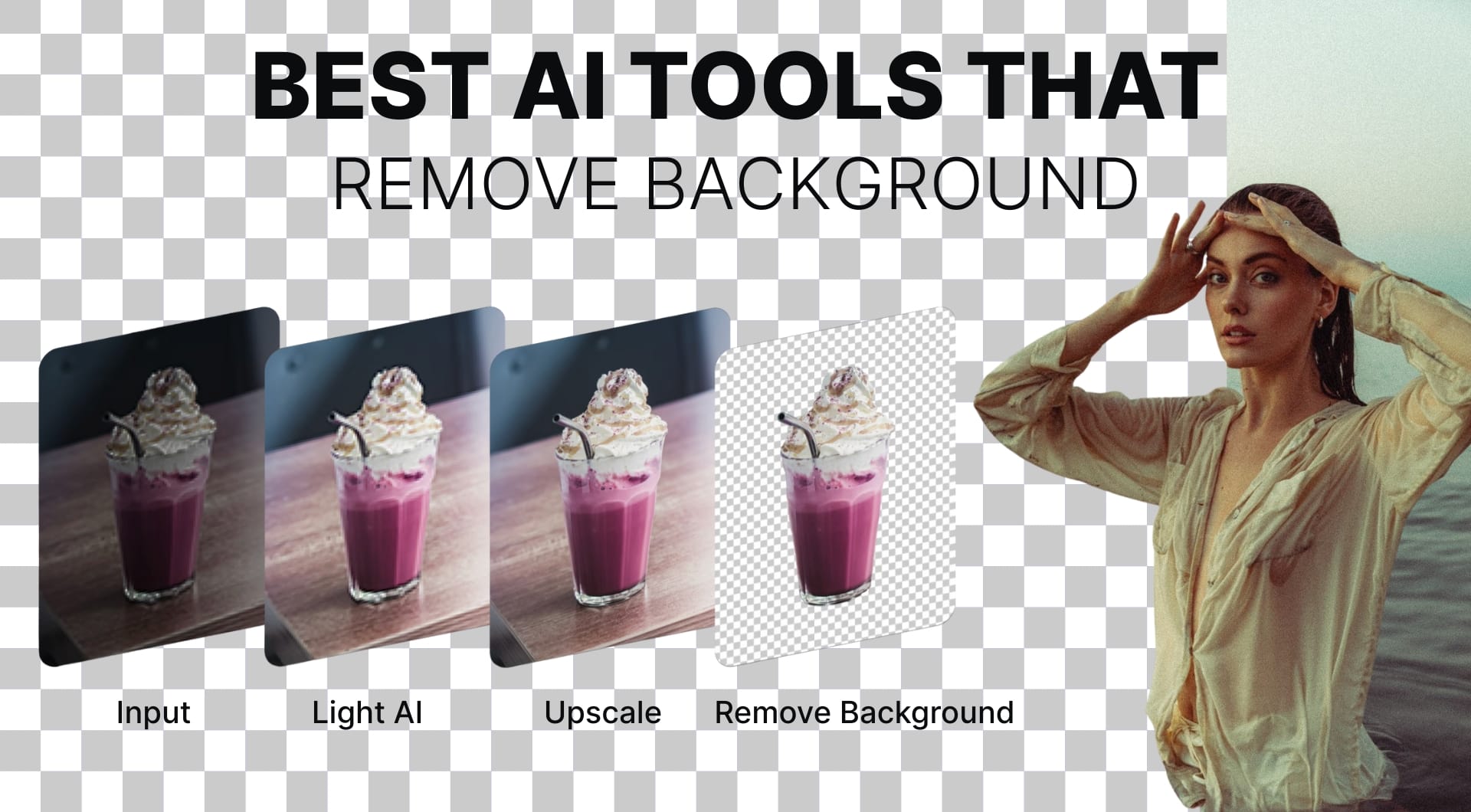
Need some good background removers to get transparent PNG or clean white background? The difference between tools is edge quality, resolution limits, batch workflows, and how often you fight halos and missing hair.
Here is a practical breakdown of the best AI background remover tools for ecommerce, design, and dev workflows.
Short about the best AI background remover tools
| Tool name | Best for | Pricing model | Key strength |
|---|---|---|---|
| LetsEnhance.io | Best overall | Free tier, subscriptions, pay-as-you-go | Cutout plus enhancement and upscaling in one pipeline; strong fidelity or detail-adding modes |
| Claid.ai | Product photos at scale + API | Web plans + API credits | Background removal plus product-ready generation workflows and API operations |
| remove.bg | Fast one-click results | Free low-res previews, credits, subscription, API | Consistent matting quality and wide integrations; clear free-tier limits |
| Photoroom | eCommerce listings and sellers | Free tier, subscription, API | Product-first workflow plus low-cost remove background API pricing |
| Adobe Photoshop | Maximum control and refinements | Subscription | Best “last 10%” cleanup with masks and edge refinement tools |
| Canva | Quick marketing assets | Free with limits, Pro subscription | Background removal inside a design tool, fast templating |
| Clipdrop | Quick edits plus API experiments | Free tier, Pro subscription, API credits | Solid remover plus cleanup/relight/upscale; documented API rate limits |
| Pixelcut | Mobile-first creators | Free tier, Pro subscription, API credits | Simple UI; published API unit price for background removal |
| Cutout.pro | Batch removal and categories | Web credits, API credits | Bulk processing and API credit model |
| rembg | Offline and privacy-first workflows | Free, open source | Local background removal (no upload), scriptable, works in pipelines |
1. LetsEnhance.io
LetsEnhance is a general-purpose AI image enhancement platform that also includes a dedicated background removal operation. The positioning is slightly different from most pure background remover tools: you get cutout, upscale, sharpening, and color correction in one pipeline, rather than a single-purpose remover.
Under the hood it uses segmentation plus refinement models, then lets you chain upscaling and enhancement so you don’t end up with a tiny transparent PNG that you have to fix elsewhere. For ecommerce, this matters more than people expect.

Key features
- Background removal for up to 16 MP input and output, suitable for most web and marketplace use.
- 6 different enhancement modes for different needs. For example, Gentle for high fidelity and Ultra for transformation.
- End-to-end pipeline in one pass: remove background, upscale, generate new images with Chat Editor and animate.
- Output resolutions up to 256 MP on personal plans and up to 500 MP on business plans, useful when you need large banners or print assets.
Best for
- Ecommerce sellers who need clean, sharp product images ready for marketplaces and print.
- Designers who want to upscale and clean user generated content or legacy photos.
- Teams that may later need API or bulk workflows via Claid.
Pricing
- Free tier with a limited number of credits so you can test background removal and upscaling.
- Paid subscriptions start with 9$ per month and use a credit system, with business tiers for higher volumes.
- Available pay-as-you-go bundles for occasional use.
Pros
- High quality cutouts combined with upscale and color correction in the same tool.
- Large max output resolution, good for print and high DPI marketplace requirements.
- Several AI modes so you can prioritize fidelity or extra detail.
- Simple credit system that also covers enhancement and other operations.
- Uses the same technology stack as Claid, so transitioning to API or bulk processing is straightforward.
Cons
- Background removal output is capped at 16 MP, which is more than enough for web, but overkill print jobs may still require additional upscaling after cutout.
- Some advanced tools require subscription.
2. Claid.ai (for ecommerce teams and APIs)
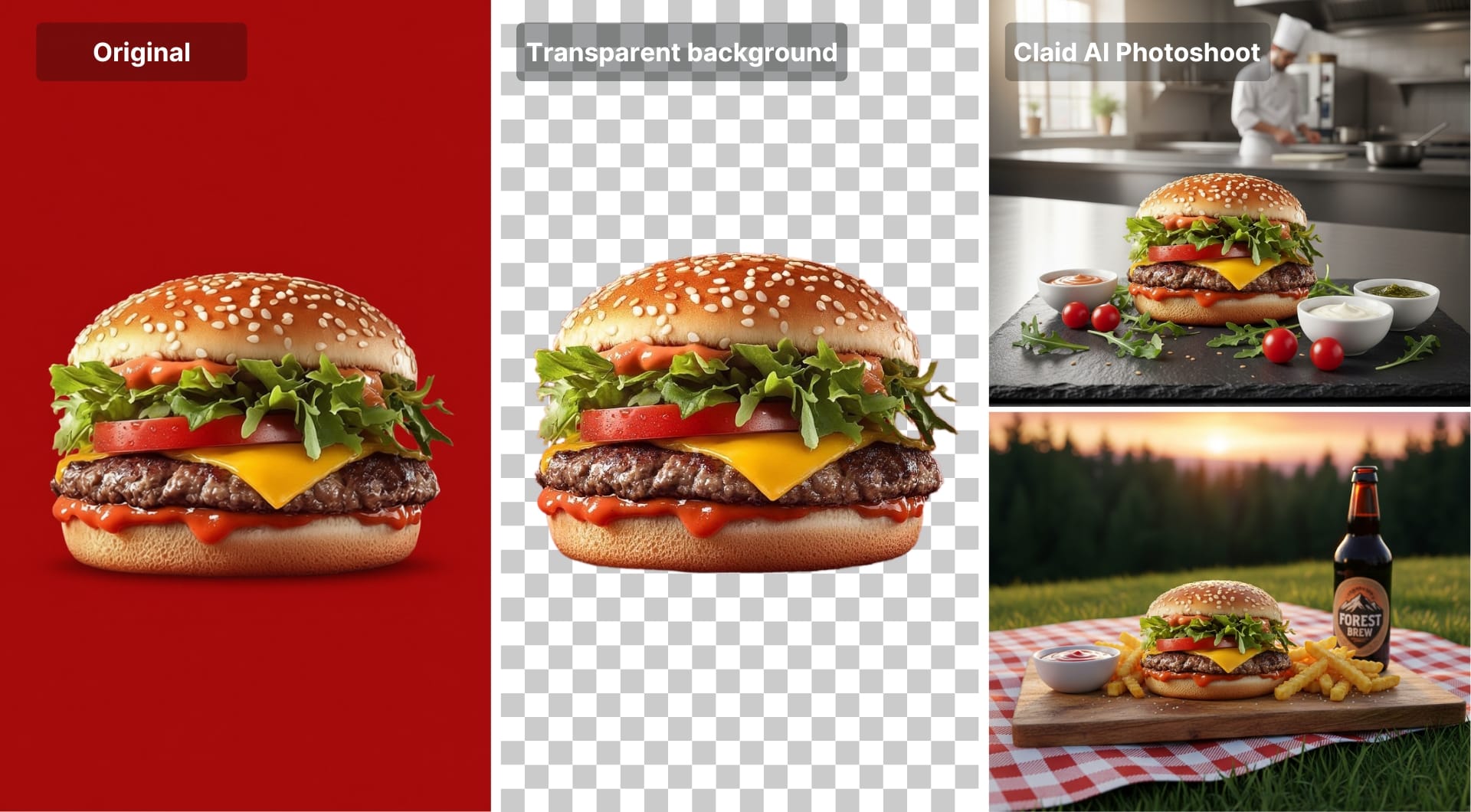
Claid is purpose-built for product photography. Background removal is only one of its common operations, along with upscale and “photoshoot-style” generation workflows for commerce.
If you need automation, Claid publishes API pricing and lists background removal as a specific API operation with its own credit cost.
Key features
- Product-focused background removal plus background generation templates and text-based backgrounds in the same UI.
- API operations with documented credit costs
- Higher max download sizes on higher tiers (useful when you need large catalog imagery, banners, or print assets).
Best for
- eCommerce teams who want product visuals at scale
- Developers who need an API for editing and generation, not only cutouts
Pricing
- Available free trial with 50 credits
- Subscriptions starting from 9$ a month for 500 credits
- API pricing starts from 59$ for 1000 credits.
Pros
- Strong fit when “remove background” is step one, and you also need shadows, new scenes, resizing, and upscale in the same system.
- Clear API unit economics and rate limits, so you can model throughput and cost before shipping.
Cons
- Overkill if you only need occasional cutouts
- Best value shows up when you use more than one operation
3. remove.bg
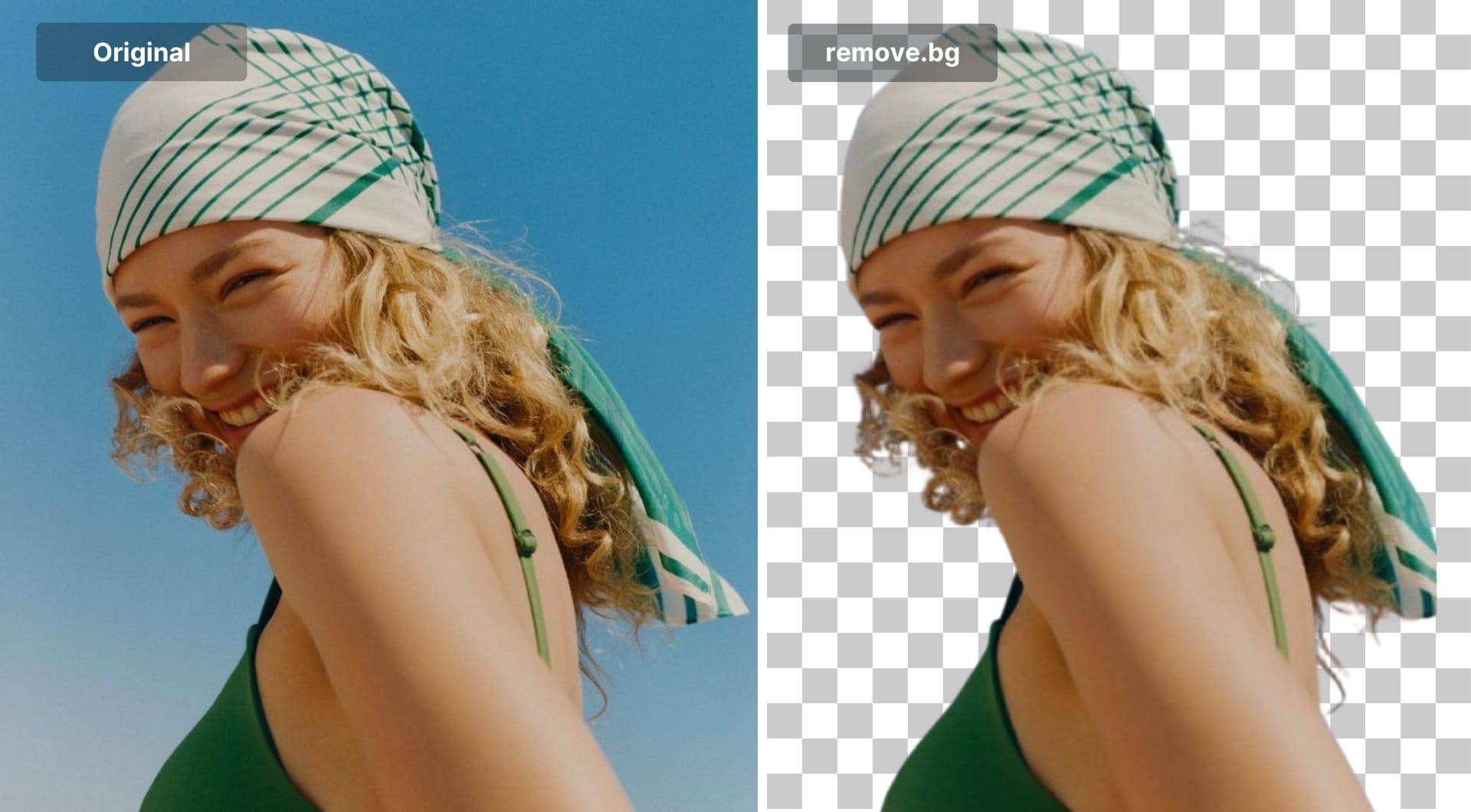
remove.bg is the “one-click baseline” many people compare everything against. It usually performs well on hair and common portraits, and it’s everywhere: plugins, integrations, and an API.
The tradeoff is typical for this category: the free tier is mainly for previews. remove.bg documents that free background removal supports low-resolution previews up to 0.25 MP, and free accounts may include limited extras like a bonus credit and a set number of API previews per month.
Key features
- Mature auto-cutout with a deep integration ecosystem (web, apps, API).
- API supports multiple output formats with different resolution ceilings (for example, PNG up to 10 MP; JPG/WebP up to 50 MP).
- Explicit preview vs full-resolution modes (preview defaults to 0.25 MP)
Best for
- Quick cutouts where you value speed and predictability
- Teams that need integrations more than an all-in-one editor
PricingFree low-res previews; paid credits/subscriptions for high-resolution downloads and API usage.
Pros
- Strong “first click” results for common portraits and products.
- Transparent documentation on preview limits and API behavior.
- Easy to drop into existing workflows.
Cons
- Free tier is intentionally low-res; high-volume work gets expensive compared to per-image API pricing models.
- You will still need separate tools for upscale, denoise, retouch, and export prep.
4. Photoroom
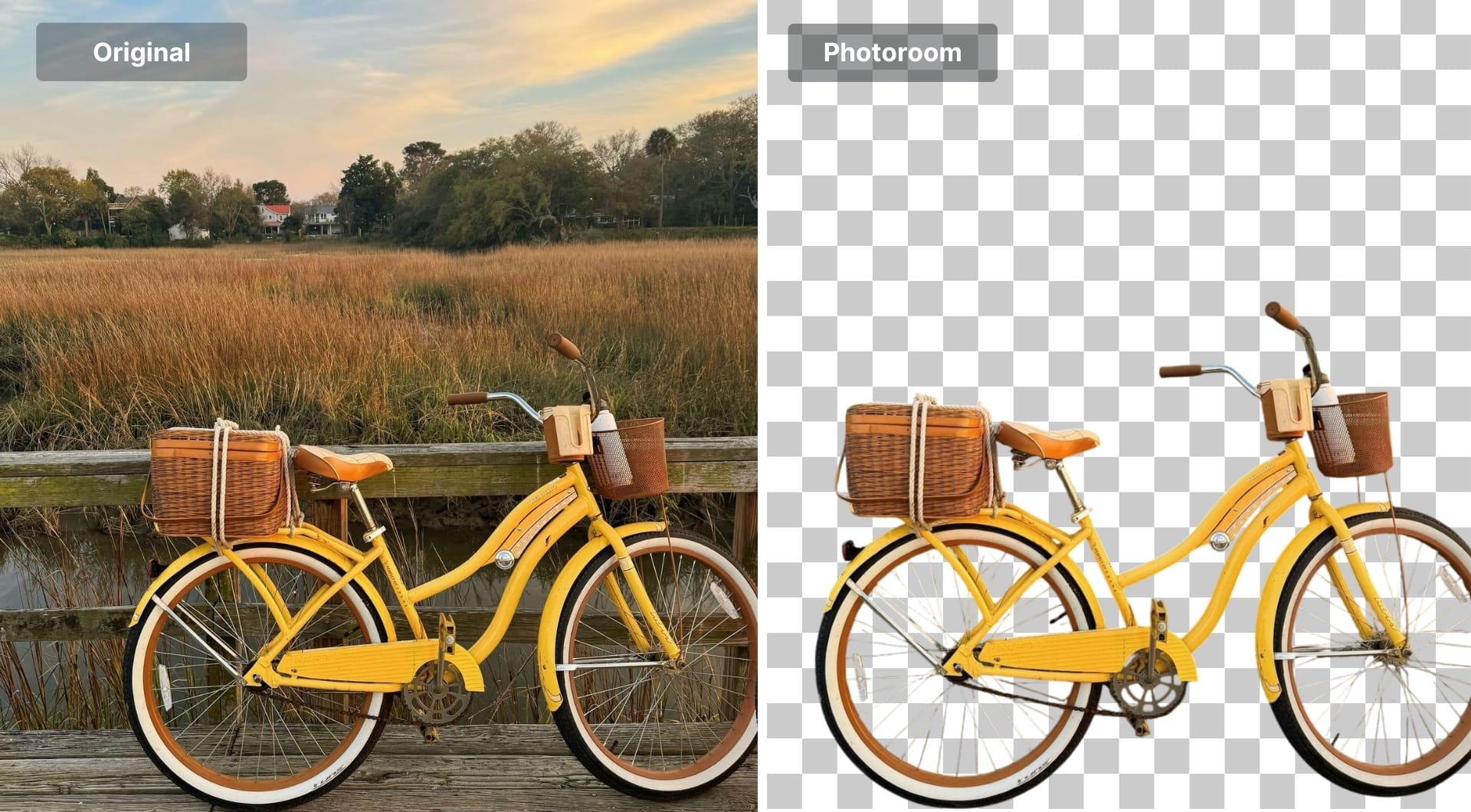
Photoroom is optimized for sellers. It is less “pure background remover” and more “make a product listing image happen”. That matters if you are doing repetitive work: remove background, add white, add shadow, resize for platform, export, repeat.
If you care about developer workflows, Photoroom is also unusually clear about API pricing. The remove background API is priced at $0.02 per image on the basic plan.
Key features
- Product-first workflow (background removal plus common listing steps)
- API designed for background removal and broader image editing
Best for
- eCommerce sellers and small teams who want speed and consistency
- Developers who want a low-cost background removal API with published pricing
Pricing
App plans vary; API pricing is documented, including per-image costs for remove background calls.
Pros
- Great for high-volume product workflows
- Clear API pricing for background removal
Cons
- Less control than Photoshop for edge-case cleanup
- Results can vary on transparent objects and fine details, like most tools
5. Adobe Photoshop
Photoshop is still the best answer when “AI got it almost right” but the edge matters. If you need manual control over masks, edge refinement, semi-transparent objects, and composites, this is the right solution for you.
Photoshop’s remove background flow is an AI-assisted tool that you can refine. The real value is the refinement tooling, not the first click.

Key features
- Mask-based workflow with professional refinement tools
- Strong for compositing, retouching, and edge cleanup
Best for
- Designers and photographers who need control and repeatable quality
- Hard images: flyaway hair, veils, glass, motion blur, complex shadows
Pricing
- Available 7-day free trial
- Subscription plans with 22.99$ per month
Pros
- Best “last 10%” cleanup when the cutout has to survive scrutiny.
- Works even when automatic matting fails, because you can take over manually.
Cons
- Slower for batch work unless you build actions/scripts
- Learning curve and ongoing cost
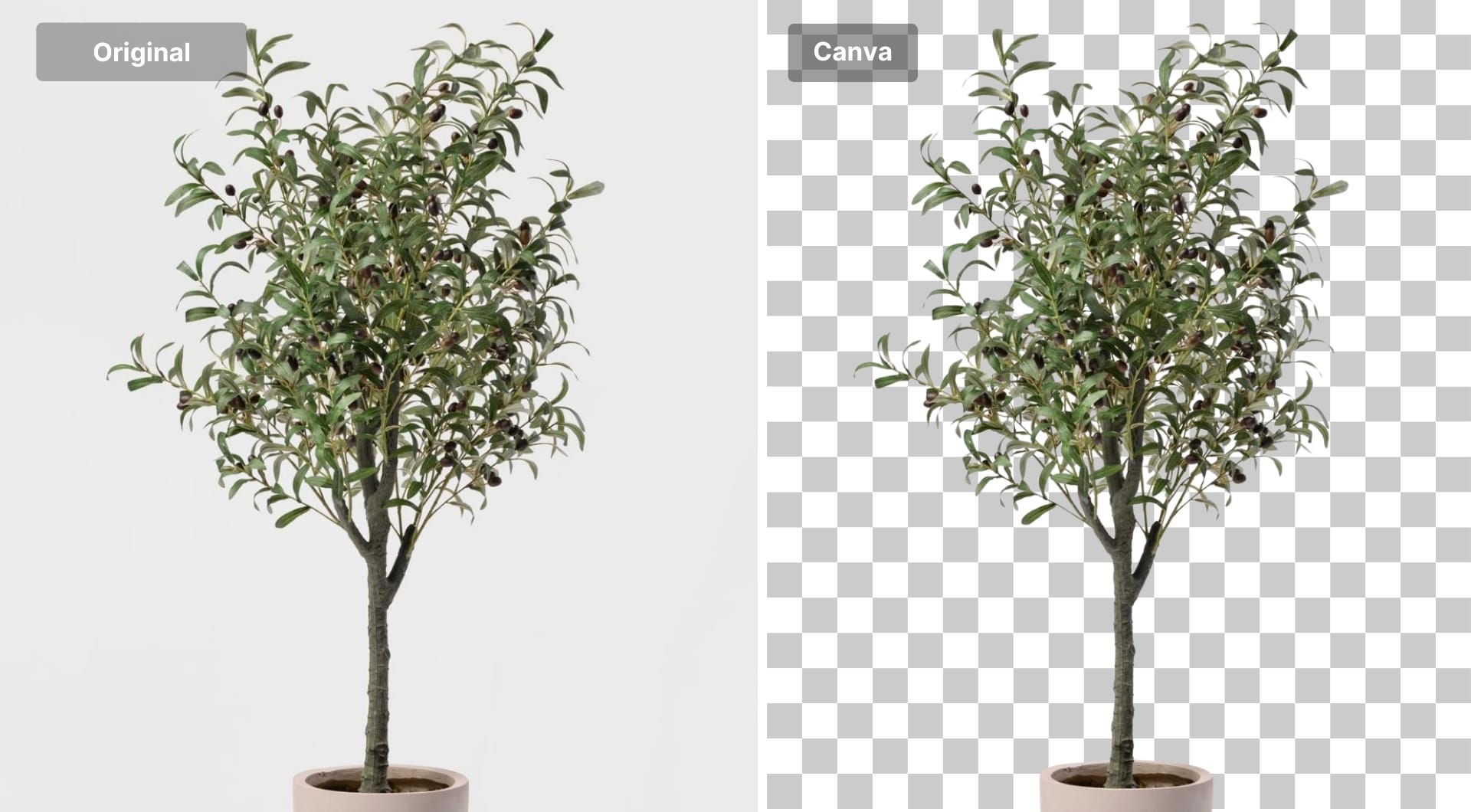
6. Canva
Canva wins on convenience. If your goal is a social post, banner, or quick marketing asset, removing the background inside your design tool saves time.
Key features
- Background removal inside a template and layout workflow
- Fast placement into ads, presentations, and social designs
Best for
- Marketers and small teams making lots of quick creative
- “Good enough” cutouts where speed beats perfect edges
Pricing
- Free plan with limited tools
- Subscriptions starting from 15$ a month
Pros
- Fastest path from photo to finished design
- No tool switching
Cons
- Not the best for hair-level edge quality
- Limited fine-grained masking controls compared to Photoshop
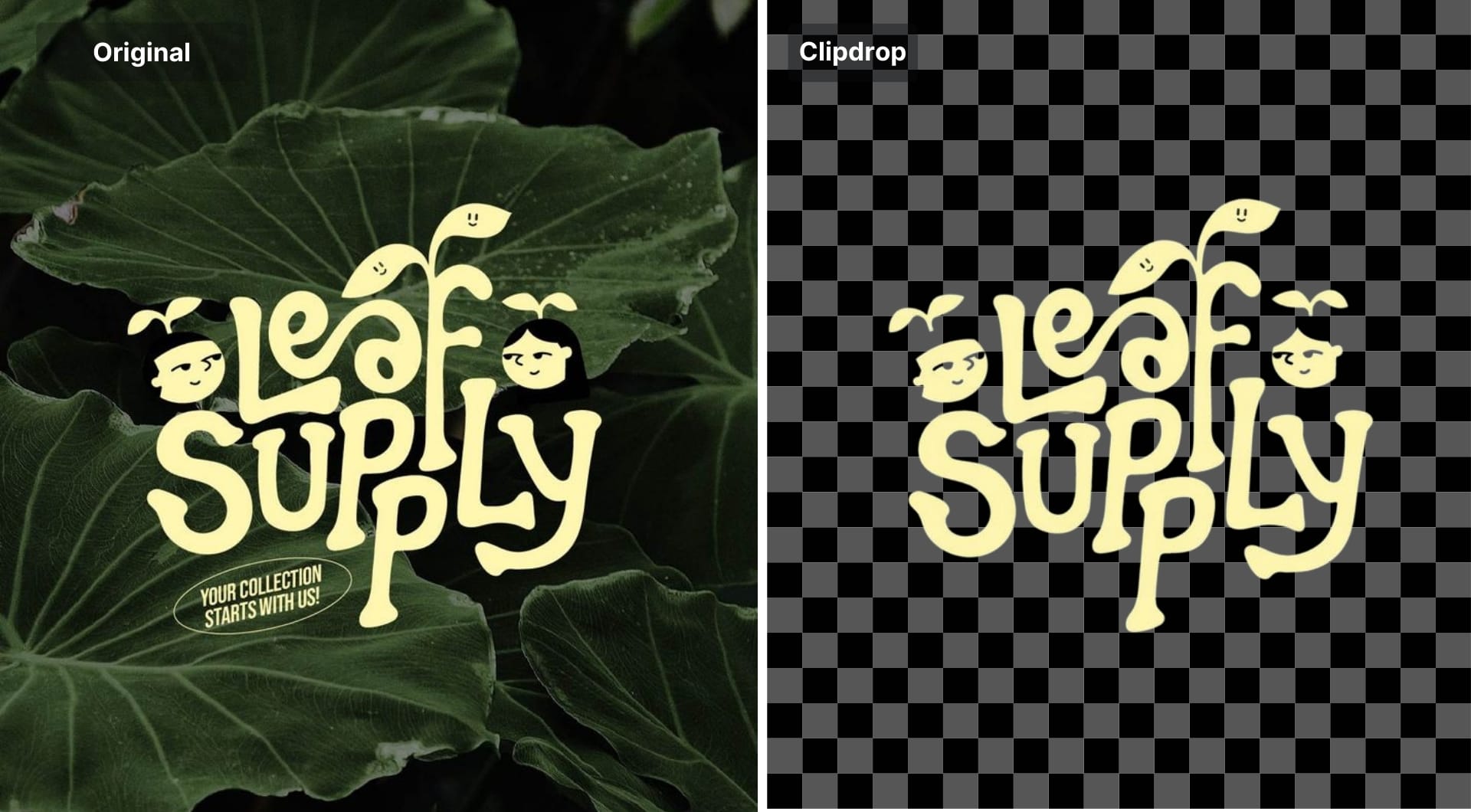
7. Clipdrop
Clipdrop is a good “toolbox” option: background removal plus cleanup, relight, and upscale. If you often need to remove background and also fix small distractions, Clipdrop can reduce tool switching.
The tool offers a free tier with daily usage limits and paid tiers have higher-resolution capabilities. Their API docs also document credit usage and a default rate limit for remove background calls.
Key features
- Background removal plus common post-steps (cleanup, relight, upscale)
- API with documented quotas and credits
Best for
- Creators who want several quick AI edits in one place
- Developers prototyping with an API and clear limits
Pricing
Pros
- Convenient multi-tool workflow
- Transparent API limits and credit model
Cons
- For “only background removal”, dedicated tools can be simpler
- Pricing and quotas can matter fast if you scale
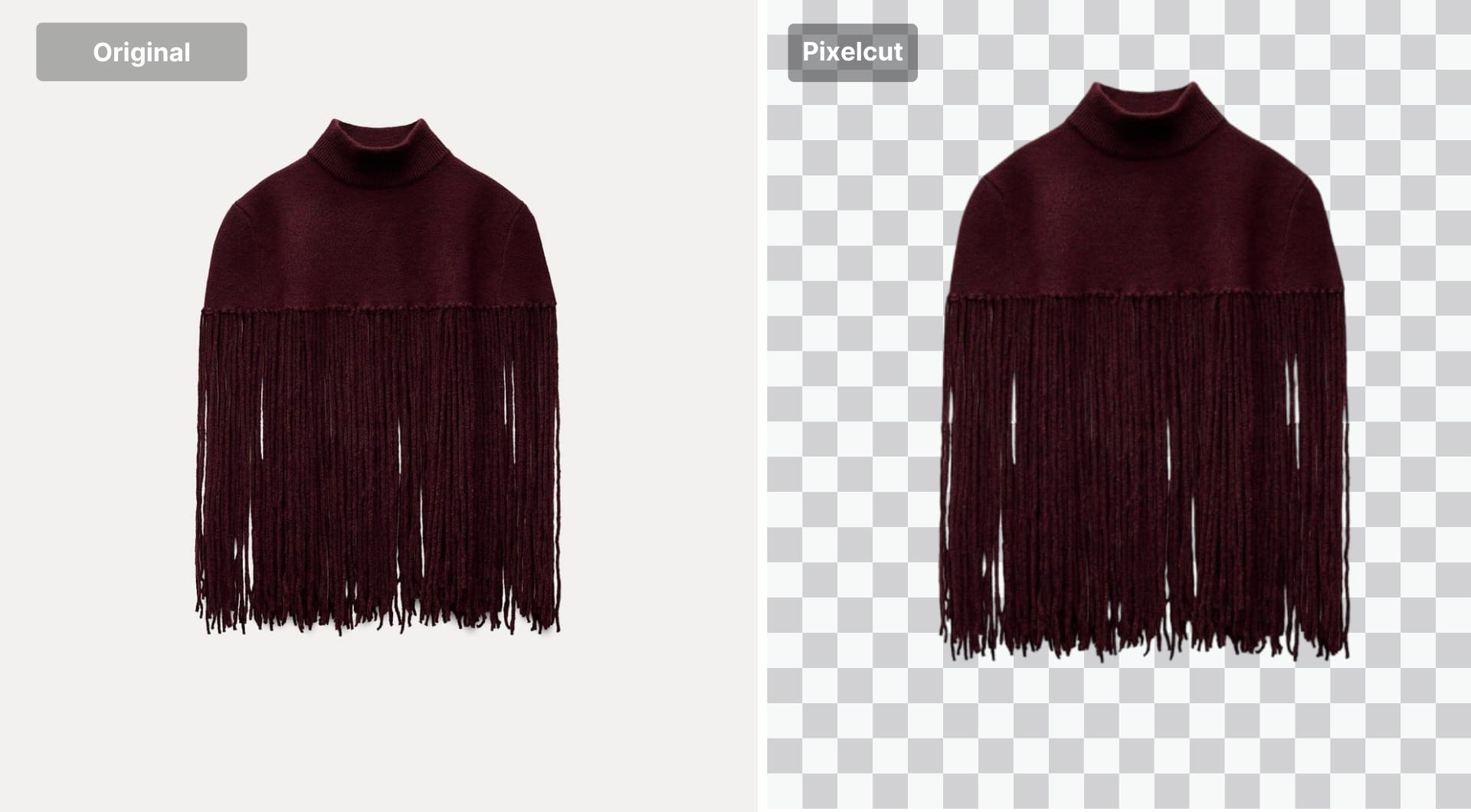
8. Pixelcut
Pixelcut is popular with mobile-first sellers and creators. It is designed to feel simple: remove background, generate or replace background, export, done.
For developers, Pixelcut publishes background removal API pricing in a very direct way: 5 credits per image, and they even translate that to a per-image price on the API page.
Key features
- Mobile-first workflow, simple UI
- Published API unit pricing for background removal
Best for
- Quick cutouts on the phone
- Small shops that want a simple workflow without Photoshop
Pricing
- Free plan with limited tools
- Paid plans starting from 10$/month
- API with 10 Credits per image = $0.1 per image
Pros
- Low friction
- Clear API unit pricing
Cons
- Less manual refinement than pro editors
- Edge quality varies with challenging subjects
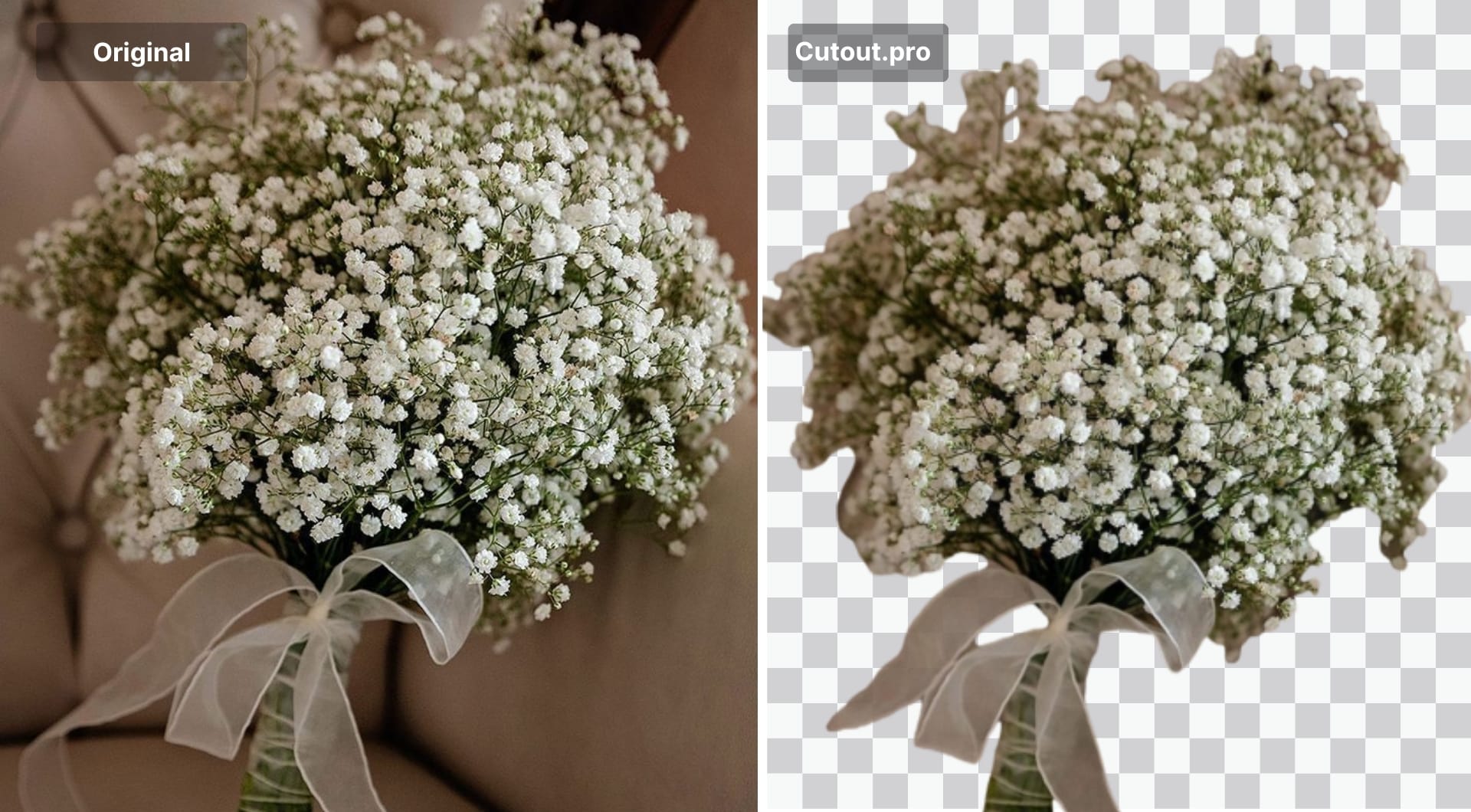
9. Cutout.pro
Cutout.pro is built around bulk workflows and categories. If you need to run background removal across many images and you care about an API, it is worth a look.
They also publish an API pricing model in credits and describe background remover costs per successful call.
Key features
- Bulk processing options
- API and credit-based pricing model
Best for
- Batch background removal
- Teams that want both a web tool and an API option
Pricing
- Free account with 5 free credits
- Subscription plans starting from 0.099$ per credit
- Pay as you bundles starting from 0.195$ per credit
- Each successful API call costs 1 credit for background removal
Pros
- Batch orientation
- Broad set of categories and tools
Cons
- UI and output polish can be inconsistent across tools
- Expect some cleanup for hard edges
10. rembg
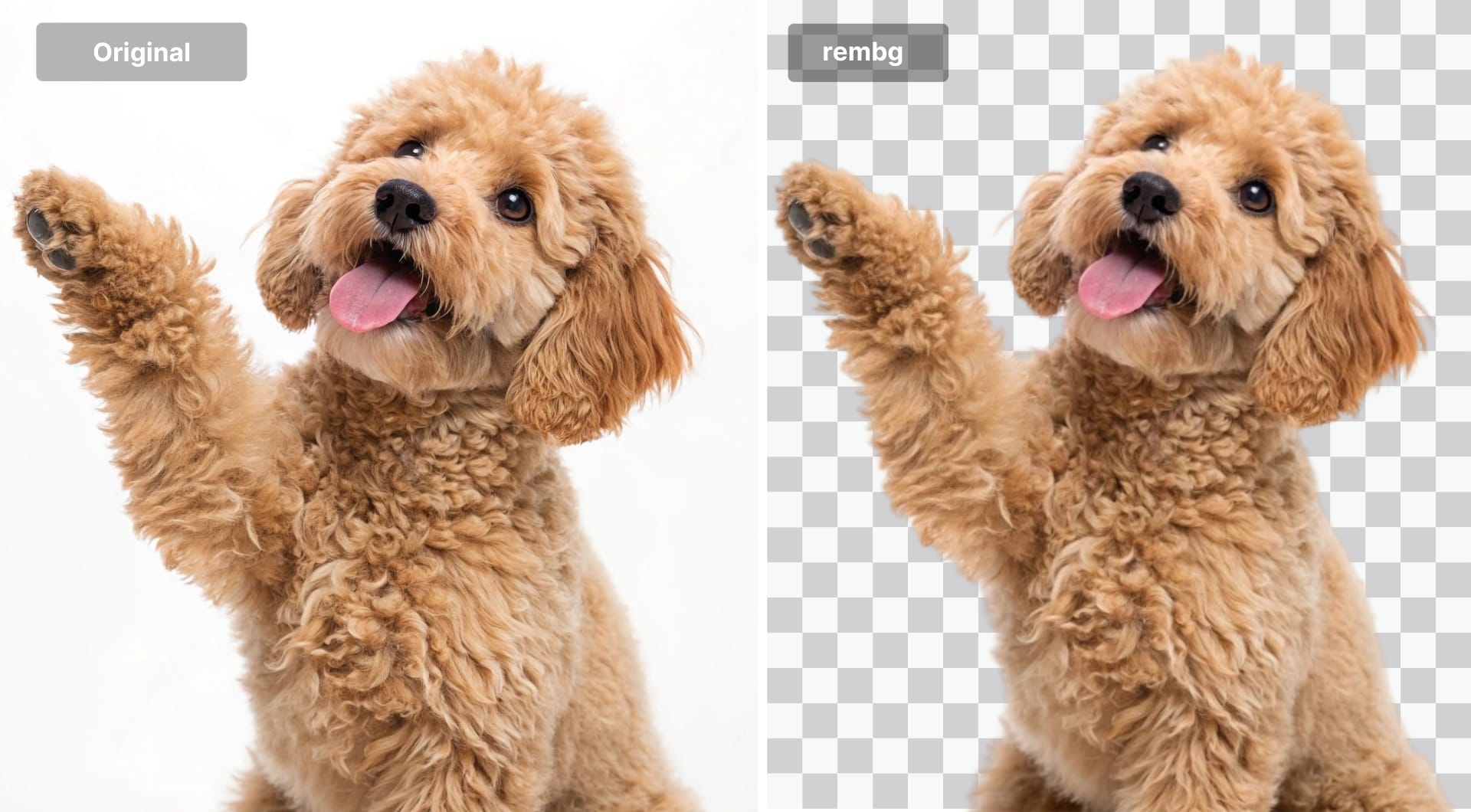
rembg is the most practical “offline” answer. It’s an open-source tool you can run locally, script, and integrate into your own pipeline. That is useful for privacy (doesn’t require uploads), internal tooling, or when you want deterministic batch runs.
It is a GitHub project and is widely used as a building block rather than a polished product.
Key features
- Runs locally, scriptable
- Fits into developer workflows and automation
Best for
- Privacy-first background removal
- Developers who want an offline option and custom pipelines
PricingFree and open source.
Pros
- No uploads
- Integrates well into batch pipelines
Cons
- Not a “click once” product experience
- You may need extra steps for refinement and consistent exports
How to choose an AI background remover
Know what problem you actually have
Most “bad cutouts” fall into a few buckets:
- Jagged edges: common on low-res inputs or crunchy JPEGs
- Halo around subject: background color bleeds into the edge, especially on hair
- Missing fine detail: flyaway hair, fur, lace, transparent plastic, glass
- Bad shadows: subject looks pasted on when the original shadow disappears
If you see halos and hair problems, the tool is not failing at “segmentation”. It is failing at matting (producing a clean alpha matte with good edge transitions).
Check resolution limits before you commit
Many “free background remover” tools are free only for previews.
- remove.bg documents low-res preview limits for free usage.
- LetsEnhance documents a 16 MP limit specifically for background removal.
If you need high-res transparent PNGs for print or zoomable product images, pick a tool that supports your output size without a surprise upgrade.
Decide if you need a pipeline or a single-purpose remover
Single-purpose removers are great when you only need transparency. Pipelines are better when you also need:
- upscale for marketplaces
- artifact cleanup
- consistent look across a catalog
That’s where LetsEnhance tends to win: cutout plus enhancement and upscale in one place.
Batch and API are a separate category
If you process hundreds or thousands of images, UI convenience matters less than predictable pricing per image, rate limits and reliability and consistent output format.
Examples of clearly published API pricing:
- Claid API operation credits for background removal
- Photoroom remove background API pricing per image
- Pixelcut published per-image pricing for background removal
When nothing beats manual refinement
If the edge really matters (hair on a similar-color background, transparent objects, veils), use Photoshop for the last-mile cleanup. One-click tools are fast, but control is the difference between “fine” and “print-worthy”.
FAQ
What is the best AI background remover?
If you want the best overall workflow, pick LetsEnhance because it covers cutout and the next steps (quality and resolution). If you only need one-click cutouts, remove.bg is the most consistent baseline for many users.
Which free background remover is best?
“Free” often means low-res previews. remove.bg documents free previews capped at 0.25 MP. LetsEnhance offers free trial with limited credits where you can test the background removal. If you need offline and free, rembg is the strongest “no upload” option.
How do I remove background from an image with AI?
The basic flow is the same across tools: upload the photo, run background removal, export as transparent PNG (or add a white background and export JPG). If you need a step-by-step guide plus help with generating new images and animations from PNGs, explore more here.
How do I make an image background transparent online for free?
Use a web remover, export as PNG, and verify the output really includes transparency (checkerboard in most editors). Some tools will show a transparent preview but gate high-res transparent downloads behind credits, so always test with your real export size first.
How do I remove background from a photo without Photoshop?
Use remove.bg, Photoroom, LetsEnhance, Canva, Clipdrop, or Pixelcut. The best pick depends on whether you need batch and whether you need quality and resolution improvements after the cutout.
Is remove.bg still the best background remover?
It is still one of the most consistent one-click tools, especially for typical portraits and products, but it is not “the best” for every workflow. If you need a pipeline (cutout + enhancement + upscale), LetsEnhance is usually the better end-to-end choice. If you need product workflow features, Photoroom is often faster.
What is the best background remover app for iPhone?
Photoroom and Pixelcut are common picks for mobile-first work. You can also open letsenhance.io on your mobile device and remove the background easily.
Can I batch remove backgrounds from multiple images?
Yes. Look for tools that explicitly support bulk workflows or provide an API. LetsEnhance supports batch processing with 20 images editing at once, and Photoroom, Pixelcut, Clipdrop, and Claid all provide API options for automation.
Does AI background removal reduce image quality or resolution?
It can. Some tools downscale in free tiers (remove.bg documents low-res preview limits), and some operations have hard caps (LetsEnhance background removal is limited to 16 MP). Always check the exported pixel dimensions and inspect edges at 200% zoom for halos and jaggies.
