
LetsEnhance has been around since 2017. It started as a simple web app for turning low-resolution images into a toolkit for upscaling, enhancement, restoration, and more.
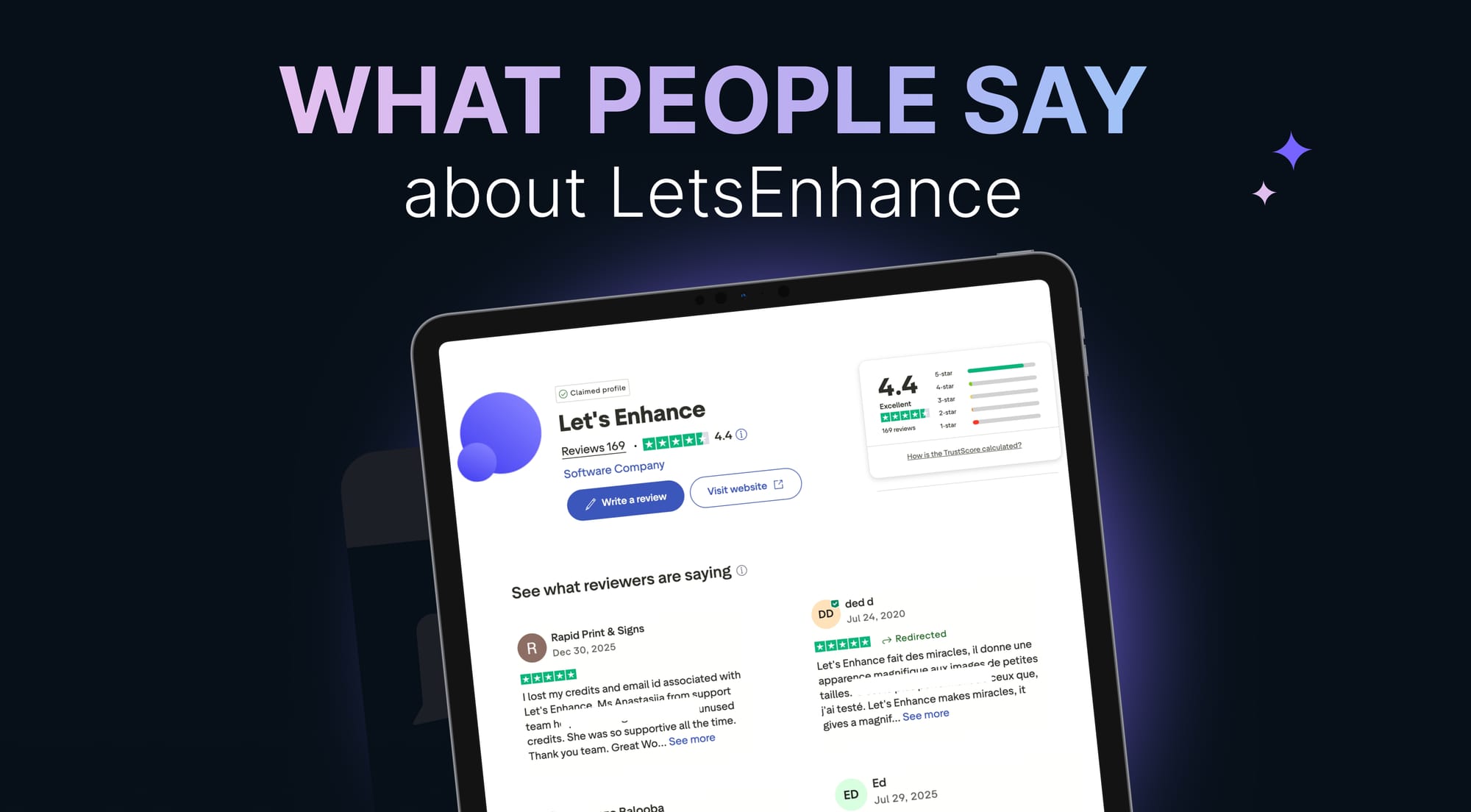
This post is a summary of LetsEnhance users and their reviews shared across public platforms such as Trustpilot, G2, Capterra, X (Twitter) and YouTube. On Trustpilot alone, LetsEnhance sits around 172 reviews with an “Excellent” label and a 4.3 rating at the time of writing.
Now let’s get started and dive into who uses LetsEnhance, what they’re trying to do, what they love, and what annoys them.
Who uses LetsEnhance and why
Reading across platforms, you see the same set of users show up again and again:
- Print people who need files that survive the jump from screen to paper: books, posters, canvas, packaging, signs.
- Photographers dealing with client-supplied “bad originals,” old scans, or phone photos that need to become frame-worthy.
- E-commerce and marketing teams who need consistent, usable visuals fast, often without opening Photoshop.
- Artists and AI creators upscaling Midjourney and other generated images for print, portfolios, or clients.
- Everyone else who just wants a blurry or pixelated photo to stop looking blurry and pixelated.
The only thing that connects all these different types of people is the motivation to save time. They're all using LetsEnhance as a production shortcut.
What print production and print-on-demand users say
Print users talk about LetsEnhance like a way to take a file that would normally get rejected and turn it into something that can actually go to press. That includes images pulled from the web, low-res client files, art photographed on a DSLR for print, and graphics exported from tools that didn’t preserve resolution.
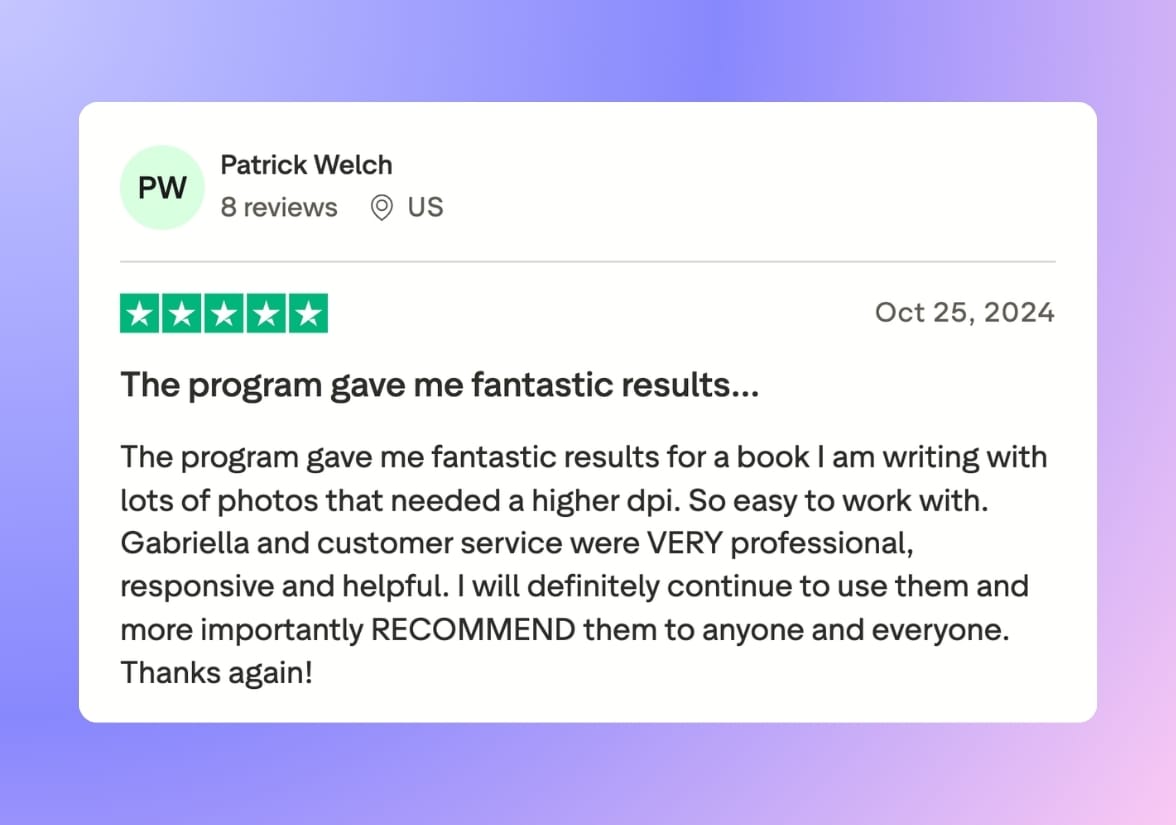
For many users, the goal isn’t to replaces Photoshop entirely. It’s that LetsEnhance handles the cases where manual upscaling either takes too long or produces inferior results. One Trustpilot reviewer summarizes it well: "LE saves huge amounts of time and allows the use of images that I would previously had to reject. I still use Photoshop for simple upscaling but Le is the best" (Bruce Welch, 2020, Trustpilot).
Across the print and publishing reviews, the same three LetsEnhance features come up again and again.
Output sizing controls
People like that LetsEnhance doesn’t force you into a vague “2x/4x” mindset. They mention being able to work in pixels or inches, which is how print projects are specified in real life. That also explains why “DPI” shows up so often in this cluster. Some reviewers are doing books, journals, cards, posters, or canvas prints and they need the file to meet a specific print threshold, not just “look better.”
The before/after preview that's treated like quality control
Print makes flaws obvious. So users rely on the preview to inspect edge behavior, text sharpness, and whether the result still looks like the original image at a larger scale. When people say they prefer LetsEnhance over alternatives, this is often part of the subtext: they’re trying to avoid the two classic print failures, blur and ugly artifacts.
AI modes that avoid overprocessing
The most cited example across reviews is Gentle, because print users want improvement without that overprocessed. In other words, they reward LetsEnhance when it enhances without inventing obvious texture or stretching detail.
For print-critical files where you want stronger detail retention without turning skin, fabric, or gradients into plastic, we recommend checking out our new Prime upscaler.
What photo restoration users say
Restoration users come to LetsEnhance to recover family archives, faded prints, low-res scans, and old phone photos that are technically compromised but emotionally irreplaceable.
Across the restoration reviews, people mostly talk about the following features:
Bringing old photos back to life
A lot of restoration feedback is emotional, but it’s also specific. People aren’t just saying “sharper.” They’re saying the photo feels usable again: like a faded, low-detail memory becomes something you can actually look at, share, and print. One Trustpilot reviewer puts it in the simplest terms: “Let's Enhance did restore my old photo and brought them to life" (Ahmed Al-Ghanim, 2025, Trustpilot).
Old photo restoration as a batch workflow
A lot of restoration is not just one image. It’s folders. People talk about feeding in batches of scans and judging the tool by consistency over dozens or hundreds of files. That’s why “time saved” comes up so much in positive restoration experiences. You’re not just fixing a photo, you’re avoiding a manual restoration project.
Colorization, but with control
Colorization is one of the most emotionally loaded parts of restoration. One Trustpilot reviewer says: "Although I was initially surprised by the colorised results, I have been very pleased by the way the great majority of them come out" (Paul Wright, 2025, Trustpilot). And this kind of reaction is true because colorization can feel like a gift or like a rewrite, depending on the photo.
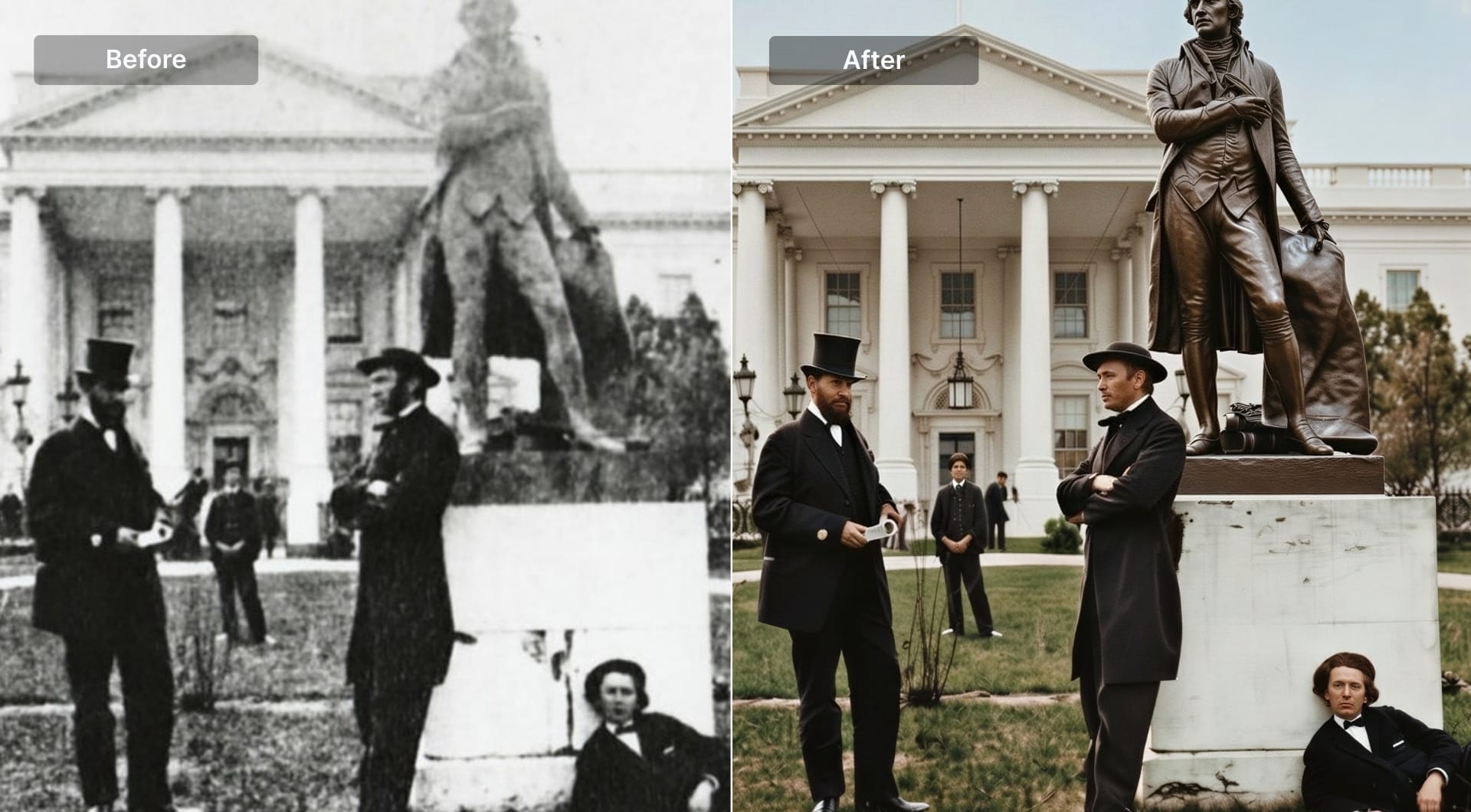
While collecting user reviews, we also found a strong before/after example shared on X (Twitter) by Jude Bell, who restored an old historical image using AI tools, including LetsEnhance. You can see the before and after he shared below.
What photographers say
Photographers use LetsEnhance when the input is constrained by reality: a client only has a low-res file, a scan was done at a cheaper setting, or the image needs to be delivered larger than the source supports. In most reviews, the tool is described like a workflow bridge as it turns “this isn’t usable” into “this is deliverable.”
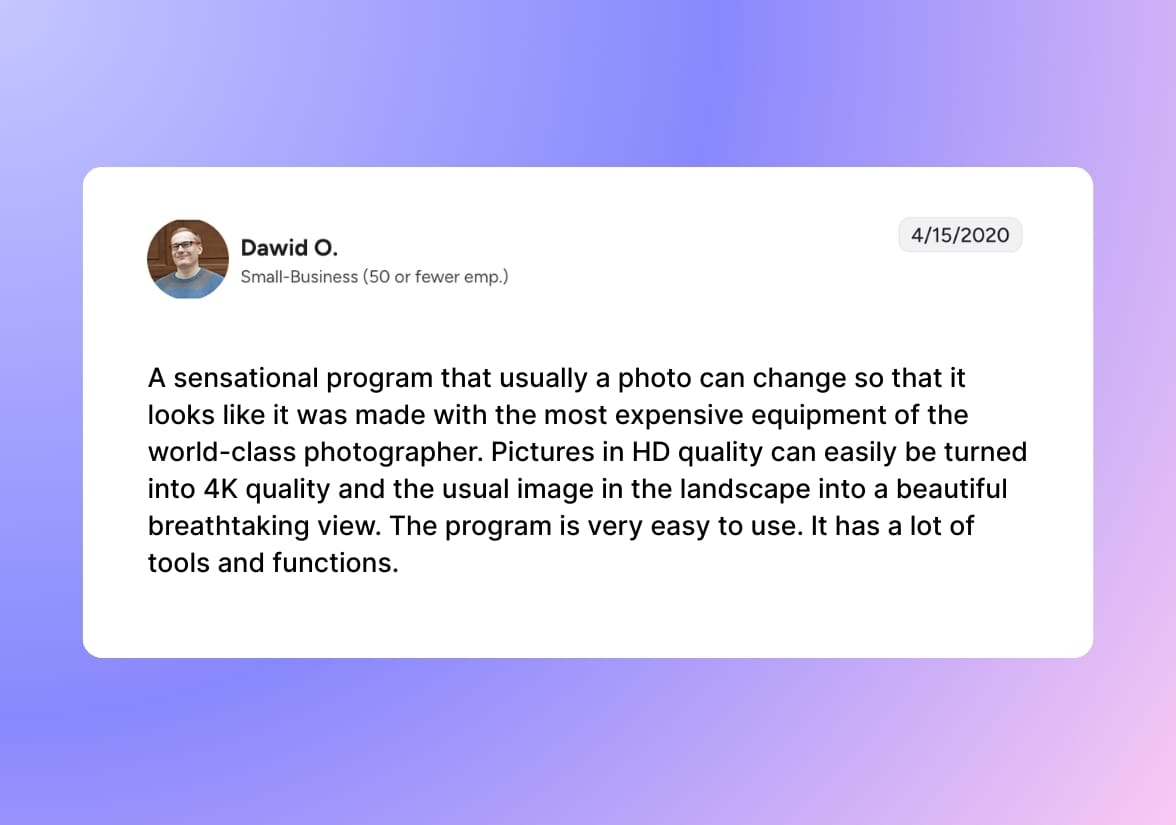
Three LetsEnhance features keep showing up in photographer feedback.
Upscaling that holds up when the image leaves the screen
Photographers are unusually sensitive to fake detail and brittle edges. Their praise tends to be specific: they like when the output looks clear and sharper, but still “photographic,” not overly processed. People describe LetsEnhance as a way to enlarge and frame iPhone photos and as a practical way to improve client-supplied images that would otherwise be rejected or turned away. The underlying compliment is that it improves output without turning it into something that looks obviously synthetic.
What one called "amazing tool for photographers"
One of the LetsEnhance users on G2 explains a very common photography economics tradeoff: shooting 35mm, scanning low-res because high-res scans cost more, then using LetsEnhance to upscale. What makes that review unusually credible is the outcome: they report stock sites accepting the upscaled versions and even a magazine accepting one for a front cover (Valerie T., 2019). That’s not a casual “looks better” claim. It’s an acceptance threshold claim, which is how photographers evaluate whether a file is truly usable.
Support and speed are part of the photography workflow
Photographers don’t separate product from support because missed deadlines are expensive. Support is repeatedly framed as fast and human, and the product is framed as saving large amounts of work when setting up professional workflows. At the same time, this is also where expectations stay realistic: one photographer reviewer describes it as “not a miracle solution,” but still the closest thing they’ve found after trying other platforms (Tim Thompson, 2020). That’s an honest, high-signal endorsement because it acknowledges limits while still choosing LetsEnhance for the jobs that matter.
What creators and digital artists say
AI creators and digital artists use LetsEnhance differently. For them, upscaling is part of the production pipeline: take something that exists at “screen resolution” and turn it into a file that can survive print, large formats, or client delivery.
Across the creator reviews, here are three LetsEnhance features that show up repeatedly.
Output control is the point, not just “bigger”
Creators care about resolution in a concrete way because they’re often moving from digital to physical. That’s why the most technical praise in this cluster is about being able to dial in the output properly, including resolution and format. Midjourney users, in particular, describe LetsEnhance as a necessary step to turn generated renders into something that looks finished and usable outside the AI tool.
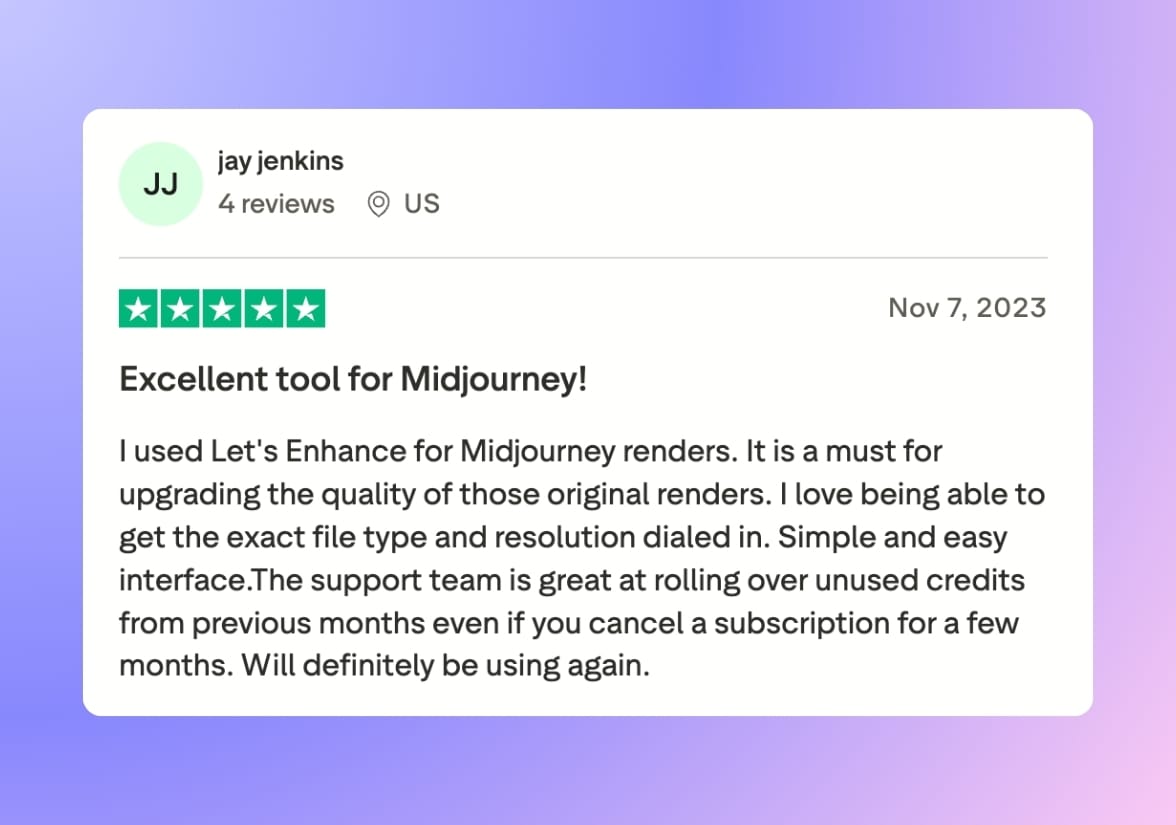
It’s used to make digital work printable
Several reviews describe the same transformation: low-res digital work becomes something that can be printed, sold, or displayed. That includes people making prints and wall art and users boosting artwork photographed or exported at insufficient resolution so it holds up in printed copies. The subtext is important: they’re trying to avoid the “cheap print” look that happens when you stretch small files.
The tool earns loyalty when it becomes routine
One reviewer describes LetsEnhance as something they use nearly every day and as the only AI art-related tool they stayed subscribed to long-term. That matters because it implies the outputs are predictable enough to build habits around, which is exactly what creators need when they’re selling work or delivering to customers.
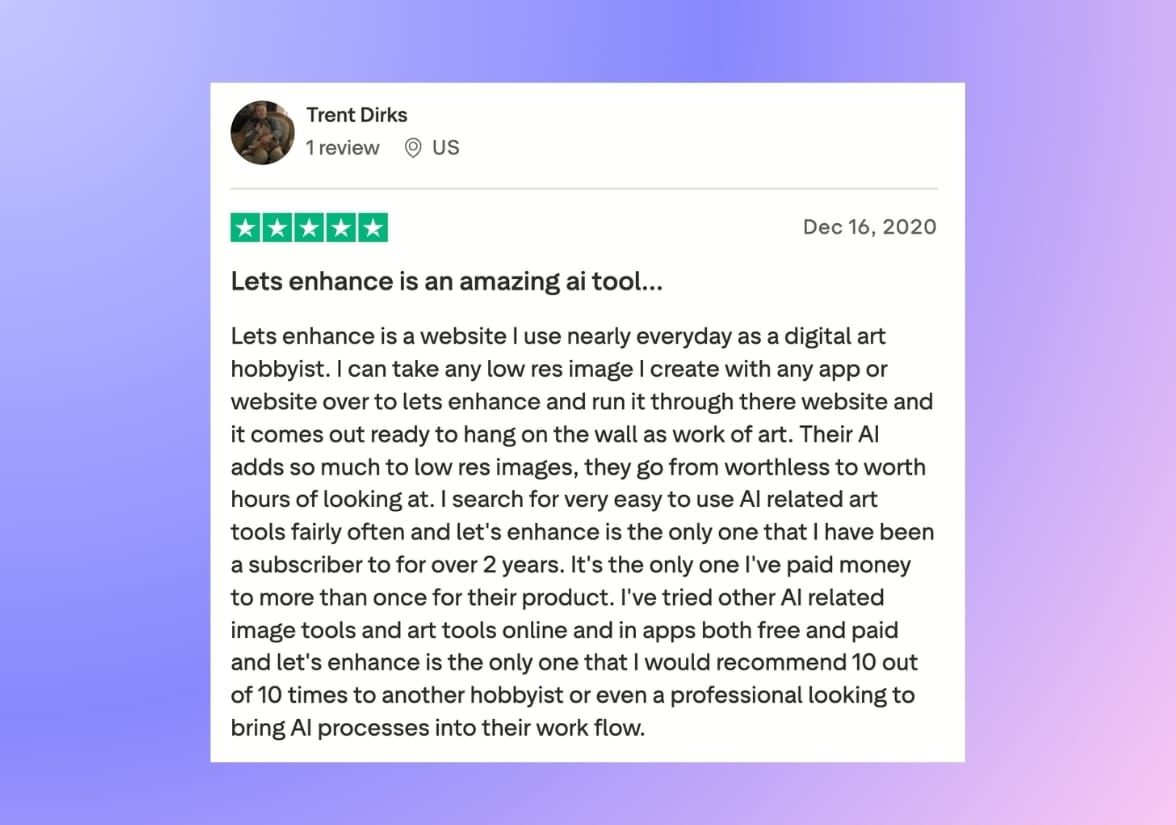
There’s also an operational detail that creators care about more than most: credit flexibility. Midjourney users explicitly mention that support helps with rolling over unused credits when subscriptions pause. For creators who don’t produce at the same volume every month, that kind of policy clarity changes whether the tool feels usable long-term.
What people say about upscaling and enhancement quality
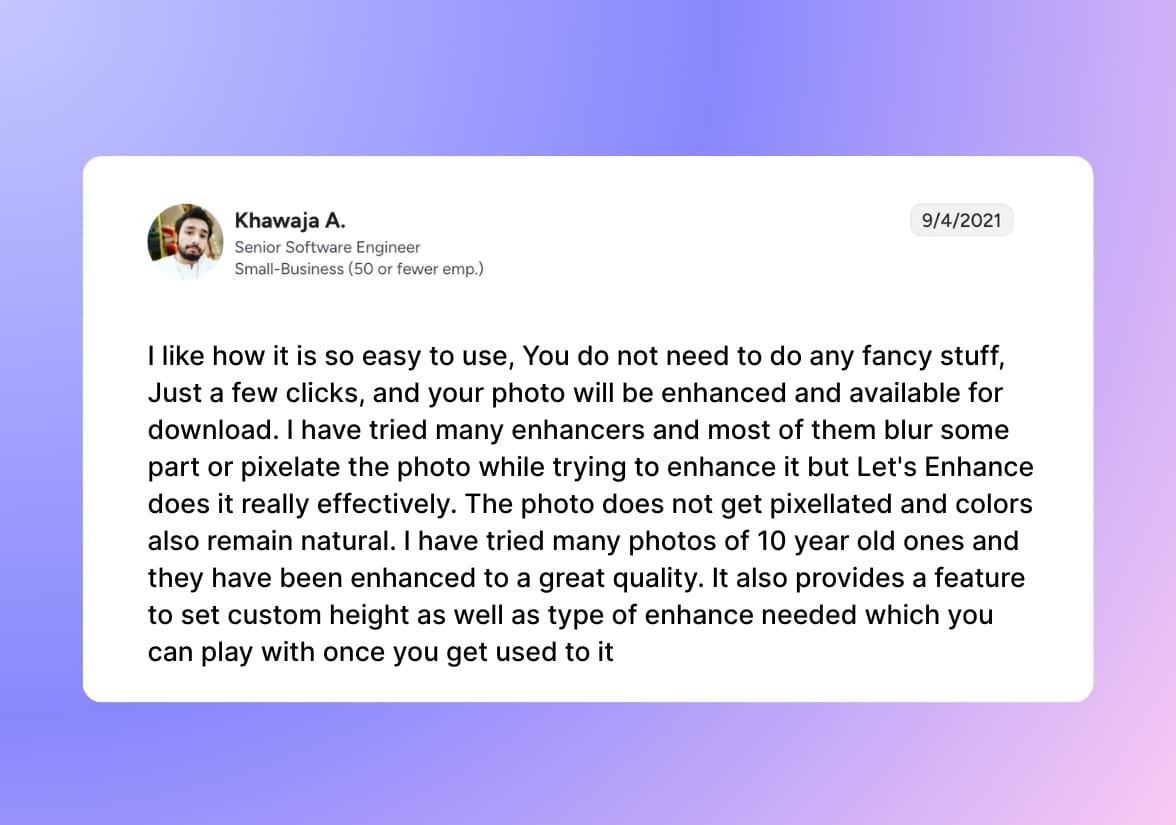
Across platforms, the most common praise is simple: LetsEnhance makes low-quality images usable again without requiring Photoshop-level skill.
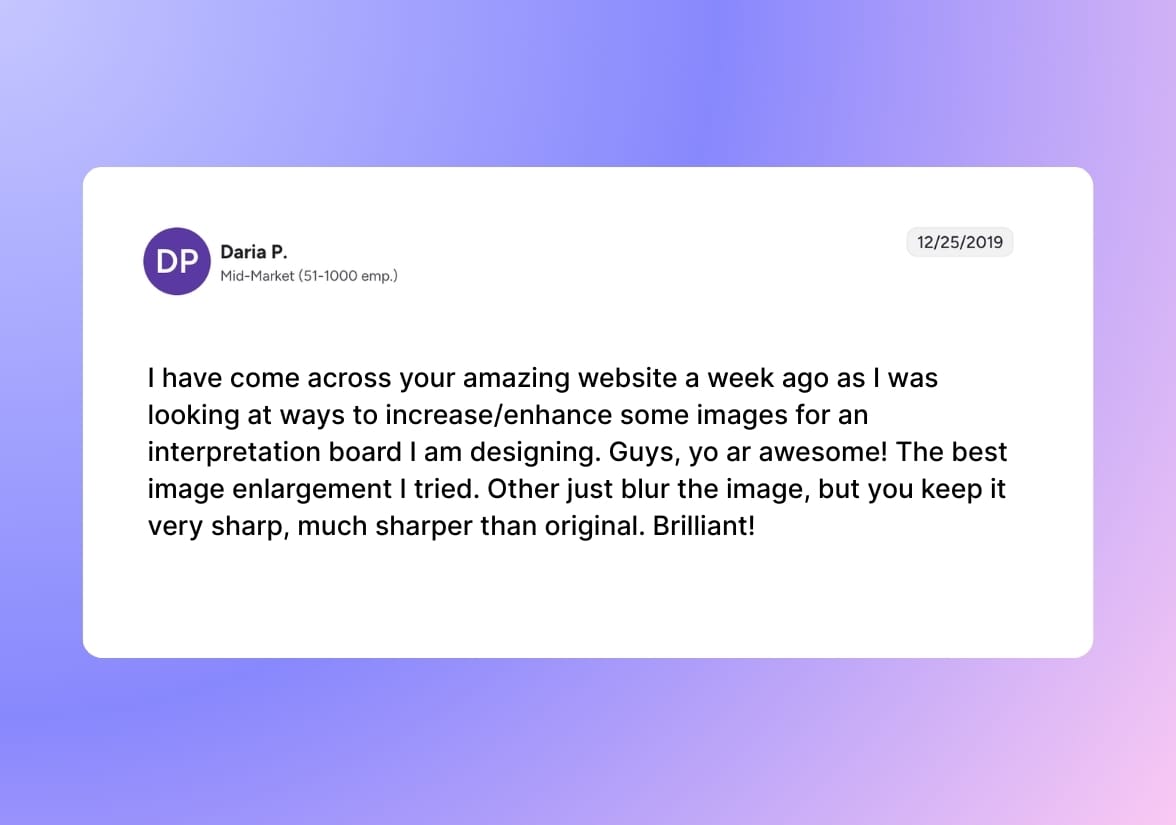
Reviews repeatedly call out three practical benefits. First, the output tends to stay sharp and readable at larger sizes, which is why people use it for print, presentations, and professional materials. Second, the workflow is deliberately lightweight: drag-and-drop, a small number of choices, and a quick before/after check, which is exactly why non-designers mention it as a “quick win.” Third, people like having different enhancement behaviors to choose from.
In Trustpilot, “Gentle” gets named as the option that avoids overcooking detail. In G2 and Capterra, users describe the tool as a reliable way to take low-definition inputs and turn them into images that look crisp and professional in reports, marketing assets, and everyday business work. Price comes up as the main tradeoff in some of these reviews, but even those users tend to concede that the output quality is strong relative to alternatives, especially when the job is important.
What people say about customer support
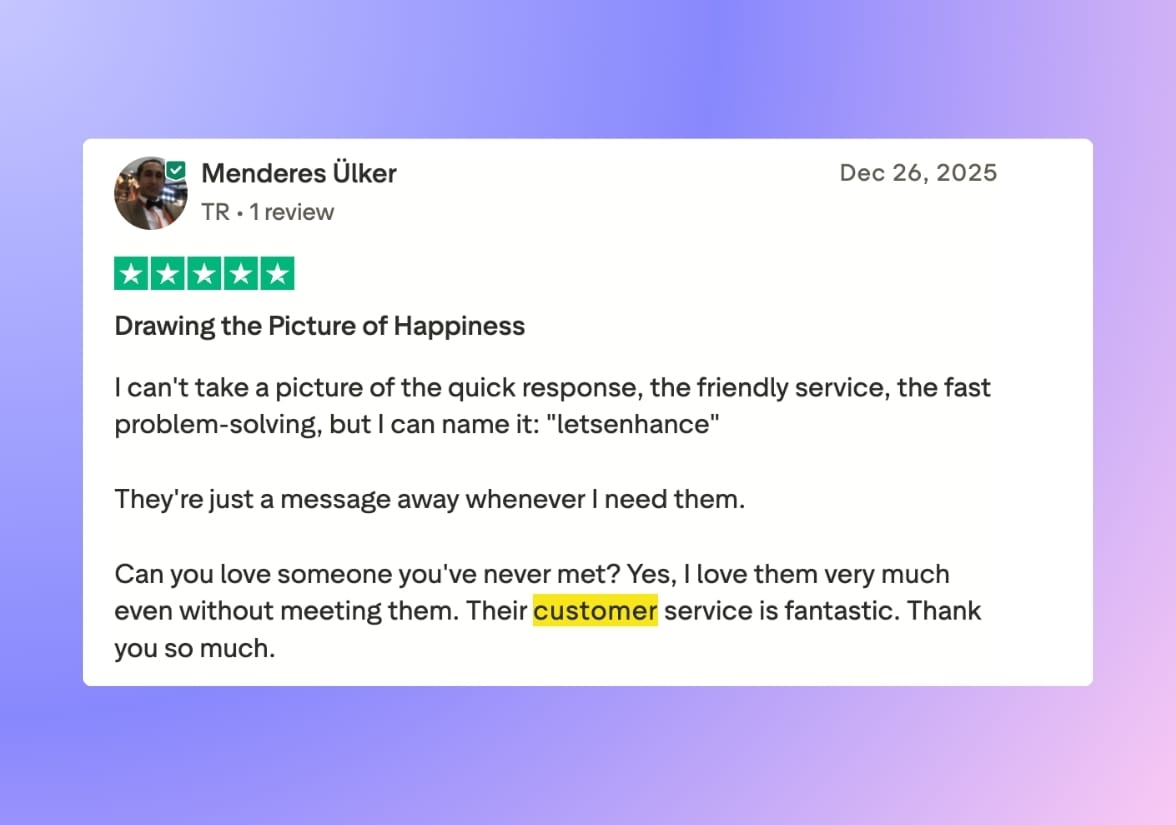
Customer support is one of the most consistently praised parts of the LetsEnhance experience, especially on Trustpilot. Many reviewers don’t just say “good support,” they describe specific outcomes: credits restored after account mix-ups, subscription changes handled without hassle, refunds processed quickly when billing confusion happens, and practical troubleshooting that gets them unblocked fast. The repetition is the signal here. Across the support-heavy reviews, the common theme is responsiveness and ownership. People name support agents, mention fast turnaround, and emphasize that they reached a human who actually solved the problem.
What people complain about, and what to do about it
No product gets 170+ public reviews without some bruises. The useful thing is that the complaints are about a few predictable friction points: processing reliability, pricing and credits, account access, a couple of feature edge cases, and the occasional “AI went too far.”
“Nothing happened” or processing feels slow
A small set of users report jobs that appear stuck (“waited and waited”) or unusually slow, especially during peak load or on heavier modes. When you read the positive reviews alongside these, the pattern is straightforward: different upscalers do different amounts of work, and some inputs are simply heavier (large files, noisy scans, embedded metadata, tricky textures).
What to do:
- If a job looks stuck, refresh and re-check the queue, then retry the same image once.
- If it repeats, switch to a different upscaler (or a more conservative mode) and compare results. Some modes are designed to be faster and lighter.
- If you are processing many images, avoid opening dozens of parallel jobs in multiple tabs. Run a smaller batch, validate output, then continue.
- If you still see “forever processing,” message support ([email protected]) with the file name and timestamp. Users repeatedly report that support restores credits when something genuinely fails.
“The result looks overprocessed” or faces distort
This comes up most often when people use high-strength settings or the wrong mode for the content. You see it clearly in the restoration cluster too: the tool can do great work across a batch, but if a face drifts or a background person turns strange at 100% zoom, you lose trust fast.
What to do:
- Treat upscalers like lenses, not like one universal button. Each one is tuned for a job. If you pick the wrong one, the output can look plastic, stretched, or “too AI.”
- For portraits and faces, start conservative: lower strength, keep similarity high where applicable, and use a portrait-safe option such us Prime upscaler.
- For old photos, remember that restoration and colorization can involve interpretation. If identity matters more than “wow,” stay conservative and avoid aggressive settings.
“Pricing is high” or “credits feel confusing”
Some users simply find the price high. Others get frustrated by credit rules, trial expectations, renewals, or how quickly certain operations consume credits. At the same time, a large number of reviews also describe refunds, credits restored, or subscription issues resolved quickly, which suggests that a chunk of “pricing pain” is really “I didn’t understand what would happen” combined with “I noticed after the fact.”
What to do:
- Before running a big batch, do a small test set and note which mode you used and how many credits it consumed.
- If you process irregularly month to month, choose a pay as you go bundle instead of a monthly subscription.
- If you believe you were charged incorrectly or credits were consumed due to a technical failure, contact support.
Login and account access issues
A handful of reviews mention being unable to log in, register, or access an account. If you face a similar issue, try password reset first, then check whether you signed up with a different email. If you still can’t access the account, support can usually identify the right account quickly.
Start using LetsEnhance
If you’ve never used LetsEnhance, the fastest way to know whether it fits your workflow is to create an account and test it with 10 free credits.
Start with the kind of files that actually cause pain: a low-res image you need for print, a product shot that looks soft on a listing page, a portrait where you care about skin texture, or an old photo you want to restore without turning it into something synthetic. Don't forget to test different upscalers as they're built for different content types and goals.
If you hit any issues along the way, contact our support team at [email protected]. And if you like to, leave an honest review on Trustpilot, G2, or Capterra.
