
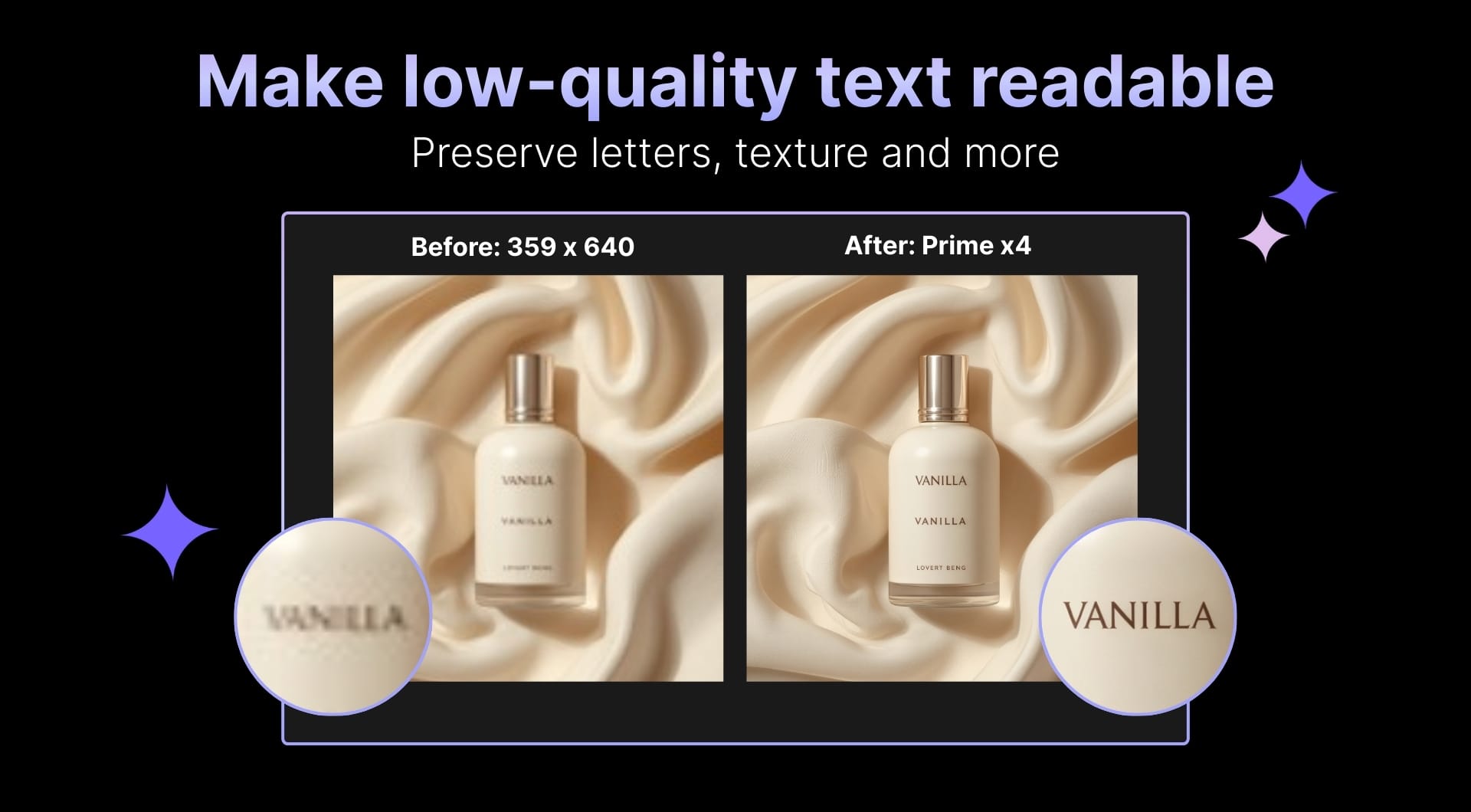
Text inside images fails in many ways. Compression turns edges into mush. Upscaling creates halos. “Sharpening” makes letters jagged. And once you print, every mistake becomes obvious.
This guide walks through the simplest, most reliable way to enhance images that contain text using LetsEnhance’s new Prime upscaler. The focus is on getting clean edges, consistent stroke width, and readable spacing at higher resolution, without the AI inventing typography or destroying texture.
If you work with print files, ecommerce images, documents, or screenshots, this is the workflow that holds up when images leave the screen and enter real use.
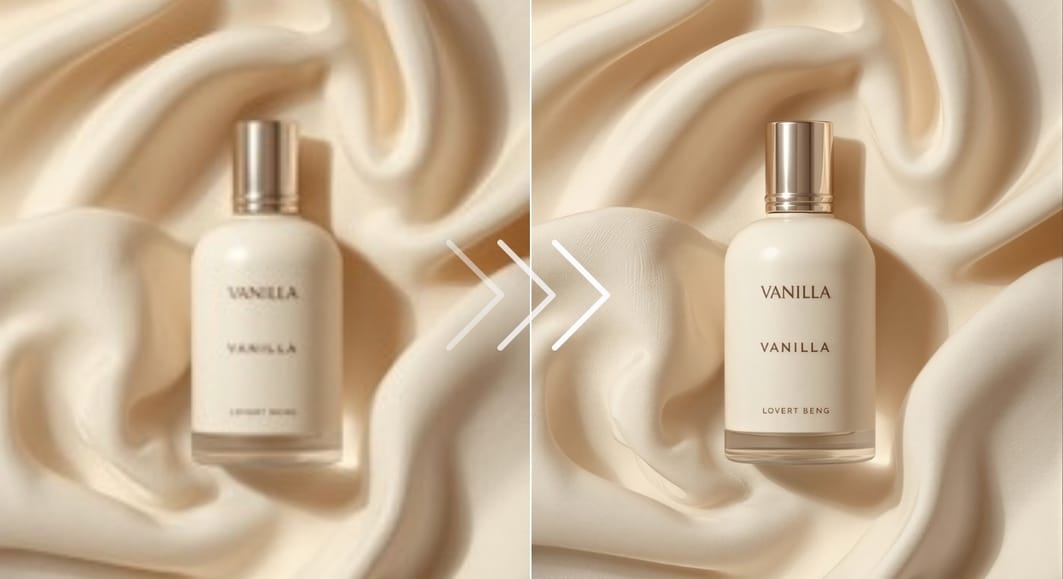
Key takeaways
- Enhancing images with text is about preserving structure and spacing at higher resolution.
- Prime is the new default upscaler in LetsEnhance and is designed to increase resolution while keeping natural textures intact.
- The workflow is intentionally simple: upload an image, choose an output size from 1x to 16x, enhance, inspect at 100% zoom, and download.
- Pricing is credit-based and scales with output size, from 1 to 10 credits per image, with most everyday use cases costing 1 to 2 credits.
- AI upscaling is especially relevant for print-on-demand, ecommerce, documents, and screenshots, where text must remain readable after resizing, compression, or printing.
- New users can test the full workflow with 10 free credits before committing to larger batches or production pipelines.
Enhancing low-quality images with text: step-by-step guide
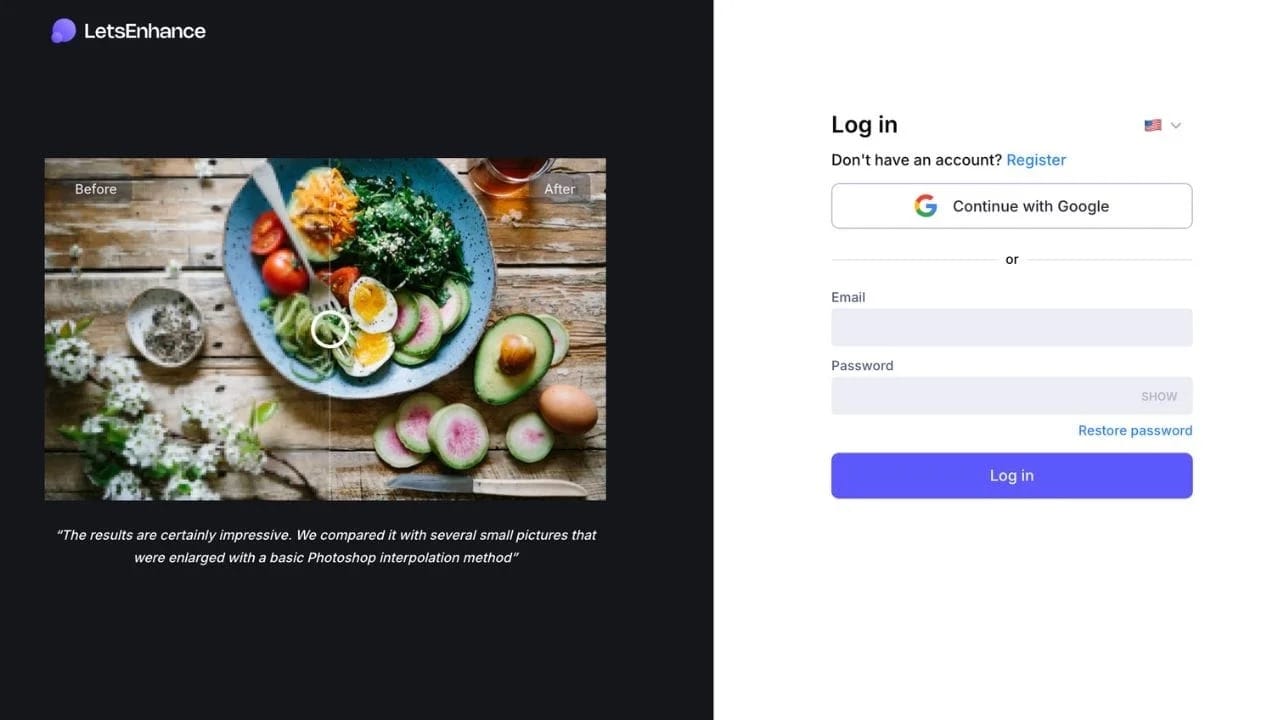
Step 1: Log in or sign up
Go to letsenhance.io and sign in. If you are new, create an account to start with 10 free credits.
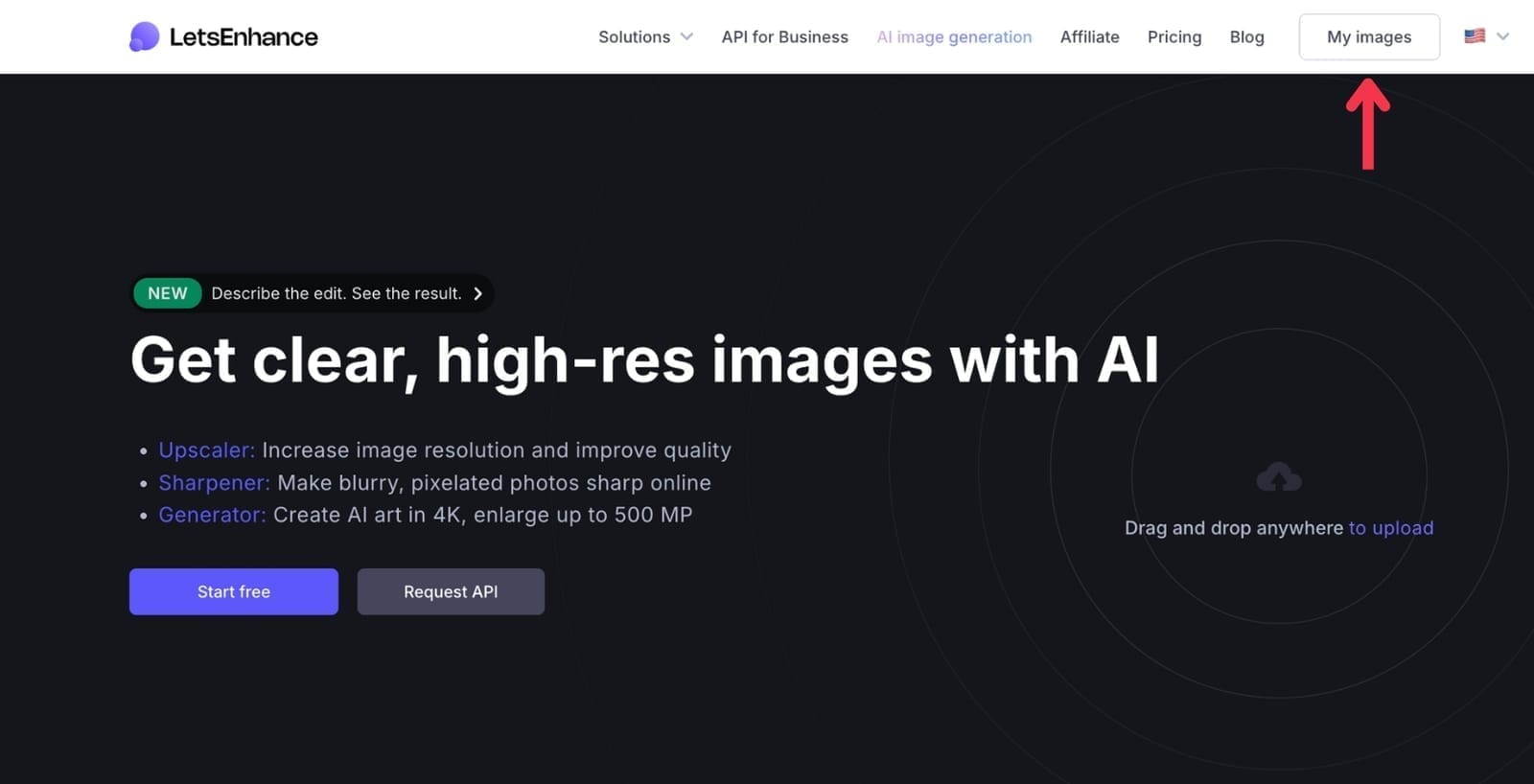
Step 2: Open the enhancer workspace
Click My images on the top-right to open the enhancer workspace.
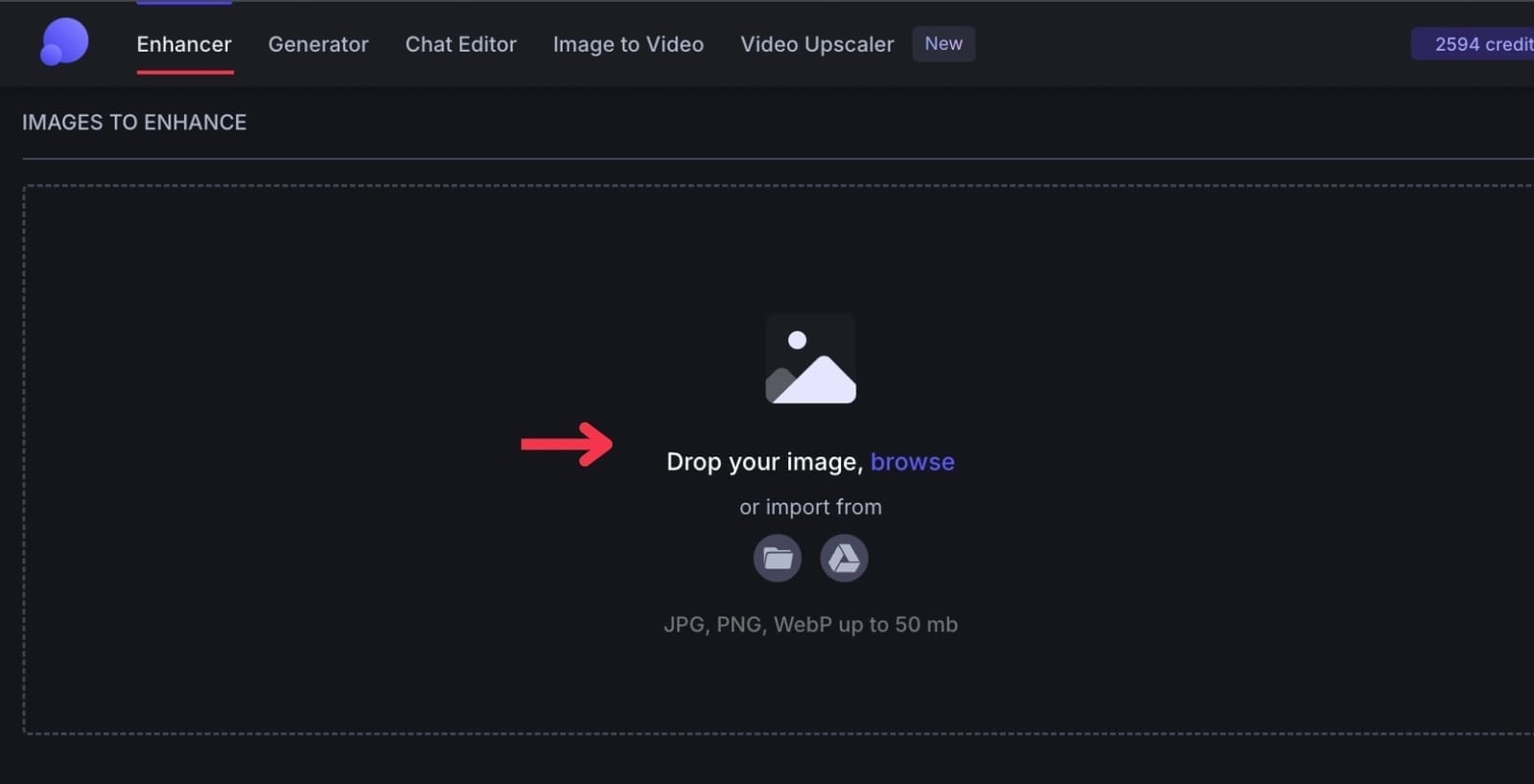
Step 3: Drop your image
Drag and drop the image that contains text. This can be a t-shirt mockup, a product label photo, a scanned page, a screenshot, a poster, or packaging artwork.
Before you run anything, do a quick reality check. If the text is only a few pixels tall, heavily motion-blurred, or completely smeared by compression, no tool can restore what never existed. AI can clarify edges. It cannot recreate missing characters.
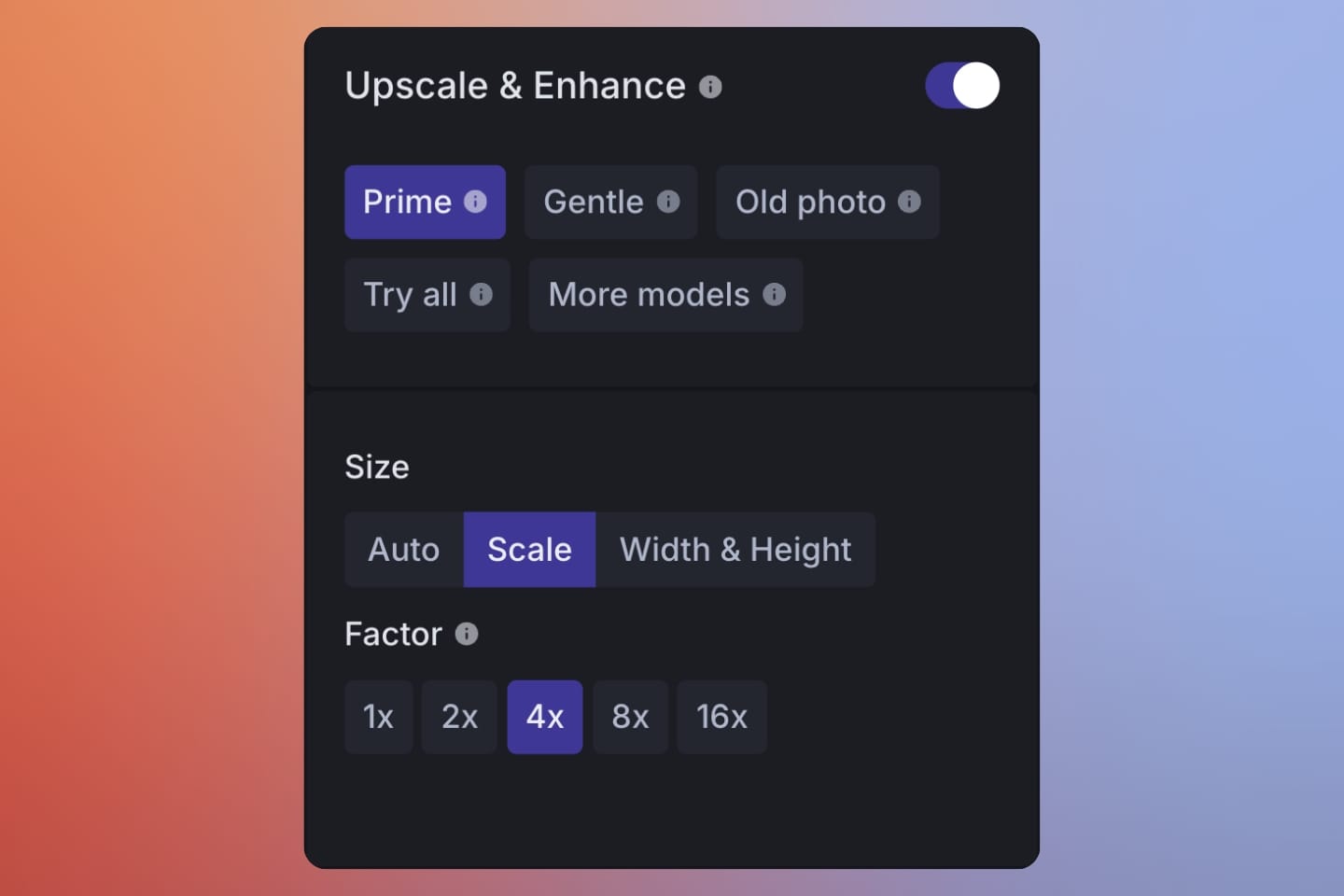
Step 3: Choose output size
Prime upscaler is selected by default. You just need to pick the output scale from 1x to 16x.
For web and marketplaces, a 2x to 4x upscale is usually enough to clean up compression and stabilize text.
For print, choose the size that matches your target print dimensions and DPI. More on this below.
Step 6: Click Enhance, then zoom-check
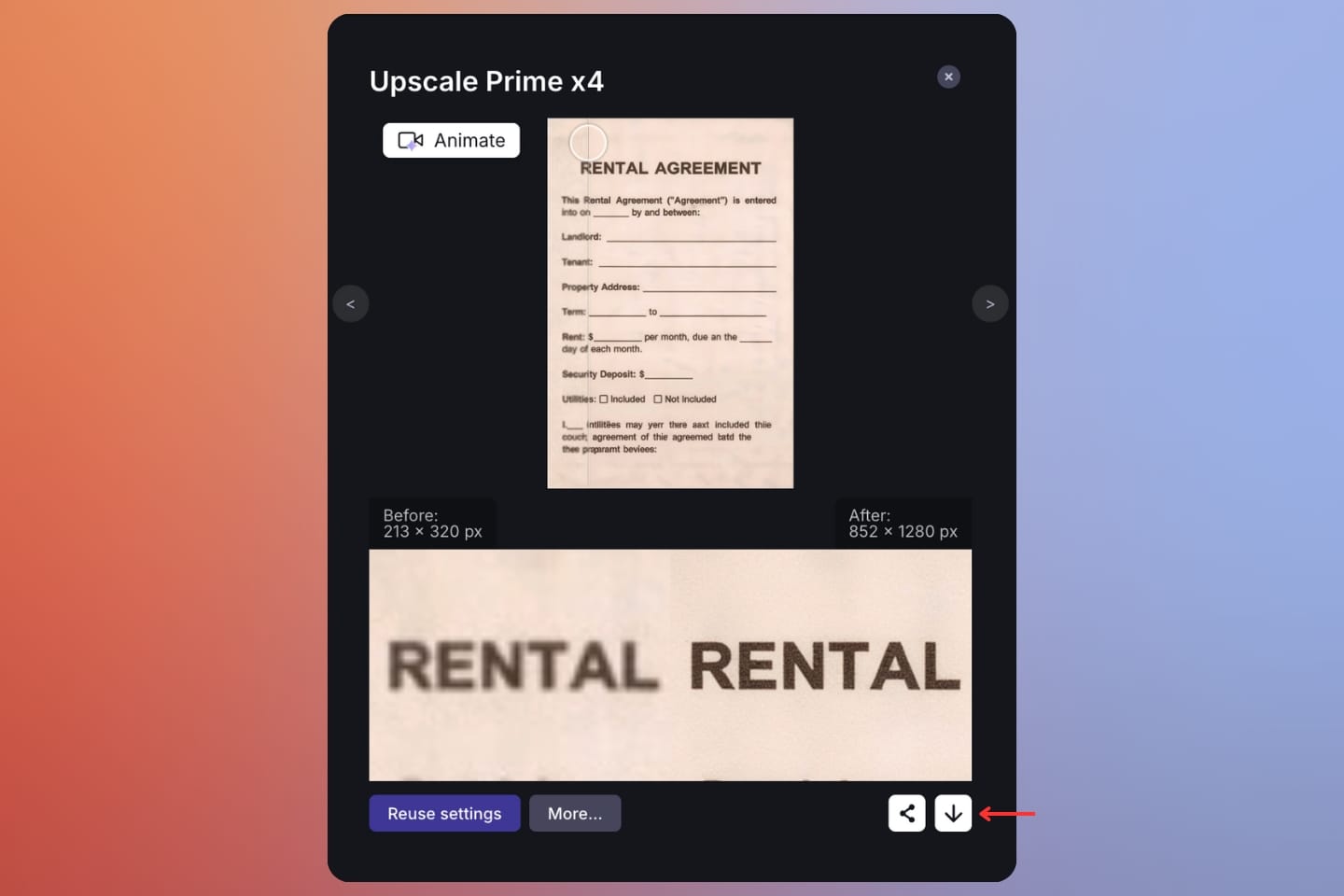
Click Enhance to start processing. When it finishes, inspect at 100% zoom. This is where text succeeds or fails.
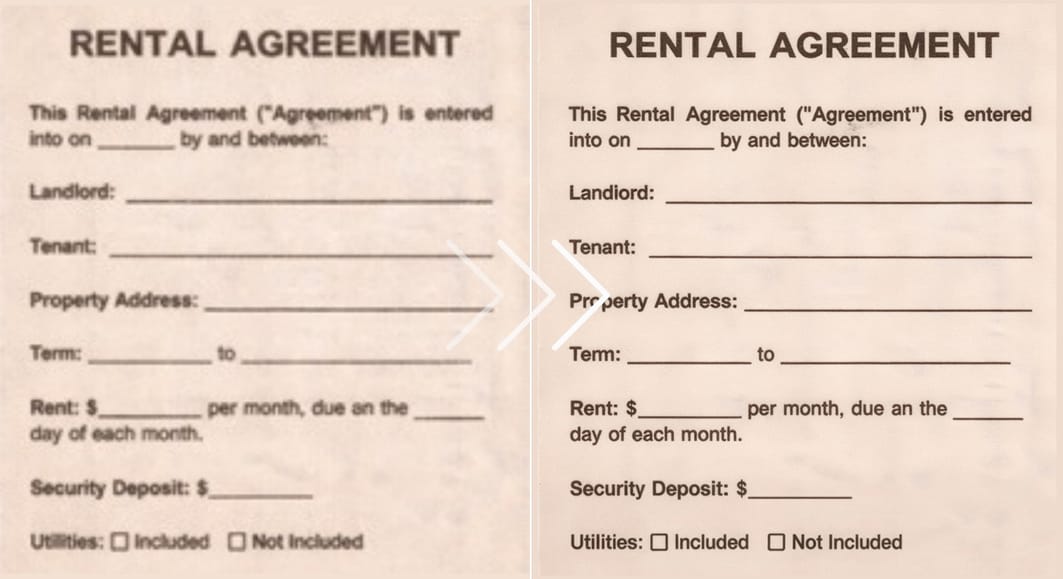
Look for clean edges, consistent stroke thickness, intact counters (the inner shapes of letters like “o” and “e”), and no invented texture inside the characters.
Step 7: Download and use as needed
If it holds up at 100% zoom, download and use it. If it doesn't, try a smaller scale.
Use cases that actually matter
Apparel prints and print-on-demand designs with text
If you’re preparing artwork for a t-shirt, hoodie, or poster, the source file is rarely ideal. More often it’s a screenshot, a low-resolution supplier mockup, or a logo pulled from a marketplace listing.
This is where AI upscaling becomes important in print-on-demand workflow. The goal is to scale the image without flattening fabric grain, killing folds, or making the print area look digitally pasted onto a fake surface.
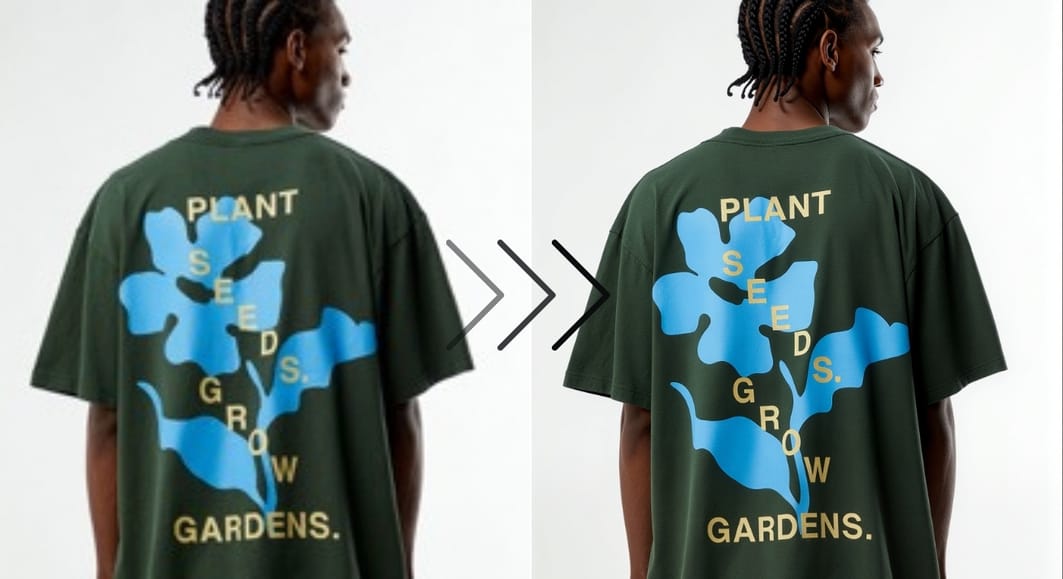
In the apparel example above, we used Prime model to upscale the low-quality source image to 4x. As you can see, the text becomes readable at higher resolution while the fabric texture stays intact.
If beyond upscaling you need to increase DPI to 300+ to make the file print-ready, use LetsEnhance to do so in the Width & height settings. If you don’t want to do DPI math, use the built-in printing presets adapted for posters, photo prints, and international paper formats.
Enhancing printed text in books, documents, and scans
Scans and phone photos of documents fail quietly. At a glance, everything looks readable. Zoom in or print, and thin strokes disappear, serif fonts break down, and compression artifacts take over.
Prime is a solid option when you’re working with document-like images that still need to look like real photos. That includes book covers, certificates, menus, flyers, or any page photographed in ambient light where you want to keep paper texture, shadows, and natural color, not turn everything into a harsh black-and-white “scanner look”.
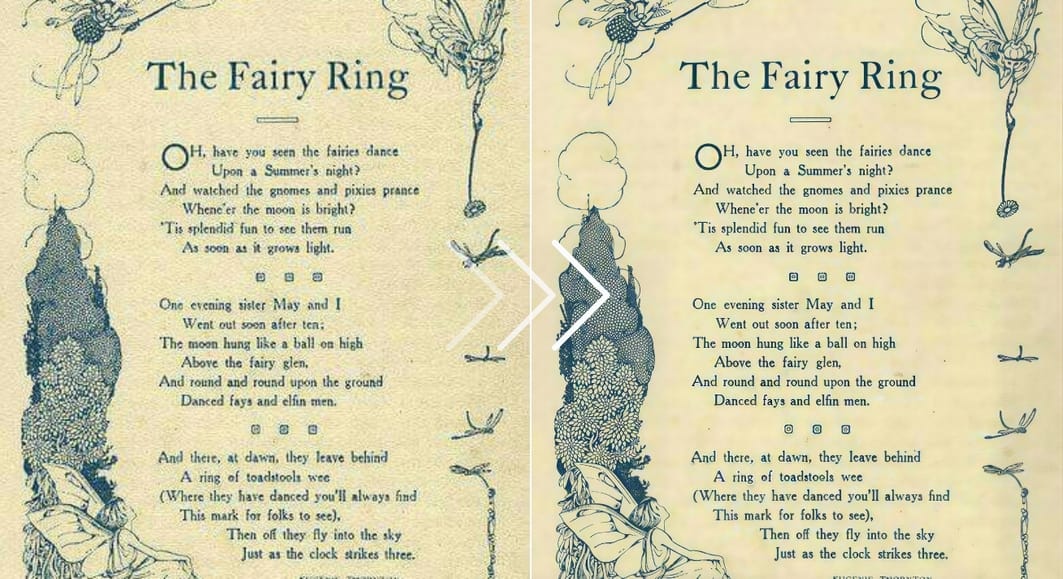
In the example above, we used Prime to upscale this book page from 389 x 500 image to 3112 x 4000. The result is a high-quality file where letters are clearler and the page feels realistic.
Product shots for ecommerce where labels must stay readable
In ecommerce, text is often part of the product. Ingredients, instructions, sizing, compliance marks, model numbers. When that text is blurry, the cost shows up everywhere except in a single metric.
Customers ask basic questions. Support tickets increase. Marketplaces reject listings. Teams spend hours chasing suppliers for “one clearer photo.”
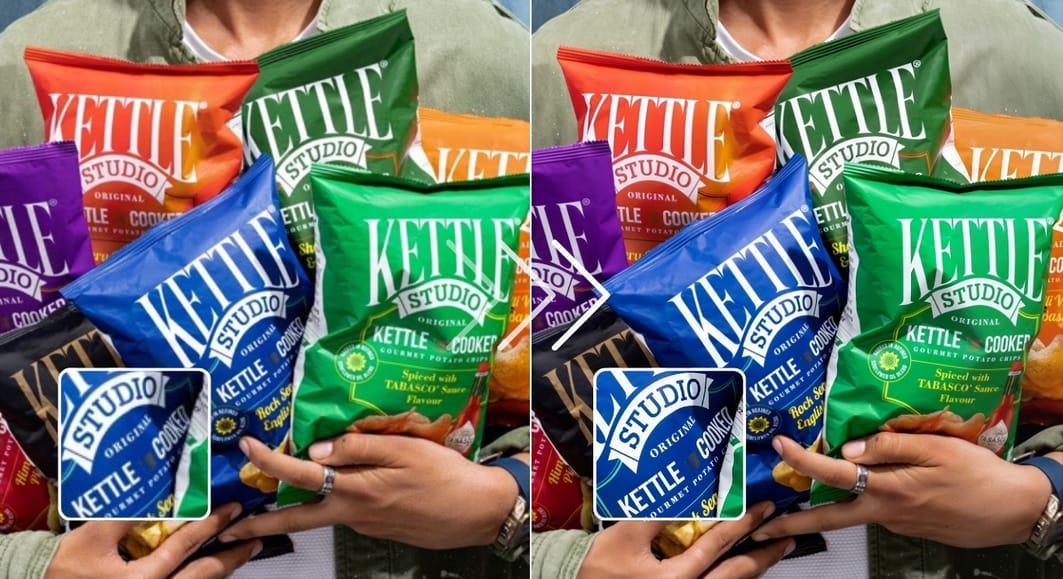
If the composition works but the label falls apart at higher zoom, upscaling is usually the most efficient fix.
Screenshots, UI mockups, and presentation slides
Screenshots are fragile by nature. Drop them into Slack, paste them into a deck, export a PDF, and the text degrades fast. Numbers become ambiguous. People argue about what the screen “actually says.”
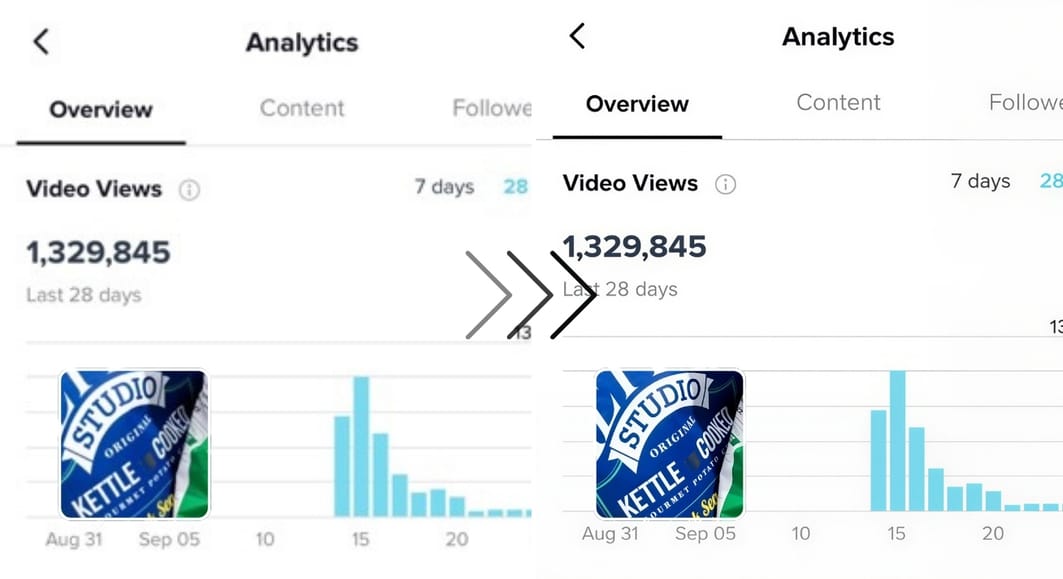
AI upscaling helps screenshots survive real workflows: copying, resizing, exporting, and re-sharing. When the image is mostly UI and text, a text-focused enhancer usually produces the cleanest result. In the example above, we used Prime to make the text and numbers more clear.
Try now
If you want the fastest path to readable text and higher-resolution images, start with Prime in the enhancer workspace.
Prime is selected by default and only asks you to choose output size. Pricing is credit-based and scales with output size, with most everyday use cases costing 1 to 2 credits.
Create an account and you will get 10 free credits to test it.
FAQ
How can I enhance blurry text in an image without losing quality?
Blurry text usually comes from low resolution, compression, or resizing a small image beyond its limits. AI upscaling, like LetsEnhance's Prime model, works by reconstructing missing detail and stabilizing edges so letters become readable again instead of turning into jagged shapes. It increases resolution while preserving surrounding texture, which helps letters stay sharp without glowing outlines or artificial smoothing.
What is the best AI upscaler for images that contain text?
The best AI upscaler depends on how the text is used inside the image. When text is part of a photographic scene and needs to coexist with real textures like fabric, paper, or packaging, LetsEnhance's new Prime model is the best choice. It improves clarity without flattening texture or introducing harsh sharpening.
How do I upscale text for printing without introducing artifacts?
Start by calculating the pixel dimensions needed for your target print size and DPI, then upscale only enough to reach that requirement. Excessive upscaling often introduces halos or uneven strokes around letters.
Using an upscaler that balances clarity and texture helps text survive the transition from screen to paper or fabric. Prime works well for print scenarios because it sharpens detail while keeping the image photographic. Before sending a file to print, always check it at full resolution and zoom into the smallest text to ensure it holds up.
Can AI upscaling fix pixelated or very low-resolution text?
AI upscaling can significantly improve pixelated text as long as the original characters are still recognizable. When the shapes of letters are present, even roughly, AI can reconstruct smoother edges and more consistent strokes. However, if the text has been reduced to a few indistinct pixels or blurred beyond recognition, there is not enough information to restore it accurately.
Is AI text enhancement the same as OCR?
No, these technologies solve different problems. AI text enhancement improves how text looks inside an image so it becomes readable to the human eye, and the output remains an image file. OCR, or optical character recognition, extracts text from an image and converts it into editable, searchable text.
If your goal is to make text clearer for printing, ecommerce, or presentations, AI upscaling or text enhancement is the right approach. If your goal is to copy text into a document or database, OCR is the appropriate tool.
Why does text sometimes look worse after AI upscaling?
Text usually degrades after upscaling when the model is pushed too far or used in the wrong context. This can happen when the image is scaled far beyond what the original quality supports, when aggressive sharpening introduces halos, or when a photo-focused model is applied to flat, text-heavy images.
Reducing the output size, choosing a more conservative model, or switching to a text-focused enhancer often resolves these issues. The best results come from incremental improvements rather than maximum settings.
What resolution should I choose when enhancing images with text?
The right resolution depends on where the image will be used. For web use and ecommerce listings, a moderate upscale is usually enough to make text readable and clean. For print, the resolution should be chosen based on final print size and DPI requirements rather than arbitrary scaling factors.
Does AI upscaling change fonts or letter shapes?
AI upscalers are designed to preserve letter shapes, but minor changes can occur when the original input is very low quality. Prime minimizes this risk by prioritizing edge consistency and natural detail instead of aggressive reconstruction. Even so, if exact typography is critical, such as in logos or legal text, it is best to avoid extreme upscales and always compare the enhanced result against the original.
Can AI upscaling help with screenshots and presentation slides?
Yes. Screenshots and slides often lose clarity due to compression in browsers, messaging apps, and presentation software. AI enhancement can restore sharpness so text remains readable after resizing or exporting.
Is AI upscaling worth using for images with very small text?
AI upscaling is most effective when text is slightly too small or soft but still legible. It becomes less reliable when text is extremely tiny or heavily distorted by blur and compression. In those cases, testing with a modest upscale and reviewing the result at full zoom is the safest way to evaluate whether upscaling adds real value.
