
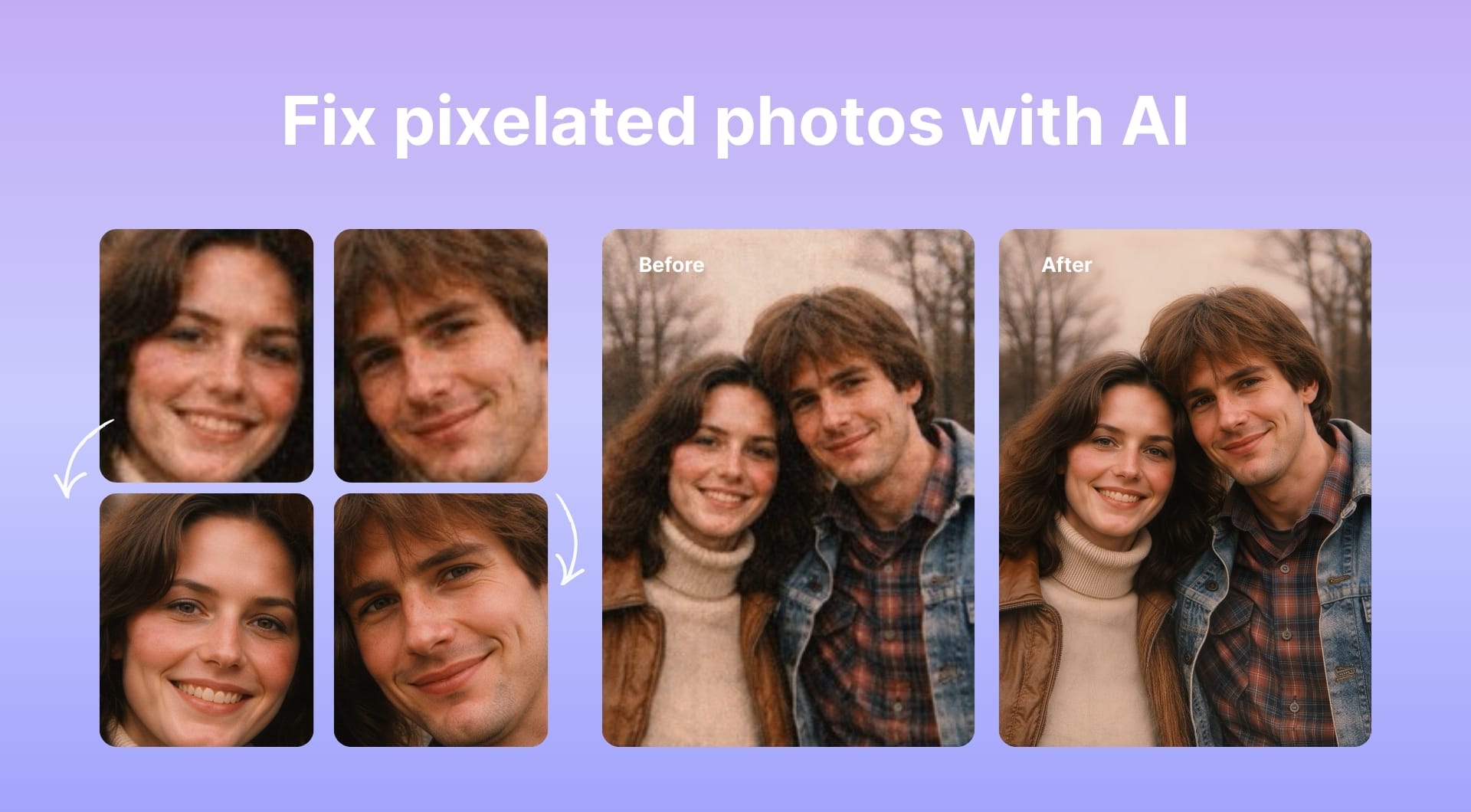
Want to upscale a pixelated photo, tiny logo or unreadable screenshot? These are the best AI tools to depixelate images, fix pixelated photos, and make low resolution pictures usable again.
Key takeaways
| Tool name | Best for | Pricing model | Key strength |
|---|---|---|---|
| LetsEnhance.io | Best overall | Free tier + subscriptions | High fidelity depixelation, upscaling up to 512 MP with multiple modes for photos, logos, and art |
| Topaz Photo AI | Pro photographers on desktop | Paid license / subscription | Deep control over noise, blur, and detail for seriously damaged or low resolution photos |
| Canva | Marketers and non-designers | Freemium (free + Pro) | One-click unpixelate and sharpen tools built into a full design suite |
| Picsart | Mobile-first creators | Freemium | Good free web and app tools, plus batch unpixelation for up to 50 images |
| VanceAI | General purpose online depixelator | Credits + subscriptions | Many AI enhancers including dedicated depixelate and image enhancer tools |
| AI Ease | Casual users wanting free, no watermark | Free | Simple one-click AI depixelator with free, watermark-free downloads |
| YouCam Enhance & Online Editor | Portraits and phone shots | Freemium (credits + plans) | Very strong on faces and old photos, 4K mobile upscaling and free web depixelator credits |
| Pixa (Pixelcut) | Free HD depixelation | Free | Unpixelate images online with free HD download and no watermark |
| Claid.ai | Ecommerce teams & developers | API + business plans | Bulk upscaling and enhancement for product photos via API and studio-style tools |
1. LetsEnhance.io ( best overall AI depixelator)
LetsEnhance is a cloud AI upscaler and photo enhancer that sits in the sweet spot between “one-click toy” and “overkill desktop suite”. It combines several specialized models with large-scale upscaling (2x to 16x, up to 512 megapixels output on paid plans) to rebuild detail in low resolution or pixelated images.
You get different modes such as Prime, Balanced, Gentle, Strong, Ultra, Old photo, and Digital art, which all handle different types of content instead of relying on a single generic “sharpen” filter.
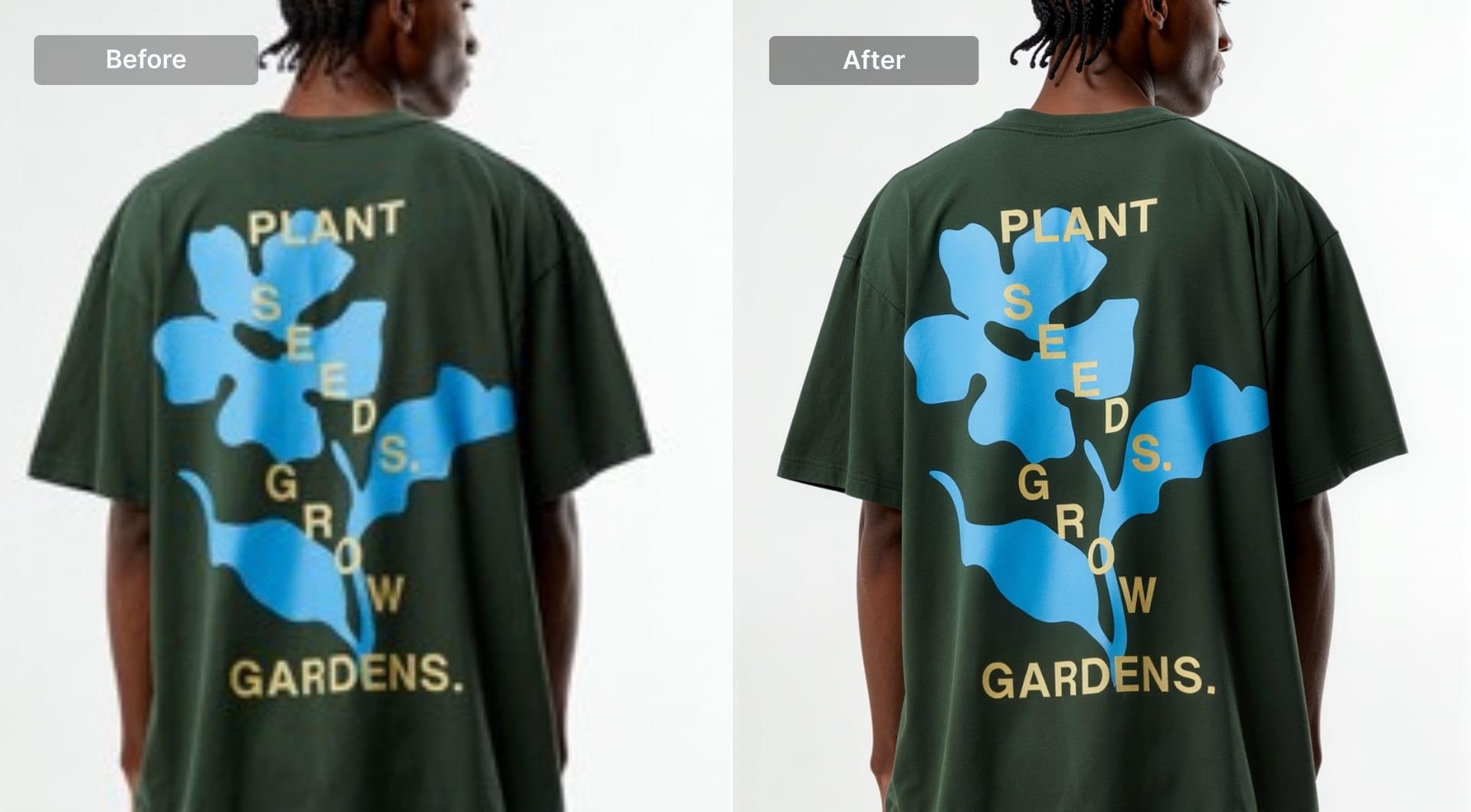
The Prime is new default upscaler. It is designed to add lifelike texture and detail to heavily compressed or tiny images while keeping them print-ready and avoiding the plastic AI look.
Key features
- AI upscaling from 2x to 16x, up to 512 MP output on higher-tier plans
- Multiple depixelation modes:
- Prime for natural texture and detail
- Gentle for minimal, high-fidelity enhancement
- Strong / Ultra for severe blur or pixelation
- Old photo for restoring and colorizing damaged or low-res historical photos
- Digital art and other modes for AI art, anime, and illustrations
- Batch editing for depixelating 20 images at once
- Chat image editor to make changes to any image with simple prompts
- Print presets (posters, canvas, merch) to convert a tiny web image to 300 DPI print sizes directly
- Image to video and video upscaler for those who need to make their materials move.
Best for
- General users who want the highest quality online depixelation with minimal fiddling
- Photographers and print-on-demand sellers preparing images for large prints
- Designers who need to rescue low-res logos, web graphics, or AI art for production use
- People restoring old or heavily compressed family photos
Pricing
- Free tier with 10 free credits to test the tool
- Paid subscriptions starting from 9$/month with pay as you go bundles also available. Higher tiers unlock up to 512 MP output and 16x scaling
Pros
- Excellent balance between fidelity and “AI reconstruction”
- Different modes for photos, art, and old images instead of a one-size-fits-all model
- Very high maximum resolution, suitable for large prints and posters
- Clear documentation and practical guides for pixelated and blurry photos
Cons
- Requires upload to the cloud
- Web interface only, no standalone offline desktop app
- Video upscaler and image-to-video tools are paid features and can't be tested within free trial
2. Topaz Photo AI (best desktop option for serious photography)
Topaz Labs’ Photo AI is a desktop suite that combines sharpening, denoising, and upscaling in a single app. It runs locally on your machine and is trained on massive datasets of real photos, which makes it strong at reconstructing detail in very noisy or soft images that web tools often struggle with.
While Topaz markets it as a blur remover and enhancer rather than “unpixelator”, in practice it handles pixelated edges, small faces, and noisy low-light shots extremely well, especially when you need granular control.
Key features
- Advanced deblur and sharpen (including motion blur) with per-image adaptive settings
- AI upscaling and detail enhancement tuned for natural texture rather than over-smooth AI artifacts
- Local processing on Windows and macOS, no cloud upload required
- Integrates as a plugin in Photoshop and Lightroom
Best for
- Photographers dealing with underexposed, high-ISO, or motion-blurred shots
- Users who want full control and offline processing instead of browser tools
- People who often print or deliver images to clients and need repeatable quality
Pricing
- Sold as part of the Topaz Photo line with a subscription starting around the mid-teens per month, according to current pricing information
Pros
- Strongest option here for very challenging photography cases
- Desktop, offline workflow with plugin support
- Fine control over noise vs sharpness, so you can avoid over-processed results
Cons
- Learning curve is steeper than “upload and click enhance” sites
- Subscription pricing is higher than many web tools
- Overkill if you just need to fix an occasional meme or screenshot
3. Canva (best for marketers and non-designers)
Canva’s AI unpixelate and sharpen tools live inside the same editor people already use for social posts, decks, and simple design work. The Image upscaler and related tools can clean up pixelated images and blur with a couple of clicks as part of your usual layout.
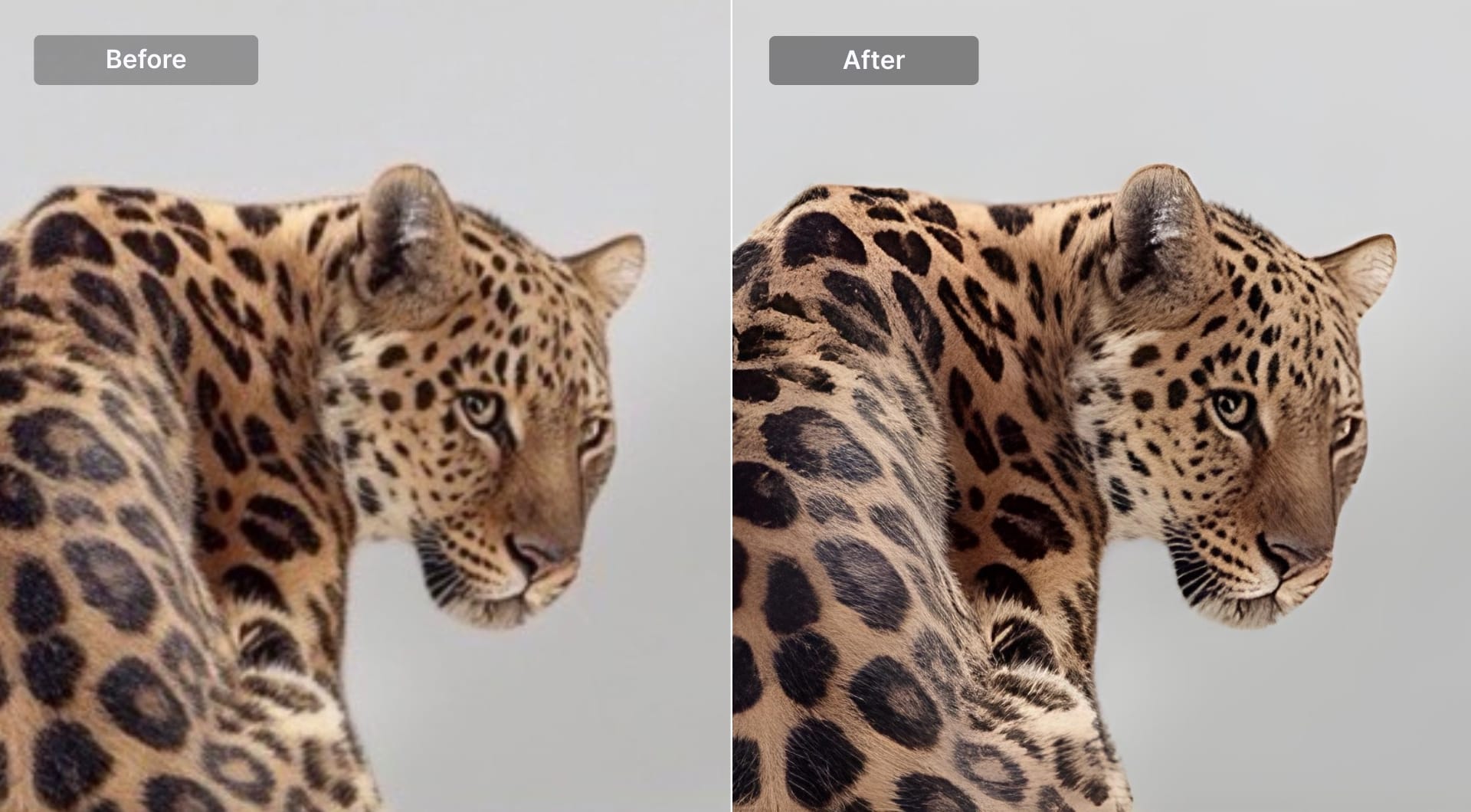
It isn't the most aggressive depixelator in this list, but it's extremely convenient when your real task is “build a decent graphic” rather than “scientifically recover a photo”.
Key features
- AI image upscaler and sharpen filter to clean up pixelated images directly in the editor
- Unblur tool for basic deblurring and clarity tweaks
- Integrated text, templates, and brand kit for fast marketing assets
Best for
- Social media managers, marketers, and non-designers
- Quick cleanup of pixelated assets in slides, ads, and banners
- Users who already live inside Canva and want a “good enough” fix in seconds
Pricing
- Free plan with many tools available at no cost
- Canva Pro adds more AI features, assets, and brand functions
Pros
- Depixelation is integrated into design workflow
- Free tier covers basic unpixelate and sharpen use cases
- No need to export and re-import between tools
Cons
- Less control over details than specialist upscalers
- Output is often tuned for screen, not huge prints
4. Picsart (best for mobile-first creators)
Picsart is an all-in-one editor with a large user base on mobile and web. Its Unpixelate images tool uses AI to remove pixelation and blur from photos, including social content and product images.
You also get an AI upscaler and AI photo enhancer, which can increase resolution and add detail, with free low-res outputs and high-res downloads on a paid plan.
Key features
- AI unpixelate tool to fix pixelated images and sharpen details in one click
- AI upscaler (2x and 4x) and enhancer for resolution boosts
- Batch editor for depixelating up to 50 images at once, ideal for piles of old photos
- Strong mobile apps plus web editor
Best for
- People who live on their phone and want to fix pixelated images before posting
- Quick depixelation of memes, reaction images, and social screenshots
- Basic product photo cleanup for small sellers
Pricing
- Free use with standard resolution outputs
- High-resolution downloads and some advanced tools require Picsart Plus subscription
Pros
- Excellent mobile experience
- Batch unpixelation is rare among free-ish tools
- Good enough quality for social and light print use
Cons
- Free tier limits resolution
- Quality and control aren't on the same level as LetsEnhance or Topaz for demanding print work
5. VanceAI (feature-packed online depixelator)
VanceAI is a web platform with a large set of AI tools: depixelate, enhance, denoise, sharpen, and more. The depixelate image tool is specifically marketed for fixing pixelated pictures, ecom product photos, and print assets, while the general image enhancer can also depixelate as part of an overall cleanup.
It sits in the same class as LetsEnhance: cloud-based, credit-driven, with many individual AI models.
Key features
- Dedicated depixelate image tool that targets blocky pixels and compression artifacts
- Separate AI enhancer, sharpener, and denoiser modules for tuning results
- Desktop PC app option for Windows in addition to web, with higher enlargement factors
Best for
- Users who want multiple enhancement tools in one suite
- Designers cleaning up low-res web images, social content, and product photos
- People who prefer credit-based pricing over fixed subscriptions
Pricing
- Credit packs starting at a few dollars; desktop license also available, with a mix of subscription and lifetime options
Pros
- Very flexible toolset beyond pure depixelation
- Desktop client is useful when you do batch work
- Good fit when you already use other VanceAI modules
Cons
- Interface can feel cluttered because there are many separate tools
- Quality is good, but not clearly ahead of LetsEnhance or Topaz in most independent comparisons
6. AI Ease (simple free depixelation with no watermark)
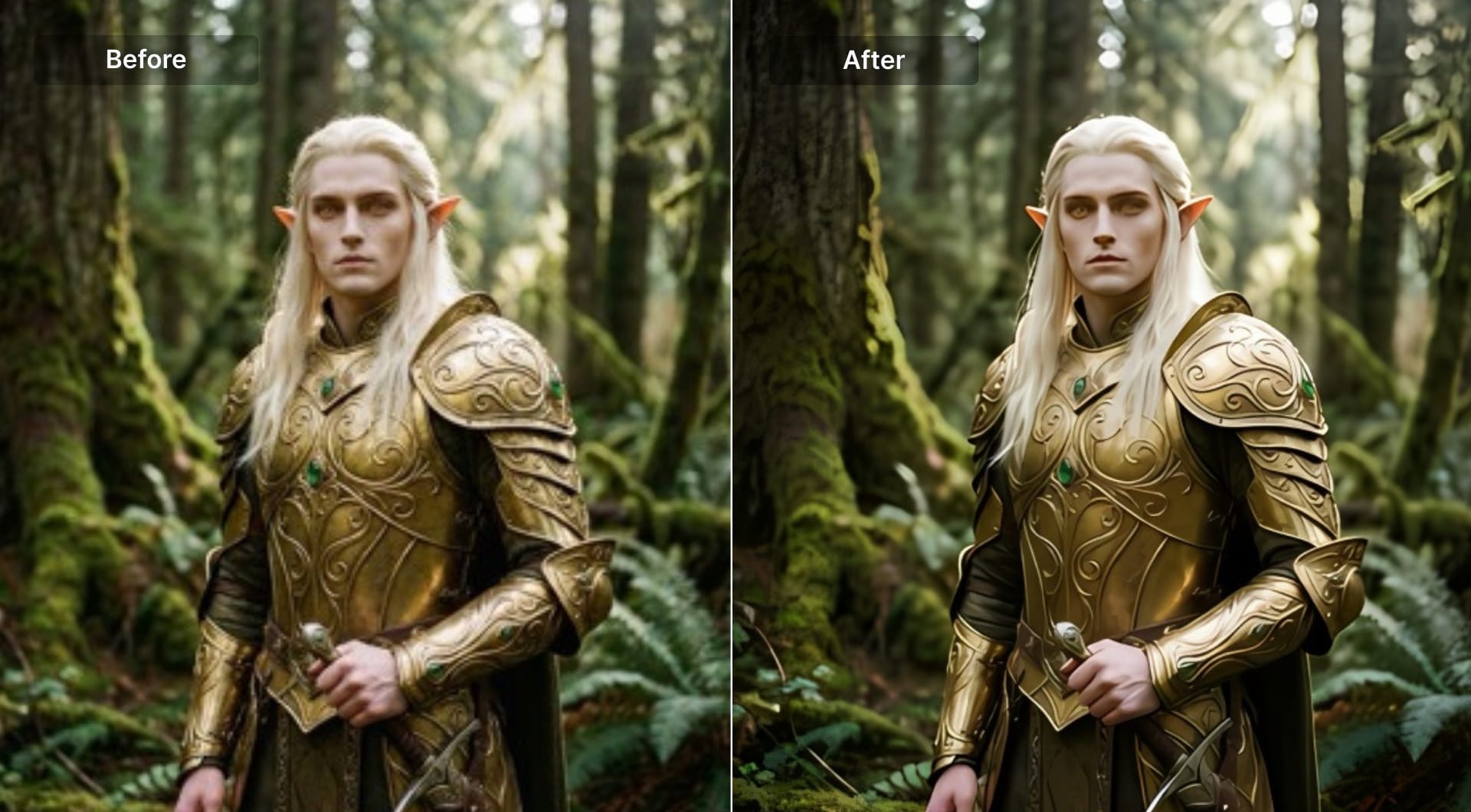
AI Ease provides a dedicated Unpixelate image tool that is explicitly free and watermark-free (only low-res option). The focus is “upload, one click, download”, not deep control.
It is a strong answer to long-tail searches like “depixelate image online free no watermark”.
Key features
- AI photo depixelizer built for one-click unpixelation
- Free to use; downloads are high resolution and watermark-free
- Additional tools: denoise, upscaler, background remover for basic cleanup
Best for
- Casual users who need a quick, free fix for a single image
- Students or meme users who just want something sharper and more readable
- People who absolutely don't want watermarks or signups
Pricing
- Free online tool at the time of writing, with no watermark on outputs
Pros
- Very low friction: open page, upload, download
- No watermark is rare in this category
- Useful “first pass” before deciding whether an image is worth more serious treatment
Cons
- Little control over how aggressive the AI is
- Quality is good but not at the same level as heavyweights for tricky cases
7. YouCam Enhance & YouCam Online Editor (portraits and phone shots)
YouCam (Perfect Corp) runs both a mobile YouCam Enhance app and a web-based Online Editor with AI photo enhancement and an image depixelizer. The stack is tuned heavily for faces, portraits, and old photos, with upscaling up to 4K on mobile.
The online depixelizer focuses on free unpixelation with a small number of watermark-free credits, which is often enough for occasional use.
Key features
- AI photo enhancer and image sharpener to turn grainy or pixelated photos into HD or 4K
- Web-based unpixelate images tool with free credits for watermark-free downloads
- Strong old-photo restoration features in the app, including scratch repair and colorization
Best for
- Phone photos, selfies, and profile pictures that look noisy or pixelated
- Old family photos that need both restoration and depixelation
- Users who are comfortable working primarily on mobile
Pricing
- Web editor: free with sign-up and a small number of free credits
- Mobile app: free download, with subscription tiers (Plus / Pro) and extra credit packs
Pros
- Very strong face and portrait enhancement
- Handles old, noisy smartphone images better than many generic upscalers
- Choice of browser or full mobile app
Cons
- Less ideal for logos or vector-like graphics
- Credit system and subscriptions can be confusing for casual users
8. Pixa/Pixelcut (free HD unpixelation, no watermark)
Pixa (often associated with Pixelcut) offers a minimal Unpixelate image tool aimed squarely at people who want free HD results without watermarks or sign-up. It uses an AI upscaler to clean up pixelation and lets you download the HD result for free.
This is a great answer to the “unpixelate image online free no watermark” crowd who don't want an entire ecosystem.
Key features
- Web-based AI unpixelate tool for images
- Free HD download with no watermark required
- Simple upload-process-download workflow
Best for
- One-off free unpixelate jobs
- Users who don't want to create accounts to test a tool
- Social media and casual content where simplicity is key
Pricing
- Currently advertised as free with HD, watermark-free downloads for the unpixelate tool
Pros
- Extremely user-friendly
- No watermark on HD export is unusual at this price point
- No clutter or extra steps
Cons
- Limited controls; you get what the model gives you
- No advanced features for print workflows or batch processing
9. Claid.ai (best for ecommerce, APIs, and bulk depixelation)
Claid.ai is a production-grade AI image platform aimed at ecommerce and marketplaces. It powers automated image improvement pipelines, including upscaling, depixelation, denoising, and background cleanup, via APIs and web tools.
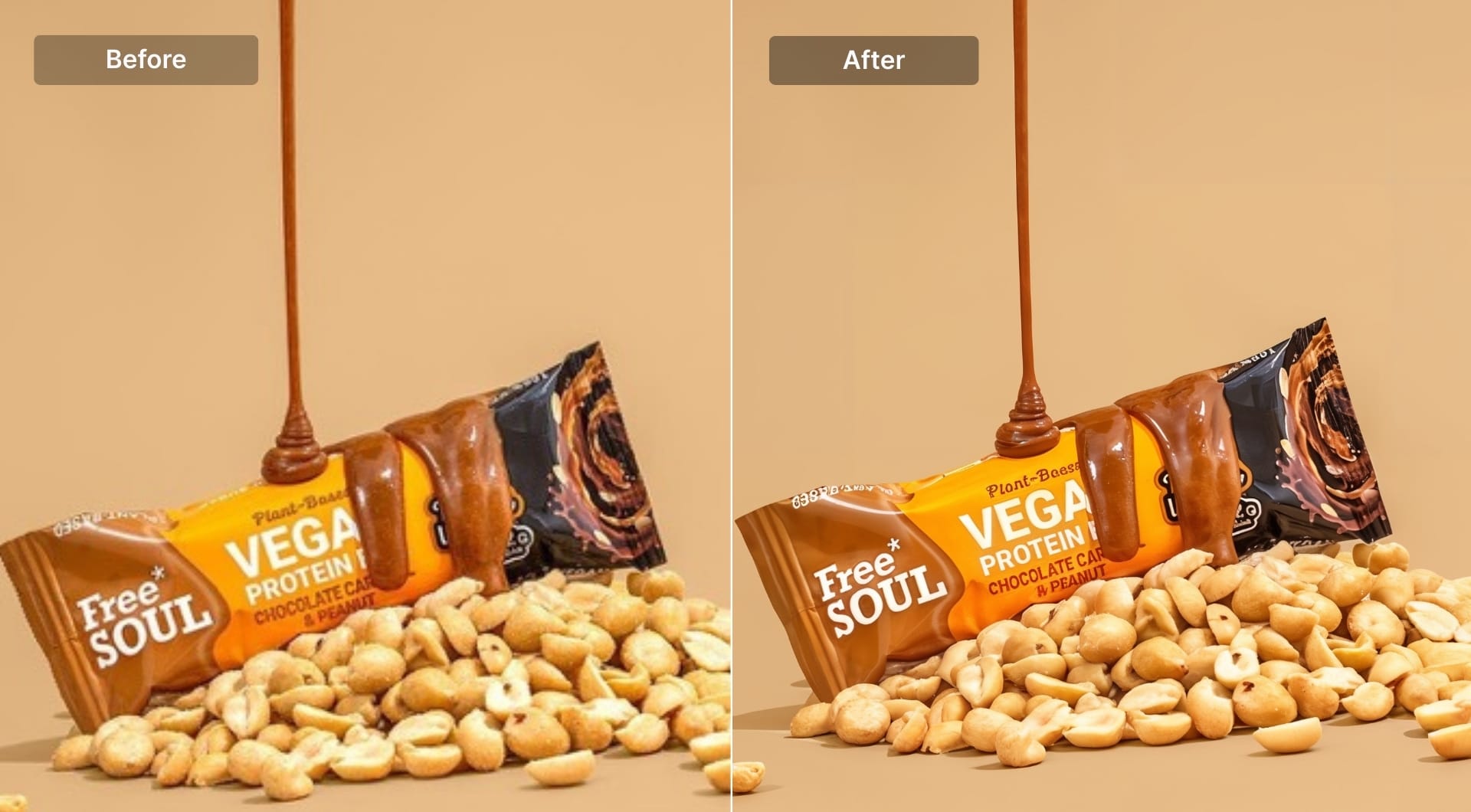
For product photos, Claid can automatically bring low-resolution, pixelated catalog or UGC images up to marketplace standards. It also offers AI Photoshoot and AI Fashion Models for generating high-end lifestyle scenes from simple inputs.
Key features
- Upscale API to improve low resolution images server-side, tuned for print and web quality
- Automatic enhancement to fix blur, noise, and pixelation on product photos
- Ecom-focused tools: AI Photoshoot, AI Fashion Models, background cleanup and so much more
- Bulk processing at marketplace scale
Best for
- Marketplaces and brands processing thousands of SKUs
- Teams needing reliable, automated depixelation inside their own systems
- Developers who want an API rather than a point-and-click interface
Pricing
- API and business pricing with free trials and tiered plans depending on volume
Pros
- Built for reliability and scale, not just pretty demos
- Product-photo-first tuning instead of generic AI art bias
- Ideal partner if you already use LetsEnhance and need automation behind the scenes
Cons
- Overkill for individual users who just need to fix a couple of photos
- Requires basic integration work to get full value
How to choose the right depixelate tool
Choosing a depixelation tool is mostly about matching the tool to your image type, your tolerance for tinkering, and how comfortable you are with cloud processing.
Match the tool to your image type
For faces and portraits, you want models that know how to reconstruct eyes, hair, and skin without making them look plastic. LetsEnhance (with its Prime model), YouCam, and Topaz Photo AI are strong options here. They are good at turning noisy or pixelated selfies, profile pictures, and old family photos into something that looks like it came from a much better camera.
Logos, icons, and UI screenshots need crisp edges, not fantasy detail. For these, it's better to use tools and modes that prioritise clean lines and text rather than heavy “creative” reconstruction. LetsEnhance’s Gentle and Prime modes, along with simple upscalers in Canva or Pixa, tend to work well. If the logo is critical for brand use, the most robust solution is still to recreate it as a vector file instead of endlessly repairing a tiny PNG.
Old compressed photos and scans benefit from models that combine depixelation with restoration. LetsEnhance’s Old photo mode, YouCam’s dedicated restoration features, and Topaz Photo AI can all handle a mix of low resolution, noise, and mild damage, so they're good choices when you are dealing with print scans or early-generation digital photos.
For product photos and ecommerce images, you want consistency and realistic detail rather than dramatic artistic changes. LetsEnhance and VanceAI work well for fixing a handful of product photos. If you run a marketplace or store with thousands of SKUs, an API-driven platform like Claid is better suited to cleaning up low-res and user-generated photos at scale.
Decide how much control you want
If you prefer a one-click experience, tools like AI Ease, Pixa, Canva, Picsart, and YouCam’s online editor get you from “bad” to “much better” with minimal effort. They're perfect when the goal is simply to make a meme sharper or a screenshot readable.
If you care about fine control over noise, sharpness, and halos, a more advanced tool makes sense. Topaz Photo AI gives deep control and behaves like a traditional pro photo plugin: you can tune settings to specific photos and save consistent looks. LetsEnhance and VanceAI sit in the middle. They give you several modes and some adjustment sliders, but they still feel like web tools rather than full-blown desktop suites.
Think about where processing happens
Cloud-based tools in the browser are the easiest starting point. You upload an image, choose settings, and download a result without worrying about your own hardware. This is convenient and usually cheap, but it means your image is being sent to a third-party server, so you need to be comfortable with that for the type of content you are processing.
Desktop tools like Topaz Photo AI or Photoshop plugins run on your own machine. They don't require uploading to a remote server and often provide more control, at the cost of higher upfront price and the need for a reasonably capable computer. This path is better when you work with client images, large batches, or sensitive files.
API-based solutions like Claid are the right choice when depixelation is part of a product or internal system. Instead of a person manually uploading files, your backend sends images to the API and receives improved versions. This takes more setup but is ideal when you need consistent depixelation across thousands of product photos or user uploads.
Be realistic about what “depixelate” means
Depixelation has limits, and understanding them helps you choose the right tool and avoid unrealistic expectations.
AI depixelation doesn't recover the original lost pixels. It predicts plausible detail based on patterns learned from large datasets. In practice, that means a tiny, blocky image can be turned into a convincing, high-resolution version that looks good on screen or even in print, but the fine details may not match the real scene exactly.
This is especially important with extreme mosaic censorship or heavy blur. Once information has been removed, no tool can reliably reconstruct the original face or text. At best, the AI will invent a face or letters that look plausible in context, not reveal some hidden truth.
There is also an ethical line: intentional censorship is usually there for privacy or safety. Treat it as irreversible, and don't try to “undo” pixelation on sensitive, explicit, or private images. Use depixelation to rescue your own low-quality content, not to defeat other people’s attempts to hide information.
FAQ
Can you really depixelate a pixelated image, or is that just a movie trope?
Real depixelation is less dramatic but still very useful. Traditional software could only smooth or sharpen existing pixels, which often made things look worse when the resolution was very low. Modern AI models can upscale an image and then infer new detail that wasn't explicitly in the original file, based on patterns learned from millions of similar images.
So, you cannot magically reveal evidence that never existed, but you can transform a blocky, low-res photo into something that looks like a higher quality shot and is usable for social media, presentations, or even moderate-size prints.
What is the best AI tool to fix pixelated photos?
There is no single winner, because the “best” choice depends on context. For most people who want a web-based AI upscaler with high output resolution and different modes tuned for photos, art, and old images, LetsEnhance is a strong default. It can take you from tiny, compressed images to large, print-ready files and gives you more control than basic one-click enhancers.
If you are a photographer or power user on desktop and you care about precise control over noise and sharpness, Topaz Photo AI is often a better fit. It behaves more like a pro plugin and opens up advanced tuning. For quick free fixes of individual images, lightweight web tools such as AI Ease, Pixa, or YouCam’s online editor are convenient. For ecommerce teams that need to enhance thousands of product images automatically, an API-centric platform like Claid is more appropriate.
How do I depixelate an image online for free with no watermark?
The key is to look for tools that explicitly state that exports are free and watermark-free, because many “free” services add a logo or restrict resolution. Tools such as AI Ease and Pixa currently position themselves as free depixelators with clean downloads. Some other services also offer a small number of free credits or no-watermark exports before nudging you toward a subscription.
Free options are fine for occasional use, but they often limit maximum resolution, daily usage, or queue speed. If you frequently fix pixelated photos for work, the time and consistency you gain from a modestly priced plan on a more capable tool will usually outweigh the cost.
How do I depixelate an image in photoshop without losing quality?
Photoshop does not have a dedicated “depixelate” button, but you can combine a few features for a decent result. A common workflow is to upscale the image using the Image Size dialog with a modern resampling method like Preserve Details 2.0, then apply Smart Sharpen and Reduce Noise with conservative settings. Newer versions of Photoshop also include neural filters and generative features that can help with some types of restoration.
In practice, many users now take a hybrid approach: they send the low-res photo through an AI upscaler like LetsEnhance or Topaz to get a stronger starting point, then refine the result inside Photoshop where they have layer masks, retouching tools, and colour control.
What is the difference between depixelating and upscaling?
Upscaling is just increasing the number of pixels. A basic upscale takes a 500 by 500 image and turns it into, say, 2000 by 2000, then interpolates values between the existing pixels. The edges may look a bit smoother, but the image still looks soft or blocky because no new detail has been added.
Depixelation is upscaling plus intelligent cleanup. An AI depixelator not only increases resolution but also tries to remove blocky patterns, reduce compression artifacts, and reconstruct fine structure such as hair strands, fabric texture, or the small details in text and icons. In modern tools, these steps are fused into one process, so the user just sees an “unpixelate” or “enhance” button.
How do I depixelate a logo for print?
If you do not have a vector file and need a quick rescue, you can upscale the existing logo with a tool that respects clean lines. Modes aimed at digital art or graphics in LetsEnhance, or basic upscalers in Canva and similar tools, can smooth jagged edges and produce a higher resolution PNG. This works well for internal presentations or small prints, but for external branding, consider a proper redraw when time allows.
How can I fix pixelated text in screenshots?
A simple workflow is to upscale the screenshot by 2x or 4x using an AI tool, then apply light sharpening. The goal is to make text readable, not to generate imaginary detail, so gentle settings often work best. If the original screenshot is extremely small or badly compressed, even the best depixelator may not recover every character perfectly, but it can still improve legibility enough for study or review.
Is it safe to upload sensitive images to an AI depixelator?
Safety depends on the nature of your content and the provider’s policies. When you upload an image to a cloud-based depixelation tool, that file usually passes through their servers and may be stored temporarily. Some services also use uploads to further train their models, even if they anonymise the data. You should read the privacy and data-use sections of the provider’s documentation before sending anything sensitive.
If you are working with confidential documents, medical photos, identity scans, or internal screenshots, the safer approach is to stick to local software that runs entirely on your machine, or to use a vendor that offers clear enterprise-grade privacy guarantees and signed data-processing agreements. For casual social and personal photos, mainstream web tools are usually an acceptable trade-off, but it is still worth checking what happens to your uploads.
