
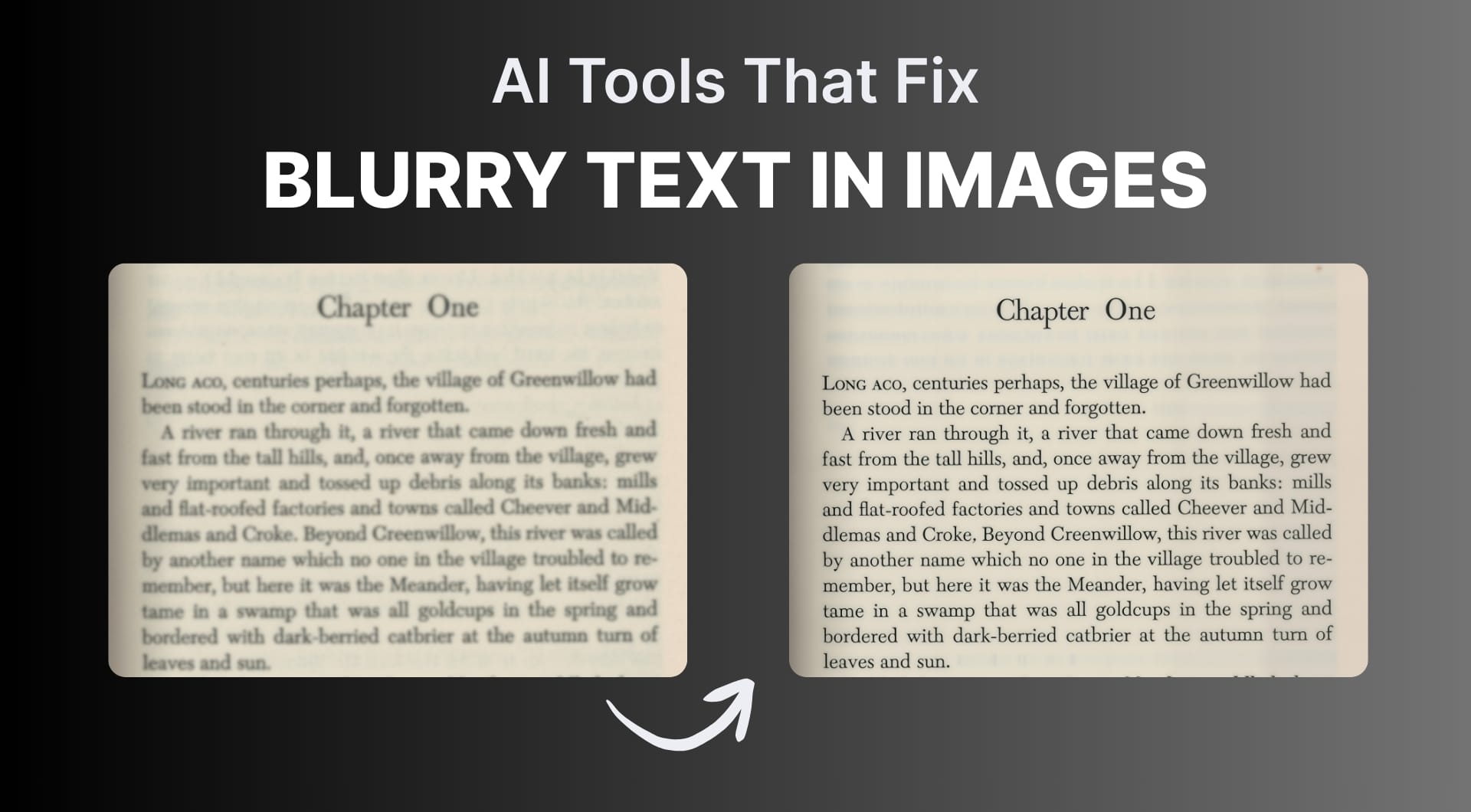
Blurry text in screenshots and scans kills productivity. Continue reading to learn about the best AI image text enhancers that make small, pixelated or noisy text readable again without opening Photoshop.
Breakdown of the best AI text enhancers
| Tool name | Best for | Pricing model | Key strength |
|---|---|---|---|
| LetsEnhance.io | Best overall for screenshots, scans and photos | Free tier + subscriptions + pay as you go | Dedicated text enhancer plus Ultra/Gentle upscaling for print |
| Fotor text enhancer | Casual users who want one click in the browser | Free, Pro, Pro+ subscriptions | Simple web UI, good for screenshots and social images |
| Media.io text enhancer | Occasional web users, mixed media workflows | Free tools + paid plans | Part of a larger AI studio for image, audio and video |
| PicWish text enhancer | Frequent online use, batch images | Free daily quota + subscriptions | Separate text model plus general enhancer, good free quota |
| ImgUpscaler text enhancer | People who also need OCR (image to text) | Free tier + low cost subscriptions | Enhances text then converts to editable text |
| Unblurimage AI | Users focused on deblurring and sharpening | Free tier + subscriptions + credit packs | Strong on deblurring, includes dedicated text enhancer |
| YouCam Enhance | Mobile users unblurring text photos | Free tier + subscription | Powerful blur removal on iOS/Android |
| Pokecut text enhancer | Sellers, creators, simple web workflows | Free daily credits + Pro plans | Text enhancer plus full photo editor for ecom graphics |
| Claid.ai | Ecommerce teams, APIs, product photos with text | Free trial + SaaS plans + API credits | Studio plus API for bulk enhancement and product workflows |
1. LetsEnhance.io (best overall)
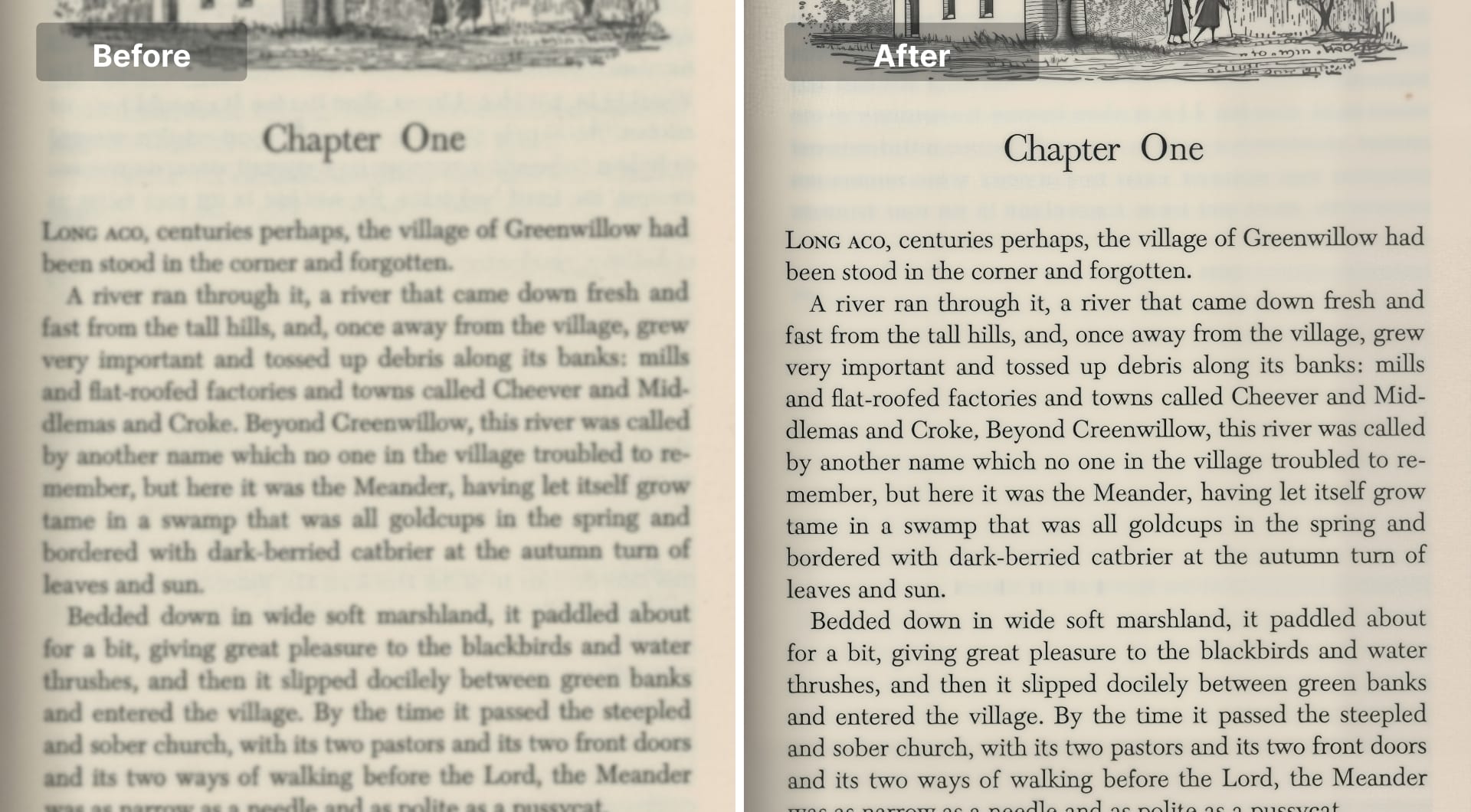
LetsEnhance.io is an AI image enhancer with a dedicated text enhancer mode designed specifically for blurry screenshots, scanned documents, receipts, dashboards and product photos with labels. The text model sharpens characters and improves contrast while not destroying the original font edges or adding fake halos.
Besides the dedicated model, LetsEnhance has multiple specialized upscaling models:
- Balanced: The default mode that’s all purpose for most photos
- Gentle: Highest fidelity, ideal for UI screenshots, product shots and anything with flat graphics or text
- Strong: More aggressive enhancement when you want extra punch and clarity
- Ultra: Maximum super resolution for large outputs such as posters and big prints
- Old photo: Restoration and color correction for vintage photos and scans
- Digital art – Tuned for illustrations, UI mocks, concept art and anime style images
Personal plans can upscale up to around 256 MP, while business plans reach roughly 500–512 MP, which covers everything up to very large prints and billboards.
You also get extra tools like text to image, a Chat image editor, and image to video, so you can stay inside one ecosystem for most visual tasks.
Key features
- Dedicated text enhancer for screenshots and scanned documents
- Gentle vs Ultra models for choosing fidelity vs aggressive detail
- Upscaling up to ~256–512 MP depending on plan that deliver print ready outputs
- Support for product photos, old photos, illustrations and more
- Batch processing and presets for repeated workflows
- Browser based without the need for installation
Best for
- Knowledge workers and students with blurry dashboard or lecture screenshots
- People preparing scans and PDFs for OCR or printing
- Marketers and designers improving social ads and hero images with overlay text
- Small teams that want one tool for both text readability and general photo quality
Pricing
- 10 free credits upon signup
- Personal subscriptions starting from 9$/per month billed annually for 100 credits (1 credit = 1 image)
- Pay as you go bundles for occasional use
Pros
- Text enhancer mode is tuned for readability, not just generic sharpening
- Gentle model keeps UI elements and fonts clean rather than crunchy
- Ultra model plus huge resolutions makes it suitable for printing notes, documents or posters
- Multiple dedicated models reduce the "overcooked AI" look
- Strong balance between generative detail and high fidelity
Cons
- Web only, no offline desktop app needed
- Advanced modes and high resolutions require a paid plan
Pro Tip: If you need the same text enhancement at scale for thousands of product photos, consistent backgrounds and API integration, check our Claid.ai.
2. Fotor AI
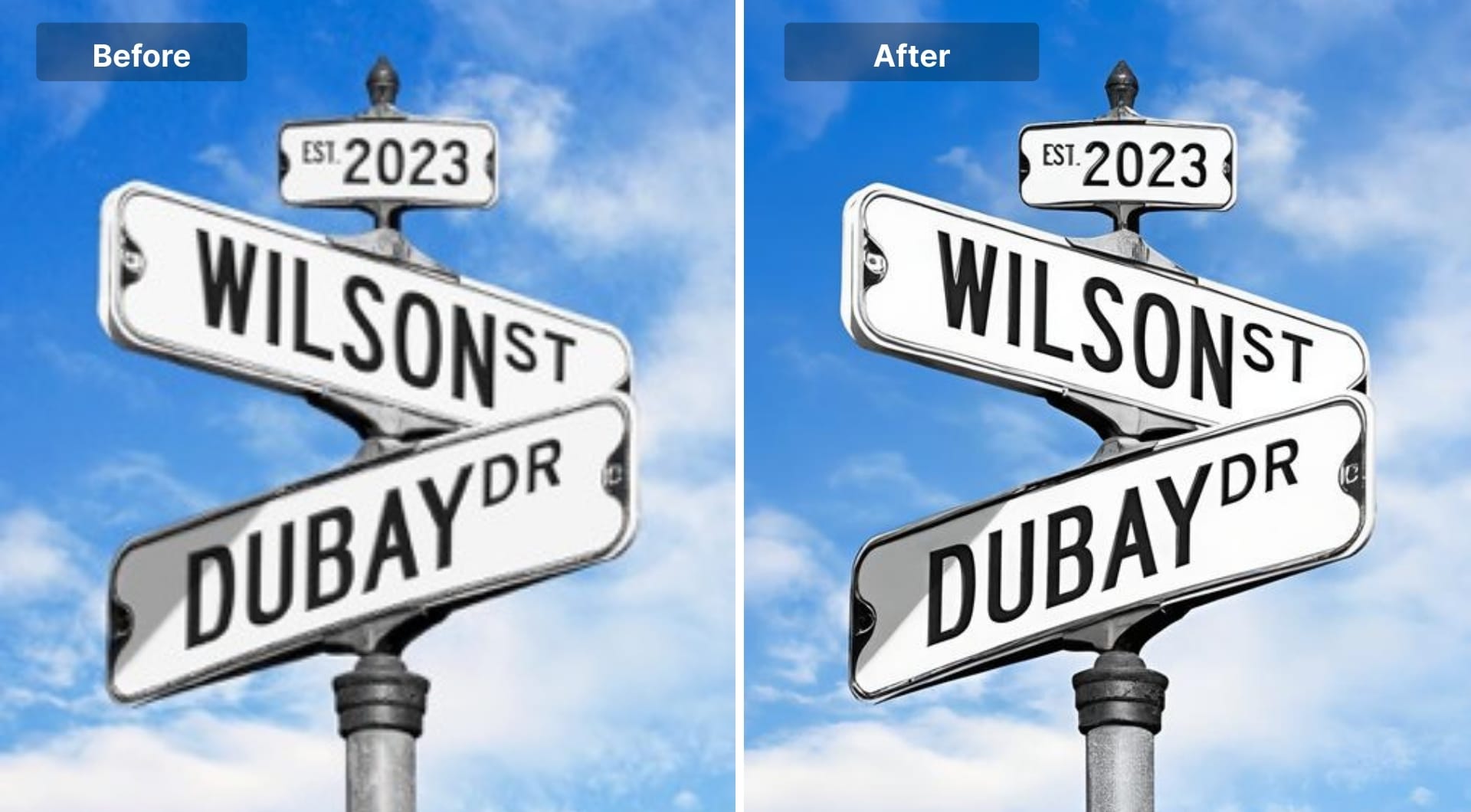
Fotor has a browser based AI image text enhancer that focuses on unblurring text in screenshots and documents. Their dedicated feature page targets exactly this use case: upload a blurry screenshot and get sharper, more readable text in one click.
More broadly, Fotor offers an AI image enhancer and 4K upscaler that improves sharpness, clarity and noise for all kinds of images.
Key features
- "Unblur text" feature for screenshots and documents
- One click AI photo enhancement and upscaling to HD/4K
- Basic web editor for cropping, brightness, contrast
- Works on desktop and mobile browsers
- Batch upscaling (on higher plans)
Best for
- Users who want a simple, free web UI
- People enhancing report screenshots, chat screenshots and social posts
- Creators doing quick photo corrections alongside text enhancement
Pricing
- Fotor Basic free tier with limited features and normal resolution
- Fotor Pro around 3.99$ per month billed yearly for AI features like upscaler
- Fotor Pro+ with extra cloud storage and AI credits
Pros
- Easy to use with minimal UI suited for non technical users
- Dedicated text unblur feature, not just global sharpening
- Decent free tier for occasional screenshot fixes
- Broad feature set if you also need collages or simple design tools
Cons
- Output quality for extreme cases (very small, noisy text) can trail more specialized tools
- Advanced features sit behind Pro/Pro+ paywall
- Not focused on print scale outputs like 200+ MP
3. Media.io
Media.io is an "AI studio" that bundles video, audio and image tools, including a free AI image text enhancer specifically made for blurry text. The text enhancer detects pixelated regions and sharpens them to make letters readable again with a single click.
If you already use Media.io for video editing or voice tools, adding text enhancement to that stack can simplify your workflow.
Key features
- Dedicated "enhance text in image" web tool
- AI photo enhancer for general images, including denoise and upscaling
- Works with common formats like JPG, PNG, BMP, WebP
- Integrated with other Media.io modules for video and audio
Best for
- Users already in the Media.io ecosystem
- Creators handling screenshots plus video or audio in the same project
- People who need a web based text enhancer for casual use
Pricing
- Subscription costs 9.99$/month for 100 credits
- Pay as you go bundles are also available starting from 14.99$/month for 100 credits
Pros
- Truly browser based, no install needed
- Simple flow: upload, click Enhance, download
- Fits nicely if you are already using Media.io for other media tasks
Cons
- Limited free trial with watermarked exports
- Interface and pricing can feel fragmented because there are many tools
- Quality is solid but not specialized for extreme restoration or mega resolution
- Advanced export options generally need a paid subscription
4. PicWish AI
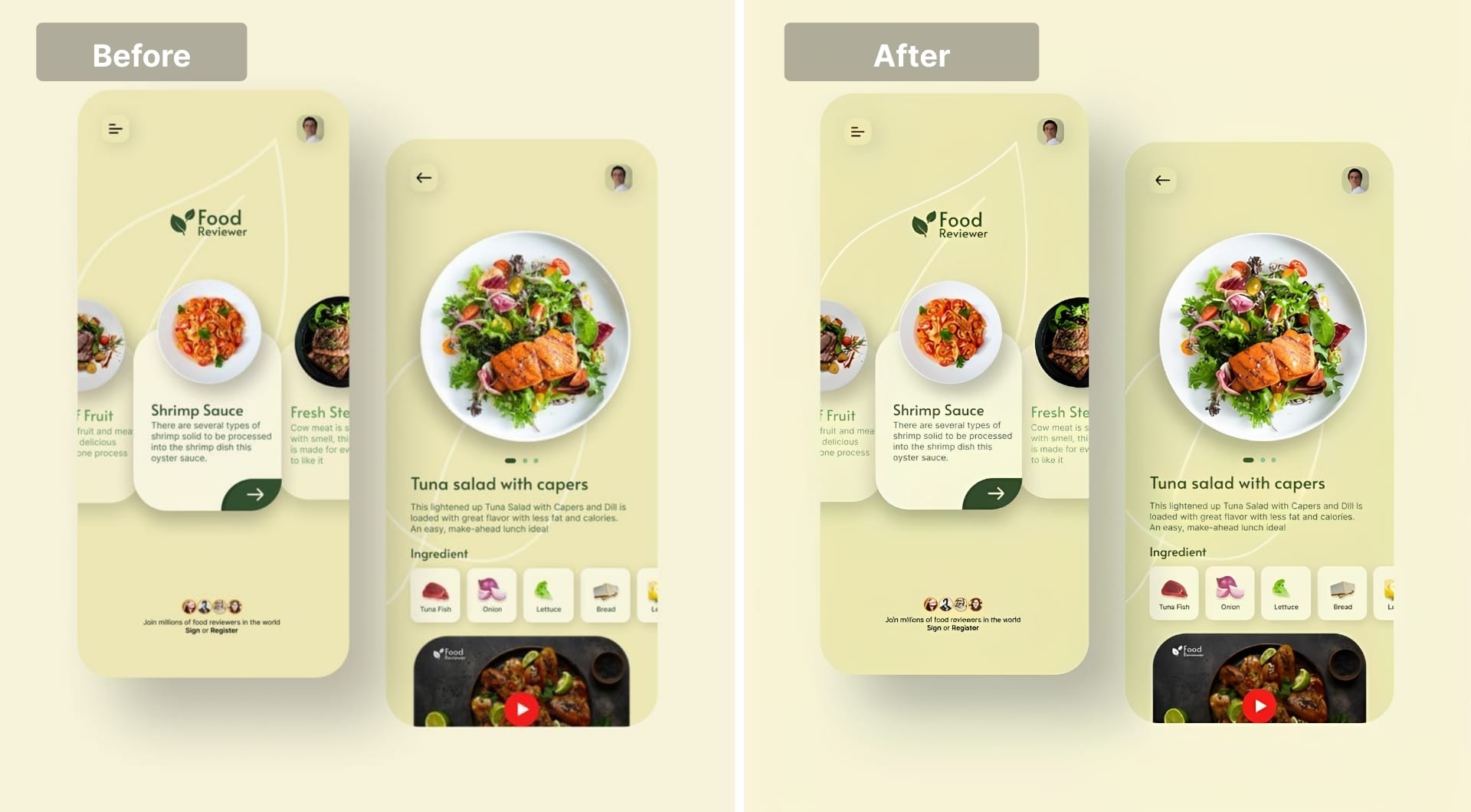
PicWish is a popular online AI photo editor with a strong focus on background removal and clarity. It offers a photo enhancer with a separate text enhancement model that is explicitly tuned for graphics and text.
They also have a dedicated "image text enhancer" landing page focused on making blurry text readable in screenshots and photos.
Key features
- Specific text enhancement model alongside general and portrait models
- Supports product shots, text graphics and anime images
- Up to about 4096 px on the long side for enhanced images
- Browser based plus mobile apps
Best for
- People who want a fast, free daily process for image text enhancement
- Content creators working with social media screenshots and ad creatives
- Users who also want background removal and object removal in one place
Pricing
- Free plan with around 5 image enhancements per day
- Pro subscription with higher resolutions, unlimited use and more features
- Pay as you go credits for API and bulk use
Pros
- Easy to use with generous free daily quota
- Text model is clearly signposted and works well on graphics
- Covers typical needs like ad images, UI screenshots, receipts
Cons
- Hard cap at 4096 px limits very large print workflows
- Web UI can feel ad heavy and slightly cluttered
- Best quality features live in the Pro plan
5. ImgUpscaler
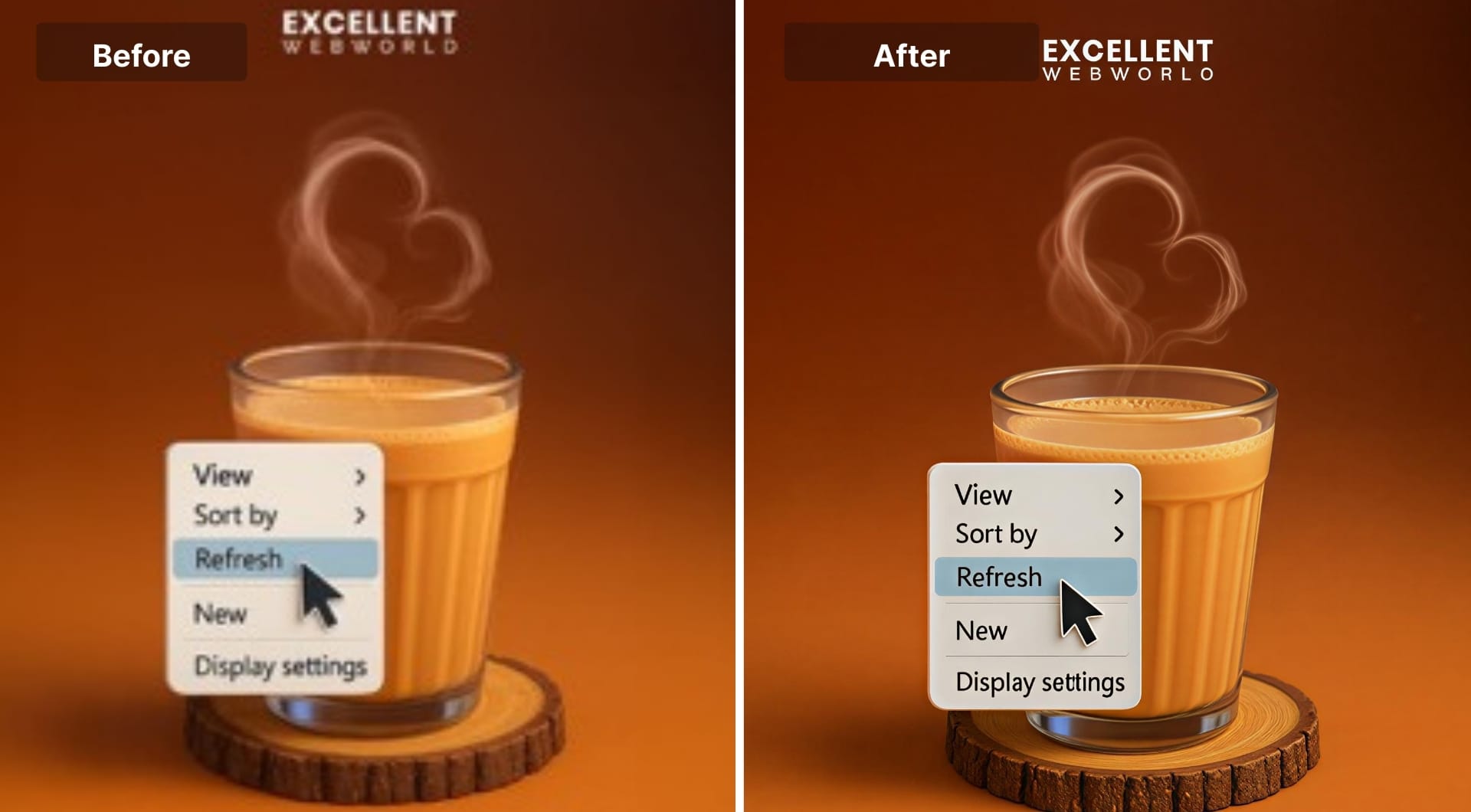
ImgUpscaler combines AI upscaling with an image to text workflow. Their text enhancer first improves clarity, then runs OCR so you can copy the text instead of squinting at pixels.
This is useful when you do not only want to read the screenshot, but also paste the content into a document or email.
Key features
- AI enhancement that targets blurry text and small fonts, especially on screenshots and scans
- Optical Character Recognition (OCR) engine that outputs clean, editable text
- Supports common document images like notes, receipts, screenshots
- General upscaling to as much as 4x and high resolutions
Best for
- Students and professionals who need to convert screenshots into text
- People doing data entry from receipts or invoices
- Users who want an "enhance + OCR" pipeline without installing desktop OCR software
Pricing
- Free account with around 20 free credits per month and basic upscaling
- Paid plans starting around 3.90$ per month, plus higher tiers for more credits and speed
Pros
- Tackles both readability and text extraction in one place
- Good for small fonts in screenshots and scanned notes
- Low entry price for regular use
Cons
- OCR accuracy drops for extremely damaged or stylized fonts
- Web based only
- Interface focuses more on upscaling marketing than text use cases
6. Unblurimage
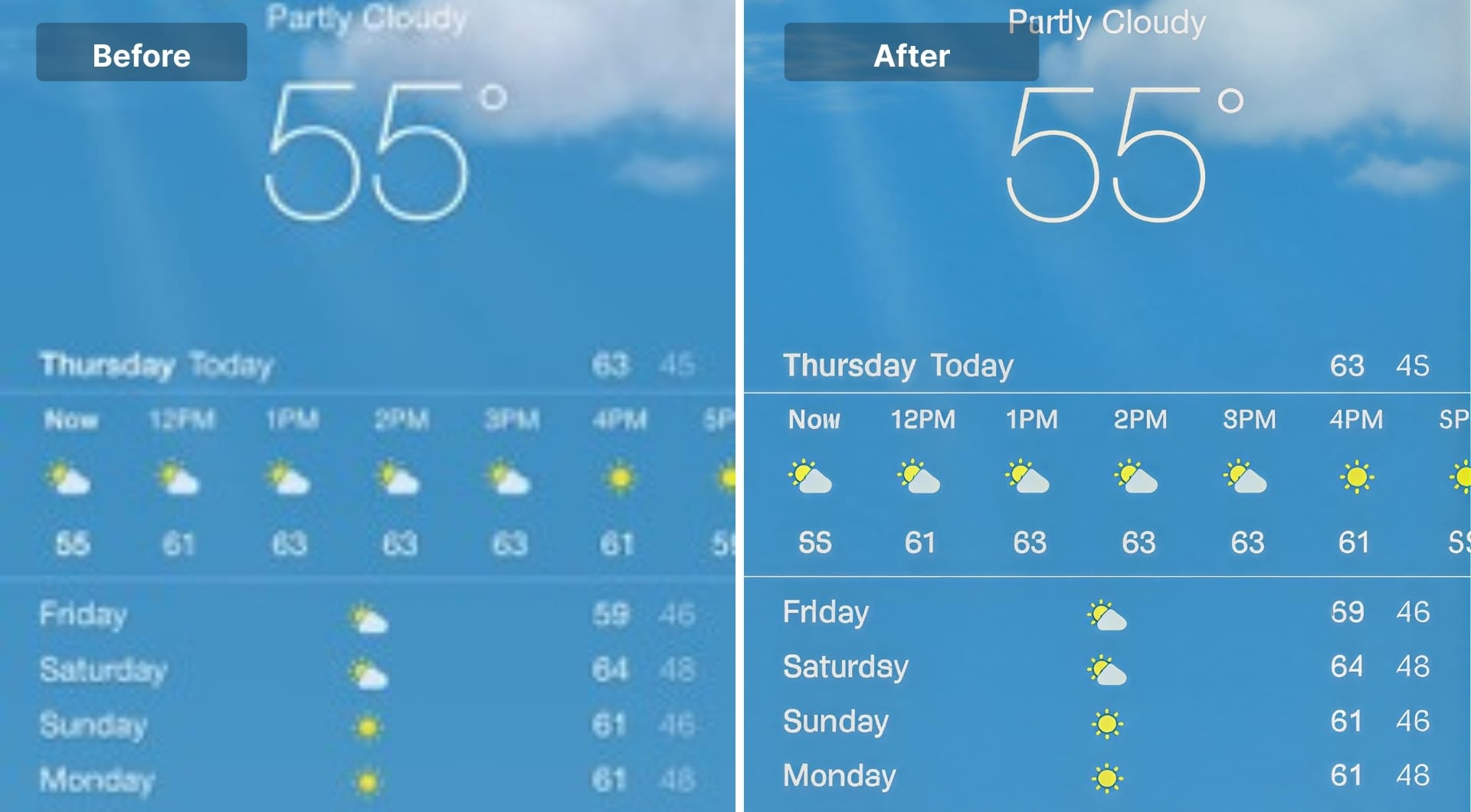
Unblurimage.ai started as a simple online image deblurring tool and now includes a dedicated text enhancer mode aimed at making blurry text readable without altering the layout or design of the original.
It is very focused: remove blur, sharpen, reduce noise and upscale. There is no complex editing interface, just a clean in and out workflow.
Key features
- Text enhancer that sharpens text in screenshots, scanned documents and notes while preserving layout
- General unblur, denoise and upscaling up to 4K
- Separate video enhancer module if you need to improve video clarity too
Best for
- Users who mainly want to unblur images with text, not full editing
- People restoring slightly blurred notes, receipts and small signs
- Social media users improving compressed screenshots
Pricing
- Free plan with about 2 images per day
- Premium subscription around 9$ per month for 500 credits
- Higher tiers and one time credit packs available for heavier users
Pros
- Very simple and focused experience
- Good deblurring quality for mild to moderate blur cases
- Video module is a nice bonus if you need it
Cons
- Web only
- Free plan is tight if you have many images
- No deep editing or design tools beyond clarity and resolution
7. YouCam Enhance
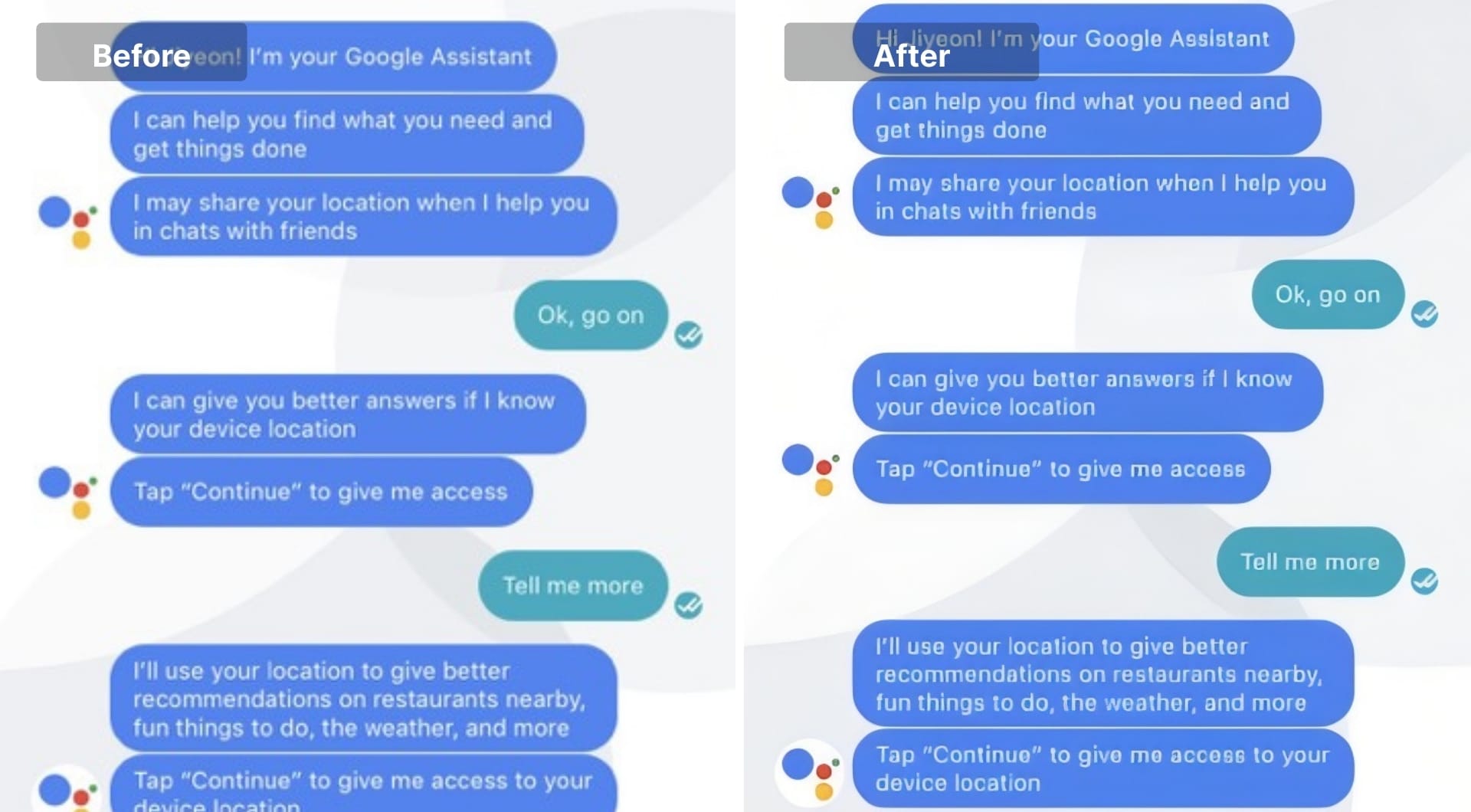
YouCam Enhance is a mobile app (iOS and Android) built around AI photo enhancement. Third party tests and YouCam’s own content highlight its blur remover as especially good at unblurring text, restoring old photos and upscaling to 4K.
It is more of a general photo enhancer than a pure text tool, but if your blurry text lives in camera photos, not desktop screenshots, the phone app format is convenient.
Key features
- AI blur remover that targets text as well as faces and details
- One tap enhancement and 4K upscaling
- Core tools are free, with limitations and potential watermarks
Best for
- Users who mostly shoot photos of documents with their phone
- Restoring old prints with text captions
- People who want to enhance and share directly from mobile
Pricing
- Free version with basic enhancements and likely watermarks / low resolution
- Subscription starting from 3.33$ for 100 credits and 5.83$ for 300 credits.
Pros
- Mobile first, perfect if your workflow is phone based
- Good for general photo enhancement beyond text
- Nice for old family photos that include captions or signage
Cons
- Not ideal for desktop screenshots or PDFs
- Subscription pricing may feel high if you only need occasional fixes
- Exports and features can be limited on the free plan
8. Pokecut
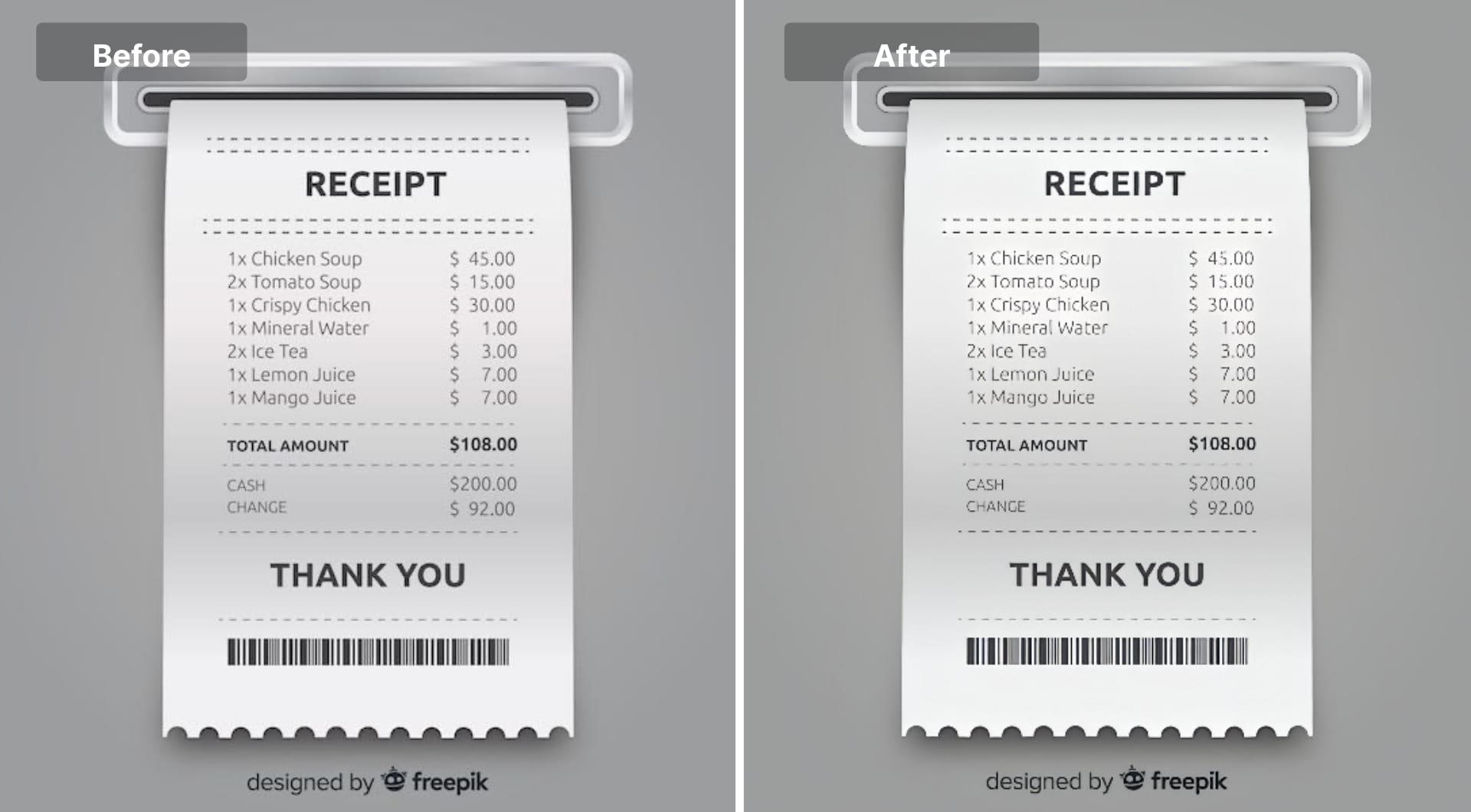
Pokecut is an AI photo editor targeted at ecommerce sellers and social media creators. Among its tools is a free AI image text enhancer that unblurs and sharpens text in images with a single click.
If you are already using Pokecut for backgrounds, cutouts or ad creative, its text enhancer keeps everything in one browser tab.
Key features
- AI text enhancer for blurry text in images, accessible on both desktop and mobile browsers
- Around five free text enhancements per day
- Full editor for background removal, compositing and general enhancement
Best for
- Ecommerce sellers cleaning up product shots with small labels or packaging text
- Creators designing social media ads and stories with overlay text
- Users who like all in one browser editors
Pricing
- Free tier with 5 daily credits for basic features
- Pro and Credits plans that unlock higher limits and generative features, starting somewhere in the mid single digit USD per month according to SaaS aggregators
Pros
- Text enhancer integrated into a full ecommerce focused editor
- Generous free daily usage for light needs
- Good combination with background generation and other marketing tools
Cons
- Quality ceiling is lower than specialized high end enhancers
- Free tier is limited if you process dozens of images daily
- Web UI and pricing model can feel a bit busy
9. Claid.ai
Claid.ai is the product photography suite built by LetsEnhance. It is designed for ecommerce and marketplaces that need to generate, enhance and standardize thousands of product photos.
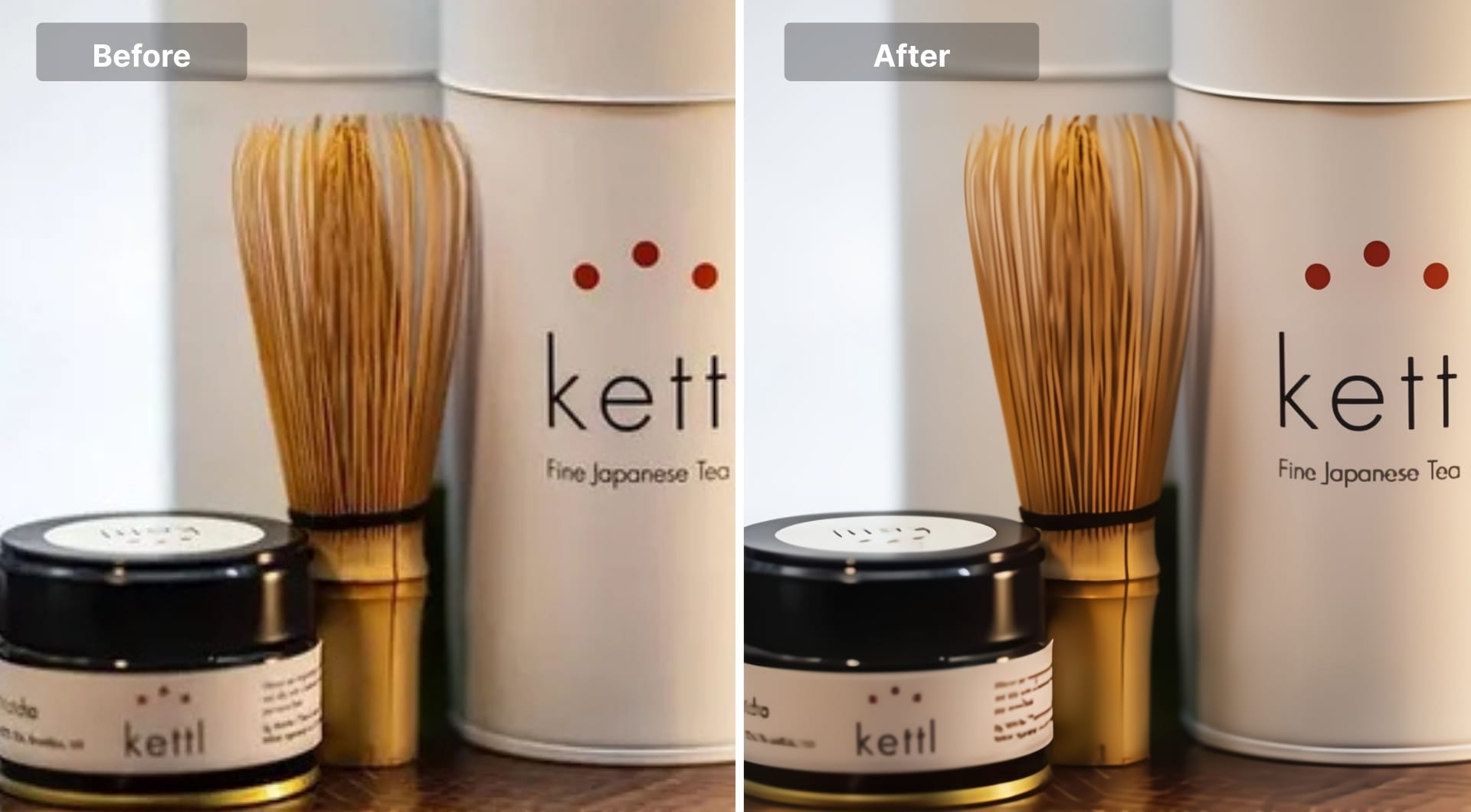
While Claid is not a "text enhancer" in the narrow sense, it has enhancement and upscaling engines that preserve and clarify packaging text, labels and UI elements extremely well, and it offers both a web studio and API.
Key features
- Product focused enhancer and upscaler for photos with labels and fine text
- AI Photoshoot and background generation to place products in new scenes without reshoots
- API for automated bulk processing, including upscaling to around 559 MP for some endpoints
Best for
- Ecommerce brands and marketplaces with large product catalogs
- Teams who must meet strict marketplace guidelines for readability and resolution
- Engineering teams that want to bake image enhancement into their own systems via API
Pricing
- Free trial with limited uploads to explore
- Web plans and API plans; public content and reviews put entry level web tiers around 15-19$ per month
- Pro tiers cost higher, with custom business and API deals above that
Pros
- Built from the ground up for product photography and ecommerce
- High resolution enhancement that preserves tiny label text
- API and batch processing for serious scale
Cons
- Overkill if you only occasionally fix a screenshot
- Pricing and setup make sense mainly for businesses
- More complex to adopt than point and click consumer apps
Buying guide: how to choose an AI image text enhancer
Understand your source: screenshot, photo, or scan
If you mainly deal with phone or camera photos of documents, look for tools that handle noise, shadows, and perspective well, such as apps that specialise in photo enhancement and blur removal. These tend to cope better with uneven lighting, soft focus, and paper texture.
For desktop or mobile screenshots of dashboards, chats, and apps, you want models that are text or UI aware rather than generic sharpen filters. Tools that explicitly mention “text enhancer,” “screenshot enhancer,” or “UI” usually preserve fonts and interface elements more cleanly.
If you work with scanned PDFs and old documents, treat them like low contrast photos plus text. You will often get the best results by combining a text oriented enhancer with a separate OCR step if you need editable text.
Set realistic expectations for what AI can and cannot do
AI is very good at fixing mild blur, compression artifacts, low contrast, and small fonts. It can make grainy screenshots readable and bring out text that was only slightly out of focus.Expect “more readable” rather than “pixel perfect recovery of the original letters,” especially for legal or critical material.
Decide whether you need readability only or full OCR
If readability is enough, a simple web based text enhancer is fine.If you need editable text for documents, reporting, or study notes, look for a workflow that pairs enhancement with OCR. Usually, enhancing and then sending the clearer image into a dedicated OCR service works better.
Choose between cloud, desktop, and mobile workflows
Cloud tools are easiest to start with. They run in the browser, do not require installation, and work on almost any device.
Desktop applications make sense if you want manual control, layered editing, and tight integration with existing creative software.
Mobile apps are ideal when your entire workflow lives on your phone and you mostly photograph documents, notes, whiteboards, and signs.
Consider privacy and document sensitivity
If you are uploading legal, financial, medical, HR, or internal screenshots, treat privacy as a non negotiable requirement. Check whether the provider states how long they retain uploads, whether they use images for training, and how deletion works.
FAQ
What is the best AI image text enhancer right now?
LetsEnhance.io is the best overall option because it combines a dedicated text enhancer with very high resolution output and multiple modes for different content types. You can clean up screenshots, scanned documents and photos with text in the same place, and then switch to stronger modes when you need large, print ready files. If you want something even simpler and purely browser based, single purpose tools such as Fotor, Media.io, PicWish or Pokecut are good alternatives.
How do I enhance text in an image online for free?
Pick a tool with a free tier and a mode that mentions text, screenshots or documents. Upload your image, choose the text oriented option, and apply the enhancement. Once you are happy with the preview, export the result. If you also need editable text, run the enhanced image through a separate OCR service afterwards. The key is to accept the free plan limits on resolution, daily quota or file size and plan around them.
Can AI really unblur text from an image?
AI can often make mildly blurred or compressed text readable by sharpening edges, restoring contrast and adding plausible detail. It is very effective on soft focus, JPEG artifacts and small fonts. Treat AI unblurring as a way to get to “usable and readable,” not as a forensic recovery tool.
How do I fix blurry text in scanned documents?
Scan at a reasonably high resolution first, ideally at least 300 DPI, so the AI has enough signal to work with. Then run the scan through a text oriented enhancer that can increase clarity and contrast without destroying the character shapes. If you need a searchable or editable document, feed the improved image into OCR afterward. For very old or faded scans, it often helps to apply a restoration or “old photo” mode first and then a text enhancer as a second step.
What is the best free tool to unblur text in screenshots without a watermark?
The options change over time, so the safest approach is to test a couple of tools on the same screenshot. Look for services that allow free exports at moderate resolution and state explicitly that they do not add watermarks on free plans, or that only watermark at higher resolutions. Run your screenshot through two or three candidates, compare the readability and file size, and then commit to the one that fits your quality and quota needs.
How do I convert blurry image text to a clean paragraph?
Use a two step workflow. First, enhance the image with a tool that improves text clarity so letters become sharper and more readable. Second, send that enhanced image into an OCR tool to extract the text as plain text or a document. Once you have the raw text, refine it in an editor or writing assistant to fix spelling, punctuation and formatting. This sequence usually produces a much cleaner paragraph than running OCR directly on the blurry original.
I work with ecommerce product photos. Should I use LetsEnhance or Claid.ai?
If you manage a manageable number of product photos and mainly work through a browser interface, LetsEnhance is usually the better fit. You can enhance packaging text, clean up labels and upscale to print ready resolutions without touching code.
If you run a marketplace or brand with thousands of SKUs, strict visual guidelines and a need for automation, Claid makes more sense. It gives you a studio for manual work and an API for bulk processing so you can standardize readability and quality across an entire catalog automatically.
