
Grainy low light shots, noisy phone photos and crunchy JPEGs from old cameras are everywhere. This guide compares the best denoiser tools, from pro RAW denoisers to quick online AI apps, so you can clean photos without plastic, waxy detail.
Continue reading to learn more about the topic.
Best image noise removal tools at a glance
| Tool | Best for | Pricing model | Key strength |
|---|---|---|---|
| LetsEnhance.io | Best overall online denoiser and upscaler | Free tier, subscriptions from about 9 USD per month, pay as you go | AI denoise plus upscaling up to 256–512 MP with modes for photos, products and art |
| DxO PureRAW / PhotoLab (DeepPRIME XD) | Maximum detail from RAW, high ISO and astro | Perpetual license | Top tier RAW denoise with lens profiles and excellent detail retention |
| Topaz Photo AI | Wildlife, sports, astro, heavy crops | Perpetual license plus optional upgrades | Strong AI denoise, sharpen and upscale in one app |
| ON1 NoNoise AI | Budget friendly RAW and JPEG denoise, plugins | Perpetual license, included in Photo RAW | Good AI denoise with plugins for Photoshop and Lightroom |
| Lightroom Classic / Camera Raw AI denoise | Adobe users with RAW workflows | Adobe subscription | One click AI denoise inside Lightroom and Camera Raw, strong for everyday work |
| Luminar Neo with Noiseless AI | Creators who want simple AI tools and presets | Subscription or license | Easy AI denoise for RAW and JPEG plus creative editing tools |
| Capture One Pro | Studio, tethering and color critical work | Subscription or license | Solid manual noise reduction inside a pro RAW editor |
| VanceAI image denoiser | Browser based denoise and upscaling | Credits and plans, web plus desktop | Simple online AI denoise with pay as you go and desktop options |
| BeFunky Denoise AI | Casual shooters, social media and mobile | Freemium | One click AI denoise in a simple online editor and app |
| Darktable and RawTherapee | Free, open source RAW denoise for power users | Free | Profiled denoise modules with deep manual control |
1. LetsEnhance.io
LetsEnhance.io is an AI image enhancer that combines noise reduction, upscaling and detail reconstruction in a browser based tool. It is trained on a wide range of real world content, so it tends to keep textures realistic instead of plastic. You can remove noise, fix JPEG artifacts and upscale for print or 4K delivery in one step.
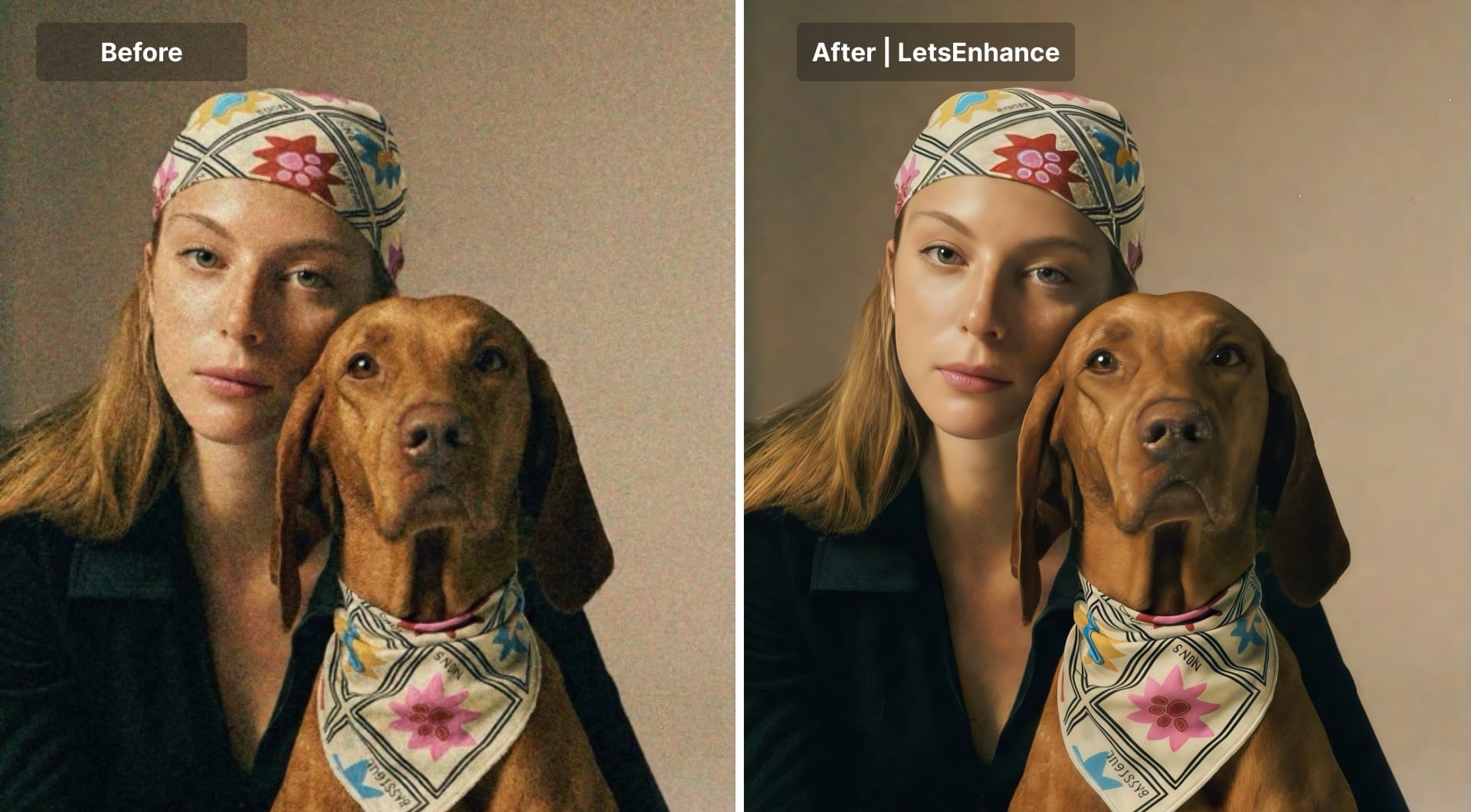
It offers 6 different AI modes built for different needs, but Ultra and Strong are specifically made for image noise removal.
- Ultra: maximum quality and resolution, adds fine details and texture, tuned for printing, faces and creative upscaling.
- Strong: strong noise removal while keeping natural detail, great for portraits, lifestyle photos and general camera shots.
Behind the scenes, denoising is part of a single enhancement pass. The model removes noise and compression artifacts while predicting sharper, higher resolution output, up to 256 MP on personal plans and 512 MP for business accounts.
Key features
- Dedicated AI photo denoiser for grainy, low light photos and noisy phone images.
- Denoise and upscale to HD, 4K or large print sizes in one pass.
- Multiple AI upscalers (Gentle, Balanced, Strong, Ultra, Old photo, Digital art) to match different content types.
- Runs in the browser, works with JPEG, PNG and common formats.
- Batch uploads and processing via web; large scale via API stack.
- Chat Editor that lets you describe edits in plain language, such as “reduce noise, keep text sharp, upscale to 4K”.
Best for
- Mixed content: portraits, landscapes, product photos, social media graphics.
- Users who need denoise plus upscale more often than pure RAW processing.
- Non technical creators who want pro level quality without a complex RAW editor.
- Teams that may later want automation and API access.
Pricing
- New users get free 10 credits to test quality.
- Personal subscriptions start around 9$ per month for a credit bundle, with higher tiers and pay as you go bundles for occasional use.
- Max resolution up to 256 MP for individuals and up to 512 MP for business users.
Pros
- Strong balance between noise removal and texture fidelity.
- Simple and easy workflow; suited for beginners and advanced people likewise.
- Excellent for low resolution, noisy images that also need upscaling.
- Works entirely online, so hardware requirements are low.
- Different AI modes make it easy to tune for faces, products or art.
- Batch processing with the possibility to edit 20 images at once.
- API friendly via the same underlying stack used by Claid.
Cons
- Does not replace a dedicated RAW editor; you will usually export TIFF or JPEG first.
- Less deep micro control than manual sliders in DxO or Capture One.
- Some advanced features require subscription.
2. DxO PureRAW and PhotoLab (DeepPRIME XD)
DxO PureRAW and DxO PhotoLab use DeepPRIME and DeepPRIME XD neural networks to denoise RAW files while applying lens and camera corrections. Many independent tests rank DeepPRIME among the very best for preserving fine detail, especially in high ISO and astrophotography images. PureRAW is a pre processor that outputs clean DNG files; PhotoLab is a full editor with the same engines built in.
Key features
- DeepPRIME and DeepPRIME XD for extremely clean, detailed RAW output.
- Automatic lens corrections, distortion fixes and sharpening in the same pass.
- Smooth batch processing for large event and sports shoots.
- Excellent color handling and dynamic range recovery in PhotoLab.
Best for
- RAW photographers who want maximum quality, especially at high ISO.
- Astro, wildlife and event shooters who routinely push exposure limits.
- Users who want a “RAW in, clean DNG out” pipeline before main editing.
Pricing
- PureRAW is a perpetual license with paid upgrades between major versions.
- PhotoLab Elite is more expensive but includes full editing plus DeepPRIME XD.
Pros
- Class leading RAW noise reduction with very high detail retention.
- Strong lens and camera profiling.
- Great for batch work and difficult sensors such as some X Trans cameras.
Cons
- RAW only, so it will not denoise JPEGs directly.
- Desktop only, no online or mobile version.
- Higher upfront cost than simple online tools.
3. Topaz Photo AI
Topaz Photo AI merges Topaz DeNoise AI, Sharpen AI and Gigapixel AI into one application. It targets photographers who need to rescue borderline files: noisy, slightly blurry or heavily cropped. The denoise module works on RAW and non RAW images and is especially popular with wildlife, sports and astro shooters.
Key features
- AI denoise models for standard, severe and RAW noise levels.
- Integrated sharpening and upscaling to combine three fixes in one step.
- Standalone app plus plugins for Photoshop and Lightroom.
- Free online denoiser from Topaz for quick web based tests.
Best for
- Photographers who want a single tool to clean, sharpen and upscale.
- High ISO genres such as wildlife, birds, indoor sports and astro.
- Users who prefer a one time license to an ongoing subscription.
Pricing
- Photo AI is sold as a perpetual license that includes one year of upgrades.
- Upgrade renewals after that year are optional.
Pros
- Very strong at recovering detail from difficult noisy images.
- Combines denoise, sharpen and upscale, so workflows stay compact.
- Tight integration with Adobe tools.
Cons
- Can look slightly processed or unnatural if pushed too hard, especially on skin.
- Heavy GPU use; older machines can be slow.
- Overkill if you only need light denoise on web photos.
4. ON1 NoNoise AI
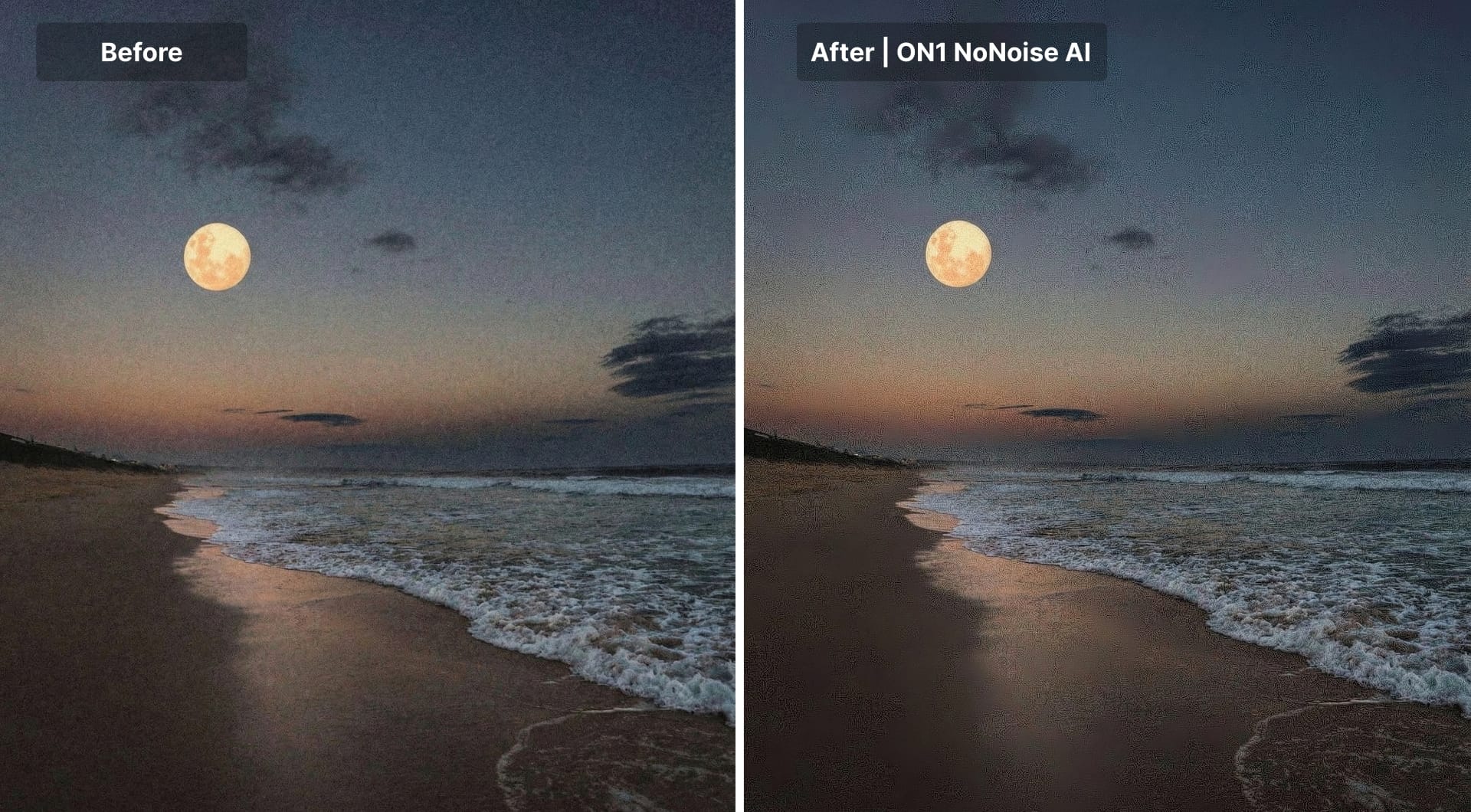
ON1 NoNoise AI is a dedicated denoiser that runs as a standalone app and as a plugin. It uses AI to remove noise and improve sharpness on both RAW and JPEG files. It is priced more aggressively than DxO and Topaz, which makes it appealing as a budget pro option.
Key features
- AI noise removal with sharpening tuned for wildlife and high ISO work.
- Plugins for Photoshop, Lightroom, Capture One and others.
- RAW and JPEG support, with control over luminance and color noise.
- Included with ON1 Photo RAW for users of the full editor.
Best for
- Photographers who want a capable AI denoiser at a lower price point.
- Existing ON1 Photo RAW users.
- People who like plugin workflows around Adobe and Capture One.
Pricing
- Sold as a perpetual license, often in the mid range price band, with upgrade pricing for existing owners.
- Included in some ON1 bundles such as Photo RAW.
Pros
- Good quality AI denoise for the price.
- Flexible deployment as both app and plugin.
- One time license instead of subscription.
Cons
- Usually ranks slightly behind DxO for extreme high ISO or astro.
- Interface and presets are less refined than Adobe and DxO for some users.
5. Lightroom Classic and Camera Raw AI denoise
Adobe added AI denoise to Lightroom Classic, Lightroom and Camera Raw in the Enhance panel. It processes RAW files and produces a new DNG that has noise reduced by a GPU accelerated model. Quality is strong for most everyday work and is improving over time, which keeps many photographers inside Lightroom instead of round tripping to plugins.
Key features
- AI denoise in the Enhance dialog, plus classic luminance and color sliders.
- RAW support for many camera brands.
- Batch processing by selecting multiple images and running Enhance.
- Integrated in the Photoshop and Lightroom subscription you may already have.
Best for
- Photographers who already live in the Adobe ecosystem.
- Users who want a simple AI denoise step without extra tools.
- Shooters with moderate to high ISO needs, especially in events and weddings.
Pricing
- Included in Adobe Photography Plan subscriptions; not sold separately.
Pros
- Good quality, natural looking denoise when not pushed to extremes.
- End to end workflow stays in one application.
- You can mix AI denoise with manual sliders for fine tuning.
Cons
- Works only on RAW files, not on JPEGs or TIFFs.
- Needs a fairly modern GPU; older systems can be unsupported or very slow.
- For the hardest cases, many users still prefer DxO or Topaz.
6. Luminar Neo
Luminar Neo is an AI heavy photo editor that uses extensions to add features. Noiseless AI is its denoise module, built for people who want simple controls on top of complex models. It handles both RAW and JPEG and fits into a creative editing workflow.
Key features
- AI denoise that treats luminance and color noise on RAW and non RAW images.
- ISO based presets such as low, medium and high noise, plus manual sliders.
- Part of a larger ecosystem that includes sky replacement, relighting and portrait tools.
Best for
- Creators and social media shooters who want “smart but simple” tools.
- People who want to clean images and then stylize them in the same app.
Pricing
- Sold as a paid extension and in various Luminar Neo bundles, with both subscription and license options depending on current offers.
Pros
- Easy to use; presets often work with minimal adjustment.
- Works on RAW and JPEG.
- Good fit if you already use Luminar for creative edits.
Cons
- Quality on extreme noise is behind DxO or Topaz in many comparisons.
- Less attractive if you are settled in another editor.
7. Capture One Pro
Capture One Pro is best known for tethering, color control and RAW rendering. Its noise reduction is more traditional than heavy AI tools but remains effective, especially with well exposed files. It gives fine manual control over luminance and color noise.
Key features
- Separate sliders for luminance, color and detail noise.
- Automatic base noise reduction on RAW with per image tweaks.
- Integrated in a strong tethering and studio workflow.
Best for
- Studio and commercial photographers already using Capture One.
- Users who want manual, predictable control instead of black box AI.
- Color critical work where the rest of Capture One’s pipeline shines.
Pricing
- Available as subscription or perpetual license depending on the plan.
- Noise reduction is part of the main app, not an add on.
Pros
- Strong color and tonal output; noise reduction fits into that look.
- Good for moderate noise when tuned per camera and ISO.
- Tight integration with tethered shooting.
Cons
- For very noisy files, many users still send images to Topaz or DxO.
- No browser or mobile denoise option.
- Less suitable if you mainly need fast one click cleanup.
8. VanceAI
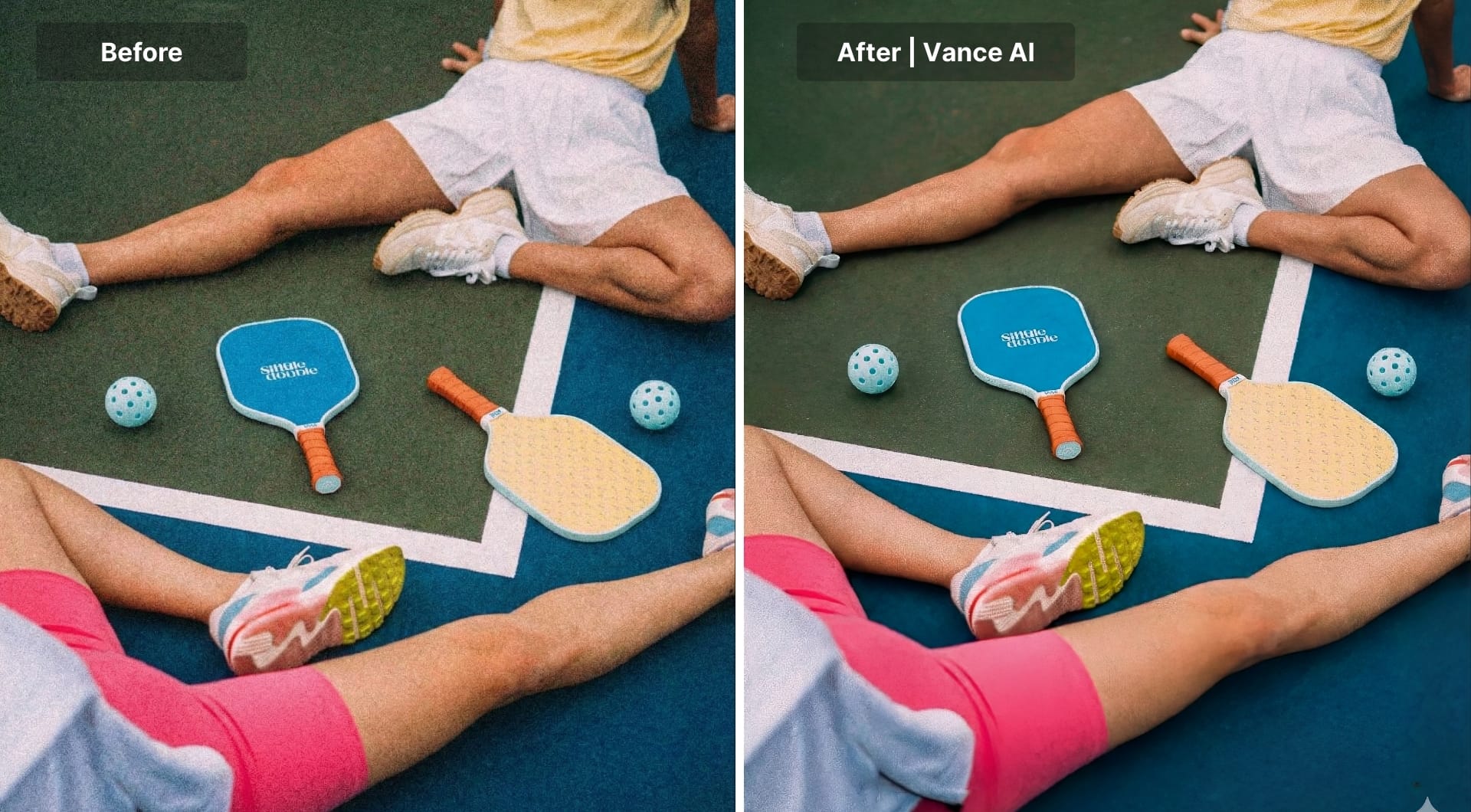
VanceAI is an online AI photo enhancer with dedicated tools for denoising, upscaling and sharpening. The image denoiser runs in the browser and targets grainy photos and JPEG artifacts for casual and semi pro users.
Key features
- AI denoiser that removes grain and JPEG artifacts with a simple strength control.
- Integrates with VanceAI’s upscaler and sharpener tools.
- Web interface plus Windows desktop app for local processing.
- Credits and plans for occasional or frequent use.
Best for
- Users who want a quick, browser based denoiser with more control than simple phone apps.
- People who occasionally need to clean JPEGs, scans and social images.
Pricing
- Credit based pricing for online use with bundles at different sizes.
- Desktop plans with monthly, yearly and lifetime options.
Pros
- Simple browser workflow.
- Multiple pricing models, including lifetime desktop access.
- Batch features and optional API style usage for more advanced users.
Cons
- Web workflow depends on upload speed and comfort with cloud processing.
- Not at the level of DxO or Topaz for hard RAW files.
- Interface is focused on simplicity rather than deep control.
9. BeFunky
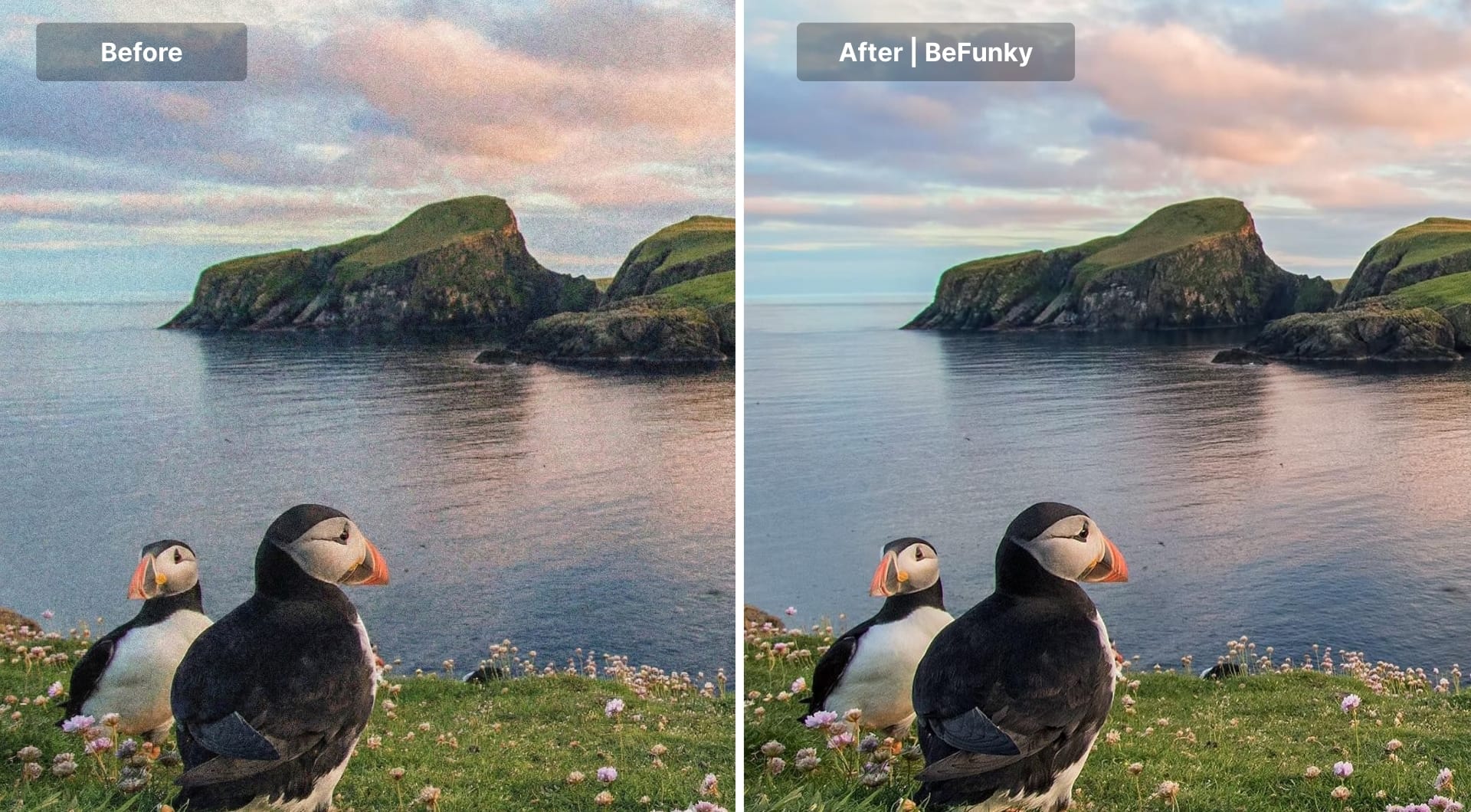
BeFunky is a browser based photo editor with a strong focus on ease of use. Its AI Denoise and related tools target noisy mobile photos, portraits and social content. It favours one click workflows and light sliders.
Key features
- AI Denoise that cleans noise and improves contrast with minimal controls.
- Face recovery option to restore facial detail in portraits.
- Batch tools for quick web galleries and event sets.
- Mobile apps on iOS and Android for on the go cleanup.
Best for
- Social media managers, small businesses and casual photographers.
- Event shooters who want fast denoise for web sized images.
- Users who like a simple editor with collages, text and graphic tools.
Pricing
- Freemium: basic tools free, full tools via subscription.
Pros
- Very easy to use; ideal for non technical users.
- Face focused options for better portraits.
- Integrated with a lightweight design toolkit.
Cons
- Limited control compared to pro tools.
- Less suitable for RAW workflows or color critical projects.
- Some features sit behind the paywall.
10. Darktable and RawTherapee
Darktable and RawTherapee are the main free and open source RAW editors. Both include sophisticated noise reduction modules that can rival commercial tools when tuned carefully, especially for common camera models. They suit technical users who prefer full control and zero cost.
Darktable
- “Denoise (profiled)” module uses sensor noise profiles per camera and ISO.
- Astrophoto denoise option for stacking and low light work.
- Linux, macOS and Windows builds.
RawTherapee
- Detailed luminance and chroma noise controls.
- Tone dependent noise curves so shadows can be treated more strongly than highlights.
- Emphasis on non destructive, high quality processing.
Best for
- Photographers who want free tools and do not mind steeper learning curves.
- Linux users and hobbyists who like to tune pipelines.
- Technical users who appreciate per camera profiling.
Pricing
- Fully free and open source for all platforms.
Pros
- Very capable noise reduction when configured correctly.
- Deep control over parameters; presets can be built per camera and ISO.
- Active communities and frequent improvements.
Cons
- User interfaces can feel complex and dated.
- No built in AI upscalers at the level of LetsEnhance or Topaz.
- Time investment is higher than with one click commercial tools.
How to choose an image noise reduction tool
Understand your files
If most of your important photos are RAW from a camera, you’ll get the best quality from desktop tools built for RAW processing such as DxO, Topaz Photo AI, Lightroom AI denoise, ON1, Capture One, Darktable or RawTherapee.
If you mostly deal with JPEGs and PNGs from phones, older cameras, social media downloads or scans, online AI tools like LetsEnhance, VanceAI or BeFunky are often more practical.
Decide how much control and “AI magic” you want
Conservative tools such as DxO, Lightroom, Capture One, Darktable and RawTherapee try to keep the original structure, reduce noise and avoid inventing detail. They are safer for documentary work, editorial jobs and anything where realism matters more than a “polished” look.
Enhancement heavy tools such as LetsEnhance Ultra mode, Topaz Photo AI and Luminar Neo go further. They not only remove noise but also reconstruct or hallucinate texture and fine detail, especially when you upscale. This is ideal when the starting file is small, noisy or heavily cropped and the goal is a cleaner, sharper, more commercial look.
Control works the same way. RAW editors give you per channel sliders, masking, presets and repeatable recipes. Browser tools focus on fewer, smarter controls and presets. If you enjoy tweaking settings per camera and ISO, desktop RAW is the right side of the spectrum. If you just want a clean, sharp image without wrestling sliders, online AI is usually better.
Balance cloud vs desktop, speed and scalability
Cloud tools like LetsEnhance, VanceAI and BeFunky shift the heavy compute to servers, so even a modest laptop can handle demanding denoise and upscale jobs. They are great if you move between machines, work on the go or do not want to worry about GPU specs. The tradeoff is upload time and the need to be comfortable sending files to a service.
Desktop tools like DxO, Topaz, ON1, Lightroom, Capture One, Darktable and RawTherapee keep everything local. They are better if you handle large RAW shoots, care about privacy or have a fast workstation with a strong GPU. Once installed, they can chew through thousands of files without saturating your internet connection.
Think about volume as well. For a few key shots per week, almost any tool is fine. For batches of hundreds or thousands of images, you want proper batch support:
FAQ
What is the best software to remove image noise without losing detail?
There is no single winner because use cases differ. DxO DeepPRIME is often preferred for RAW files where natural texture and maximum detail matter. Topaz Photo AI is strong when you need to rescue difficult high ISO or heavily cropped photos with denoise, sharpen and upscale in one place. For mixed JPEG and PNG content or quick online work, LetsEnhance is a good default because it combines denoise and upscaling in the browser.
How can I reduce noise in photos without making them look plastic?
Expose as well as you can in camera, then use a modern AI denoiser at moderate strength and judge results at 100 percent zoom. Avoid stacking multiple heavy denoise passes in different apps, because each one tends to smear detail a little more. After denoise, add a touch of sharpening to restore crispness instead of pushing noise sliders too far.
How can I remove image noise online for free?
Many services have free tiers or trial quotas. LetsEnhance, Topaz’s online denoiser, VanceAI and BeFunky all let you test noise reduction in the browser without paying upfront, though limits apply on resolution, watermarking or number of images. For occasional cleanup of phone shots and social media images, these free options are usually enough.
Which is better for noise reduction, Topaz or DxO?
DxO tends to win on realism and consistency for RAW files. DeepPRIME and DeepPRIME XD give very clean, detailed results that hold up well when you zoom in or print large. Topaz Photo AI, on the other hand, can sometimes recover more apparent detail and also fix softness and resolution, but at the cost of a more processed look if you push it. If you want a pre-processing stage before editing, choose DxO; if you want an all-in-one rescue tool, choose Topaz.
Can Photoshop remove image noise as well as AI tools?
Classic Photoshop filters can reduce noise, but they are not on the same level as modern AI based methods. The best quality inside Adobe today comes from Camera Raw and Lightroom’s AI denoise in the Enhance panel. For jobs that still need more, many users send images from Photoshop to plugins like Topaz Photo AI or ON1 NoNoise rather than relying on the legacy Reduce Noise filter.
How do I fix grainy low light photos from my phone?
If you can reshoot, use night mode and keep the phone stable so it can capture more light. For existing grainy shots, online AI tools like LetsEnhance, VanceAI or BeFunky can usually clean the noise and upscale at the same time, which helps for social media. Focus on keeping faces natural: if skin starts to look like plastic, back off the denoise strength or try a different tool.
How do I reduce noise in JPEG images compared to RAW?
JPEG files already went through in-camera processing and compression, so there is less room to push them. Use denoisers that handle JPEGs well, such as LetsEnhance, VanceAI, Luminar Neo or BeFunky, and keep the strength moderate so compression blocks do not turn into mushy patches. When image quality is critical and you control the capture, shooting RAW at the same exposure will always give you more flexibility.
How do I remove noise from scanned images and old photos?
Treat scanned photos as noisy JPEGs, but pick tools that also handle restoration. In LetsEnhance, for example, Old photo mode both cleans noise and repairs colors and small defects, which works well on family archives and prints. For documents or technical scans, be more conservative: prioritize keeping edges and text sharp, and avoid strong chroma smoothing that could blur fine lettering.
How do I denoise video without losing detail?
Video noise is both spatial and temporal, so still image tools are not enough. Most editors include basic noise reduction, but plugins such as Neat Video are popular because they build a noise profile and work across multiple frames to avoid flicker. Whichever tool you use, preview at actual delivery resolution and be careful with faces and fabrics; those areas reveal over-smoothing very quickly.
