
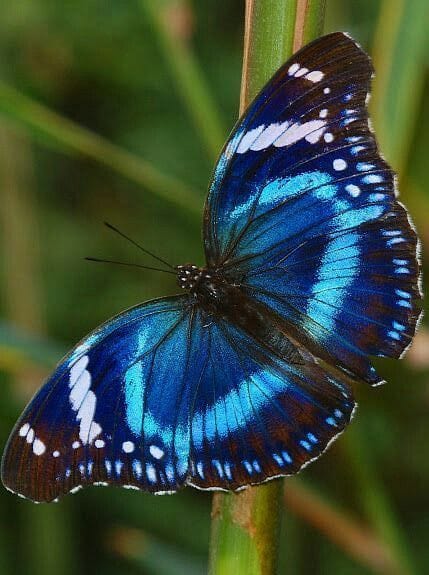
Standard interpolation is dead. If you're preparing files for large-format print, ecommerce, or restoring archives, you need AI upscaling that understands texture, not just pixels. We upscaled the same 429×575 px butterfly image at 4x across six tools and compared the results.
Here's what each one actually delivers.
Key takeaways
| Tool | Best for | Free tier | Pricing | Watermark |
|---|---|---|---|---|
| LetsEnhance | Best overall — web, print, all content types | 10 credits | From $9/month | No |
| Topaz Gigapixel | Professional photographers, RAW files | Trial only | From $33/month | No |
| VanceAI | Flexible web and desktop upscaling | Limited credits | From $4.95/100 credits | No |
| Upscayl | Best free option | Fully free | Free | Small logo beneath the image |
| HitPaw FotorPea | Desktop, high-resolution output | Trial | From $21.99/month | Yes (free tier) |
| ON1 Resize AI | Print-focused photographers | 30-day full trial | From $50 one-time | No (trial) |
We upscaled a 429×575 px blue Morpho butterfly at 4x across all six tools. The butterfly is a demanding test subject: iridescent wing scales with fine surface texture, sharp antenna strands, complex venation patterns, and a subtle depth-of-field background. These elements reveal quickly where a tool is genuinely reconstructing detail versus smoothing over it.
#1 LetsEnhance (best overall)
LetsEnhance is a browser-based AI upscaler that has a dedicated model for photos, product shots, AI art, old scans, and illustrations. The workflow is simple: upload your image, choose the model that fits your content type, set your scale (1x–16x) and click Enhance.
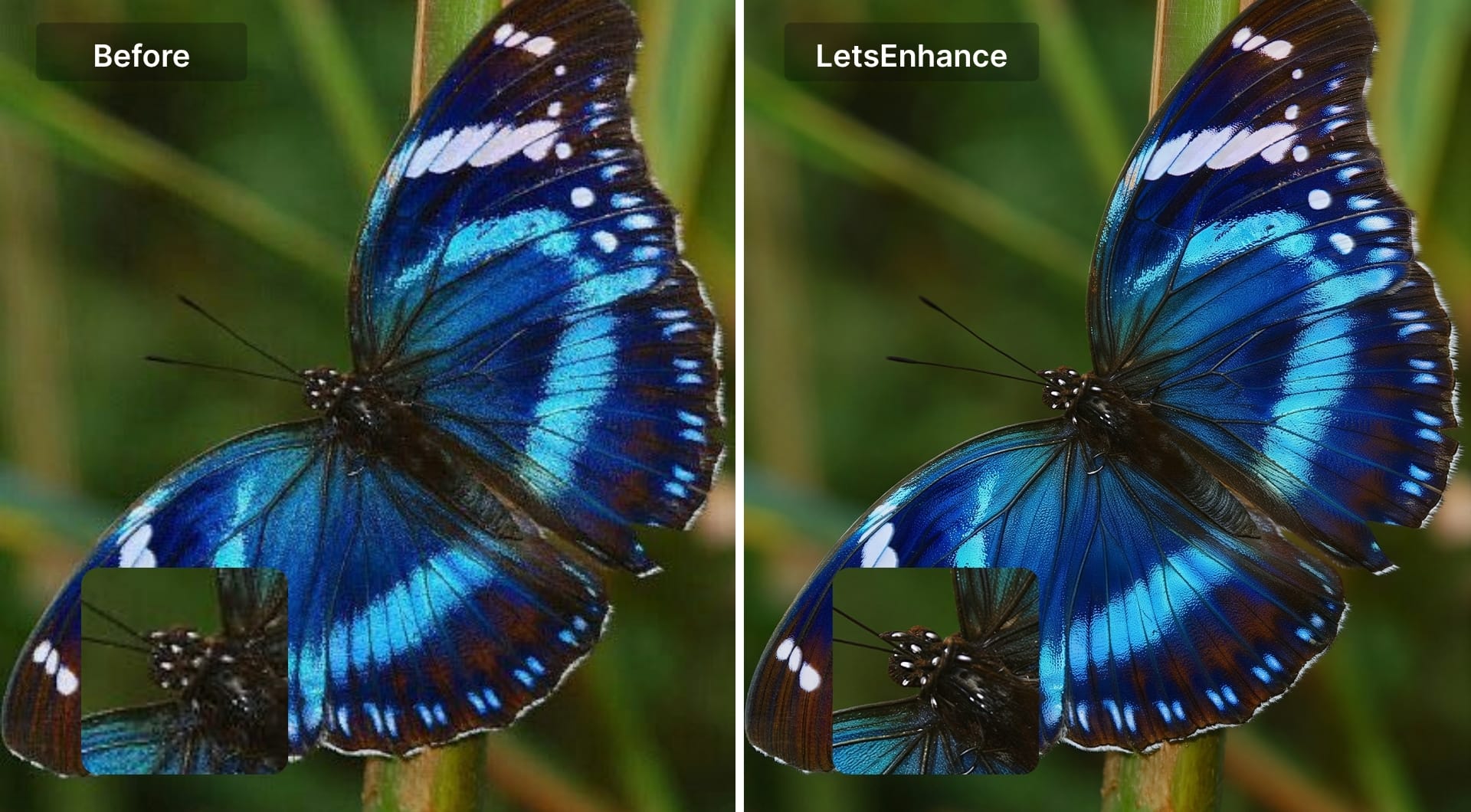
In our test, LetsEnhance produced the sharpest result. Individual wing scales are clearly defined, the venation pattern across both wings is precise, the iridescent blue-to-teal gradient is preserved with depth, and the antenna strands are sharp to the tip. The surface texture of the wings looks genuinely photographic instead of being smoothed or painted. For print use, LetsEnhance also includes 300+ DPI output control and built-in printing presets for common formats (posters, photo sizes, international paper), so you can go straight from a low-resolution source to a print-ready file.
Choosing the right model matters. Prime is best for photographic content where natural texture and high fidelity matter most (skin, fur, feathers, fabric). Strong and Ultra push reconstruction harder for more degraded sources. Digital Art preserves the stylistic qualities of illustrations and AI-generated content. Gentle is best for product shots, UI screenshots, and images with text. Old Photo handles scans, restoration, and vintage prints.
Pros
- Recovers micro-detail and texture faithfully
- Seven specialized models for different content types
- 300+ DPI output and printing presets for print-ready files
- Scale from 1x to 16x, or set exact pixel dimensions
- Browser-based, no installation. Works on any device
- Batch processing for up to 20 images at once
- Offers API via Claid.ai for upscaling images at scale
Cons
- No offline mode (requires internet connection).
- Continuous or extensive use requires a paid subscription.
- Less granular control and fewer custom settings for expert editors.
Pricing
10 free credits on sign-up. Plans from $9/month, pay-as-you-go bundles also available.
#2 Topaz Gigapixel (best for professional photographers)
Topaz Gigapixel is a desktop upscaler built for photographers who work with high-quality camera files and need reliable, print-grade output. It runs locally on Windows and macOS using your GPU, which means no uploads, no file size limits, and processing speeds that scale with your hardware. It integrates as a plugin for Lightroom and Photoshop.
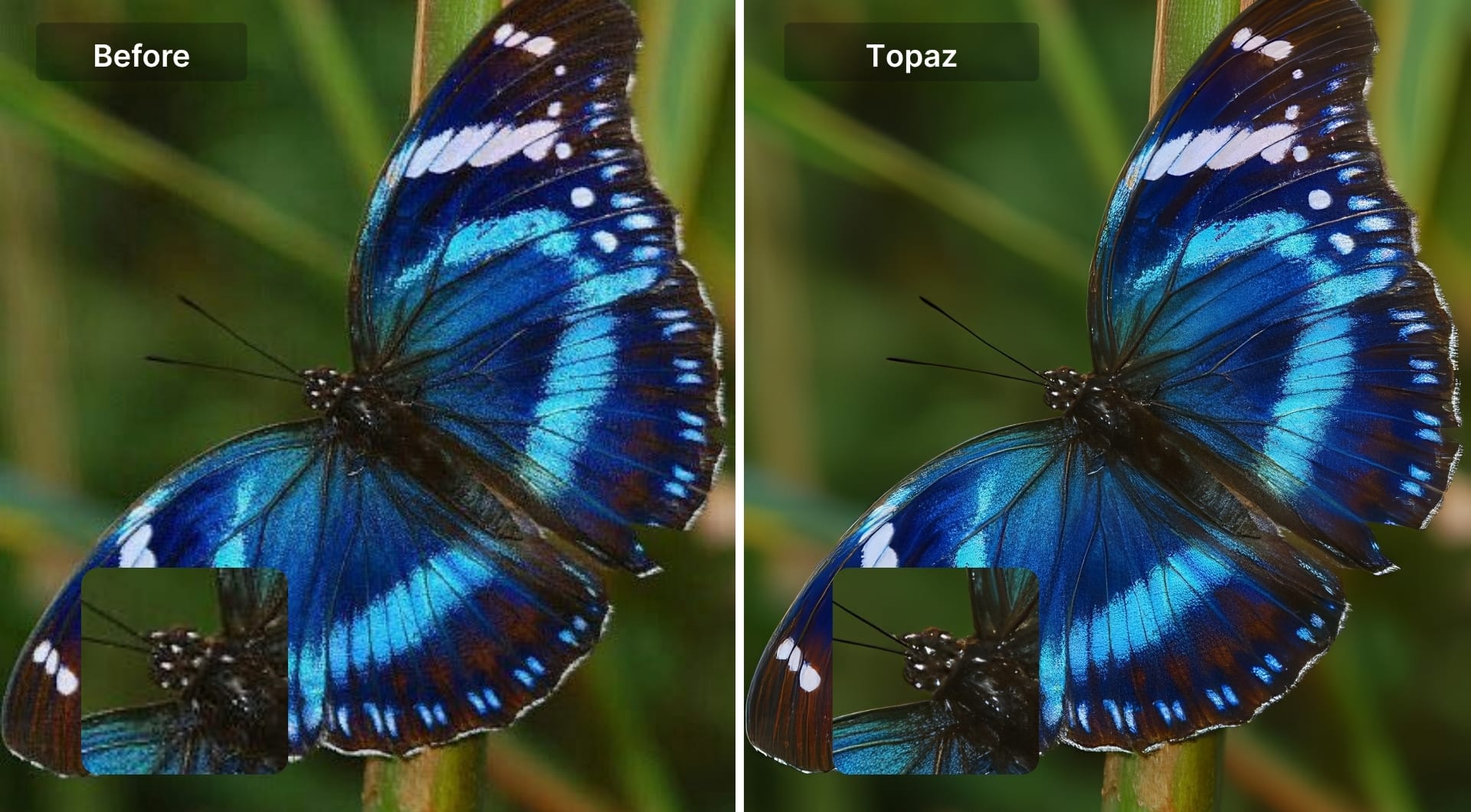
In our test using the Low Resolution V2 model at 4x, the result was very good overall. Wing structure is clear, the blue tones are well-preserved, and the background bokeh stays natural. Under close inspection, the body and head area of the butterfly are slightly softer than LetsEnhance. For most viewing distances and use cases, this is an excellent result. It only falls short when you zoom in and compare directly.
Pros
- Among the highest quality upscalers for real world photography
- Fully local processing: no uploads, full privacy
- Plugin support for Lightroom and Photoshop
- Nine AI models for different content types
- Unlimited local rendering on subscription plans
Cons
- Desktop-only and requires installation and capable hardware
- Low Res V2 model shows softness on fine detail under zoom
- Subscription-only and no longer available as a one-time purchase
- Higher cost than web tools for occasional use
- Workflow is richer than a one click web upscaler, so there is a learning curve
Pricing
Topaz Studio from $33/month ($399/year). Studio Pro from $67/month ($799/year).
#3 VanceAI (good overall, slightly smoothed under zoom)
VanceAI covers upscaling, denoising, face enhancement, and restoration in both a web tool and a Windows desktop app. Online it supports up to 8x upscaling with model options for photos, anime, and text. The desktop version goes further, with claims of up to 40x for specific use cases.
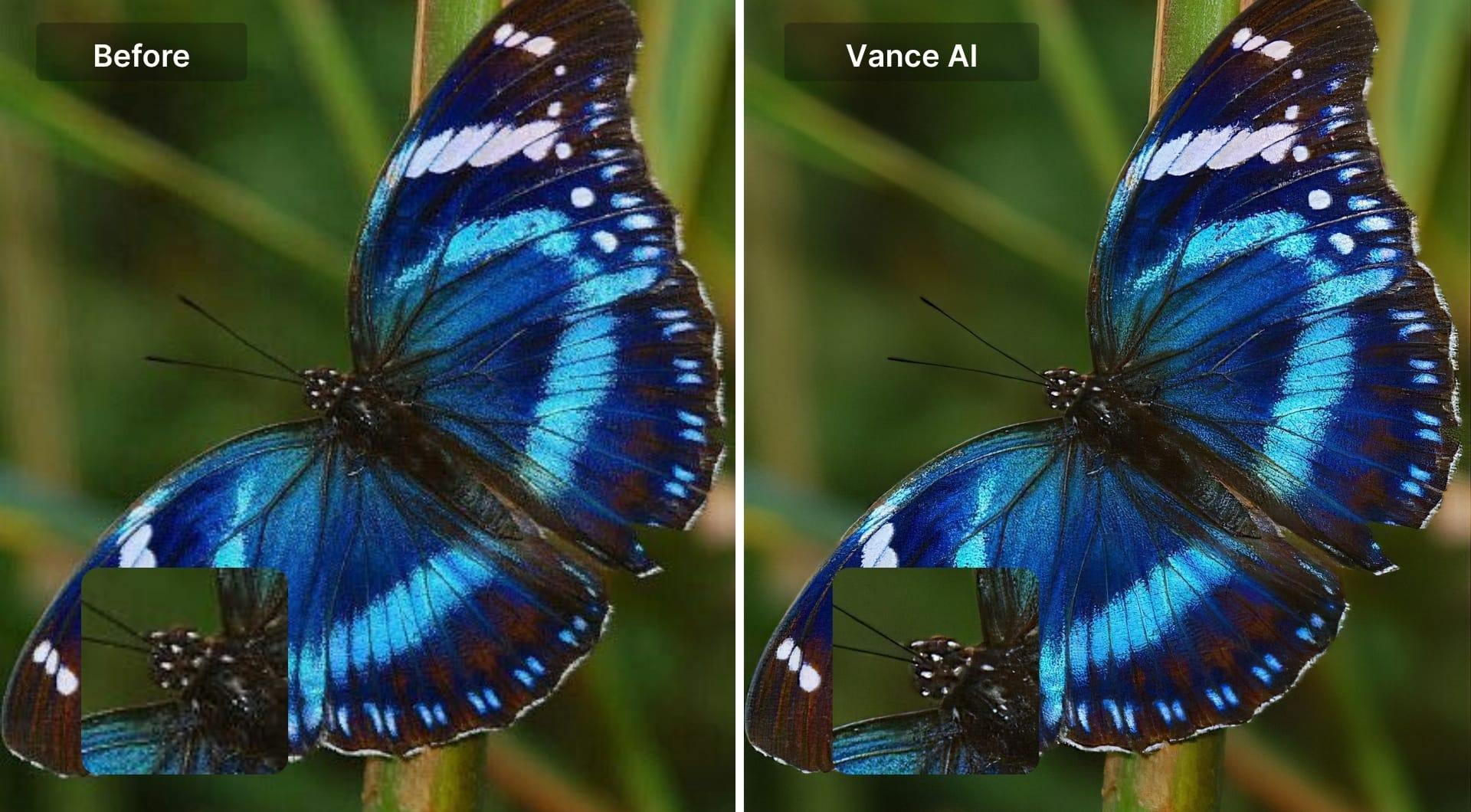
In our test, the overall improvement was clearly visible and genuine. Pixelation is gone, wing shape is well-defined, color is broadly accurate. Under close inspection, the wing surface texture and head read as slightly smoother than LetsEnhance or Topaz, and the structural feel of the iridescent areas is a little flatter. For web use and viewing at normal sizes, the result is perfectly usable. For print where the output will be examined closely, the detail ceiling is lower.
Downloads on the free tier may be watermarked depending on plan, so always check before committing.
Pros
- Among the strongest tools for enhancing AI generated images
- Can turn small AI thumbnails into huge, sellable art prints
- Available on both web and desktop
- Wide scaling range up to 8x online
- Dedicated models for anime and illustrations
Cons
- Less suitable for cases where fidelity is critical as dine textures get slightly smoothed
- Free tier limits and watermarks vary by plan
- Desktop extreme scaling is slow and hardware dependent
- Expensive relative to more traditional upscalers
- Overkill if you just need faithful 2x or 4x photo upscaling
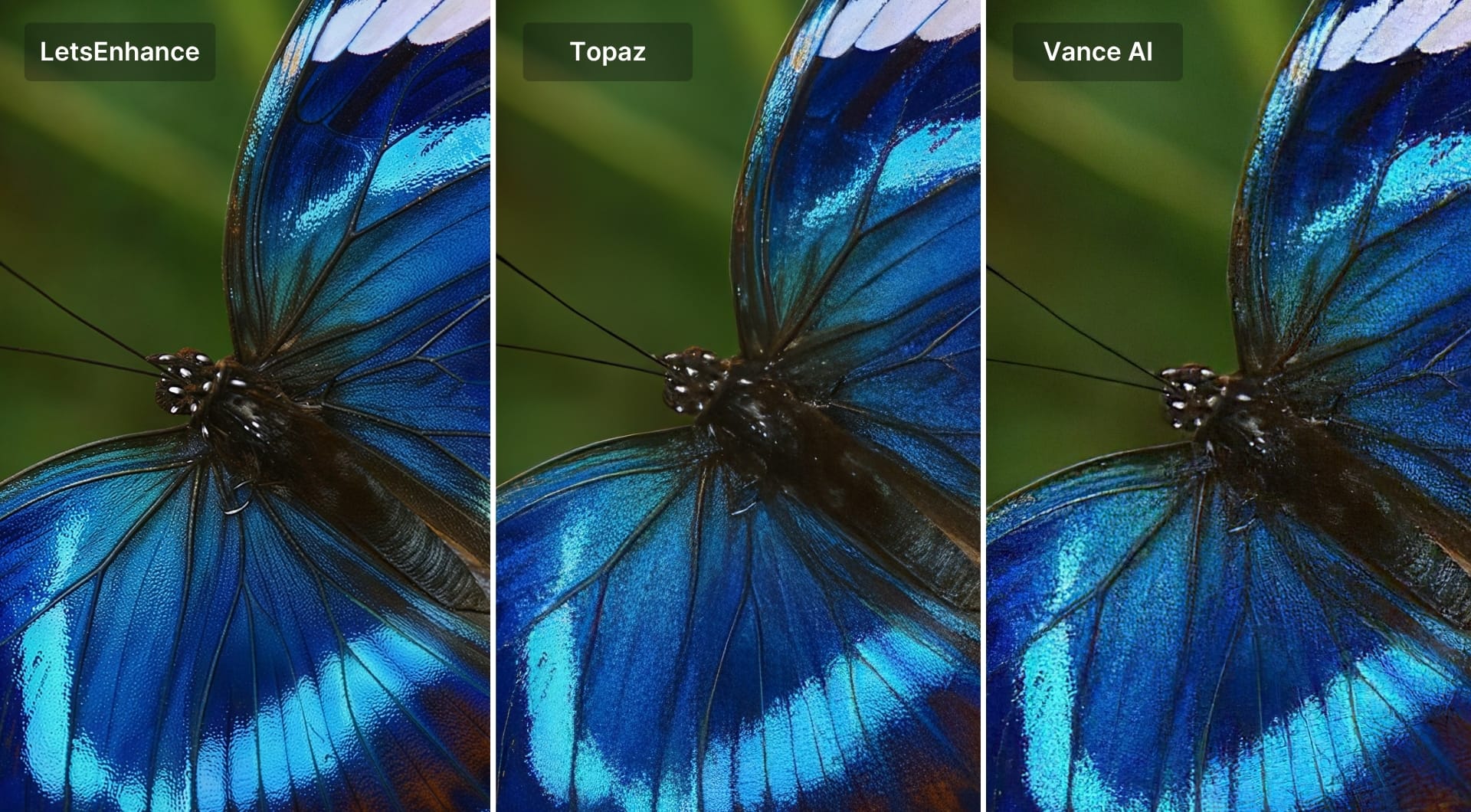
Here is the side-by-side comparison of the same image processed by the first three best AI upscalers: LetsEnhance, Topaz and Vance AI. The difference becomes clear under close examination when you expect more sharpness around fine textures. Otherwise, all tools deliver decent quality.
#4 Upscayl (best free option)
Upscayl is a free, open-source desktop upscaler that runs locally on Windows, macOS, and Linux. It uses Real-ESRGAN and related models under the hood, and because everything runs on your machine, there are no watermarks on the final output, just the Upscayl logo badge in the corner of free downloads. No uploads, no file size limits beyond your hardware, and no subscription required.
In our test, Upscayl delivered one of the strongest results in this comparison. Wing venation is well-defined and the blue tones are vivid and natural. Fine surface texture on the wings isn't quite at LetsEnhance's level, but for a free tool, the quality is pretty decent.
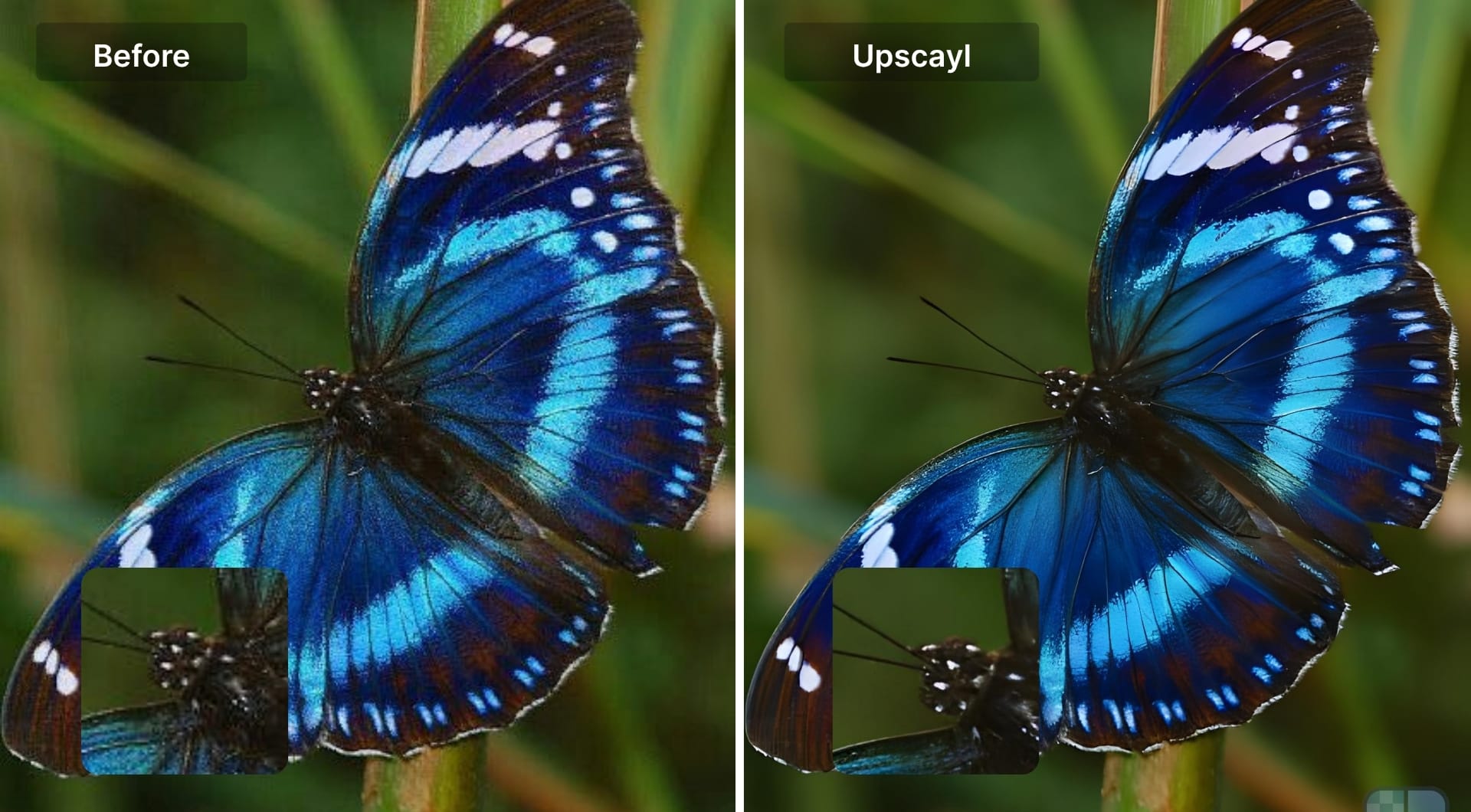
If you're privacy-sensitive, on a tight budget, or just want a capable local upscaler without ongoing costs, Upscayl is the clear recommendation.
Pros
- Completely free with no subscription, no credits, no watermark on output
- Fully local, no uploads, full privacy
- One of the best free results in this comparison
- Good model variety including options for anime and photos
- Cross-platform: Windows, macOS, Linux
Cons
- Faces can look odd compared with specialized portrait tools
- Requires a half decent GPU for fast processing
- Interface and model naming can feel technical to non experts
- Fine micro-texture falls slightly short of premium paid tools under zoom
Pricing
100% free
#5 HitPaw FotorPea (very good desktop result, natural texture)
HitPaw FotorPea is a desktop AI enhancer for Windows and macOS that pushes resolutions to 4K, 8K, and beyond. It combines upscaling with denoising, colorization, and restoration, and is part of a broader HitPaw ecosystem that also covers video enhancement.
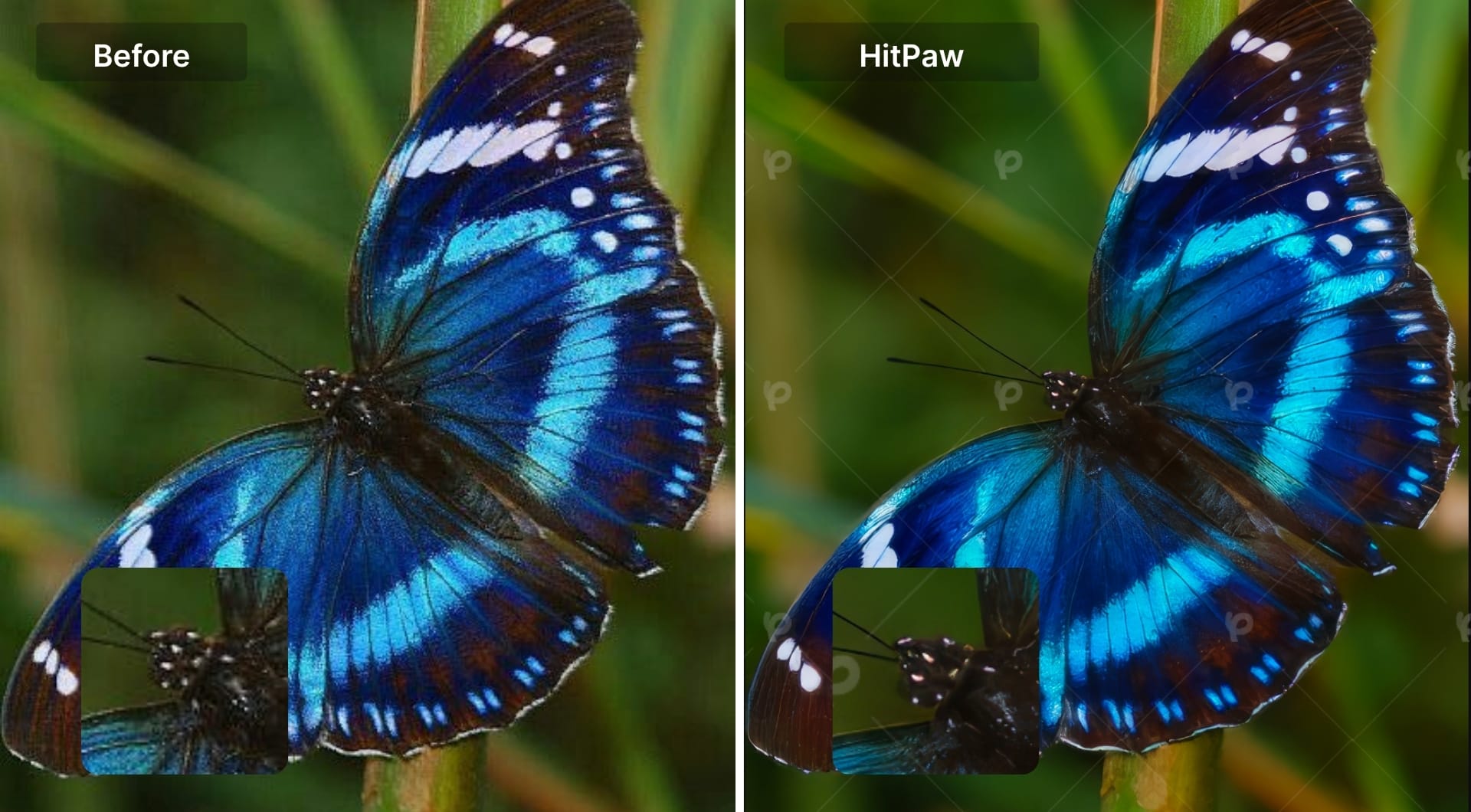
In our test, HitPaw produced a very good result. The overall pixelation is clearly gone, wing detail is well-recovered, and the color feels accurate without over-saturation. Free tier downloads include a watermark, so you'll need a paid plan or trial to use the output in a real project.
Pros
- Natural texture with no over-processing
- Very high resolution options up to 8K and beyond
- Combines upscaling with restoration, colorization, and denoising
- Good fit if you already use HitPaw for other media tasks
Cons
- Watermarked downloads on free tier
- Desktop-only and requires installation
- Less independently benchmarked than Topaz or LetsEnhance
Pricing
Free with watermark. Desktop subscription from ~$21.99/month. Perpetual license ~$129.99.
#6 ON1 Resize AI (decent quality, best 30-day free trial
N1 Resize AI is a desktop upscaler built specifically for photographers who print large. It includes print-oriented tooling, margins, tiling, output sharpening, and presets for common paper sizes, alongside super resolution upscaling up to 10x. The standout practical advantage is the 30-day free trial with no watermarks and no restrictions, which gives you meaningful time to evaluate the quality before paying.
In our test, the result is good at normal viewing sizes. Under zoom, the iridescent blue areas look more uniform and the surface has a slightly painted quality compared to the top tools. There's a visible AI interpretation look that may not suit documentary or client work where strict fidelity is required.
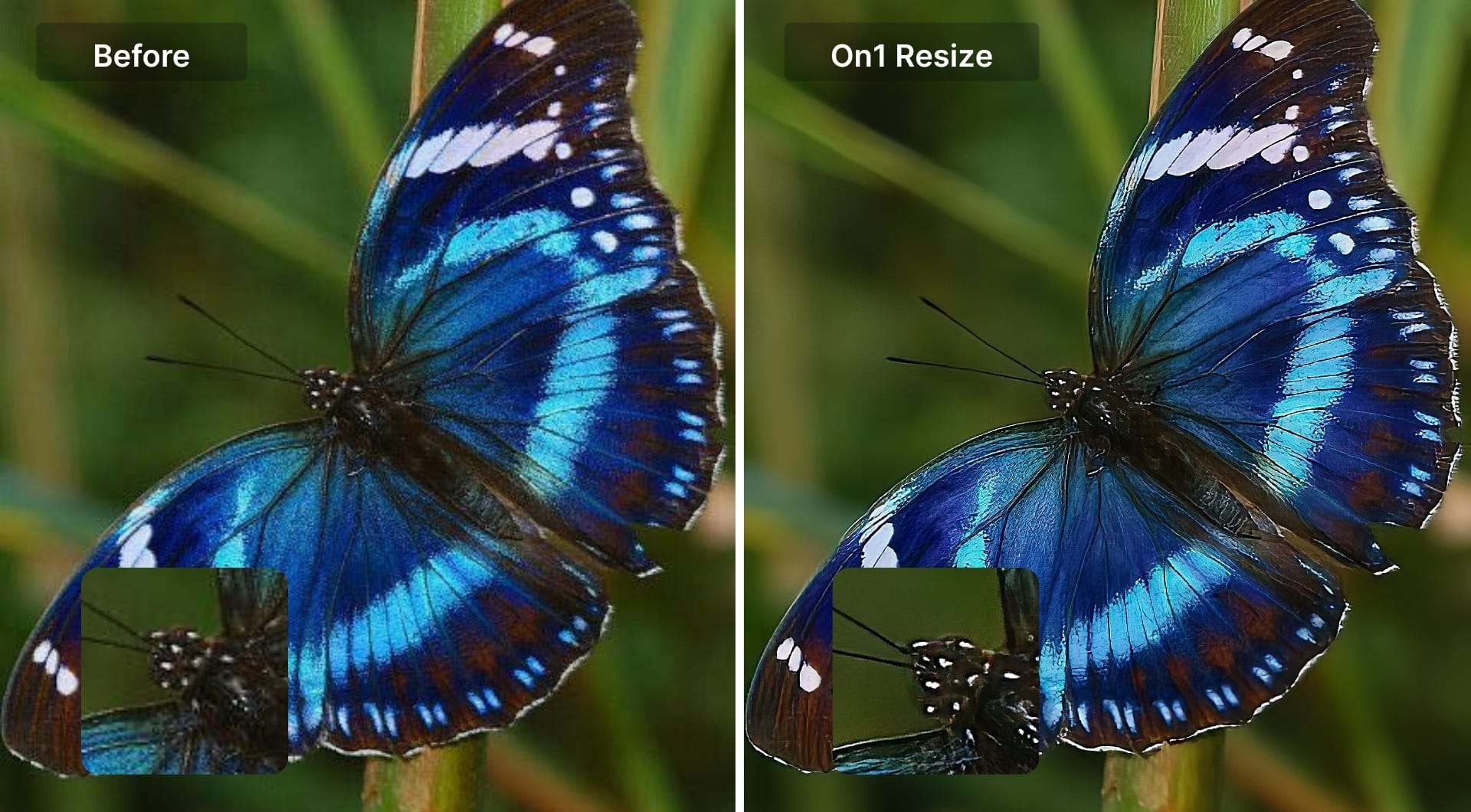
For anyone who needs a print-ready upscaler and wants to evaluate it properly before committing, the 30-day full-access trial makes ON1 worth testing.
Pros
- 30-day free trial with no watermarks and full access
- Print-specific tools: margins, paper presets, output sharpening
- Custom width/height output dimensions
- Perpetual license available without requiring ongoing subscription
Cons
- Visible AI interpretation in fine details
- Desktop-only, requires download and installation
- Interface can feel heavier than simple web upscalers
- Mostly aimed at photographers, not AI art or social media users
Pricing
30-day free trial. Standalone license from ~$50–$120 depending on version.
How to choose
For the best quality overall: LetsEnhance. The sharpest result in this test, with the widest model selection and the only tool with built-in print presets and DPI control. Starts with 10 free credits.
For professional photographers with RAW files: Topaz Gigapixel. Local processing, Lightroom/Photoshop integration, and reliable results on camera files. Falls short of LetsEnhance under close zoom.
For free use: Upscayl. The strongest free result in this comparison. No watermarks, no uploads, works offline.
For evaluating before buying: ON1's 30-day unrestricted trial is the most generous in this comparison. Good for photographers who want to test print-specific workflows before committing.
For desktop high-resolution output: HitPaw FotorPea delivers natural texture and competes with Topaz. Practical choice if you also need restoration or colorization in the same workflow.
For ecommerce and API at scale: Claid.ai is built by the same team as LetsEnhance on the same AI. Plus, you'll get a full product workflow and API for catalog-scale operations.
FAQ
What is the best AI image upscaler in 2026?
For most use cases (photos, product shots, AI art, old scans, and print-ready files) LetsEnhance is the strongest all-round option. For photographers working with RAW files on desktop, Topaz Gigapixel is the benchmark. For free use, Upscayl is the clear pick.
What is the best AI image upscaler for printing large photos?
For large prints, you need a tool that supports high megapixel outputs (100MP+) to maintain 300 DPI. LetsEnhance is currently the leader here, supporting up to 500MP, which allows for billboard-sized prints without pixelation.
Is there a free AI image upscaler without watermark?
Upscayl is the best free, open-source option that doesn't watermark images. However, it requires a capable computer to run locally. Most cloud-based free tools impose watermarks or strict size limits.
Which AI upscaler is best for AI art (Midjourney/Stable Diffusion)?
LetsEnhance's Digital Art model is tuned for illustrations, AI-generated content, and anime. It preserves stylistic qualities rather than pushing the image toward photorealism.
Does upscaling improve text in images?
It depends on the model. Standard upscalers often distort text. Tools like LetsEnhance and Claid have specific text-preservation models (Prime) designed to keep logos and fonts crisp.
Can AI upscalers fix badly compressed or tiny logos?
AI can clean edges, reduce JPEG blocking, and make logos more legible. Tools like LetsEnhance, Upscayl, and Upscale.media can help with that. But if the original is extremely small or has lost crucial information, you may still need to recreate the logo as vector graphics in tools like Illustrator.
